
Is your computer acting up, shutting down unexpectedly, or refusing to power on? Your power supply unit (PSU) might be the culprit.
Troubleshooting your PSU can seem tricky, but with the right approach, you can quickly identify and fix common problems. Whether you’re facing random shutdowns, strange noises, or system instability, understanding how to check your PSU step-by-step can save you time, money, and frustration.
In this guide, you’ll learn simple yet effective ways to diagnose your power supply issues and get your system running smoothly again. Ready to take control of your PC’s power? Let’s dive in and uncover what’s really going on with your PSU.

Credit: www.youtube.com
Basic Psu Checks
Basic PSU checks are the first step in troubleshooting power supply issues. These simple tests help identify common problems quickly. They save time and avoid unnecessary repairs or replacements.
Start with easy steps to confirm the power supply unit works properly. This section covers essential checks anyone can perform safely at home.
Test Power Source
Plug the PSU power cable into a known working outlet. Avoid using extension cords or power strips. Test different wall sockets to rule out outlet issues. A stable power source is vital for PSU operation.
Check Psu Switch
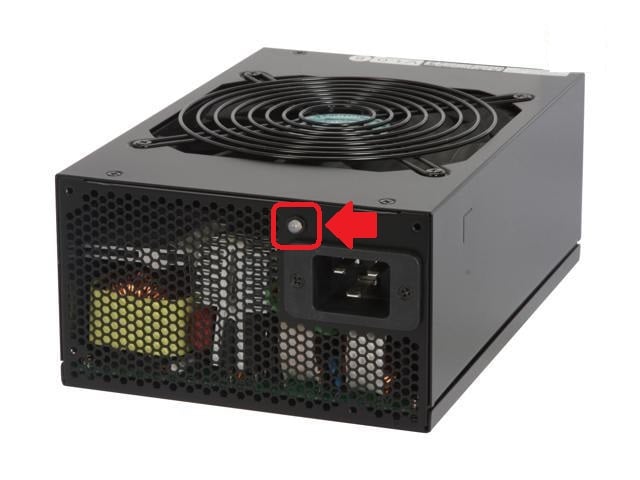
Locate the power switch on the back of the PSU. Make sure it is in the “on” position. Sometimes the switch is accidentally turned off. The PSU will not power up without it.
Inspect Power Cables
Examine all cables connected to the PSU. Look for cuts, frays, or damage to insulation. Ensure connectors fit tightly into the motherboard and other components. Loose cables cause power loss and hardware failure.
Listen For Unusual Noises
Turn on the PC and listen near the PSU. Strange buzzing, clicking, or grinding sounds may indicate a failing unit. A healthy PSU runs quietly or with a soft fan sound. Noise signals mechanical or electrical problems.
Clear Dust And Debris
Unplug the power supply and open the case. Use compressed air to remove dust from vents and fan blades. Dust blocks airflow and causes overheating. Keeping the PSU clean helps maintain stable power delivery.
Signs Of Psu Problems
Power Supply Unit (PSU) problems can cause various issues in your computer. Recognizing the signs early helps prevent damage to other parts. Watch for unusual behaviors that signal PSU failure.
Random Shutdowns
Your computer turns off without warning. This often points to PSU problems. The power supply may fail to deliver consistent voltage. Sudden shutdowns can cause data loss and hardware damage. Check if the shutdowns happen during heavy use or randomly.
System Instability
Frequent crashes and error messages can mean PSU issues. The system may freeze or restart unexpectedly. A weak or failing PSU can cause blue screens or program errors. Stability problems often increase with power demand.
Unusual Electrical Noises
Listen for buzzing, clicking, or whining sounds from the PSU. These noises might indicate failing components inside the power supply. Electrical noise can also come from loose parts or coil whine. Ignoring these sounds can lead to full PSU failure.
Overheating Issues
The PSU gets very hot during normal use. Overheating reduces the power supply’s lifespan. Dust buildup or a broken fan can cause heat problems. Overheating may trigger automatic shutdowns to protect the hardware.
Advanced Psu Testing
Advanced PSU testing helps identify hidden power supply issues. It goes beyond simple visual checks or basic troubleshooting steps. These tests ensure the PSU delivers stable power and works safely.
Using advanced methods reduces guesswork. It saves time and prevents damage to other computer parts. The following techniques are practical and easy to perform with minimal tools.
Paperclip Jumper Test
The paperclip jumper test forces the PSU to start without a motherboard. This test checks if the power supply fan spins and outputs power.
To perform this test, unplug the PSU from all components. Find the 24-pin connector and insert a paperclip between the green wire and any black wire. Then, plug in the PSU power cable and switch on the PSU.
If the fan starts spinning, the PSU powers on. No fan means the PSU has a problem. This test does not check voltage quality but confirms power delivery.
Using A Psu Tester
A PSU tester is a small device that connects to PSU cables. It shows voltage readings for each rail. This helps verify if the PSU outputs correct voltages.
Connect the 24-pin, 4/8-pin CPU, and other power cables to the tester. Power on the PSU and read the display. Voltages should be within standard ranges: 3.3V, 5V, and 12V rails.
Abnormal readings indicate voltage instability or PSU failure. This method gives more detailed information than the paperclip test.
Component Isolation Method
This method identifies if other parts cause power issues. Disconnect all hardware except the PSU, motherboard, and CPU. Use minimal components for testing.
Power on the system and observe behavior. If the system runs fine, reconnect components one by one. Watch for failures or restarts after adding each part.
This isolates faulty hardware that may seem like PSU problems. It ensures the PSU is not blamed for other issues.

Credit: www.dell.com
Common Psu Issues
Power Supply Units (PSUs) are vital for computer health and performance. Common PSU issues can cause system crashes, restarts, or failure to power on. Identifying these problems early saves time and prevents damage to other components. Understanding the typical faults helps in quick troubleshooting and repair.
Power Failure
Power failure is a frequent issue with PSUs. The unit may stop supplying power completely or intermittently. This can result from internal component damage or external power source problems. Checking the power cable and outlet helps rule out simple issues. Persistent power failure usually requires PSU replacement or repair.
Voltage Fluctuations
Voltage fluctuations cause instability in computer operation. The PSU may deliver inconsistent voltage levels to the components. This leads to unexpected shutdowns or freezes. Causes include poor electrical wiring or a failing PSU. Using a multimeter can help detect voltage irregularities during troubleshooting.
Faulty Wiring
Faulty wiring inside or outside the PSU creates connection problems. Loose or damaged cables reduce power delivery or cause shorts. This can damage the PSU or connected hardware. Inspect all cables for wear and secure connections firmly. Replace any frayed or broken wires to ensure safety and performance.
Overload Protection
Overload protection safeguards the PSU from excess current draw. If the system demands more power than the PSU can provide, it shuts down to prevent damage. Frequent overload triggers indicate insufficient PSU capacity or hardware issues. Upgrading to a higher wattage PSU or reducing the load may resolve this problem.
When To Replace Psu
Knowing when to replace your Power Supply Unit (PSU) is key to keeping your computer safe and running well. A failing PSU can cause many problems, from sudden shutdowns to hardware damage. Watch for clear signs that your PSU is no longer reliable. Acting early can save you from bigger issues later.
Some signs are easy to spot. Others need simple tests or careful listening. Use these tips to decide if it is time for a new PSU.
Failing Jumper Or Tester Checks
Use a PSU tester or jumper method to check your power supply. If the PSU fan does not spin or the tester shows errors, the unit may be faulty. These tests help confirm if the PSU delivers power correctly. Failure in these tests means replacement is needed.
Crashes Under Load
When your computer crashes or shuts down during heavy use, it often points to PSU trouble. The unit may not provide enough power under stress. Games, video editing, or other tasks can reveal this issue. If crashes happen only when the system is busy, consider replacing the PSU.
Aging Or Low-quality Units
PSUs lose strength over time. Older models or cheap brands may fail faster. If your PSU is over five years old or was low quality at purchase, it might not support new hardware well. Upgrading to a newer, better PSU improves stability and safety.
Persistent Noise Or Smell
Strange sounds like buzzing or clicking from the PSU are warning signs. A burning smell or heat means internal damage. These issues can cause serious failures or fire risk. Do not ignore noise or smell. Replace the PSU immediately to protect your PC.
Quick Fix Tips
Troubleshooting a power supply unit (PSU) can seem difficult. Quick fixes often solve many common problems. These tips save time and avoid unnecessary repairs. Follow simple steps to check and fix your PSU.
Secure Loose Connections
Loose cables cause power issues and random shutdowns. Check all connections inside the computer. Make sure the power cable is firmly plugged into the PSU. Tighten any loose connectors on the motherboard and devices. A secure connection helps the PSU work properly.
Swap Power Cables
Damaged or faulty power cables block electricity flow. Use a different cable to test the PSU. Swap the cable with one from a working device. This step helps find if the cable causes the problem. Replace damaged cables to restore power supply.
Use Surge Protectors
Power surges can damage your PSU quickly. Plug your computer into a surge protector. Surge protectors guard against voltage spikes. They extend the life of your PSU. Avoid plugging directly into the wall outlet without protection.
Keep Psu Ventilated
Heat causes PSU failures and shutdowns. Make sure the PSU fan is clean and working. Keep vents clear of dust and blockages. Place your computer in a cool, open area. Good airflow prevents overheating and improves PSU performance.
Credit: support.redbirdflight.com
Frequently Asked Questions
How To Troubleshoot A Power Supply Unit?
To troubleshoot a power supply unit, check the power cable and outlet first. Ensure all connections are secure. Inspect for overheating or damage. Test the PSU using a paperclip method or a PSU tester. Listen for unusual noises or smells.
Replace the PSU if problems persist.
What Is The Most Common Problem With The Power Supply?
The most common power supply problem is power failure due to faulty wiring, overheating, or voltage inconsistencies.
How To Tell If A Power Supply Unit Is Bad?
Signs of a bad power supply include random shutdowns, system instability, unusual noises, and failure to power on. Test with a PSU tester or paperclip jump-start. Check all cables and power sources first. Replace the PSU if problems persist after testing.
How Do I Force A Psu To Turn On?
To force a PSU to turn on, unplug it and use a paperclip to short the green and black wires on the 24-pin connector. This jump-starts the PSU fan, indicating power flow. Ensure the PSU switch is on and cables are secure before testing.
What Are Common Signs Of A Failing Power Supply Unit?
A failing PSU may cause random shutdowns, restarts, or system crashes. You might also hear unusual noises or notice electrical smells.
Conclusion
Troubleshooting a power supply unit takes patience and careful checks. Start by testing power cables and outlets for proper connection. Listen for unusual noises and watch for sudden shutdowns. Use simple tools like a PSU tester or the paperclip method to verify function.
Swap your PSU with a known good one to confirm issues. Regular maintenance helps prevent common problems like overheating or loose wiring. Following these steps saves time and avoids costly repairs. Keep your power supply healthy for a stable and reliable computer system.



