
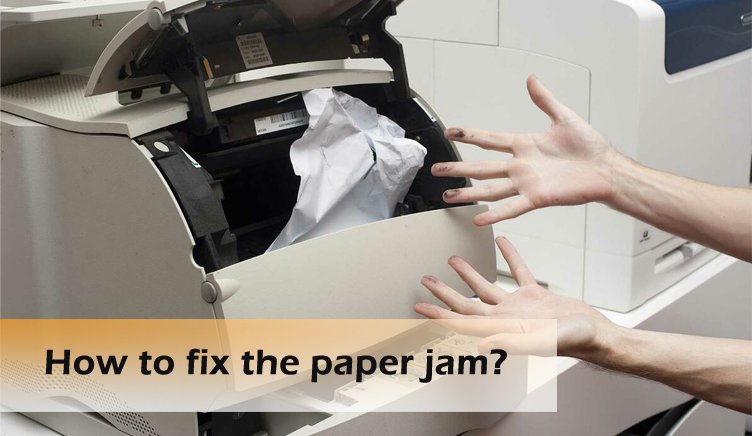
Nothing disrupts your workflow like a printer paper jam. One moment you’re ready to print, and the next, your printer halts with a frustrating error message.
If you’ve ever stared at your machine wondering why it insists there’s a jam when you can’t see any paper stuck inside, you’re not alone. Understanding the common causes behind paper jams and knowing how to quickly fix them can save you time and stress.
In this guide, you’ll discover simple, effective troubleshooting steps to get your printer back on track—whether it’s a hidden scrap of paper, dirty rollers, or misaligned guides causing the problem. Keep reading to take control of your printer and stop paper jams from slowing you down.
Credit: www.v4ink.com
Common Causes
Paper jams can stop your printing tasks abruptly. Understanding common causes helps fix jams fast. This section covers typical reasons for jams. Knowing these can prevent repeated issues and save time.
Blocked Sensors
Printers use sensors to detect paper movement. Dust or tiny paper bits can cover these sensors. This makes the printer think paper is stuck. Some sensors are small levers that may get stuck. Cleaning sensors often clears false jam signals.
Worn Rollers
Rollers pull paper from the tray into the printer. Over time, rollers get dirty or lose grip. Dirty rollers fail to feed paper correctly. The printer then thinks paper is jammed. Cleaning or replacing rollers restores smooth paper feeding.
Misaligned Paper Guides
Paper guides hold paper in place inside the tray. If guides are too loose or tight, paper feeds incorrectly. This misalignment causes paper to skew or jam. Adjusting guides to fit paper snugly prevents feeding problems.
Hidden Debris
Small scraps of paper or staples can get stuck inside the printer. These hidden bits block the paper path. Even tiny debris triggers jam errors. Inspecting and removing debris from inside the printer clears jams.
Credit: www.youtube.com
Initial Checks
Before diving into complex fixes, start with initial checks. These basic steps often resolve paper jam issues quickly. A calm, systematic approach saves time and frustration. Follow these simple checks to identify and clear common problems.
Power Cycle And Reset
Turn off your printer completely. Unplug it from the power source. Wait for about one to two minutes. Plug the printer back in and turn it on. This resets the printer’s internal system. It clears minor errors and resets sensors. Many jams clear after this simple step.
Inspect Paper And Guides
Open the paper tray and remove all sheets. Fan the stack gently to separate the papers. Check for any folded or curled sheets. Place the paper back, aligning it properly. Adjust the paper guides snugly against the stack. Guides too loose or tight can cause jams. Proper alignment helps smooth paper feeding.
Look For Torn Pieces
Paper scraps often hide inside the printer. Open all accessible covers and compartments. Use a flashlight to spot small torn pieces. Remove any bits carefully using tweezers or fingers. Even tiny scraps can trigger jam errors. Clear all debris before closing the printer.
Cleaning Steps
Cleaning your printer is a simple way to fix paper jams. Dirt and small scraps can block the paper path. Dust on sensors or rollers stops the printer from working well. Regular cleaning keeps your printer running smoothly. Follow these steps to clean key parts inside your printer.
Clean Optical Sensors
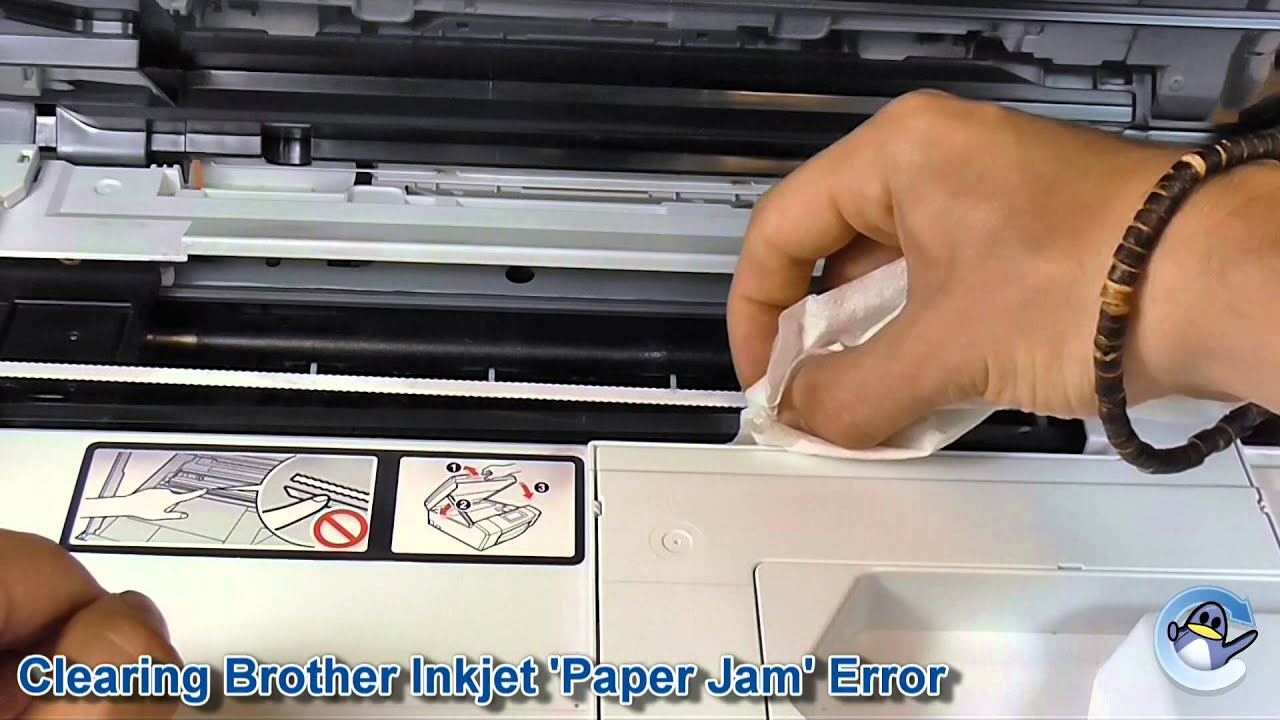
Optical sensors detect paper inside the printer. Dust or tiny paper bits can cover sensors. Use a soft, lint-free cloth to wipe them gently. Avoid using liquids on sensors. Make sure sensors are dry and free of dirt. Clean sensors help the printer know when paper moves.
Wipe Feed Rollers
Feed rollers pull the paper into the printer. Over time, rollers get dirty or lose grip. Dampen a cloth with water and wipe the rollers. Turn rollers slowly to clean all sides. Dry rollers before closing the printer. Clean rollers feed paper smoothly without slipping.
Remove Tiny Paper Scraps
Small paper pieces can get stuck deep inside. These scraps block the paper path and cause jams. Use a flashlight to look carefully inside. Remove any visible scraps with tweezers or fingers. Check near sensors and rollers for hidden bits. Clear paper scraps stop false jam errors.

Credit: neo-online.co.uk
Paper Handling Tips
Proper paper handling plays a big role in avoiding printer paper jams. Simple habits can keep your printer running smoothly. Treat your paper stack with care before loading it. These tips help reduce paper jams and improve print quality. Follow these steps to keep your printer happy and working well.
Use Correct Paper Type
Choose paper that matches your printer’s specifications. Thin or thick paper can cause jams. Avoid using damaged or curled sheets. Plain, smooth paper usually works best. Using the right paper helps the printer feed sheets easily.
Avoid Overloading Trays
Do not fill the paper tray beyond its limit. Overloaded trays cause paper to stick together. This leads to feeding errors and jams. Load only the recommended number of sheets. Keep the stack neat and flat for smooth printing.
Fan Paper Stack
Before loading, fan the paper stack gently. This separates the sheets and removes static cling. It helps the printer pick one sheet at a time. Fanning paper reduces the chance of multiple sheets feeding together. This small step can prevent many jams.
Firmware And Software
Firmware and software play a key role in printer performance and troubleshooting. They control how the printer processes tasks and communicates with your computer. Outdated firmware or software can cause errors like paper jams. Keeping them updated ensures smooth operation and fewer issues.
Check For Firmware Updates
Printer manufacturers release firmware updates to fix bugs and improve performance. These updates often resolve paper jam errors caused by software glitches. Visit your printer’s official website to find the latest firmware version. Follow the instructions to download and install updates. Regular updates keep your printer running efficiently.
Use Printer Diagnostic Tools
Many printers include built-in diagnostic tools to identify problems. These tools scan for issues such as paper jams or sensor errors. You can access diagnostics through the printer’s control panel or software on your computer. Running these tests helps pinpoint problems quickly. Fixes suggested by diagnostics save time and avoid guesswork.
When To Seek Help
Sometimes, printer paper jams go beyond simple fixes. Knowing when to seek professional help saves time and prevents damage. This section highlights signs and issues that need expert attention. Recognize these problems early to avoid costly repairs.
Signs Of Sensor Damage
Sensors detect paper movement inside the printer. If these sensors fail, false jam errors occur. Look for constant jam messages without visible paper stuck. Printer may stop working or print blank pages. Sensor damage often needs specialized tools to diagnose. Attempting repairs without knowledge can worsen the problem.
Complex Hardware Issues
Paper jams can arise from broken rollers or misaligned components. Strange noises or paper feeding unevenly signal hardware trouble. Internal gears or belts may wear out or break over time. Such problems require disassembly and part replacement. Professionals have the right parts and skills to fix these. Avoid forcing parts, as this causes more damage.
Frequently Asked Questions
Why Does My Printer Keep Saying Paper Jam When There Is No Paper Jam?
Your printer may show a paper jam error due to dirty sensors, worn rollers, misaligned guides, or hidden paper scraps. Clean sensors and rollers, realign guides, and check for small debris inside the printer to fix this issue. Restarting the printer often helps too.
How To Solve Printer Paper Jam Problem?
Turn off the printer and gently remove stuck paper. Check for torn pieces inside. Clean rollers with a damp cloth. Align paper guides properly and avoid overloading the tray. Restart the printer to clear the error.
What Are Two Probable Causes For Printer Paper Jams?
Two probable causes for printer paper jams are dirty or worn rollers and misaligned or overloaded paper trays.
How To Reset Paper Jam On Hp Printer?
Turn off the HP printer and unplug it. Open all covers and carefully remove jammed paper. Clean rollers with a damp cloth. Close covers, plug in, and power on the printer to reset the paper jam error.
What Causes A Printer To Show Paper Jam Without Paper?
A blocked or dirty sensor often tricks the printer into thinking paper is stuck. Worn rollers or hidden paper scraps can also cause false jam errors.
Conclusion
Paper jams can disrupt your printing tasks unexpectedly. Regularly cleaning sensors and rollers helps prevent jams. Always check paper alignment and remove any scraps inside. Power cycling the printer often clears minor errors quickly. Staying patient and methodical solves most paper jam problems.
For stubborn issues, consider professional help to avoid damage. Following these simple steps keeps your printer running smoothly.



