
Is your PS4 controller acting up just when you’re about to dive into your favorite game? It’s frustrating when your controller won’t connect, buttons stick, or the joystick drifts.
But don’t worry—you’re not alone, and most problems are easier to fix than you think. In this guide, you’ll discover simple, step-by-step troubleshooting tips that can get your controller back to perfect working order fast. Whether it’s a quick reset or a deeper fix, you’ll learn how to tackle common issues without spending hours or money on replacements.
Keep reading, and take control of your gaming experience again.
Quick Controller Reset
Sometimes, your PS4 controller may stop working properly. A quick reset often solves many common issues. This simple process clears minor glitches fast. It helps your controller reconnect and respond correctly. Follow these easy steps to reset your controller quickly.
Locate Reset Button
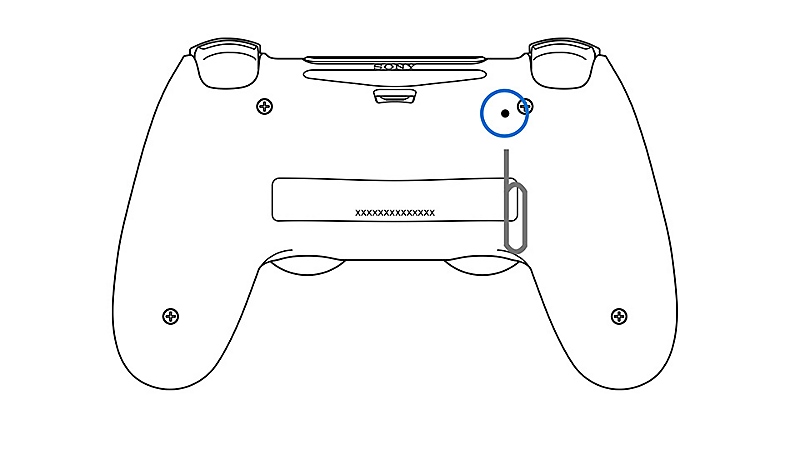
Turn your controller over. Look for a small hole near the L2 button. This is the reset button. You need a thin tool like a paperclip to press it.
Perform Hard Reset
Insert the paperclip into the hole. Press and hold the button inside for about 5 seconds. This resets the controller’s internal settings. Release the button and wait a moment before next steps.
Reconnect Via Usb
Use a USB cable to connect your controller to the PS4. Press the PS button on the controller. This pairs it again with the console. Now, test if the controller works properly.
Battery And Cable Check
Battery and cable issues often cause PS4 controller problems. Checking them first saves time and effort. Start by ensuring the controller battery is fully charged. A low battery may cause the controller to disconnect or behave erratically.
Next, test the USB cable connecting the controller to the console. Faulty cables often cause charging and connection problems. Finally, inspect the controller’s charging port for dirt or damage. A blocked or broken port can stop the controller from charging properly.
Charge Controller Fully
Plug your controller into the PS4 using the original USB cable. Let it charge for at least two hours without interruption. The light bar on the controller will show a slow blinking light while charging. When the light turns off, the controller is fully charged. Avoid using the controller during charging to ensure a full battery.
Try Different Usb Cable
Use another USB cable to connect your controller to the PS4. Some cables only transfer power but not data. A bad cable can prevent the controller from charging or syncing. Test with a cable that works with other devices. This simple step can fix connection problems quickly.
Inspect Charging Port
Look inside the controller’s charging port with a flashlight. Remove any dust or debris gently using a toothpick or soft brush. Check for bent or broken pins inside the port. If the port looks damaged, avoid forcing the cable in. A damaged port may need professional repair to work again.
Bluetooth Re-pairing
Bluetooth re-pairing solves many PS4 controller connection problems. This process resets the wireless link between the controller and console. Re-pairing can fix lag, disconnections, or failure to sync. Follow these simple steps to reconnect your controller via Bluetooth.
Forget Device On Console
Turn on your PS4 and sign in. Go to Settings > Devices > Bluetooth Devices. Find your controller in the list. Highlight it and press the Options button on your controller. Select “Forget Device” to remove it from the console.
Enter Pairing Mode
Turn off the controller by holding the PS button. Press and hold the Share and PS buttons together. Keep holding until the light bar starts flashing rapidly. This means the controller is now in pairing mode.
Reconnect Controller
Back on the PS4, open Bluetooth Devices again. Look for the controller in the device list. Select it to pair. Wait for the light bar to glow steadily. Your controller is now connected and ready to use.
Change Communication Method
Changing the communication method between your PS4 controller and console can resolve many connection problems. Sometimes, Bluetooth may cause lag or disconnections. Switching to a USB connection can provide a more stable link. This section covers how to change communication methods to improve your controller’s performance.
Switch From Bluetooth To Usb
Connect your PS4 controller to the console using a USB cable. This method avoids wireless interference. Use a good quality USB cable for the best results. Once connected, press the PS button on the controller. The console should recognize it immediately. This switch can fix input delays and connection drops.
Adjust Controller Settings
Go to the PS4 main menu and open Settings. Select Devices, then Controllers. Find the Communication Method option. Change it from Bluetooth to Use USB Cable. This forces the controller to work through a wired connection. Wired mode often improves response time and reduces lag. Change back to Bluetooth if you want wireless again later.
Clean Buttons And Components
Cleaning the buttons and components of your PS4 controller can fix many common problems. Dirt and grime often build up over time. This buildup can cause buttons to stick or stop working properly. Regular cleaning keeps your controller responsive and extends its lifespan.
Use Isopropyl Alcohol
Use isopropyl alcohol to clean the buttons safely. Dampen a cotton swab with the alcohol. Gently rub around each button and surface. Alcohol evaporates quickly and removes oils and dirt. Avoid soaking the controller. This method kills germs and improves button response.
Remove Dirt From Crevices
Dirt often hides in small crevices around buttons. Use a toothpick or a soft brush to remove debris. Be gentle to avoid damaging the controller. Clean all edges and gaps where dirt collects. This prevents buttons from sticking and improves overall performance.
Test Button Responsiveness
After cleaning, test each button carefully. Press every button several times to check for proper movement. Notice if any buttons feel sticky or unresponsive. If problems remain, repeat cleaning or consider deeper repairs. Working buttons improve your gaming experience significantly.
Credit: www.playstation.com
Restart Console And Controller
Restarting both your PS4 console and controller often solves many connection and responsiveness problems. This simple step refreshes the system and clears minor glitches that affect gameplay. Follow these easy steps to power cycle your console and reboot your controller. Also, check for firmware updates to keep your devices running smoothly.
Power Cycle Console
Turn off the PS4 by holding the power button until it beeps twice. Unplug the power cable from the console. Wait for at least 60 seconds. Plug the power cable back in and press the power button to turn it on. This process clears temporary errors and resets the system.
Reboot Controller
Press and hold the PS button on your controller until it turns off. If it does not respond, use a paperclip to press the small reset button on the back. Hold the reset button for 5 seconds. Connect the controller to the console using a USB cable. Press the PS button to turn it back on. This helps fix unresponsive or lagging controls.
Check For Firmware Updates
Go to the PS4 main menu and select “Settings.” Choose “System Software Update.” Download and install any available updates. Updates improve controller connectivity and fix bugs. Keep your console and controller software up to date for the best experience.
Address Specific Issues
Addressing specific issues with your PS4 controller helps fix common problems fast. Targeting exact faults saves time and restores gameplay quickly. Below are simple steps for key troubles.
Fix Stuck Buttons Or Sticks
Stuck buttons or analog sticks often result from dirt or debris. Use a soft brush or compressed air to clean around the buttons. Gently move the sticks in all directions to free them. Avoid using too much force to prevent damage. If cleaning fails, try pressing the reset button on the back with a paperclip. This can restore button responsiveness.
Resolve Controller Not Turning On
Check the battery charge first. Connect the controller to the PS4 using a USB cable. Hold the PS button for several seconds to power it on. Replace the USB cable if the controller still won’t turn on. Press the small reset button on the back using a pin. This resets the controller and can solve power issues.
Handle Unresponsive Inputs
Unresponsive inputs often come from software or connection problems. Restart the PS4 and reconnect the controller. Try pairing the controller again via Bluetooth or use a USB cable. Clean the buttons and stick areas with a cotton swab dipped in isopropyl alcohol. Change the communication method to USB in controller settings for a wired connection. These steps restore input function in most cases.

Credit: www.ifixit.com
Safe Mode Troubleshooting
Safe Mode troubleshooting on your PS4 helps fix controller problems quickly. It boots the console with only essential functions. This limits issues caused by software or settings. Using Safe Mode can reset the controller and fix connection errors. Follow the steps below to enter Safe Mode and reset your controller.
Enter Safe Mode On Console
Turn off the PS4 completely by holding the power button. Wait until the system powers down fully. Press and hold the power button again. Keep holding it until you hear two beeps. The first beep sounds right away. The second beep comes after about seven seconds.
Connect your controller to the console using a USB cable. Press the PS button on the controller. The Safe Mode menu will appear on your screen. Use this menu to perform troubleshooting actions safely.
Reset Controller Via Safe Mode
In Safe Mode, select the option to reset the controller. This clears any software glitches in the controller’s connection. Locate the small reset button on the back of your controller. Use a paperclip or similar tool to press it for about five seconds.
After resetting, reconnect the controller with the USB cable. Press the PS button to pair it with the console again. This often resolves issues like unresponsive buttons or connectivity drops. Safe Mode reset gives your controller a fresh start without losing other settings.
Advanced Repairs
Advanced repairs go beyond simple fixes. They involve opening the controller and dealing with its inner parts. This level suits users with some technical skills. It helps solve deep issues that quick fixes cannot.
Inspect Internal Components
Start by carefully opening the PS4 controller. Use the right tools to avoid damage. Look for loose wires, broken solder joints, or dirt. Check the circuit board and buttons closely. Small problems here often cause bigger issues outside.
Replace Faulty Parts
Identify parts that do not work properly. Common parts to replace include buttons, thumbsticks, and battery. Use original or high-quality replacements. Remove the broken parts gently to protect nearby components. Reassemble the controller only after fixing all faults.
Consult Professional Repair Services
Some problems need expert help. Professionals have tools and skills for complex repairs. They can fix deep electrical or hardware issues. Choosing a trusted repair service ensures your controller works well again. It saves time and reduces the risk of further damage.

Credit: www.youtube.com
Frequently Asked Questions
How Do I Fix An Unresponsive Ps4 Controller?
Press the small reset button on the controller’s back with a paperclip. Charge fully and connect via USB. Hold Share + PS buttons until the light flashes to re-pair. Clean buttons with isopropyl alcohol if sticky. Try a different USB cable and restart your PS4.
What Are Common Ps4 Controller Problems?
Common PS4 controller problems include unresponsive buttons, drifting analog sticks, connectivity issues, charging failures, and Bluetooth pairing errors. Dirt buildup and low battery often cause these issues. Resetting the controller or using a different USB cable usually fixes many problems quickly.
How To Reset Playstation 4 Controller?
Locate the small reset button on the back of the PS4 controller. Press it with a paperclip for 5 seconds. Reconnect the controller to the console using a USB cable. Press the PS button to pair and turn it on.
Why Is My Ps4 Controller Misbehaving?
Your PS4 controller may misbehave due to low battery, faulty USB cable, dirty buttons, or connection issues. Reset it using the small back button, then reconnect via USB. Re-pair via Bluetooth by holding Share + PS buttons until flashing. Clean buttons and try a different cable.
How Do I Reset My Ps4 Controller Quickly?
Press the small reset button on the back using a paperclip. Then, reconnect the controller via USB and press the PS button. This often fixes many connection issues.
Conclusion
Troubles with your PS4 controller can feel frustrating. Simple steps like resetting or re-pairing often solve many problems. Checking the battery and using a different USB cable helps avoid connection issues. Cleaning buttons improves response and prevents stuck inputs. Changing the communication method to USB can fix wireless glitches.
Keep your controller updated and maintained for best performance. Small fixes can make your gaming smooth again. Don’t give up—patience and these tips will get you back to playing fast.



