
Are you struggling with your Qidi Tech 3D printer not performing as expected? Whether your prints are warping, the nozzle is clogged, or the bed adhesion just won’t hold, these common issues can turn your creative projects into frustrating challenges.
But don’t worry—you’re not alone, and many of these problems have simple, effective solutions that you can tackle yourself. In this guide, you’ll discover clear, step-by-step troubleshooting tips designed to get your Qidi Tech printer back on track quickly. Ready to stop the guesswork and start printing with confidence?
Let’s dive into the key fixes that will save you time and keep your prints flawless.
Credit: qidi3d.com
Common Print Issues
Common print issues can affect the quality of your 3D prints with Qidi Tech printers. These problems often cause frustration and waste material. Understanding these issues helps you fix them fast. This section covers the most frequent print problems and simple ways to address them.
Poor First Layer
The first layer is the base of your print. If it is uneven or thin, the whole print may fail. Causes include incorrect bed leveling or wrong nozzle height. Check the bed level and adjust the nozzle gap carefully.
Bed Adhesion Problems
Good bed adhesion keeps the print stuck during printing. Poor adhesion causes prints to lift or warp. Clean the print bed and use adhesives like glue stick or tape. Adjust bed temperature to improve sticking.
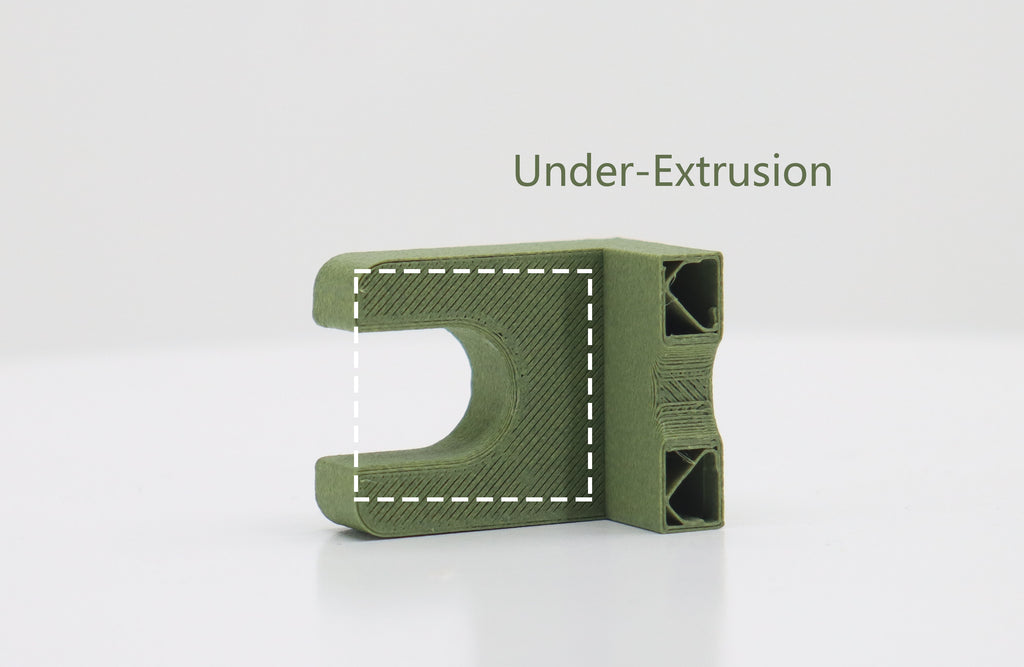
Under-extrusion
Under-extrusion happens when the printer does not push enough filament. This creates gaps or weak layers. Check the filament path for clogs or tangles. Make sure the nozzle is clean and the extrusion settings are correct.
Over-extrusion
Over-extrusion means too much filament comes out. It causes blobs and rough surfaces. Reduce the extrusion multiplier or flow rate in your slicer settings. Confirm the filament diameter matches the printer’s input.
Stringing And Oozing
Stringing happens when thin threads of filament appear between parts. Oozing is filament leaking from the nozzle when idle. Increase retraction distance and speed to stop this. Keep the nozzle temperature as low as possible for your material.
Warping And Curling
Warping makes corners of the print lift and curl. It happens due to uneven cooling or poor bed adhesion. Use a heated bed and keep the print area warm. Add a brim or raft to increase bed contact.
Overheating And Sagging
Overheating causes layers to melt and sag. This ruins fine details and shapes. Lower the print temperature and increase cooling fan speed. Print slower to let each layer solidify well.
Layer Shifts
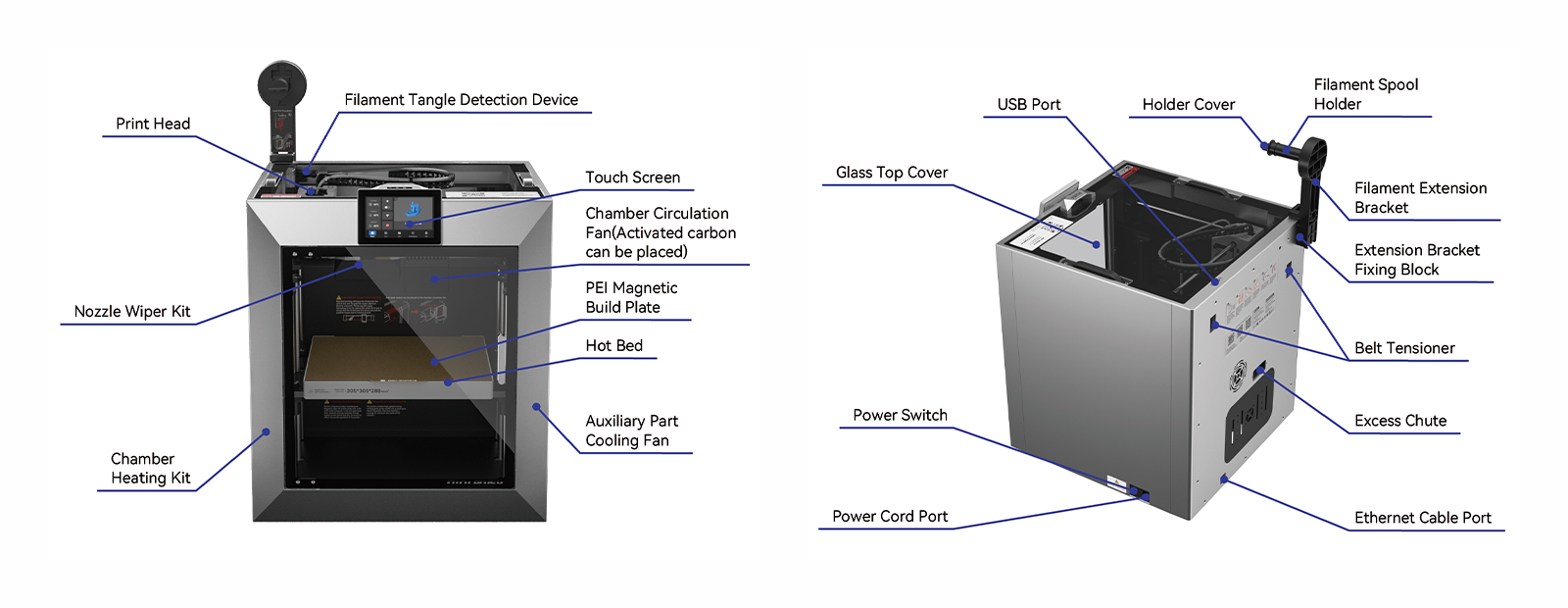
Layer shifts occur when layers do not align properly. This creates a stepped or shifted look. Check belt tension and pulley screws. Avoid moving the printer during printing and reduce print speed if needed.
Credit: wiki.qidi3d.com
Hardware Troubleshooting
Hardware issues often cause printing problems in Qidi Tech 3D printers. Identifying and fixing these problems quickly helps maintain print quality. Hardware troubleshooting covers common faults like clogs, cable issues, belt tension, and strange noises. Each problem has simple steps to fix it.
These fixes require no special tools and are easy to follow. Checking hardware regularly prevents bigger damage and saves time. Below are key hardware troubleshooting tips for your Qidi Tech printer.
Nozzle Clogging Fixes
Nozzle clogging stops filament flow and ruins prints. Heat the nozzle to printing temperature before cleaning. Use a thin needle or cleaning wire to clear the blockage gently. Cold pulls with nylon filament can remove debris inside the nozzle. Regularly check for residue to avoid clogs. Use quality filament to reduce clog risk.
Stepper Motor Cable Checks
Stepper motors move the printer axes precisely. Loose or damaged cables cause skipped steps or no movement. Inspect all stepper motor cables for secure connections. Replace any frayed or broken wires immediately. Moving cables too much can loosen connectors. Keep cables neat and avoid pulling on them during use.
Replacing Type-c Cable
The Type-C cable connects your printer to the computer or power. Faulty cables cause communication errors or power loss. Use only the original or high-quality replacement cables. Check both ends of the cable for damage or dirt. Replace the cable if the printer disconnects frequently. Proper cable connection ensures stable printing.
Adjusting X/y Axis Belts
Loose or tight belts cause layer shifts and poor print accuracy. Inspect the X and Y belts for correct tension. Belts should be firm but not overly tight. Adjust tension screws to tighten or loosen belts as needed. Worn or damaged belts must be replaced quickly. Proper belt tension keeps prints aligned and smooth.
Dealing With Loud Noises
Loud noises indicate mechanical problems or worn parts. Check for loose screws on motors and frames first. Lubricate moving parts like rods and bearings with recommended oil. Inspect fans for dust or damage causing noise. Replace any grinding or rattling parts promptly. Quiet printers run more smoothly and last longer.
Software And Connectivity
Software and connectivity play a key role in the smooth operation of your Qidi Tech 3D printer. Most printing problems arise from software glitches or connection errors. Understanding common software and connectivity issues can save time and reduce frustration.
This section covers driver updates, print spooler issues, USB connection tips, correct printer selection, and firmware updates. These solutions help maintain a stable link between your computer and printer.
Driver Updates
Outdated drivers often cause communication errors with your printer. Check the Qidi Tech website for the latest drivers. Install them carefully, following the instructions. Updated drivers improve compatibility and fix bugs that may block printing.
Print Spooler Issues
The print spooler manages print jobs sent to the printer. Sometimes, it stops working or freezes. Restart the print spooler service from your computer’s control panel. Clearing the print queue also removes stuck jobs that prevent new prints.
Usb Connection Tips
Use a high-quality USB cable to connect your printer. Avoid long or damaged cables. Connect directly to your computer’s USB port, not through a hub. Replug the cable if the printer is not detected. This simple step often restores communication.
Correct Printer Selection
Select the right Qidi Tech model in your print settings. Choosing a different printer can cause errors or no response. Double-check the printer name before starting a print job. This step ensures your computer sends data to the correct device.
Firmware Updates
Firmware controls the printer’s hardware functions. Download firmware updates from the official Qidi Tech site. Follow the update guide carefully to avoid errors. New firmware improves printer performance and fixes known issues.
Preventing Common Problems
Preventing common problems in Qidi Tech 3D printing ensures smoother prints and less frustration. Many issues stem from simple mistakes in setup or maintenance. Focusing on key areas can reduce print failures and improve quality.
Avoiding Warping
Warping happens when the print cools unevenly. It causes corners to lift from the bed. Keep the print bed heated to the right temperature. Use an enclosure to keep warm air around the print. Print slower on the first layer to improve adhesion. Avoid drafts and sudden temperature changes near the printer.
Improving Bed Adhesion
Good bed adhesion stops prints from moving during printing. Clean the bed surface regularly with isopropyl alcohol. Level the bed carefully before each print. Use adhesives like glue stick or painter’s tape if needed. Adjust the nozzle height to be close but not touching the bed. Use a raft or brim for larger prints.
Maintaining Nozzle Health
A clogged nozzle causes poor extrusion and print defects. Clean the nozzle often with a soft wire or needle. Run a cold pull to remove debris inside the nozzle. Use high-quality filament to reduce residue buildup. Heat the nozzle to the correct temperature for the filament type. Replace the nozzle if damage or heavy clogging occurs.
Proper Filament Handling
Filament quality affects print success. Store filament in a dry, airtight container with desiccant. Moisture in filament causes bubbles and weak prints. Avoid bending or tangling filament before use. Load filament slowly to prevent jams. Check filament diameter for consistency to ensure smooth feeding.
Advanced Troubleshooting
Advanced troubleshooting helps fix tough problems on your Qidi Tech 3D printer. It goes beyond basic checks and uses tools and steps that require more care. This section shows how to use special methods to keep your printer running well.
Using Ssh To Access Printer
SSH lets you connect to your printer remotely. Open Terminal or Command Prompt on your computer. Type ssh followed by the printer’s IP address. This gives you control over printer settings and files.
Use SSH to check logs and change configurations. It helps find hidden issues fast. Make sure your printer and computer are on the same network before starting.
Heat Creep Solutions
Heat creep causes filament jams inside the hotend. It happens when heat moves up the tube too much. To fix this, improve cooling around the hotend. Clean fans and heat sinks regularly.
Try lowering the printing temperature slightly. Use high-quality filament designed for your printer. These steps reduce heat creep and keep prints smooth.
Unbolting Stepper Motor For Cleaning
Stepper motors can get dusty or sticky over time. Unbolt the motor carefully using the right tools. Clean the motor and its gears with a soft cloth. Avoid using water or strong chemicals.
After cleaning, reattach the motor tightly. This helps keep movements precise and quiet. Regular cleaning extends motor life and improves print quality.
Diagnosing Axis Issues
Axis problems cause layer shifts and poor print accuracy. Check belts for tightness and wear. Loose belts need tightening, while damaged ones should be replaced.
Inspect the rods and wheels for dirt or damage. Lubricate moving parts with printer-safe oil. Test each axis by moving it manually to feel for resistance.
Support Resources
Finding quick solutions for Qidi Tech 3D printers becomes easier with the right support resources. These resources provide clear instructions and guidance to fix common problems fast. Users can rely on official documentation, direct help, and community advice.
Access to detailed information helps avoid downtime and keeps printing smooth. Below are key support options that assist users of all skill levels.
Qidi Tech Wiki
The QIDI Tech Wiki is a valuable knowledge base with step-by-step tutorials. It covers common printer issues like clogged nozzles, bed adhesion, and axis calibration. Each topic explains the problem and offers practical solutions.
Users find tips for maintenance and software setup. The wiki updates regularly to include new troubleshooting methods. Clear images and simple language make it easy to follow.
Customer Support Channels
Qidi Tech provides multiple ways to contact customer support. Email and phone support connect users directly with trained technicians. They respond quickly to technical questions and hardware concerns.
Live chat on the official site offers instant help during business hours. Support staff guide users through complex fixes or warranty claims. Fast, friendly service improves user confidence.
Helpful Pdfs And Guides
Downloadable PDFs cover detailed instructions for printer setup and repairs. These guides include safety tips, part replacement steps, and software installation. They serve as handy references during troubleshooting.
PDFs are formatted for easy printing and offline reading. Users can keep these documents near their printer for quick access. Clear diagrams and bullet points help clarify each procedure.
Community Forums
Online forums connect Qidi Tech users worldwide. Forums allow sharing experiences, tips, and solutions. Members post questions about errors and receive advice from experts and peers.
These communities foster collaboration and learning. Users find answers to rare problems and creative fixes. Forum discussions often reveal updates and unofficial tricks not found in manuals.

Credit: qidi3d.com
Frequently Asked Questions
What Are The Most Common Problems With A 3d Printer?
Common 3D printer problems include poor first layer adhesion, nozzle clogs, under or over-extrusion, warping, stringing, and layer shifts.
What Is The Most Common Printer Error?
The most common printer error is a paper jam. It usually happens due to misaligned paper, overfilled trays, or moisture causing sheets to stick together.
What Is Possible Cause When Your Printer Is On But Not Responding?
A printer may be on but unresponsive due to driver issues, lost connectivity, incorrect printer selection, or print spooler errors. Check cables, update drivers, and verify printer settings.
Why Is My Label Printer Not Working?
Check if the USB cable is firmly connected and undamaged. Restart the printer and computer. Update or reinstall the printer driver. Ensure the correct printer is selected. Clear any paper jams or clogged nozzles for proper operation.
What Causes Poor First Layer In Qidi Tech Printers?
Poor first layers often result from incorrect bed leveling or wrong nozzle height. Clean the print bed and adjust settings carefully. This ensures better adhesion and print quality.
Conclusion
Qidi Tech troubleshooting helps keep your 3D printer running smoothly. Fixing small issues early saves time and material. Check the nozzle, cables, and bed for common problems. Regular maintenance reduces print errors and improves quality. Follow simple steps to solve printing and hardware glitches.
Staying patient and careful makes repairs easier. Keep your printer ready for great results every time.



