
Having trouble connecting to your remote desktop? You’re not alone, and the good news is that most remote desktop issues can be fixed quickly with the right approach.
Whether your connection keeps dropping, you can’t log in, or performance feels sluggish, understanding the common causes and simple fixes can save you hours of frustration. In this guide, you’ll discover easy-to-follow troubleshooting tips that anyone can apply—no technical jargon, just clear steps you can take right now.
Ready to regain smooth and reliable remote access? Let’s dive in and get your remote desktop working perfectly again.
Credit: www.realvnc.com
Check Connection And Power
Checking connection and power forms the first step in troubleshooting remote desktop issues. A stable internet connection and powered-on devices ensure smooth remote access. Without these basics, other troubleshooting steps may fail.
Confirm both the local and remote PCs are connected to the internet and have sufficient power. This simple check often resolves many common connection problems quickly. Follow these steps to verify your setup before moving forward.
Verify Internet Access
Ensure both computers have active internet connections. Use a browser to load a simple website on each machine.
If pages fail to load, reset the network or check cables and Wi-Fi signals. A weak or lost connection stops remote desktop from working.
Confirm Pc Name And Ip
Check the remote PC’s name or IP address. Enter the correct details in the remote desktop client.
Incorrect names or IPs cause connection errors. Use the command prompt to find the IP by typing ipconfig.
Restart Devices And Services
Power cycle both local and remote computers. Restarting often clears temporary glitches.
Also, restart Remote Desktop Services on the remote PC. Open the Run dialog, type services.msc, and restart related services.

Credit: learn.microsoft.com
Enable Remote Desktop Settings
Enabling Remote Desktop settings is the first step to access another computer remotely. It allows you to control the computer from a distance. Proper setup ensures a smooth connection and avoids common errors. Follow simple steps to turn on Remote Desktop, assign permissions, and set the network profile correctly. These settings help protect your system while allowing remote access.
Turn On Remote Desktop
Open the Start menu and select Settings. Go to System, then find Remote Desktop. Switch the toggle to On to enable it. Confirm the action if prompted. Your computer is now ready to accept remote connections. Keep your device awake and connected to the network for best results.
Assign User Permissions
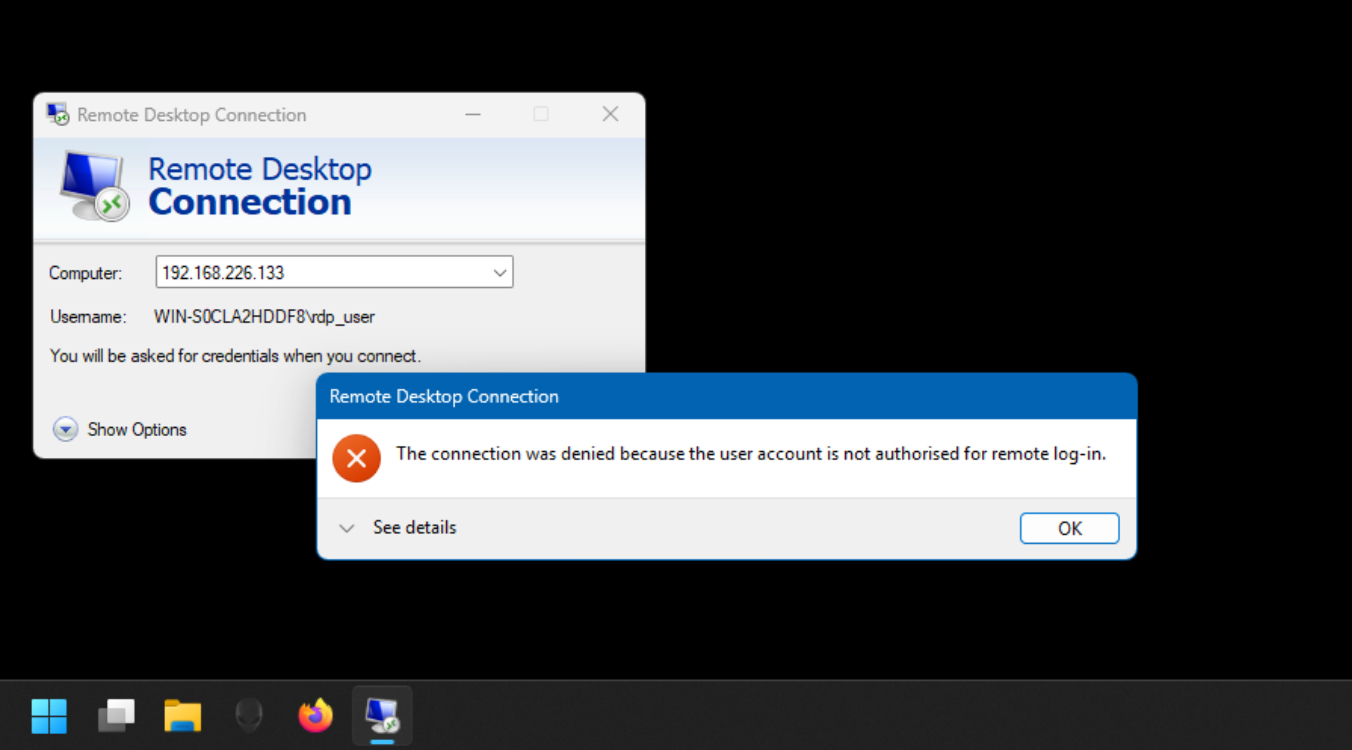
Only authorized users should access your computer remotely. Click on Select users that can remotely access this PC. Add the usernames or groups allowed to connect. By default, administrators have access. Review this list regularly to keep it secure. This step prevents unauthorized remote login attempts.
Set Network Profile To Private
Remote Desktop works best on private networks. Open Settings and go to Network & Internet. Select your current network and change the profile type to Private. This setting allows your PC to be discoverable and accessible. Avoid using Public networks for remote connections to reduce risks.
Fix Network And Credentials Issues
Network and credential problems often block Remote Desktop connections. Fixing these issues helps restore access quickly. Clear network errors and verify login details to ensure smooth connections. Follow simple steps to address common problems with your Remote Desktop setup.
Flush Dns And Use Ip Address
DNS cache can cause connection failures. Clear it by running the command ipconfig /flushdns in Command Prompt. Using the remote computer’s IP address instead of its name avoids DNS resolution problems. This helps connect faster and more reliably.
Verify Username And Password
Incorrect login details stop Remote Desktop access. Double-check the username and password for accuracy. Keep in mind that passwords are case-sensitive. Reset the password if you suspect it is wrong. Confirm the user has permission to access the remote machine.
Update Rdp Client
Outdated Remote Desktop clients may cause connection issues. Check for updates and install the latest version. Updates fix bugs and improve compatibility. Use the newest client for better security and performance.
Adjust Security And Authentication
Remote Desktop uses security settings that may block access. Review the Network Level Authentication (NLA) setting and disable it temporarily if needed. Check firewall rules on both local and remote computers. Allow Remote Desktop through the firewall to avoid blocks.
Resolve Certificate Errors
Certificate errors often appear in Remote Desktop sessions. These happen when the remote computer’s certificate is invalid or expired. Accept the certificate warning if you trust the remote machine. For permanent fixes, update or replace the certificate on the remote system.
Credit: www.techtarget.com
Use Built-in Tools
Built-in tools offer a quick way to fix Remote Desktop issues. These tools help identify and solve common problems without extra software. They save time and simplify troubleshooting. Using these features keeps your system secure and stable.
Run Windows Troubleshooter
Windows Troubleshooter scans your system for Remote Desktop problems. It checks network connections and service settings. The tool suggests fixes automatically. To run it, open Settings and go to Update & Security. Click Troubleshoot, then select Remote Desktop. Follow the on-screen steps to complete the process. This tool can resolve many connection errors fast.
Restart Services Via Powershell
Restarting Remote Desktop services can solve many issues. PowerShell offers a simple way to do this. Open PowerShell as an administrator. Use the command Restart-Service -Name TermService to restart the main service. You can also restart related services with Restart-Service -Name UmRdpService. Restarting these services refreshes Remote Desktop functions. This method often clears errors caused by service glitches.
Optimize Performance
Optimizing performance is crucial for smooth Remote Desktop sessions. Slow connections and lag can disrupt work and cause frustration. Improving performance ensures faster response times and better user experience.
Several simple steps help optimize Remote Desktop performance. Adjusting display settings, managing bandwidth, and upgrading server resources improve speed and stability. These tweaks reduce delays and make remote access more efficient.
Lower Display Resolution
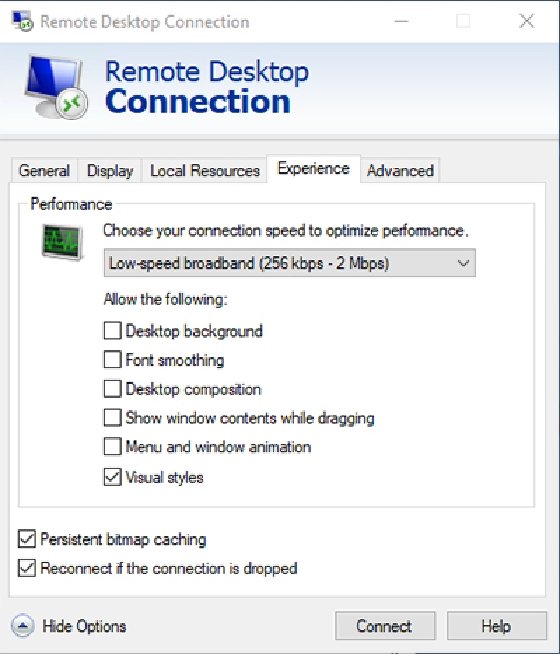
Reducing the display resolution decreases the amount of data sent over the network. A lower resolution means fewer pixels to update, which speeds up the connection. This change reduces lag and helps maintain smooth screen refreshes.
Set the resolution to the lowest comfortable level. This adjustment saves bandwidth and improves responsiveness during remote sessions.
Limit Bandwidth Usage
Bandwidth limits prevent network overload and keep Remote Desktop running smoothly. Disable unnecessary features like background images and font smoothing. These features use extra data and slow down performance.
Use tools to monitor and control bandwidth. Prioritize Remote Desktop traffic to avoid interruptions from other applications.
Upgrade Server Capacity
Server capacity affects how well Remote Desktop handles multiple users. Increasing CPU power and RAM supports more simultaneous connections. This upgrade reduces delays and improves session stability.
Check server load regularly. Plan upgrades before performance issues become noticeable to users.
Frequently Asked Questions
How To Troubleshoot Remote Desktop Connection Issues?
Check internet and power on both PCs. Verify correct PC name or IP address. Restart remote PC and Remote Desktop Services. Enable Remote Desktop in system settings. Add your user to Remote Desktop users group. Set network profile to Private.
Flush DNS cache and try IP connection. Use updated Remote Desktop client.
How To Repair Remote Desktop Connection?
Restart Remote Desktop Services via Run > services. msc. Ensure services run or restart them. Verify internet, PC name/IP, and enable Remote Desktop in settings. Check user permissions and network profile. Flush DNS and use correct credentials. Update the Remote Desktop client and adjust security settings if needed.
Why Is The Remote Pc Not Connecting?
The remote PC may not connect due to incorrect credentials, disabled Remote Desktop, or network issues. Verify PC name/IP, enable RDP, and check firewall settings. Restart the remote computer and Remote Desktop Services. Ensure user permissions and use the latest Remote Desktop client for best results.
How To Test If Remote Desktop Is Working?
To test if Remote Desktop works, enable Remote Desktop in settings and ensure the PC is online. Use the correct IP or PC name to connect. Verify user permissions and network profile is Private. Restart Remote Desktop Services and try connecting with updated credentials and the latest Remote Desktop client.
What Causes Remote Desktop Connection Failures?
Connection failures often stem from incorrect login details or network issues. Firewall or port settings may block access. Checking these can quickly fix most problems.
Conclusion
Troubleshooting remote desktop issues does not have to be hard. Check your internet and power first. Confirm the remote PC’s name or IP address is correct. Restart both your computer and Remote Desktop Services to refresh connections. Make sure Remote Desktop is enabled in system settings.
Verify your user account has proper access rights. These simple steps often fix common problems fast. Stay calm and follow each step carefully for best results. Remote desktop tools can improve your work once issues are resolved. Keep this guide handy for quick reference anytime.



