
Is your Ring camera acting up when you least expect it? Whether it’s going offline, missing alerts, or just not responding, these glitches can be frustrating—especially when you rely on your Ring device to keep your home safe.
But don’t worry, you’re not alone, and fixing it might be easier than you think. In this guide, you’ll discover simple, step-by-step troubleshooting tips that anyone can follow to get your Ring camera back online and working smoothly. Ready to regain control and peace of mind?
Let’s dive into the most common problems and their quick solutions so you can enjoy seamless security again.
Camera Offline
Seeing your Ring camera go offline can be frustrating. It stops recording and streaming video. This issue often relates to network or power problems. Fixing it usually takes a few simple steps. Below are key methods to get your Ring camera back online quickly.
Check Wi-fi Signal
Make sure your camera is within the Wi-Fi range. Walls and distance reduce signal strength. Use a phone or laptop near the camera spot to test signal speed. Strong Wi-Fi helps the camera stay connected without interruptions. If the signal is weak, move the router closer or add a Wi-Fi extender.
Restart Router And Camera
Restarting the router refreshes the internet connection. Unplug your router for 30 seconds, then plug it back in. Wait until all lights on the router turn green. Next, restart your Ring camera. Power it off by removing the battery or unplugging it. Wait 10 seconds, then power it back on. This clears minor glitches causing the offline status.
Reconnect Via Ring App
Open the Ring app on your phone. Tap the menu icon and select “Devices.” Choose the camera showing offline. Tap “Device Health,” then find the “Reconnect” option under the Network section. Follow the on-screen steps and press the setup button on your Ring camera when asked. Watch for lights or sounds from the camera signaling a successful connection.
No Video Or Black Screen
Seeing a black screen or no video from your Ring camera can be frustrating. This issue stops you from monitoring your home effectively. Several simple checks can restore your camera’s video feed quickly. Follow these steps to troubleshoot the no video or black screen problem.
Verify Power Supply
A common cause of a black screen is a power issue. Check if your Ring camera has a full battery or is properly connected to power. For wired devices, inspect the power cables for damage or loose connections. A weak or dead battery will prevent the camera from working. Replace or recharge the battery as needed. Ensure the power source is stable and delivering enough electricity.
Update Ring App
An outdated app can cause video display problems. Open your device’s app store and check for updates to the Ring app. Installing the latest version can fix bugs and improve performance. After updating, restart the app and try to view the video again. Keep your app updated to avoid future issues.
Adjust Camera Settings
Incorrect settings may block the video feed. Open the Ring app and access your camera’s settings. Check the brightness and video quality options. Lower video quality can cause a black screen if the connection is weak. Increase the brightness to make the video clearer. Make sure the camera’s privacy zones are not covering the entire view. Adjust these settings to restore proper video display.
Slow Or Unresponsive Camera
Slow or unresponsive Ring cameras can disrupt your home security. The video feed may lag or fail to load. Controls might not respond promptly. These issues often stem from network or device glitches. Simple troubleshooting steps can restore camera performance quickly. Start with basic fixes before advanced solutions.
Power Cycle Device
Turn off your Ring camera by removing its power source. Wait about 30 seconds to let it fully shut down. Reconnect the power and allow the camera to reboot. This clears temporary errors and refreshes its system. Power cycling often resolves slow response or freezing.
Close And Reopen App
Exit the Ring app completely on your phone or tablet. This stops any app processes that may be stuck. Open the app again to reload all functions. Reopening can fix lag caused by app glitches. It also refreshes the connection between your device and camera.
Clear App Cache
App cache stores temporary files to speed up loading. Sometimes, cached data becomes corrupted. This can slow down the Ring app or cause errors. Clear the cache from your device’s settings menu. After clearing, reopen the app and check if the camera responds faster.
Credit: www.esseg.eu
Two-way Audio Issues
Two-way audio is a key feature of your Ring camera. It lets you listen and talk through the device. Sometimes, audio problems can stop you from hearing or speaking clearly. These issues can be frustrating and reduce your camera’s usefulness. Simple checks often fix two-way audio problems quickly.
Check Microphone And Speaker
Start by inspecting the microphone and speaker on your Ring camera. Make sure nothing blocks them. Dirt, debris, or stickers can cover these parts and muffle sound. Gently clean the microphone and speaker openings with a soft cloth. Verify that your device’s microphone and speaker are not damaged.
Adjust Volume Settings
Next, check the volume levels in the Ring app. Open the app and select your camera. Find the audio or volume settings and increase the level if it is too low. Sometimes, the volume is set too quietly by default. Adjust both microphone sensitivity and speaker volume for better sound quality.
Test With Live View
Use the Live View feature to test two-way audio. Open the Ring app and tap Live View on your camera. Speak into your phone and listen through the camera’s speaker. Check if you hear your voice clearly and if the camera’s microphone picks up sound. Repeat the test in different locations to rule out Wi-Fi issues.
Motion Detection Problems
Motion detection issues with your Ring camera can cause missed alerts or too many false alarms. These problems reduce your device’s effectiveness and may frustrate you. Fixing motion detection starts with simple adjustments. Small changes can improve accuracy and reliability.
Fine-tune Motion Zones
Adjust motion zones to focus on important areas. Exclude places with constant movement like trees or streets. Use the Ring app to set specific zones. This reduces false alerts and saves battery life. Check your zones regularly to match changes in your environment.
Check Sensitivity Levels
Set the motion sensitivity to match your needs. High sensitivity catches every movement but may trigger false alarms. Low sensitivity reduces alerts but might miss some events. Test different levels to find the best balance. Adjust sensitivity through the Ring app easily.
Update Firmware
Keep your Ring camera’s firmware updated. Updates fix bugs and improve motion detection. Open the Ring app to check for updates. Install new firmware promptly to avoid performance issues. Regular updates keep your device running smoothly and securely.

Credit: finuniverblg.ru.net
Wi-fi Connectivity Troubles
Wi-Fi connectivity issues often cause Ring cameras to stop working properly. These problems disrupt live video streaming and delay motion alerts. A stable Wi-Fi connection is essential for your Ring camera to function smoothly. Troubleshooting Wi-Fi problems can restore camera performance quickly.
Move Camera Closer To Router
Distance between the Ring camera and router affects signal strength. Walls and furniture can block the Wi-Fi signal. Try placing your camera closer to the router for better reception. This simple step often improves connection quality. Check if the camera reconnects and streams video without interruptions.
Use 2.4 Ghz Network
Ring cameras work best on a 2.4 GHz Wi-Fi network. This band covers a wider area than 5 GHz but offers slower speeds. Many routers broadcast both 2.4 GHz and 5 GHz signals. Ensure your camera connects to the 2.4 GHz network. This change can reduce connection drops and improve stability.
Reset Network Settings
Resetting network settings can fix persistent Wi-Fi issues. Press the setup button on your Ring camera until the light flashes. This action clears old network data. After resetting, use the Ring app to reconnect your camera to Wi-Fi. Follow the app instructions carefully to complete setup.
Battery And Power Issues
Battery and power issues are common reasons Ring cameras stop working properly. These problems cause the camera to lose connection or stop recording. Fixing power issues often restores normal function quickly. Check the battery and power settings first before trying other solutions.
Check Battery Level
Open the Ring app on your phone. Go to the device’s settings and find the battery status. If the battery is low, the camera may not work well. A low battery causes delays in notifications and poor video quality. Regularly check the battery level to avoid interruptions.
Replace Or Recharge Battery
Remove the battery from the camera. If your Ring camera uses a rechargeable battery, plug it into a charger. Charging usually takes a few hours. For cameras with replaceable batteries, swap the old battery with a new one. Always use official or compatible batteries to ensure safety and performance.
Inspect Power Connections
Check all cables and connectors if your Ring camera is wired. Look for loose or damaged wires. A poor connection can cause power loss and affect camera function. Secure all plugs tightly. Clean connectors if you see dirt or corrosion. Proper power connections keep your Ring camera running smoothly.

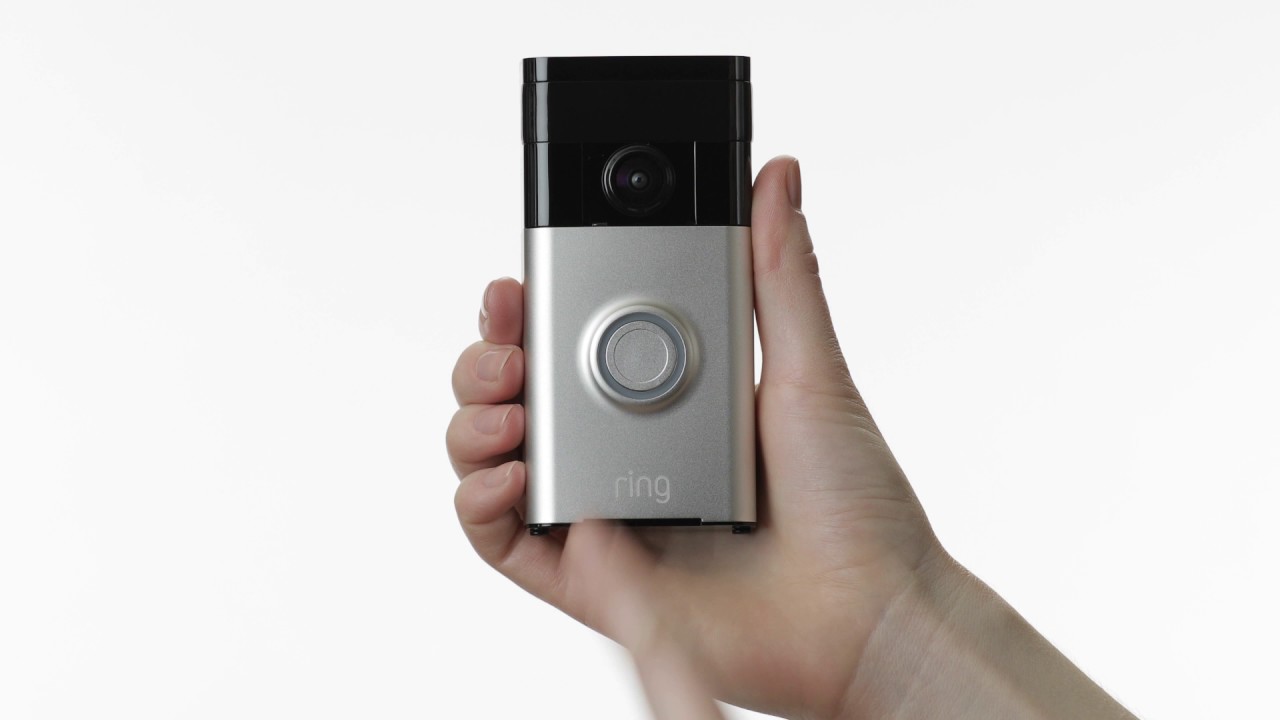
Credit: ring.com
Factory Reset Steps
Performing a factory reset on your Ring camera can resolve many issues. It restores the device to its original settings. This step is useful when other troubleshooting methods fail. Follow these simple steps to reset your Ring camera safely.
Locate Setup Button
Find the setup button on your Ring camera first. For most models, it is on the back or bottom. Look for a small, round button, often orange or black. This button helps start the reset process.
Perform Reset Procedure
Press and hold the setup button for about 15 seconds. Watch the device’s light; it will start flashing. Release the button once the light begins to blink. The camera will then reset itself and restart automatically.
Reconfigure Device Setup
Open the Ring app on your phone after the reset. Add the device as if it were new. Follow the on-screen steps to connect your camera to Wi-Fi. Complete the setup to restore full functionality.
App And Firmware Updates
Keeping your Ring camera updated is key to smooth performance. App and firmware updates fix bugs and improve features. They also boost security to protect your home. Regular updates ensure your device runs without glitches. This section guides you on managing these updates easily.
Update Ring App
Open the app store on your phone or tablet. Search for the Ring app. Check if an update is available. Tap the update button to download the latest version. Updated apps have new features and fix known issues. Using the newest app version helps your camera work well.
Check For Firmware Updates
Firmware controls your Ring camera’s internal software. Open the Ring app and select your device. Go to Device Health or Device Settings. Look for firmware version information. If an update is available, follow prompts to install it. Installing firmware updates improves device stability and security.
Enable Automatic Updates
Automatic updates save time and keep your device current. In the Ring app settings, find update preferences. Turn on automatic updates for both app and firmware. Your camera will update itself without manual action. This keeps your system secure and functioning properly at all times.
When To Contact Support
Knowing when to contact Ring support saves time and stress. Some issues need expert help beyond basic fixes. This section highlights key situations to reach out for assistance. It covers connectivity troubles, hardware problems, and warranty options. Understanding these points helps keep your Ring camera working well.
Persistent Connectivity Issues
Sometimes, your Ring camera keeps losing Wi-Fi connection. Restarting the router and camera might not fix it. If the camera stays offline or drops signal often, contact support. They can check network settings or guide you through advanced steps. Persistent connection problems can affect your camera’s performance and security.
Hardware Malfunctions
Physical damage or defects need professional attention. If your Ring camera won’t power on, freezes, or shows error lights, support can help. They identify if the hardware is faulty or needs repair. Avoid opening the device yourself. Support ensures your camera gets the right fix safely.
Warranty And Replacement Options
Your Ring camera may be covered under warranty. Support can confirm eligibility for repairs or replacements. They provide instructions on how to send in your device. Using warranty services helps avoid extra costs. Reach out to support for clear guidance on your options.
Frequently Asked Questions
What Are Common Ring Device Problems?
Common Ring device problems include Wi-Fi connectivity issues, power or battery failures, app glitches, and setup errors. Devices may go offline due to weak signals or drained batteries. Troubleshooting involves restarting the camera and router, checking signal strength, and reconnecting via the Ring app.
How Do I Get My Ring Camera Back Online?
Restart your Wi-Fi router and power cycle your Ring camera. Open the Ring app, go to Device Health, tap Reconnect to Wi-Fi, and follow prompts. Press the setup button on the camera when asked. Ensure strong Wi-Fi signal and sufficient battery for the device.
Why Would The Ring Camera Suddenly Stop Working?
The Ring camera may stop working due to low battery, power issues, or Wi-Fi connection problems. Restart the camera and router. Check signal strength and reconnect through the Ring app to restore functionality.
How Do I Reboot My Ring Camera?
To reboot your Ring camera, remove its battery or unplug it for 30 seconds, then reconnect. Alternatively, use the Ring app to access Device Health and tap Reconnect. Press the setup button when prompted to complete the process.
How Do I Reconnect My Ring Camera To Wi-fi?
Open the Ring app and go to Device Health. Tap “Reconnect” under Network and follow the prompts. Press the setup button on your camera when asked to complete connection.
Conclusion
Troubleshooting your Ring camera can be simple with the right steps. Restart your router and power cycle the camera first. Check the Wi-Fi signal strength near the device. Use the Ring app to reconnect or change the network. Press the setup button when prompted to sync the camera.
A factory reset can fix persistent problems. Keep your device’s battery charged if it is wireless. Following these tips helps keep your Ring camera working well. Stay patient and try each step carefully for best results.



