
Is your Roborock vacuum acting up when you least expect it? Whether it’s not docking properly, losing suction, or just refusing to start, these hiccups can be frustrating.
But don’t worry—your Roborock isn’t broken beyond repair. In this guide, you’ll find simple, clear troubleshooting tips to get your robot cleaner back on track quickly. From easy resets to basic maintenance steps, you’ll learn how to fix common issues without needing expert help.
Ready to keep your floors spotless without the hassle? Keep reading, and let’s solve your Roborock problems together.

Credit: us.roborock.com
Battery And Charging
The battery and charging system are vital for your Roborock’s performance. Without a proper charge, it cannot clean efficiently or return to its dock. Troubleshooting battery and charging issues helps keep your robot vacuum running smoothly.
Focus on these key areas to find and fix common battery problems. Each step ensures your Roborock stays powered and ready for cleaning.
Check Battery Level
Start by checking the battery level through the Roborock app. Low battery may prevent the vacuum from starting or finishing a job. Charge the device fully before use. If the battery drains quickly, it might need replacement.
Clean Charging Contacts
Dirty or blocked charging contacts stop your Roborock from charging properly. Use a dry cloth to wipe the contacts on both the vacuum and dock. Remove dust, dirt, or debris that might cause poor connection. Clean contacts improve charging efficiency.
Test Charging Dock
Check if the charging dock is working by plugging it into a different outlet. Ensure the dock’s LED light turns on. Place your Roborock on the dock and see if it starts charging. A faulty dock can stop the battery from charging fully.
Replace Faulty Charger
If your Roborock does not charge despite clean contacts and a working dock, the charger might be faulty. Look for damaged cables or loose connections. Replace the charger with a compatible, original model for best results. A good charger keeps the battery healthy.
Docking Problems
Docking problems are common issues Roborock users face. The robot may fail to find its dock or not charge properly. These problems reduce cleaning efficiency and cause frustration. Simple fixes can often solve docking troubles quickly.
Clean Dock Sensors
Dirty sensors on the dock can block the robot’s signal. Use a soft cloth to gently wipe the sensors. Make sure no dust or dirt covers the sensor areas. Clean sensors help the Roborock detect the dock easily. Check sensors regularly to keep them clear and working well.
Ensure Dock Placement
Place the dock on a flat, stable surface. Keep it against a wall for better support. Make sure there is enough open space around the dock. Avoid placing the dock near stairs or rugs. Good placement helps the robot find and align with the dock smoothly. Keep the area free from obstacles to avoid docking errors.
Fix Dock Signal Issues
The dock uses infrared signals to communicate with the Roborock. Strong sunlight or bright lights can interfere with this signal. Try moving the dock to a shaded spot away from direct light. Also, check the dock’s power connection to ensure it is secure. If the signal problem continues, reset the dock by unplugging it for a few minutes. This can refresh its connection and improve docking performance.
Vacuum Performance
Vacuum performance is key to keeping your floors clean and your Roborock working well. Low suction or weak cleaning can happen over time. Dirt buildup, clogged parts, or low settings often cause these issues. Simple checks and fixes can help your Roborock pick up dirt better and last longer.
Increase Vacuum Power
Open the Roborock app to adjust suction settings. Select a higher power mode for stronger cleaning. Higher power helps pick up dust and pet hair better. Use this especially on carpets or heavily soiled areas. Avoid max power all the time to save battery life.
Clean Dustbin And Filters
Empty the dustbin after each use to prevent blockages. Wash or replace filters regularly to keep airflow strong. Dirty filters reduce suction and cause poor cleaning. Follow the user manual for proper cleaning steps. Dry filters fully before reinstalling to avoid damage.
Remove Brush Hair
Check main and side brushes for tangled hair and debris. Use scissors or your fingers to carefully cut and pull out strands. Clean brushes help the vacuum pick up dirt efficiently. Replace worn brushes to maintain good performance. Keep brushes free of obstacles for smooth spinning.
Clear Air Duct Blockages
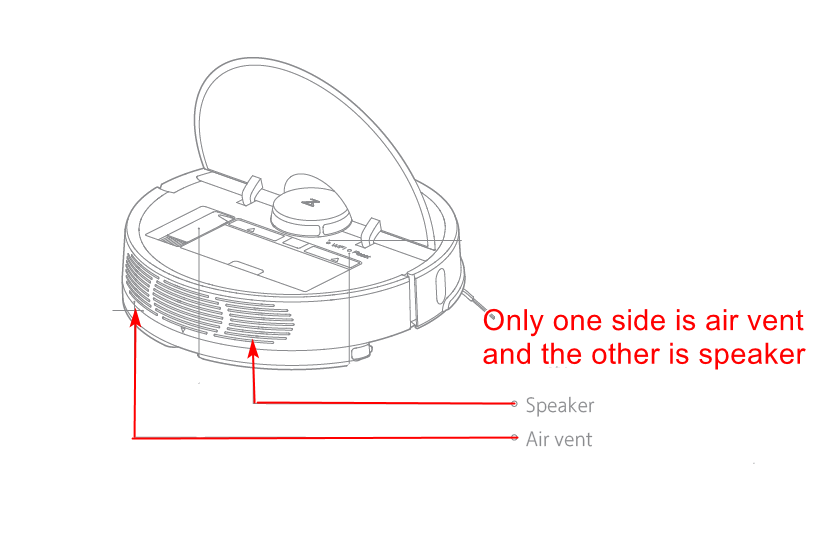
Inspect air ducts and suction channels for clogs. Remove any dirt, dust, or small objects stuck inside. Blocked ducts lower suction power and reduce cleaning quality. Use a soft brush or compressed air to clear ducts gently. Regular checks prevent dirt buildup and keep airflow strong.
Credit: aarongodfrey.dev
Sensor And Navigation
The sensors and navigation system in your Roborock vacuum keep it moving smoothly. They help the robot avoid obstacles and clean efficiently. Dirt or smudges on sensors may cause navigation errors. Regular checks and cleaning improve performance and prevent issues.
Wipe Sensors
Turn off your Roborock before cleaning the sensors. Use a soft, dry cloth to gently wipe all visible sensors. Avoid using water or harsh chemicals. Clean sensors help the robot detect walls and furniture better. Wiping sensors often reduces error messages.
Reset Navigation Map
Resetting the navigation map clears old data that may confuse the robot. Open the Roborock app and find the map settings. Choose the option to delete or reset the map. After reset, the robot will create a new map during its next run. This step fixes many navigation problems.
Clean Fall-off Sensors
Fall-off sensors prevent the robot from falling down stairs. Dirt or dust can block these sensors and stop the robot. Locate the fall-off sensors under the vacuum’s front edge. Use a soft brush or cloth to remove dust and debris. Keeping these sensors clean ensures safe operation.
Error Messages
Error messages on your Roborock vacuum signal a problem that needs attention. These alerts help you understand what stops your device from working properly. Knowing how to read and fix these errors keeps your Roborock running smoothly. This section covers how to identify common errors, reset sensor issues, and perform a factory reset.
Identify Common Errors
Roborock vacuums show error codes or voice alerts when something is wrong. Some frequent errors include wheel stuck, brush jammed, or battery low. The app often displays detailed messages for easier diagnosis. Check the error number or message to find the exact problem. This step saves time and avoids unnecessary repairs. Always clear dust and debris from sensors and brushes first.
Reset Sensor Errors
Sensor errors can stop your Roborock from cleaning correctly. Dirt or smudges block the sensors and cause false alerts. Gently wipe sensors with a soft cloth to remove grime. Power off your vacuum and turn it back on to reset sensors. If the error persists, try rebooting the device through the app. Resetting sensors often fixes navigation and obstacle detection problems.
Perform Factory Reset
A factory reset restores your Roborock to its original settings. Use this step if errors continue after other fixes. Locate the Home button and the small Reset button. Press and hold the Home button. While holding it, press the Reset button with a paperclip once. Keep holding the Home button until you hear a voice prompt. This process erases all saved maps and settings. Reconnect your Roborock to Wi-Fi and the app after reset.

Credit: www.reddit.com
Resetting Roborock
Resetting your Roborock can solve many common issues fast. This process restores the vacuum to its original settings. It clears errors and connection problems. Follow simple steps to reset safely. Resetting helps if the robot stops working right or fails to connect.
Locate Reset Buttons
First, find the Home button on your Roborock. It usually has a house icon. Next, locate the tiny Reset button. This button is often near the Wi-Fi light or inside the dustbin area. Sometimes it is hidden under a small cover. Use a paperclip or similar tool to press it.
Factory Reset Steps
Hold down the Home button. While holding, press the Reset button once with the paperclip. Keep holding the Home button after pressing Reset. Wait for a voice prompt from the robot. This sound confirms the factory reset has started. The robot will erase all settings, cleaning logs, and maps.
Reconnecting To Wi-fi
After reset, the Roborock disconnects from Wi-Fi. Open the Roborock app on your phone. Add your robot again by following the app’s instructions. Connect it to your home Wi-Fi network. Ensure your phone and robot are close to the router. This helps a smooth connection.
Maintenance Tips
Proper maintenance keeps your Roborock running smoothly. Simple care steps prevent common problems. Follow these tips to extend your vacuum’s life and improve cleaning performance.
Regular Brush Cleaning
Remove the main brush and side brushes often. Clear hair and debris wrapped around them. Use scissors or a cleaning tool to cut tangled fibers. Clean brushes improve suction and avoid motor strain. Check brushes weekly for best results.
Sensor Wiping Routine
Wipe the sensors gently with a soft, dry cloth. Avoid wet or abrasive materials that can damage sensors. Clean sensors help the Roborock navigate accurately. Do this at least once every two weeks. Dirty sensors cause navigation errors and missed spots.
Dustbin Care
Empty the dustbin after every cleaning cycle. Rinse the dustbin with water and let it dry completely. Check and clean the dustbin filter regularly. A clean dustbin ensures strong suction and prevents clogging. Replace filters as recommended by the manufacturer.
Frequently Asked Questions
What Are The Common Problems With Roborock Vacuums?
Common Roborock vacuum problems include small dustbin jams, docking or charging errors, poor edge coverage, and loud noise. Users often face suction issues due to clogged brushes or low vacuum power. Regular cleaning and maintenance help resolve most problems quickly and improve performance.
How Do You Reset A Roborock?
To reset a Roborock, press and hold the Home button. Use a paperclip to press the Reset button once. Keep holding Home until you hear a voice prompt confirming the factory reset. This erases all settings, cleaning logs, and maps, requiring re-setup in the app.
Why Is My Roborock Not Vacuuming Properly?
Low vacuum pressure often causes poor cleaning. Increase suction power via the app. Clean rubber seals and dustbin regularly. Check for blockages in brushes and air ducts. Ensure the vacuum motor runs and air flows properly from the robot’s exhaust.
Why Is Roborock Not Working?
Roborock may not work due to low battery, dirty charging contacts, or docking issues. Charge it fully and clean sensors. Check for blockages in brushes and dustbin. Reset the device if problems persist. Replace faulty parts if necessary to restore proper function.
How Do I Reset My Roborock To Factory Settings?
Press and hold the Home button while using a paperclip to press the Reset button. Keep holding the Home button until you hear a voice prompt. This erases all settings and disconnects Wi-Fi.
Conclusion
Troubleshooting your Roborock can save time and avoid frustration. Keep the dustbin and sensors clean to improve performance. Check battery and charging dock regularly for proper function. Resetting the device can fix many common issues quickly. Follow simple steps to reconnect after a reset.
Regular care helps your Roborock work smoothly every day. Small fixes often restore full cleaning power fast. Stay patient and use the right tools for best results. Your Roborock can keep your home clean with minimal hassle.



