
Are you frustrated because your Roku isn’t working like it should? Maybe the screen is frozen, the remote won’t respond, or your favorite channels won’t load.
You’re not alone—these common issues can catch anyone off guard. But don’t worry, you don’t have to be a tech expert to fix them. In this guide, you’ll discover simple, step-by-step Roku troubleshooting tips that anyone can follow. From quick restarts and checking cables to updating software and resetting your device, we’ll walk you through the easiest ways to get your Roku back up and running smoothly.
Keep reading, and you’ll be streaming your favorite shows again in no time.
Common Roku Issues
Roku devices bring streaming entertainment to your TV with ease. Still, some common problems can interrupt your viewing. Understanding these issues helps you fix them quickly. This section covers frequent Roku troubles and simple ways to solve them.
No Power
Your Roku may not turn on due to power problems. First, check if the power cord is firmly plugged into the device and the outlet. Try another power outlet to rule out a socket issue. If you use a USB power source, switch to the original power adapter for better performance. A faulty power supply or cable can stop your Roku from powering up.
Black Screen
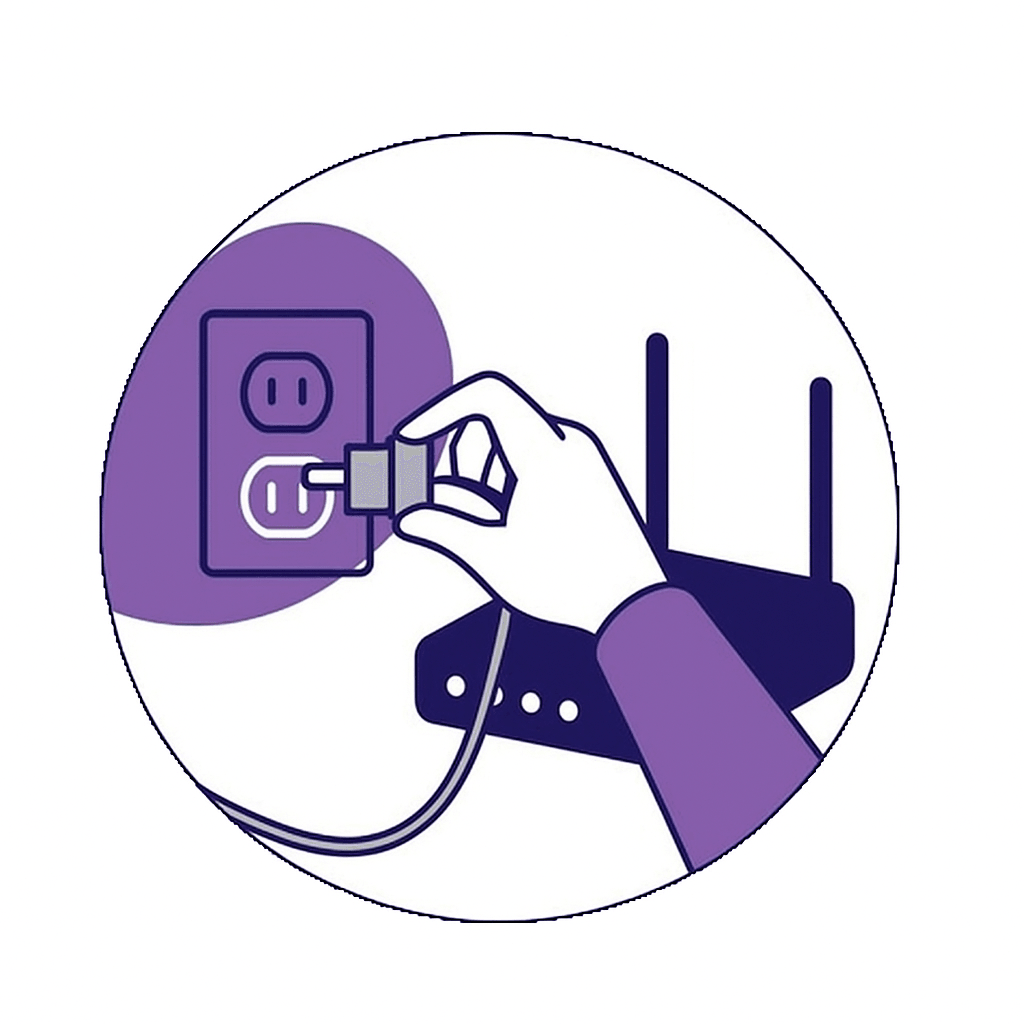
A black screen means no video output from your Roku. Confirm that the HDMI cable is properly connected to both Roku and TV. Try a different HDMI port on your TV to see if the port is faulty. Restart your Roku device by unplugging it and plugging it back in. This action refreshes the system and often solves the black screen problem.
No Signal
Your TV may show “No Signal” if it cannot detect the Roku input. Ensure your TV is set to the correct HDMI input where Roku is connected. Loose or damaged HDMI cables cause signal loss. Replace or reseat the HDMI cable to restore the signal. If the problem remains, test the Roku on another TV to isolate the issue.
Remote Not Working
A Roku remote may stop responding for several reasons. Check the battery level and replace old batteries with fresh ones. Remove any objects blocking the remote’s signal path. Reset your remote by removing batteries and pressing every button once. Pair the remote again with your Roku device using the pairing button or settings menu.
Wi-fi Connection Problems
Wi-Fi issues can cause buffering or disconnections on Roku. Make sure your Roku is within range of your router. Restart your router and Roku to refresh the network connection. Verify you entered the correct Wi-Fi password during setup. Switch to a less crowded Wi-Fi channel or use a 5GHz network for a stronger signal. Wired Ethernet connections can provide more stable streaming than Wi-Fi.
Credit: support.roku.com
Basic Troubleshooting Steps
Basic troubleshooting steps help solve common Roku issues fast. Follow these simple actions to fix most problems. These steps require no special tools or skills. Try them before looking for advanced solutions or help.
Restart Everything
Restart your Roku device, TV, and Wi-Fi router. Power off all devices completely. Unplug them from the power source for 30 seconds. Plug them back in and turn on. This refreshes connections and clears temporary glitches.
Check Cable Connections
Inspect all cables connected to your Roku and TV. Make sure power cords and HDMI cables are firmly plugged in. Test a different HDMI port on the TV if available. Swap out cables if you see damage or no signal.
Verify Tv Input
Confirm your TV is set to the correct input source. Use your TV remote to cycle through input options. Look for the HDMI port number where Roku is connected. Wrong input selection can cause a blank or black screen.
Replace Remote Batteries
Weak or dead batteries cause remote control issues. Remove the old batteries and replace them with fresh ones. Use high-quality batteries for better performance. Check if the remote works after battery replacement.
Using Roku Mobile App
The Roku mobile app offers a simple way to control your Roku device without the physical remote. It connects your smartphone to the Roku through the same Wi-Fi network. This app can help you fix common problems and improve your streaming experience quickly.
Using the app can make troubleshooting easier. It gives you access to essential features like searching, keyboard input, and private listening. These tools are handy when your regular remote is lost or not working.
Remote Control Alternative
The Roku mobile app works as a remote control replacement. It shows buttons for navigation, playback, and volume on your phone screen. You can use it to browse channels and select shows easily. The app also supports voice commands for faster searching. This option saves time when your physical remote stops responding.
Network Troubleshooting
The app helps check your Roku’s network connection. It can show if the device is connected to Wi-Fi or not. You can use the app to restart your Roku or disconnect and reconnect it to your network. This step often fixes slow or lost connections. The app also lets you see your Roku’s IP address and signal strength, which helps identify Wi-Fi issues.
System Fixes
System fixes are the first step in resolving many Roku issues. These fixes help clear temporary glitches and improve device performance. Simple system actions can often restore your Roku without complex steps.
Try these system fixes before moving to advanced troubleshooting. They are easy to perform and usually solve common problems fast.
Manual Power Cycle
Manual power cycling is a physical reset of your Roku device. It helps when the remote does not respond or the screen freezes.
- Unplug the power cord from your Roku or the wall outlet.
- Wait about 10 seconds to allow the device to fully power down.
- Plug the power cord back in and wait for the Roku to boot up completely.
This simple step often clears minor errors and refreshes the system.
System Restart
System restart is useful if the device works but feels slow or glitchy. Use your remote to restart the system safely.
- Press the Home button on your Roku remote.
- Go to Settings > System > System restart (or Power > System restart).
- Select Restart and confirm your choice.
The Roku will reboot, which often fixes performance issues and temporary bugs.
Software Update
Updating your Roku software keeps the device secure and running smoothly. New updates fix bugs and improve features.
- Press the Home button on your remote.
- Navigate to Settings > System > System update.
- Select Check now to see if an update is available.
- Follow on-screen instructions to install any updates.
Regular updates prevent many common issues and ensure the best streaming experience.
Channel And App Issues
Channel and app issues on Roku devices often cause frustration. Apps may freeze, fail to load, or crash unexpectedly. These problems disrupt your streaming experience and require quick fixes. Simple troubleshooting steps often resolve these issues without complex actions.
Reinstall Channel
Reinstalling a channel can fix many app problems on Roku. First, remove the channel from your device. Highlight the channel on your home screen, then press the star () button on your remote. Select “Remove Channel” and confirm.
Next, go to the Roku Channel Store and find the same channel. Add it back to your device and open it. This process installs a fresh version of the app, often clearing errors and bugs.
Clear Channel Cache
Clearing the channel cache helps if the app runs slowly or behaves oddly. Roku does not have a direct option to clear cache. You must restart the channel to clear temporary data.
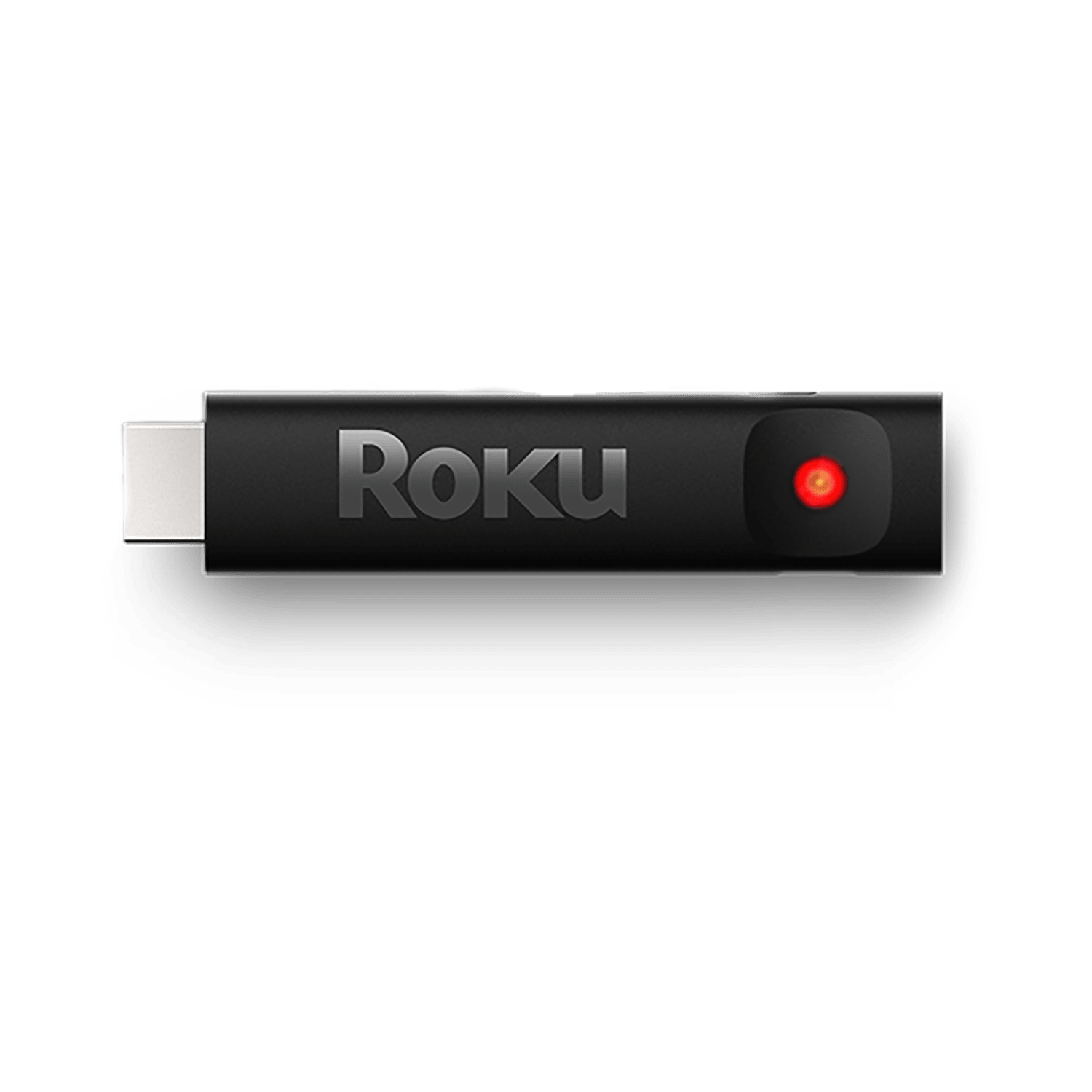
Exit the channel and return to the Roku home screen. Then, press the Home button five times quickly. Press the Up arrow once, then press Rewind twice, and Fast Forward twice. This sequence restarts the channel and clears its cache.
This method refreshes the app’s stored data, improving performance and fixing glitches.
Credit: support.roku.com
Factory Reset Options
Factory reset options offer a way to restore your Roku device to its original settings. This step can solve many persistent problems. It removes personal data and installed channels. Understanding when and how to reset helps avoid unnecessary frustration. Knowing the impact ensures you are prepared for the changes.
When To Reset
Reset your Roku if it freezes often or runs very slow. Use it when apps crash repeatedly. A factory reset helps if you cannot connect to the internet. Try this if you forget your PIN or password. Choose reset if other fixes do not work.
How To Reset
Press the Home button five times quickly. Then press the Up arrow once. Next, press the Rewind button twice. Finally, press the Fast Forward button twice. Follow the on-screen instructions to confirm the reset. Alternatively, go to Settings > System > Advanced System Settings > Factory Reset. Enter the code displayed to start the reset.
Impact Of Factory Reset
Factory reset deletes all your personal settings. Your Roku returns to its original state. All installed channels and accounts will be removed. You must set up your Roku again from scratch. Save important information before resetting. It may take several minutes for the reset to complete.
Power And Connection Tips
Power and connection problems cause most Roku issues. Fixing these can restore your streaming quickly. Follow simple tips to check power sources and cable connections. These steps often solve the problem without needing advanced fixes.
Use Wall Outlet
Always plug your Roku into a wall outlet. Avoid using power strips or extension cords. These can cause unstable power supply and lead to device glitches. A direct wall outlet gives steady power and reduces chances of sudden shutdowns.
Try Different Hdmi Ports
Sometimes the HDMI port on your TV causes connection issues. Switch your Roku to another HDMI port on your TV. This can solve problems like no picture or sound. Each port works differently and testing helps find a good connection.
Secure All Cables
Loose cables cause many Roku problems. Check all cable connections carefully. Make sure HDMI and power cables are fully plugged in on both ends. A firm connection keeps the signal strong and stops random disconnections or freezes.

Credit: www.youtube.com
Frequently Asked Questions
How Do I Reset My Unresponsive Roku?
To reset an unresponsive Roku, press Home 5 times, Up once, Rewind twice, and Fast Forward twice. Alternatively, unplug the power cord, wait 10 seconds, then plug it back in. Use Settings > System > System restart if the remote works.
Where Is The Reset Button On The Roku?
The reset button on most Roku devices is a small pinhole located on the back or bottom. Use a paperclip to press and hold it for about 10 seconds to reset. Some Roku remotes use button combinations for reset instead.
Why Is My Roku All Of A Sudden Not Working?
Your Roku may stop working due to poor Wi-Fi, loose cables, or software glitches. Restart the device, check connections, update software, or reset factory settings to fix it.
What Is The Lifespan Of A Roku Device?
A Roku device typically lasts 4 to 6 years with proper care. Lifespan depends on usage and software updates.
How Do I Reset An Unresponsive Roku Device?
To reset an unresponsive Roku, press Home 5 times, Up once, Rewind twice, and Fast Forward twice. This key combo restarts the device without unplugging. It often fixes freezing or stuck screens quickly.
Conclusion
Troubleshooting your Roku can be simple with the right steps. Start by checking cables and Wi-Fi connections. Restart your Roku device and router to refresh the system. Use the Roku mobile app if your remote is unresponsive. For persistent problems, consider a system restart or factory reset.
These easy fixes often solve common issues quickly. Keep your Roku updated for smooth performance. Remember, small actions can restore your streaming experience. Stay patient and follow each step carefully. Enjoy watching your favorite shows without interruption again.



