
Is Safari acting up just when you need it most? Whether websites won’t load, pages freeze, or the browser crashes unexpectedly, these issues can be incredibly frustrating.
But don’t worry—you’re not alone, and many common Safari problems have simple fixes. In this guide, you’ll discover easy, step-by-step solutions to get Safari running smoothly again on your Mac or iPhone. From clearing out old cache and cookies to checking your network and extensions, you’ll learn exactly what to do to troubleshoot Safari like a pro.
Keep reading, and you’ll be back to browsing without interruptions in no time.

Credit: techtoro.io
Common Safari Issues
Safari is a popular browser, but it can face issues that affect your browsing experience. Knowing common problems helps you fix them quickly. This section covers frequent Safari troubles and simple ways to address them.
Performance Slowdowns
Safari may become slow over time. Many open tabs and heavy websites can cause lag. Clearing cache and closing unused tabs often improves speed. Restarting the browser also helps refresh performance.
Websites Not Loading
Sometimes, Safari fails to load certain websites. This issue can arise from network problems or outdated browser versions. Clearing cookies and website data can fix loading errors. Checking your internet connection is also important.
Unexpected Crashes
Safari can crash without warning. Crashes may happen due to corrupted data or conflicts with apps. Updating Safari and macOS reduces crashes. Removing problematic extensions also prevents sudden shutdowns.
Extension Conflicts
Extensions add features but may cause problems. Some extensions are not compatible with the latest Safari updates. Disable all extensions and enable them one by one to find the culprit. Removing conflicting extensions restores browser stability.
Vpn And Network Problems
Using a VPN can affect Safari’s connection. Network settings may block websites or slow loading times. Turning off the VPN or adjusting its settings often solves these issues. Ensuring your Wi-Fi or Ethernet is stable improves browsing.
Credit: osxdaily.com
Quick Fixes
Safari may sometimes act up or slow down. Quick fixes can help you get back online fast. These simple steps fix most common problems. No need for complex tools or tech skills. Try these easy solutions first.
Reload Webpages
Refreshing a page often solves loading problems. Click the reload button or press Command + R. This clears temporary glitches on the site. It forces Safari to fetch fresh data. Try this before any other step.
Restart Your Device
Turning your device off and on resets many settings. This stops any background tasks that slow Safari. It clears temporary memory and network issues. Restarting is quick and fixes many problems.
Try Private Browsing
Private mode disables cookies and cache. This avoids issues caused by stored data. Open a new private window in Safari. Browse to see if pages load correctly. If yes, clear your browsing data next.
Check Wi-fi Connection
Safari needs a strong internet connection. Check if Wi-Fi is on and working. Try opening other apps or websites. Switch to another network if possible. Fix network issues to improve browsing.
Update Operating System
Older software can cause Safari to misbehave. Go to Settings and check for updates. Install the latest iOS or macOS version. Updates fix bugs and improve browser speed. Keep your system current for best results.
Clearing Cache And Data
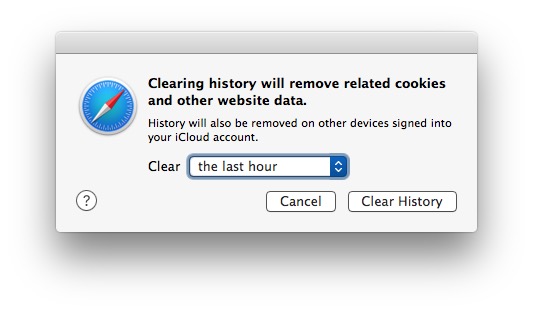
Clearing cache and data in Safari helps fix loading issues and speeds up browsing. Cached files and cookies can cause outdated or broken pages to appear. Removing this stored information forces Safari to load fresh data from websites. This process also protects privacy by deleting saved browsing details. Below are simple ways to clear cache and data on iPhone and Mac.
Clear History And Cookies On Iphone
Open the Settings app on your iPhone. Scroll down and tap Safari. Find the option called Clear History and Website Data. Tap it, then confirm by selecting Clear History and Data. This deletes your browsing history, cookies, and cached files. Safari starts fresh, which often solves loading problems and speeds up browsing.
Remove Website Data On Mac
Launch Safari on your Mac. Click Safari in the menu bar and select Preferences. Go to the Privacy tab and click Manage Website Data. A list of stored data will appear. Click Remove All to delete all cookies and cache. This cleans up space and helps websites work better by removing outdated data.
Delete Autofill Information
Autofill stores your contact info, passwords, and credit cards. To delete it on iPhone, open Settings and tap Safari. Select Autofill and then edit or remove saved details. On Mac, open Safari Preferences, click Autofill, then edit or remove stored information. Clearing autofill can prevent errors and protect your privacy.
Advanced Cache Removal
On Mac, quitting Safari first is important. Open Finder and press Shift + Command + G. Enter ~/Library/Safari and press Enter. Delete files like History.db, LastSession.plist, and cache folders. This deep cleaning removes stubborn cache and history files. Restart Safari to see improved performance and fewer errors.
Managing Extensions
Extensions can improve your Safari browsing experience. They add useful features and tools. But some extensions cause problems. Managing them carefully keeps Safari fast and stable.
Check your extensions regularly. Remove any that slow down Safari or cause crashes. Keep only the ones you really need. This reduces conflicts and improves performance.
Disable Problematic Extensions
Open Safari and go to Preferences. Click the Extensions tab. Find the extension causing trouble. Uncheck its box to disable it temporarily. Reload Safari and see if the issue resolves. This helps isolate the problem without deleting the extension.
Remove Unnecessary Add-ons
Too many extensions can slow Safari. Remove add-ons you do not use. In the Extensions tab, select the unwanted extension. Click Uninstall to delete it completely. This frees resources and prevents conflicts with other tools.
Check Extension Permissions
Some extensions request access to sensitive data. Review their permissions in the Extensions panel. Disable or remove extensions with excessive access. Only keep extensions you trust. This protects your privacy and keeps Safari secure.
Network And Privacy Settings
Network and privacy settings play a key role in how Safari loads websites and protects your data. Incorrect settings can cause pages to load slowly or not at all. Adjusting these settings can fix many common Safari issues without complex steps.
Focus on iCloud Private Relay, VPN connections, and network resets. These areas often interfere with Safari’s performance. Here is how to troubleshoot each one.
Turn Off Icloud Private Relay
iCloud Private Relay hides your IP address and browsing activity. Sometimes, it blocks websites or slows down connections. To turn it off, open Settings and tap your Apple ID. Select iCloud, then find Private Relay. Toggle it off and check Safari again. This step can help if Safari struggles to load certain sites.
Test Vpn Impact
VPNs route your internet traffic through other servers. This can cause delays or block some websites. Disable your VPN temporarily and try Safari. If websites load faster or work better, the VPN may be the issue. Change VPN servers or adjust settings to fix conflicts with Safari.
Reset Network Settings
Resetting network settings clears saved Wi-Fi passwords and resets connections. It often fixes deeper network problems affecting Safari. On iPhone, go to Settings > General > Reset > Reset Network Settings. Confirm and wait for the phone to restart. Reconnect to Wi-Fi and test Safari. This resets all network preferences to default.
Advanced Troubleshooting
Advanced troubleshooting helps fix deep Safari issues. These steps go beyond simple resets or clearing caches. They target hidden files and settings that may cause problems. Follow these carefully for a cleaner and faster browser experience.
Reset Safari On Mac
Resetting Safari removes history, cache, and cookies. Open Safari, then click History and select Clear History. Choose all history and confirm. Next, go to Safari Preferences, select Privacy, and click Manage Website Data. Remove all website data here. Finally, check Extensions and disable or delete any suspicious ones.
Delete Library Files Safely
Quit Safari before deleting files. Open Finder and press Shift + Cmd + G. Type ~/Library/Safari and press Enter. Look for files like History.db and LastSession.plist. Move them to Trash to remove corrupted data. This clears hidden bugs without harming your system.
Launch Safari Without Previous Tabs
Prevent Safari from reopening old tabs. Hold the Shift key and launch Safari. This stops previous sessions from loading. It helps if a specific tab causes crashes or slowdowns. Use this method to start fresh without losing bookmarks or settings.
Backup Important Data First
Always back up Safari data before deep fixes. Export bookmarks by clicking File > Export Bookmarks. Save them to a safe place. Consider copying important files from ~/Library/Safari as well. Backups prevent data loss during troubleshooting steps.

Credit: docs.descope.com
Frequently Asked Questions
How Do I Troubleshoot Safari Browser?
To troubleshoot Safari, reload the page and test another site. Clear cache, disable extensions, and update macOS or iOS. Check Wi-Fi and VPN settings. Use a private window to isolate issues. Restart Safari or your device if problems persist.
How Do I Reset My Safari Browser?
To reset Safari, clear history and website data via Settings (iPhone) or Safari Preferences (Mac). Remove extensions and autofill info for a deeper reset. For advanced cleaning on Mac, delete Safari files in the Library folder and clear caches. Restart Safari to apply changes.
What Are The Common Safari Issues?
Common Safari issues include slow loading, crashes, unresponsive pages, outdated software conflicts, and problems caused by cache or cookies.
Why Is My Safari Not Letting Me Access Websites?
Safari may block websites due to outdated software, corrupted cache, incorrect settings, or network issues. Clear cache, update Safari, and check your internet connection to fix this. Disable extensions or VPNs that might interfere. Restart Safari or your device if problems persist.
How Do I Fix Safari Not Loading Web Pages?
Clear Safari’s cache and cookies to remove old data. Restart your device and check your internet connection. Try opening the page in a private window.
Conclusion
Safari issues can disrupt your browsing experience. Simple steps often fix common problems quickly. Clear history and website data to remove clutter. Disable extensions that may cause conflicts. Check your internet connection for stability. Keep your device software up to date.
Testing in private mode helps isolate issues. These tips keep Safari running smoothly. Stay patient and try each solution carefully. Troubleshooting improves your browser’s speed and reliability. Enjoy a better Safari experience every time you browse.



