
Is your Samsung Frame TV acting up? Maybe the screen is black while the sound plays, or your apps keep freezing at the worst moments.
These issues can be frustrating, especially when you just want to enjoy your favorite shows or display your artwork. But don’t worry—you’re not alone, and most problems have simple fixes you can try right now. In this guide, you’ll discover easy troubleshooting tips tailored specifically for your Samsung Frame TV.
From quick resets and checking cables to updating software and running diagnostic tests, you’ll learn how to get your TV back to perfect working order. Keep reading, and you’ll be watching in no time!
Common Problems
Samsung Frame TVs offer a stunning blend of technology and style. Yet, common problems can disrupt your viewing experience. Many users face issues such as no picture, audio troubles, or app freezes. These problems often arise from simple causes like loose cables or outdated software. Understanding these issues helps you troubleshoot effectively and enjoy your TV without hassle.
No Picture Or Black Screen
The screen turns black but the TV might still be on. This can happen due to faulty HDMI cables or backlight failure. Firmware glitches also cause no picture. Check cables first and reboot the TV. Updating the firmware often restores the display.
Audio Issues
Sound may be missing, distorted, or out of sync with the picture. Loose audio cables or incorrect settings cause these problems. Resetting audio settings or checking external speakers can help. Software updates fix many audio bugs.
Connectivity Drops
Wi-Fi disconnects or slow internet can interrupt streaming. The problem may come from the router or TV’s network settings. Restart your router and reconnect the TV. Changing DNS settings sometimes improves stability.
App Freezes And Lag
Apps may freeze, crash, or run slowly. This often results from insufficient memory or outdated apps. Close unused apps and clear cache in Device Care. Make sure all apps and the TV firmware are updated.
Remote Control Failures
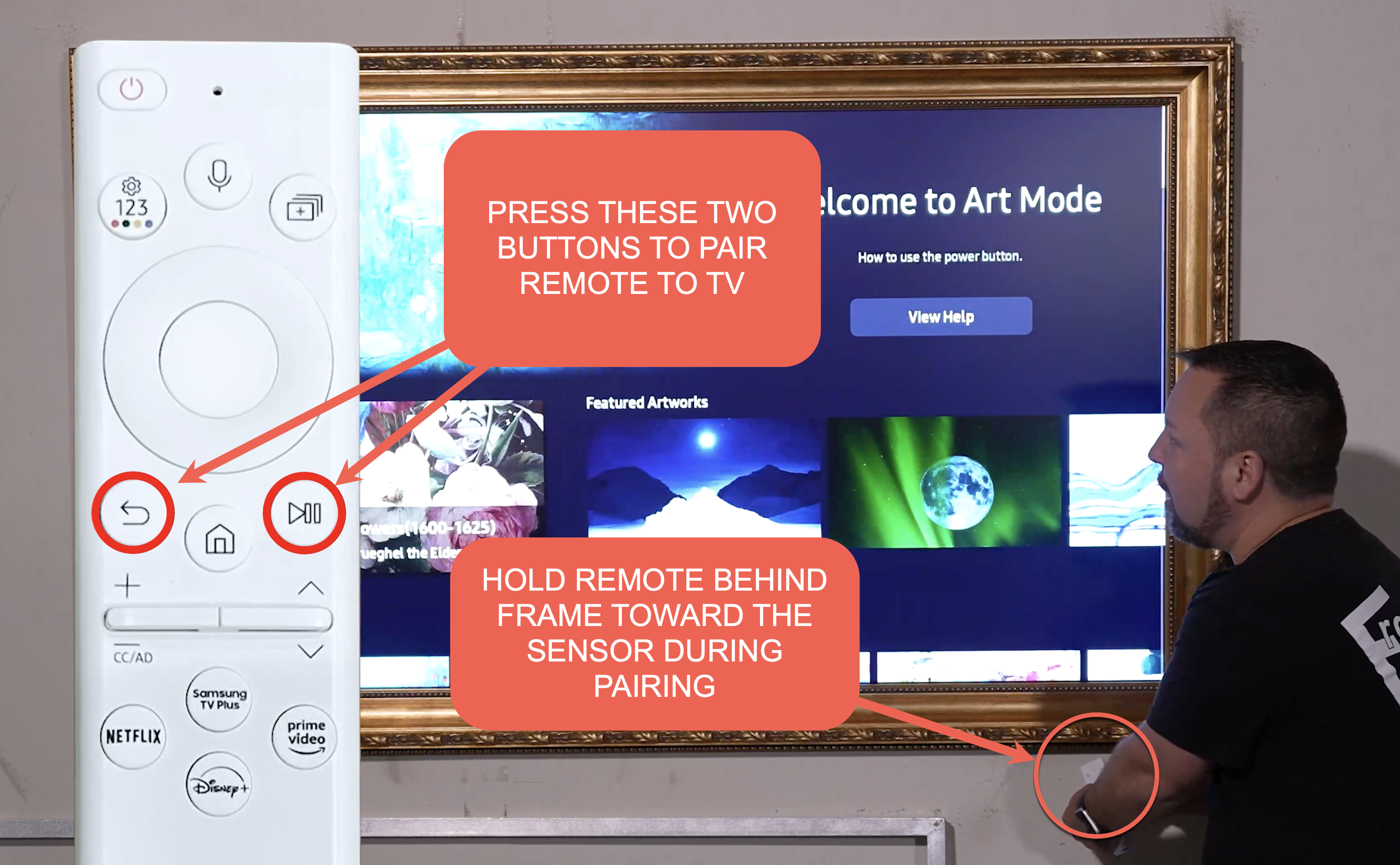
The remote might not respond or work intermittently. Weak batteries or interference can cause this. Replace batteries and remove obstacles between remote and TV. Re-pairing the remote can also solve the issue.
Hdmi And Input Problems
Devices connected via HDMI might lose signal or flicker. Loose or damaged cables are common culprits. Try different HDMI ports and cables. Select the correct input source on the TV menu. Firmware updates can also improve HDMI performance.
Basic Fixes
Basic fixes solve many common Samsung Frame TV problems quickly. These simple steps help restore normal function without technical help. Try these fixes before moving to advanced troubleshooting.
Soft Reset
Turn off the TV and unplug it from the power outlet. Wait for 60 seconds. Plug it back in and turn it on. This clears temporary glitches and refreshes the system.
Cable Checks
Check all cables connected to your TV. Make sure power and HDMI cables are firmly plugged in. Look for any visible damage. Replace faulty cables to restore proper connection.
Input Source Verification
Press the Source button on your remote. Confirm the TV is set to the correct input device. Wrong input selection causes no picture or sound issues.
Firmware Updates
Go to Settings > Support > Software Update. Select Update Now to download and install the latest firmware. Updates fix bugs and improve TV performance.
Device Care Tools
Open Settings and navigate to Device Care. Run a scan to detect errors. Clear cache and close background apps. This keeps your TV running smoothly.
Advanced Fixes
Advanced fixes help solve tough Samsung Frame TV problems. These steps go beyond basic checks and simple resets. They target deeper issues with picture, connections, and settings.
Try these fixes carefully to improve your TV’s performance and picture quality. They can save you time and avoid costly repairs.
Run Picture Test
Use the TV’s built-in picture test to find display problems. Go to Settings > Support > Self Diagnosis > Picture Test. This checks the screen for color or brightness issues. The test shows if the problem is with the TV or your input device.
Run this test after noticing lines, flickering, or color errors on the screen. It helps decide your next repair step.
Hdmi Cable And Port Swap
Swap HDMI cables and ports to find connection issues. A faulty cable or port can cause no picture or sound. Disconnect the HDMI cable and plug it into a different port on the TV. Use a different HDMI cable if possible.
Check if the problem moves with the cable or stays on the same port. This simple test isolates the problem source quickly.
Factory Reset
Perform a factory reset to restore the TV to default settings. This removes corrupted data and faulty configurations. Go to Settings > General > Reset. Enter your PIN if asked (default is 0000).
Resetting erases apps and custom settings but often fixes persistent software issues. Only do this after backing up important settings or apps.
Credit: artforframe.com
Reset Methods
Resetting your Samsung Frame TV can fix many common issues quickly. It clears minor glitches and restores normal functions. Use one of these simple reset methods before seeking professional help. Each method is easy and safe for your TV.
Using Power Button
Press and hold the power button on the TV itself. Keep it pressed for about 10 seconds. The screen will turn off and on again. This resets the TV’s internal software without unplugging it.
This method works well for small freezes or slow responses. It does not affect your settings or apps. Try this first if your TV acts strangely but still shows a picture.
Power Cycling With Remote
Turn off the TV using the remote control. Press the power button once. Wait for at least 30 seconds. Then, press the power button again to turn it back on.
This process clears temporary data stored in the TV’s memory. It can fix issues like frozen apps or slow menus. Use this method if the TV responds to the remote but behaves oddly.
Unplugging For Cold Boot
Unplug the TV’s power cord from the wall socket. Leave it unplugged for at least one minute. This allows the TV’s memory to clear completely.
After waiting, plug the TV back in and turn it on. This cold boot resets more deeply than the power button reset. Use this if the TV won’t respond to buttons or remote commands.
Troubleshooting Unresponsive Tv
When your Samsung Frame TV stops responding, it can be frustrating. The screen may freeze, or the remote might not work. These issues often result from software glitches or hardware conflicts. Quick and clear steps can help fix an unresponsive TV without professional help.
Frozen Screen Solutions
Start by unplugging the TV from the power source. Wait at least 30 seconds before plugging it back in. This action often clears temporary glitches causing the freeze. If the screen remains frozen, try pressing and holding the power button on the TV for 10 seconds to force a restart.
Check if the remote control batteries are charged. Replace them if needed. Sometimes, an unresponsive TV is due to remote issues. Also, disconnect all external devices like HDMI cables and USB drives. Restart the TV with no devices connected to rule out input conflicts.
When Reset Options Fail
If basic resets do not work, try a factory reset through the TV menu. Navigate to Settings > General > Reset. Enter your PIN to confirm. This step erases all settings and returns the TV to its original state. Be sure to back up any important data before doing this.
In cases where the TV does not respond to any commands, use the hardware buttons to access the service menu carefully. This option is best left to experienced users or professionals. Persistent problems after resets may indicate hardware failure, requiring service support.

Credit: www.youtube.com
Credit: help.framemytv.com
Frequently Asked Questions
What Is The Most Common Problem With Samsung Tv?
The most common Samsung TV problem is a black screen or no picture. Causes include faulty HDMI cables, outdated firmware, or backlight issues. Other frequent issues are audio problems, Wi-Fi drops, app freezing, and remote control failures. Simple fixes involve soft resets, cable checks, and software updates.
Is There A Reset Button On Samsung Frame Tv?
Samsung Frame TV does not have a physical reset button. Use the Settings menu to perform a factory or soft reset.
How To Reset An Unresponsive Samsung Tv?
Unplug the Samsung TV from power for 30 seconds, then plug it back in to perform a soft reset. If unresponsive, press and hold the power button on the TV for 10 seconds. For persistent issues, perform a factory reset via Settings > General > Reset.
Why Is The Art Not Working On My Samsung Frame Tv?
Your Samsung Frame TV art may not work due to outdated firmware, connectivity issues, or incorrect settings. Update software, check Wi-Fi, and ensure Art Mode is enabled. Restart the TV or perform a soft reset to fix temporary glitches.
Why Is My Samsung Frame Tv Screen Black But Sound Works?
A black screen with sound often means a backlight or HDMI issue. Check cables and try a soft reset. Updating the firmware can also fix this problem.
Conclusion
Samsung Frame TV issues can often be fixed with simple steps. Check cables and restart your TV first. Keep the firmware updated for better performance. Use built-in tools to find hardware problems. Try different HDMI cables if picture or sound fails.
Factory reset only when other fixes don’t work. Staying patient and following these tips saves time and frustration. Your Samsung Frame TV should run smoothly with regular care. Troubleshooting does not have to be hard or confusing.



