
Is your Samsung Galaxy tablet acting up when you need it most? Whether it won’t turn on, the screen is frozen, or it’s running painfully slow, these issues can be frustrating and disrupt your daily routine.
But don’t worry—most problems can be fixed with simple steps you can try right now. In this guide, you’ll discover easy, effective troubleshooting tips that help you get your tablet back in top shape quickly. Keep reading to learn how to solve common Samsung Galaxy tablet problems and avoid costly repairs or replacements.
Your tablet’s smooth performance is just a few fixes away!
Credit: www.samsung.com
General Fixes
General fixes solve many common issues with your Samsung Galaxy Tablet. These simple steps restore normal function quickly. Try these basic methods before advanced troubleshooting.
They help with problems like unresponsive screens, charging failures, or slow performance. Following these tips often saves time and effort.
Restart Tablet
Press and hold the Power button and Volume Down button together. Keep holding them for about 10 seconds. Release when the Samsung logo appears. This forces a reboot and clears temporary glitches.
Check Charger And Cable
Inspect your charger and cable closely. Make sure the cable is not frayed or broken. Confirm the adapter works by testing with another device. Check the charging port for dust or debris and clean it gently.
Clean Screen And Fingers
Dirty screens or oily fingers reduce touch sensitivity. Use a soft, dry cloth to clean the screen. Wash your hands before using the tablet for better response. A clean screen improves touch accuracy and prevents ghost touches.
Frozen Or Unresponsive Screen
A frozen or unresponsive screen on your Samsung Galaxy Tablet can stop all your work. The screen may not react to taps or swipes. This issue often happens due to software glitches or app crashes. Simple fixes can bring your tablet back to life quickly. Follow these steps to troubleshoot the problem.
Force Restart
Press and hold the Power button and Volume Down button together. Keep holding both buttons for about 10 to 15 seconds. The tablet will force restart and show the Samsung logo. This action clears minor system glitches that cause the screen to freeze. After restarting, check if the screen responds normally.
Boot In Safe Mode
Safe Mode runs the tablet with only system apps active. It helps find if a third-party app causes the problem. To enter Safe Mode, first turn off the tablet. Then press and hold the Power button until the Samsung logo appears. Release the Power button and immediately press the Volume Down button. Keep holding Volume Down until the tablet finishes starting up.
You will see “Safe Mode” at the screen corner. Test the screen now. If it works fine, a downloaded app likely caused the freeze. Restart the tablet normally to exit Safe Mode. Then uninstall recently added apps one by one to find the culprit.
Performance Issues
Performance issues on your Samsung Galaxy Tablet can slow down your daily tasks. Apps may lag, the screen might freeze, or the device could respond slowly. These problems often result from apps running in the background or outdated system files. Simple steps can help restore smooth performance and improve your tablet’s speed. Follow these tips to troubleshoot and fix common performance problems.
Close Background Apps
Apps running in the background use memory and slow down your tablet. Close unused apps to free up resources. Tap the Recent Apps button and swipe away apps you do not need. This action helps the tablet focus on current tasks. Closing background apps often boosts speed and reduces lag.
Clear Cache Data
Cache files can build up and cause slowdowns. Clearing cache removes temporary data that apps store. Go to Settings > Apps, select an app, then tap Storage > Clear Cache. Repeat for apps using a lot of space. Clearing cache can fix glitches and improve app performance.
Update Software
Outdated software may cause bugs and slow performance. Check for updates regularly. Go to Settings > Software Update > Download and Install. Installing updates fixes errors and adds improvements. Keeping software current helps your tablet run smoothly and securely.
Wi-fi Connectivity Problems
Wi-Fi connectivity problems can disrupt your Samsung Galaxy tablet experience. Slow or dropped connections affect browsing, streaming, and app use. Several common issues cause Wi-Fi troubles, such as software glitches or network conflicts. Simple troubleshooting steps often restore stable connections quickly.
Forget And Reconnect Network
Start by forgetting the problematic Wi-Fi network. Open Settings, tap on Wi-Fi, and find your network. Tap the network name, then select “Forget.” This removes saved information that might cause connection errors. Next, reconnect by selecting the network and entering the password again. This refreshes the connection and clears minor glitches.
Reset Network Settings
Resetting network settings can fix deeper connection problems. Go to Settings, then General Management or System. Tap “Reset,” then choose “Reset Network Settings.” This action deletes all saved Wi-Fi, Bluetooth, and VPN settings. After the reset, reconnect to your Wi-Fi network by entering the password. This method often resolves persistent connectivity issues.
Charging And Power Issues
Charging and power issues can disrupt your Samsung Galaxy tablet’s use. The tablet may not charge properly or fail to turn on. These problems often have simple fixes. Follow these steps to diagnose and resolve common charging and power challenges.
Fully Charge Battery
Connect your tablet to a power source using the original charger. Let it charge for at least one hour. Avoid using the tablet during charging. Check if the battery icon shows charging. A low battery might prevent the tablet from turning on.
Try Different Charger
Use a different charger and cable compatible with Samsung tablets. Faulty chargers or cables cause slow charging or no charging. Inspect the charging port for dust or debris. Clean it gently with a soft brush if needed. A new charger can help identify if the issue is with your charger or tablet.
Run Diagnostics
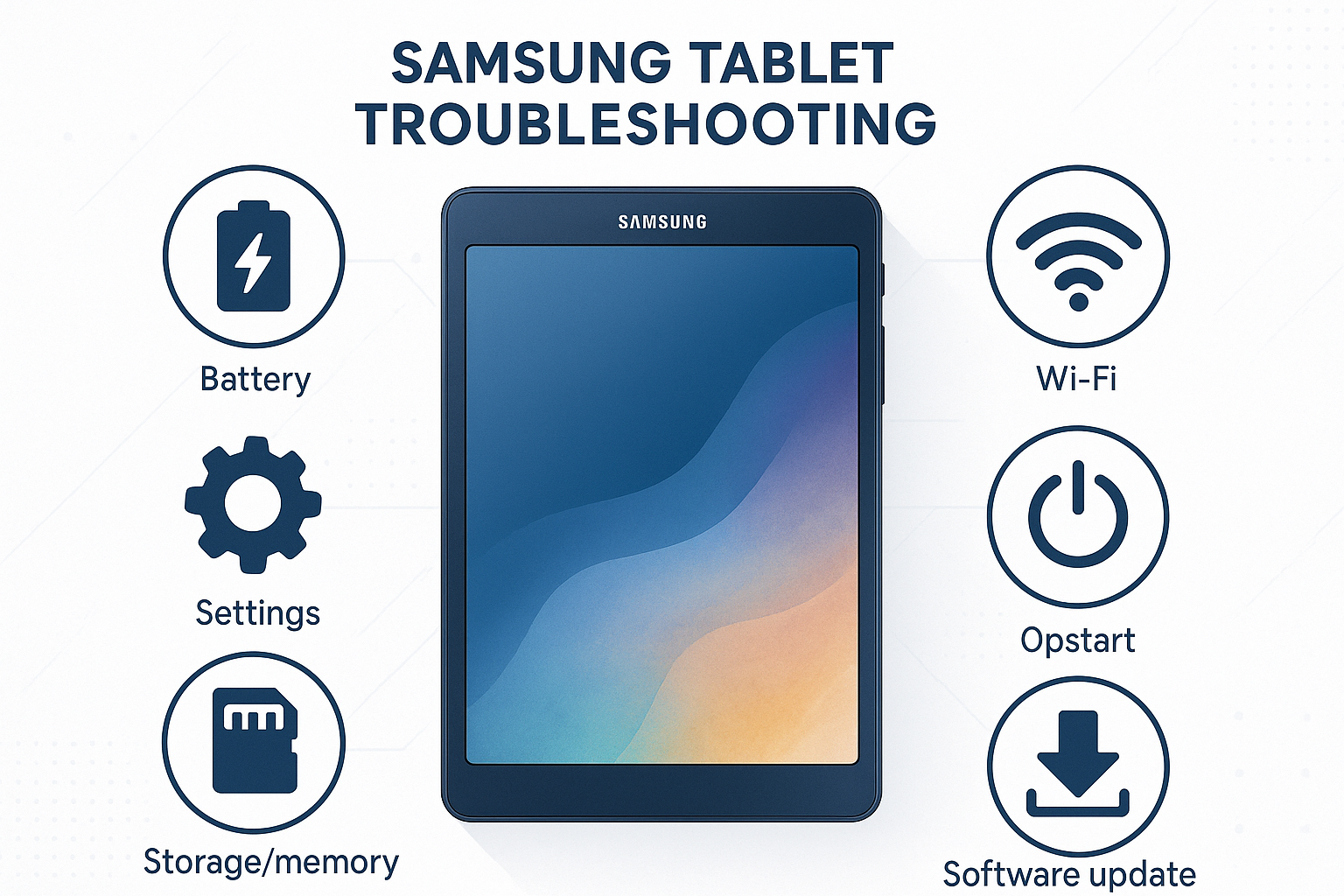
Samsung tablets have built-in diagnostic tools. Open the Samsung Members app and select Diagnostics. Run tests on the battery and charging system. The app will report any detected problems. Use the results to decide if professional repair is necessary.
Credit: mdsmobile.ae
Last Resort Solutions
When all basic fixes fail, last resort solutions can help restore your Samsung Galaxy tablet. These steps can fix deep issues but erase personal data. Back up important files before proceeding. Use these methods carefully to avoid permanent data loss.
Factory Reset Tablet
A factory reset returns your tablet to original settings. It deletes all apps, files, and settings. Press and hold the Power and Volume Up buttons together. Release when the Samsung logo appears. Use volume keys to select “Wipe data/factory reset.” Press Power to confirm. Wait for the process to finish. Select “Reboot system now” to restart.
This step solves many problems like freezing, slow speed, or app errors. Only use it if other fixes do not work. Remember, this deletes everything stored on the device.
Contact Samsung Support
If issues persist after a reset, reach out to Samsung Support. They provide expert help for hardware or software problems. Use their website, phone, or chat services for assistance. Samsung can guide you through repairs or replacements. Keep your tablet’s model number and purchase details ready. Support teams help ensure your device works properly again.
Credit: www.asurion.com
Frequently Asked Questions
How Do I Fix An Unresponsive Samsung Tablet?
Press and hold Power and Volume Down buttons until the Samsung logo appears. Check charger and cable. Clean screen and fingers. Restart in Safe Mode to identify app issues. Clear app caches and update software. Use Samsung Members app for diagnostics.
Backup data and perform factory reset if needed.
Is There A Reset Button On My Samsung Tablet?
Samsung tablets don’t have a physical reset button. Use Power + Volume Down buttons to force restart or perform a factory reset via settings.
How To Troubleshoot Samsung Galaxy Tab?
Troubleshoot Samsung Galaxy Tab by restarting with Power + Volume Down, checking charger and Wi-Fi, clearing app cache, updating software, and using Samsung Members app. For persistent issues, perform a factory reset or seek professional repair.
What To Do When Your Samsung Galaxy Tab A Won’t Turn On?
Press and hold Power and Volume Down buttons until the Samsung logo appears. Check charger and cable for damage. Charge fully using a different outlet. Use Samsung Members app for diagnostics. Perform a factory reset if the tablet still won’t turn on.
How Do I Fix A Samsung Galaxy Tablet That Won’t Turn On?
Try holding the Power and Volume Down buttons together for 10 seconds. Check if the charger and cable work properly. If still off, charge the tablet for 30 minutes and try again.
Conclusion
Samsung Galaxy tablet issues can be fixed with simple steps. Restart your device first to clear minor glitches. Check chargers and cables to avoid power problems. Clean the screen to keep touch functions working well. Use Safe Mode to find app-related troubles.
Clear cache and update software to boost performance. Reset the tablet only if other fixes fail. Regular care helps your tablet run smoothly longer. Troubleshooting becomes easier with these basic tips in mind. Stay patient and try each step carefully for best results.



