
Is your Samsung Internet TV refusing to connect or acting up when you try to stream your favorite shows? You’re not alone—and the good news is that most issues can be fixed quickly with a few simple steps.
Whether your TV won’t join the Wi-Fi network, keeps dropping the connection, or loads pages slowly, this guide is designed just for you. By following easy troubleshooting tips, you’ll be back to enjoying seamless streaming and smooth browsing in no time.
Keep reading to discover how to solve common Samsung Internet TV problems and regain full control over your viewing experience.
Common Connection Problems
Connection problems can disrupt your Samsung Internet TV experience. Common issues include Wi-Fi not connecting, slow internet speeds, and intermittent signal drops. These problems affect streaming quality and overall usability.
Understanding these issues helps you fix them faster. Troubleshooting each problem step-by-step improves your TV’s internet performance.
Wi-fi Not Connecting
Wi-Fi not connecting is a frequent problem. Check your TV’s Wi-Fi settings first. Make sure you select the correct network and enter the right password. Restart your router and TV to refresh the connection. Sometimes, outdated firmware blocks connection. Update your TV software under Settings > Support > Software Update. Also, reset network settings if needed.
Slow Internet Speeds
Slow speeds cause buffering and low video quality. Test your internet speed using another device near the TV. If speeds are low, restart your router and modem. Reduce the number of devices using Wi-Fi at the same time. Move your router closer to the TV for a stronger signal. Use an Ethernet cable for a direct connection if possible.
Intermittent Signal Drops
Signal drops interrupt streaming and cause lag. Check for obstacles between your router and TV. Walls and furniture can block signals. Change your Wi-Fi channel in the router settings to avoid interference. Keep your router away from other electronics. Restart your router regularly to maintain a stable connection.
Credit: www.asurion.com
Quick Fixes
Quick fixes often resolve common Samsung Internet TV issues fast. These simple steps help restore your connection without hassle. Try these easy solutions before deeper troubleshooting.
Start with basic checks to avoid complex procedures. Many problems come from simple errors like weak signals or wrong passwords. Fixing these first saves time and frustration.
Restart Tv And Router
Turn off your Samsung TV and unplug it from power. Wait for about 30 seconds before plugging it back in. Do the same with your router. Restarting clears temporary glitches that block internet access.
This refreshes the connection between your TV and the network. Many connection errors disappear after a quick restart. It’s a fast and effective first step.
Verify Network And Password
Check that your TV is connected to the correct Wi-Fi network. Sometimes, it tries to join a different or old network. Enter the password carefully to avoid typing mistakes.
A wrong password stops the TV from connecting. Confirm your password on another device if unsure. Use simple characters to reduce errors when typing on the TV remote.
Check Wi-fi Signal Strength
Weak Wi-Fi signals cause slow or no internet on your TV. Move your router closer to the TV if possible. Avoid obstacles like walls or large furniture between them.
Use a phone or laptop near the TV to test signal strength. Strong signals improve streaming and reduce buffering. A better signal often fixes connection problems immediately.
Settings To Check
Checking your Samsung Internet TV settings can resolve many connection issues quickly. Some settings might block or slow your internet access. Adjusting these settings often restores smooth browsing and streaming.
Review these key settings to ensure your TV connects properly and works without interruptions.
Date And Time Configuration
Incorrect date and time can cause connection errors on your Samsung TV. The TV uses this data to sync with servers and apps. Set the date and time to automatic. Go to Settings, then General, and select System Manager. Find Date and Time, and turn on the automatic option. This keeps your TV’s clock accurate and avoids sync problems.
Dns Settings
DNS helps your TV find websites and online services. Wrong DNS settings may block access or slow loading. Check your DNS in the network settings menu. Use common DNS servers like Google’s (8.8.8.8 and 8.8.4.4) or your internet provider’s. Enter these manually if automatic settings fail. Correct DNS settings improve speed and reliability.
Router Parental Controls And Mac Filtering
Router controls can block your Samsung TV from accessing the internet. Parental controls may limit device usage or internet access times. MAC filtering restricts network access based on device addresses. Check your router’s control panel for these features. Make sure your TV’s MAC address is allowed. Disable any blocks or limits affecting your TV to restore full internet access.
Credit: www.samsung.com
Advanced Troubleshooting
Advanced troubleshooting helps fix complex Samsung Internet TV issues. It goes beyond basic checks. This step is vital when simple methods fail to restore connection. Follow these detailed actions to identify and solve persistent problems.
Update Tv Firmware
Outdated firmware causes many connection errors. Check for software updates regularly. Go to Settings > Support > Software Update. Download and install the latest version. Updated firmware improves stability and adds fixes. This process takes a few minutes but can solve many issues.
Reset Network Settings
Resetting network settings clears old configurations. This step removes saved Wi-Fi networks and passwords. Navigate to Settings > General > Network > Reset Network. Confirm the reset and restart your TV. Reconnect to your Wi-Fi with the correct password. This often solves hidden conflicts blocking internet access.
Test With Mobile Hotspot
Use a mobile hotspot to isolate the problem. Turn on the hotspot on your smartphone. Connect your Samsung TV to this new network. If the TV connects, the home Wi-Fi router may be the issue. If the TV still fails, the problem lies within the TV or its settings. Testing this way narrows down the source quickly.
Wired Connection Options
Wired connection options offer a stable way to connect your Samsung Internet TV to the internet. Using a physical cable reduces interruptions that wireless networks sometimes face. This method is ideal for streaming high-quality videos without buffering. It also helps avoid common Wi-Fi issues like weak signals or interference from other devices.
Using Ethernet Cable
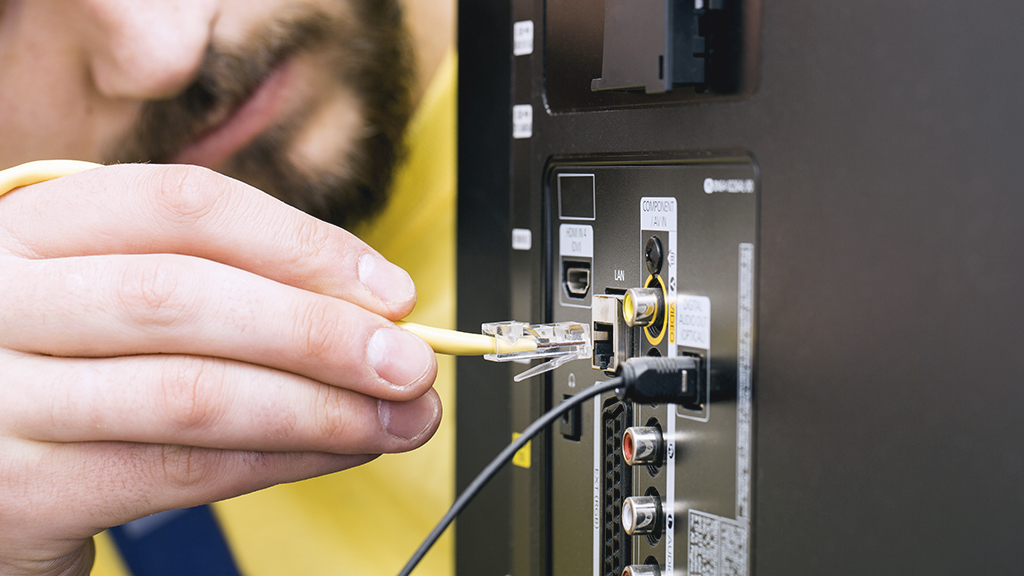
Connect an Ethernet cable from your router directly to the TV’s Ethernet port. This setup creates a secure and steady internet link. Most Samsung Smart TVs have an Ethernet port on the back or side. Make sure the cable is fully plugged in at both ends. Once connected, your TV should detect the wired network automatically. If not, open the TV’s network settings to select the wired connection manually.
Benefits Of Hardwiring
Hardwiring reduces lag and improves streaming quality on Samsung Internet TV. It offers faster speeds compared to Wi-Fi, which is crucial for 4K or HDR content. Wired connections are less prone to dropouts caused by walls or other wireless signals. This option also increases security since the data travels through a cable rather than airwaves. Overall, using a wired connection leads to a smoother and more reliable TV internet experience.

Credit: www.asurion.com
Last Resort Solutions
Some Samsung Internet TV issues resist all quick fixes and basic troubleshooting. These cases call for last resort solutions. These steps may fix deep software problems or settings errors. They also prepare you to get expert help if needed. Follow these methods carefully to avoid data loss or bigger issues.
Factory Reset Tv
Factory reset erases all settings and apps on the TV. It returns the TV to its original state. This step often clears stubborn bugs causing internet problems.
To factory reset, open the Settings menu. Select General, then Reset. You may need to enter your PIN. Confirm to start the reset. The TV will restart and take a few minutes.
After reset, reconnect to your Wi-Fi and set up the internet again. Check if the Samsung Internet app works properly now.
Contacting Support
When nothing else works, contact Samsung support for help. Their experts can provide tailored solutions or repair options. They may guide you through advanced troubleshooting.
Prepare your TV’s model number and details of the issue before calling. This helps the support team assist you faster and more accurately. Use Samsung’s official website or app to find contact info and live chat options.
Frequently Asked Questions
Why Is Samsung Tv Internet Not Working?
Samsung TV internet may fail due to weak Wi-Fi signal, incorrect network settings, outdated firmware, router issues, or IP conflicts. Restart the TV and router, verify Wi-Fi password, update firmware, and reset network settings to fix connectivity problems.
How To Reset Samsung Smart Tv Internet?
To reset Samsung Smart TV internet, go to Settings > General > Network > Reset Network. Confirm and reconnect to Wi-Fi with your password.
Why Is My Tv Not Connecting To The Internet But Everything Else Is?
Your TV may face glitches, weak signals, incorrect settings, outdated firmware, IP conflicts, or router blocks. Restart devices, verify Wi-Fi details, update firmware, and reset network settings to fix this. Testing with a mobile hotspot or using an Ethernet cable helps identify the issue.
What To Do When Samsung Internet Is Not Working?
Restart your Samsung TV and router. Verify Wi-Fi password and network. Update TV firmware via Settings. Reset network settings if needed. Test connection using a mobile hotspot. Check router for blocks or adjust DNS. Use Ethernet cable or factory reset as last resorts.
Why Won’t My Samsung Tv Connect To Wi-fi?
Your Samsung TV may fail to connect due to wrong password or weak signal. Restart your router and TV, then re-enter Wi-Fi details carefully. Also, check if your TV’s software is up to date.
Conclusion
Troubleshooting your Samsung Internet TV can be simple with the right steps. Start by restarting your TV and router to clear glitches. Check your Wi-Fi signal and ensure the password is correct. Keep your TV’s software up to date for best performance.
If issues continue, reset network settings or try a mobile hotspot to find the cause. These easy fixes often restore your connection quickly. Stay patient and follow each step carefully to enjoy smooth streaming again.



