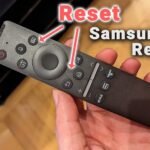
Is your Samsung remote acting up and leaving you frustrated? You’re not alone.
When your remote stops responding, it can feel like your entire TV experience is on hold. But before you reach for a replacement or call for help, there are simple troubleshooting steps you can try that often fix the problem quickly.
In this guide, you’ll discover easy, effective ways to reset, test, and re-pair your Samsung remote—whether it’s a standard battery-powered remote or a smart remote with Bluetooth. By following these tips, you’ll get your remote working smoothly again and get back to enjoying your favorite shows without delay. Keep reading to unlock solutions that save you time and hassle!
Common Samsung Remote Issues
Samsung remotes may face issues that stop them from working properly. Knowing common problems helps to fix them quickly. Many users experience simple troubles that need little effort to solve. Below are frequent issues with Samsung remotes and easy checks to try.
Unresponsive Buttons
Buttons on the remote may stop working or respond slowly. Dirt or dust can block signals inside the remote. Sometimes, moisture or damage to the buttons causes this problem. Cleaning the remote gently with a dry cloth often helps. Removing and reinserting the batteries can reset the remote’s functions. If the problem stays, the remote may need repair or replacement.
Pairing Problems
Smart remotes need to pair with the TV to work. Pairing can fail after battery changes or power cuts. The remote and TV might lose connection, making controls unresponsive. To fix this, turn off the TV and remote, then turn them back on. Try pairing again by pressing specific buttons as per the manual. Keep the remote close to the TV during pairing for better results.
Battery Drain
Remote batteries can drain quickly, causing sudden loss of power. Using the remote frequently or leaving it on can shorten battery life. Old or low-quality batteries may also drain fast. Replace batteries with fresh, high-quality ones for longer use. Remove batteries if the remote will not be used for a long time. Avoid mixing old and new batteries to prevent damage.
Basic Remote Checks
Basic remote checks help solve many Samsung remote issues fast. Start with simple steps. These steps often fix the remote without extra tools or help. Check batteries, clear sensor paths, and test the infrared signal. These steps save time and avoid frustration.
Replace Or Reinsert Batteries
Remove the batteries from the remote. Check if they are old or weak. Replace old batteries with new ones. Insert the batteries correctly, matching the positive and negative ends. Make sure the battery cover is secure. Test the remote to see if it works.
Clear Sensor Obstructions
Check the front of the remote and the TV sensor area. Remove anything blocking the path between them. Dust, dirt, or objects can stop signals from reaching the TV. Clean the sensor areas gently with a soft cloth. Keep the space clear for better signal flow.
Test Infrared Signal
Use your phone’s camera to check the remote’s infrared light. Point the remote at the camera lens. Press any button on the remote. Look at the phone screen for a blinking light from the remote’s front. If no light appears, the remote may be faulty or need new batteries.
Power Cycle Your Tv And Remote
Power cycling your Samsung TV and remote is a simple yet effective step to fix many common issues. This process helps clear temporary glitches that stop your devices from working correctly. Power cycling resets both the TV and remote, refreshing their connection.
Follow these steps carefully to ensure your TV and remote start working smoothly again.
Unplug And Wait
First, unplug your Samsung TV from the power outlet. Leave it unplugged for at least 60 seconds. This pause lets the TV’s internal memory clear and resets its hardware. While waiting, remove the batteries from your remote control. Waiting helps both devices reset fully.
Restart Devices
After waiting, plug your TV back into the power source. Turn on the TV using the power button on the TV itself. Next, put fresh batteries into the remote. Restarting both devices ensures they reconnect properly and eliminates minor software bugs.
Test Remote Functionality
Point the remote at the TV and press a few buttons. Check if the TV responds to the commands. If the remote still does not work, try using your phone’s camera to detect the remote’s IR signal. A visible light means the remote is sending commands, confirming the issue might be with the TV’s sensor.
Credit: www.samsung.com
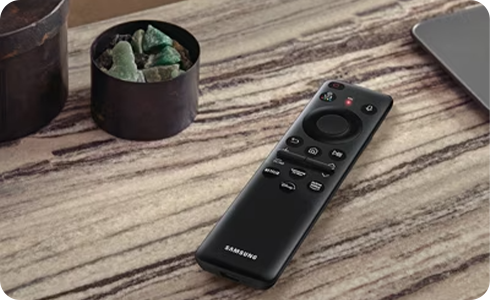
Resetting Standard Samsung Remotes
Resetting standard Samsung remotes can fix many common problems. Sometimes, the remote stops working or does not respond properly. Resetting helps clear minor glitches and restores normal function. This process is simple and does not require special tools.
Follow easy steps to reset your Samsung remote and improve performance. Start with basic battery removal, then try manual reset actions. These methods work for most standard Samsung remote models.
Remove And Reinsert Batteries
First, open the battery compartment on the back of the remote. Take out the batteries and wait for about 30 seconds. This pause helps clear any temporary issues inside the remote. Next, insert fresh batteries in the correct direction. Close the compartment tightly to ensure good contact. Test the remote by pointing it at the TV and pressing buttons. Sometimes, the TV needs to be turned on manually first.
Manual Reset Steps
Press and hold the power button on the remote for 10 seconds. This can reset the remote’s internal settings. Release the button and wait a few seconds. Then, try using the remote again to see if it works better. Another method is to press the “Return” and “Play/Pause” buttons together for 5 seconds. This may re-pair the remote with the TV. If the remote still does not respond, repeat these steps or replace the batteries again.
Resetting Samsung Smart Remotes
Resetting Samsung Smart Remotes helps fix many common issues fast. A reset clears glitches and refreshes the remote’s connection. This process works for both Bluetooth and infrared remotes. It restores normal function without complex steps. Below are simple ways to reset your Samsung smart remote.
Button Combination Reset
Press and hold the Return and Play/Pause buttons at the same time. Keep holding for about 5 seconds. The remote’s LED will blink or flash. This means the reset started. Release the buttons and wait for the remote to restart. This method clears minor software bugs fast.
Re-pairing With Tv
After resetting, the remote may lose connection with the TV. Bring the remote close to the TV’s sensor. Press and hold the Return and Play/Pause buttons together again. Hold until a pairing message shows on the TV screen. Follow on-screen prompts to complete pairing. This step restores full remote control.
Alternative Reset Methods
Remove the batteries from the remote. Wait for 10 seconds and put fresh batteries in. Press any button to wake the remote. Unplug the TV from power for about 30 seconds. Plug the TV back in and turn it on. Test the remote to see if it works properly. These steps often fix unresponsive remotes.
Testing Infrared Signal
Testing the infrared (IR) signal of a Samsung remote is an essential step in troubleshooting remote control issues. The IR signal is what allows your remote to communicate with the TV. If the signal is weak or not working, the remote will not respond properly. Checking this signal helps identify if the problem lies with the remote itself or other parts of the system. Below are simple ways to test the IR signal effectively.
Using Phone Camera
Most smartphone cameras can detect infrared light, even though it is invisible to the naked eye. Open your phone’s camera app and point the Samsung remote at it. Press any button on the remote while looking through the camera screen.
If the remote is working, you will see a small flashing light at the front of the remote. This light shows the IR signal sending out. No light means the remote might have dead batteries or a hardware issue. This simple test can save time by confirming if the remote is sending any signals.
Identifying Signal Issues
After testing with a phone camera, observe the results carefully. A dim or flickering light may indicate weak batteries or dirt on the remote’s IR sensor. Clean the sensor gently with a soft cloth to improve signal strength. Replace the batteries with new ones to ensure full power.
If no light appears, the remote could be damaged or broken. Check if any physical damage exists, like cracks or loose buttons. Testing the IR signal helps narrow down whether to replace the remote or seek further TV troubleshooting. It is a key step in fixing Samsung remote problems quickly.
Troubleshooting Bluetooth Smart Remotes
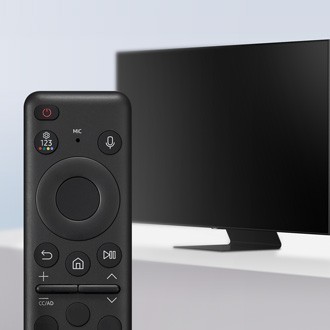
Bluetooth smart remotes offer a smooth way to control your Samsung TV without direct line-of-sight. Troubleshooting these remotes requires a few simple checks. Problems often arise from power issues, pairing errors, or app settings. Follow these steps to get your remote working again quickly.
Ensure Tv Is Powered On
First, confirm your Samsung TV is turned on. A remote will not connect if the TV is off or in standby mode. Use the power button on the TV itself to switch it on. Sometimes, TVs take a moment to wake up, so wait a few seconds before trying the remote again.
Pairing Process
Bluetooth remotes need to pair with the TV to work properly. Hold the remote close to the TV’s sensor. Press and hold the Return and Play/Pause buttons together for about 3 seconds. Wait for a message on the screen confirming the pairing. If pairing fails, repeat the process or restart the TV and remote.
Using Smartthings App
The SmartThings app helps manage your Samsung TV and remote. Download the app on your smartphone and connect it to your TV. Use the app to check the remote’s battery status and settings. You can also pair or reset the remote through the app. This tool is useful for fixing connection issues without physical buttons.
Credit: www.samsung.com
Advanced Tips
Advanced tips can help solve tricky Samsung remote issues quickly. These steps go beyond basic fixes and improve your remote’s performance. Follow these methods to keep your remote working smoothly.
Update Tv Software
Outdated software can cause remote problems. Check your Samsung TV for updates regularly. To update, go to Settings > Support > Software Update. Select Update Now and wait for the TV to install the latest version. Updated software can fix bugs and improve remote control functions.
Use Phone As Remote
Use your smartphone as a temporary remote control. Download the Samsung SmartThings app from your app store. Connect your phone to the same Wi-Fi as your TV. The app lets you control your TV easily. This method works if your remote is lost or not responding.
Contacting Samsung Support
If problems persist, contact Samsung Support for help. Visit the official Samsung website or call their support number. Provide your TV model and remote details for faster assistance. Samsung experts can guide you through advanced troubleshooting steps or arrange repairs if needed.

Credit: www.youtube.com
Frequently Asked Questions
How Do I Reset My Samsung Tv Remote?
Remove the batteries from your Samsung remote. Reinsert fresh batteries and close the cover firmly. Turn on the TV manually, then press and hold the Return and Play/Pause buttons to re-pair the remote. Test the remote for proper function.
How Do I Fix An Unresponsive Samsung Remote?
Replace batteries and check for obstructions blocking the remote or TV sensor. Power cycle the TV by unplugging it for a few minutes. Test the remote’s IR signal using a phone camera. Reset and re-pair smart remotes by holding Return and Play/Pause buttons until pairing appears.
Use the SmartThings app if needed.
How Do You Resync A Samsung Remote?
Turn on the TV using its power button. Point the Samsung remote at the TV sensor. Press and hold Return and Play/Pause buttons together until a pairing message appears. Replace batteries if needed. Use the SmartThings app if pairing fails.
What Does A Blinking Red Light Mean On A Samsung Tv Remote?
A blinking red light on a Samsung TV remote usually indicates low battery power. Replace the batteries to fix it.
How Do I Reset My Samsung Tv Remote Easily?
Remove the batteries from your remote and wait for 10 seconds. Insert fresh batteries and close the cover firmly. Test the remote by turning on the TV and using it.
Conclusion
Troubleshooting your Samsung remote can be simple and quick. Start by checking the batteries and removing any obstructions. Reset or re-pair the remote if needed to restore connection. Use your phone’s camera to test the remote’s signal easily. Power cycling the TV often resolves many issues.
For smart remotes, the SmartThings app offers a handy alternative. Keep your TV software updated for better remote performance. Persistent problems may require professional support. These steps help you enjoy smooth control of your Samsung TV again.