
Is your Samsung TV remote not working the way it should? You’re not alone—and the good news is, most remote control problems can be fixed quickly at home.
Whether your remote won’t respond, buttons feel stuck, or pairing with your smart TV fails, there are simple troubleshooting steps you can try right now. In this guide, you’ll discover easy-to-follow tips to get your Samsung TV remote back in action, saving you time and frustration.
Keep reading to learn how to reset your remote, check for common issues, and restore full control of your TV in minutes. Your next binge-watch is just a few fixes away!
Credit: www.samsung.com
Common Remote Problems
Samsung TV remotes may stop working properly due to several common issues. These problems affect the remote’s ability to control your TV smoothly. Knowing these issues helps you fix the remote quickly. This section covers the most frequent remote control problems and how to spot them.
Battery Issues
Weak or dead batteries are the top cause of remote failure. The remote might respond slowly or not at all. Replace old batteries with fresh ones. Ensure batteries are inserted correctly with the right polarity. Clean battery contacts if corroded for better power flow.
Pairing Failures
Smart remotes need to pair with the TV via Bluetooth. Sometimes the remote loses connection. This causes no response from the remote. To fix this, re-pair the remote by following the TV’s pairing steps. Restarting the TV and remote can also help restore connection.
Blocked Ir Sensors
Traditional remotes use infrared signals that need a clear path. Objects or dirt blocking the TV’s IR sensor stop commands from reaching the TV. Clean the sensor area gently with a soft cloth. Remove any items between the remote and TV to restore signal flow.
Unresponsive Buttons
Buttons may become stuck or unresponsive due to dirt or wear. Dirt under buttons stops them from clicking properly. Clean around the buttons carefully to remove dust or debris. Press each button multiple times to loosen stuck keys. Severe wear may require remote replacement.
Software Glitches
Smart remotes run software that can glitch or freeze. This may cause random button presses or no response. Reset the remote by removing batteries and holding the power button for 10 seconds. Update your TV’s firmware to fix bugs affecting remote performance.
Credit: www.samsung.com
Types Of Samsung Remotes
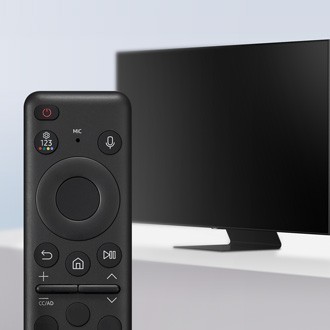
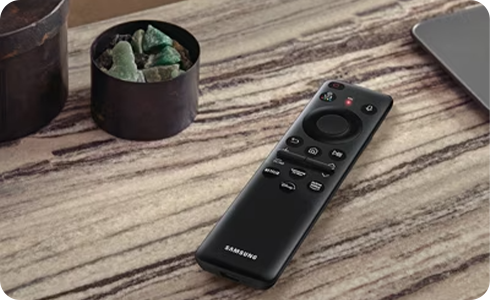
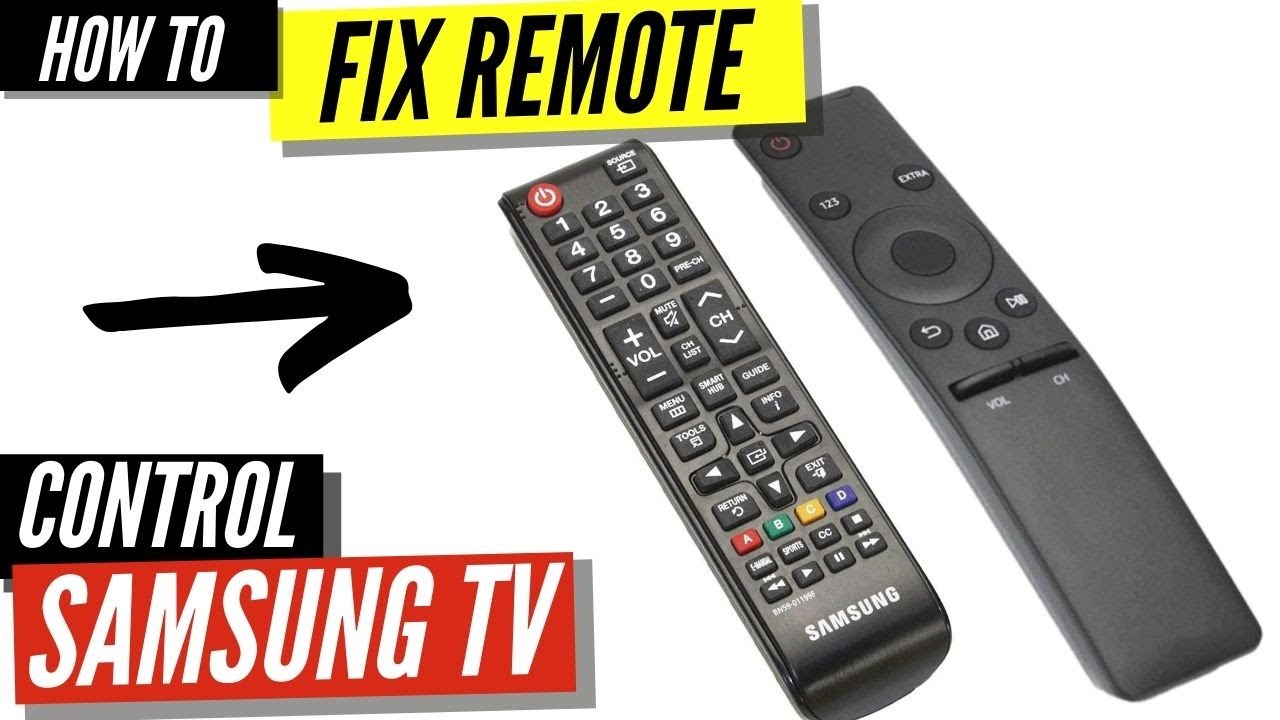
Samsung TVs use different remote controls depending on the model and features. Understanding the types of Samsung remotes helps in troubleshooting and fixing common issues. Samsung remotes mainly fall into two categories: Infrared (IR) remotes and Bluetooth/Smart remotes. Each type works differently and may need specific steps to solve problems.
Infrared (ir) Remotes
Infrared remotes use light signals to communicate with the TV. The remote sends an infrared beam that the TV sensor detects. This type needs a clear line of sight to work. If something blocks the signal, the remote will not control the TV. Batteries also affect its performance; weak batteries cause delays or failure. IR remotes are simple and found in many older Samsung TVs.
Bluetooth/smart Remotes
Bluetooth or smart remotes connect wirelessly without needing direct sight. These remotes use Bluetooth technology to pair with the TV. They often have more buttons and features than IR remotes. Pairing problems can occur, causing the remote to stop working. Interference from other devices or software glitches may also affect function. Re-pairing or resetting the remote usually fixes these issues.
Basic Troubleshooting Steps
Basic troubleshooting steps can resolve many common issues with Samsung TV remote controls. Start with simple checks before trying complex solutions. These steps help identify if the problem is with the remote, batteries, or the TV sensor. Follow these easy methods to get your remote working again quickly.
Replacing Batteries
Old or weak batteries often cause remote control problems. Remove the battery cover and take out the batteries. Replace them with new ones of the same type. Ensure the batteries are inserted correctly, matching the positive and negative ends. After replacing, test the remote by pressing any button to see if it responds.
Checking For Obstructions
Remote controls use infrared signals that need a clear path to the TV sensor. Remove any objects blocking the remote’s signal path. Dust, furniture, or decorations can block the line of sight. Move closer to the TV and try again. A clear path helps the signal reach the TV without interruption.
Using Phone Camera For Ir Test
Smartphone cameras can detect the infrared light from remotes. Point your remote at your phone’s camera lens. Press any button on the remote while looking at the screen. You should see a flashing light from the remote’s IR emitter. If no light appears, the remote may have dead batteries or a hardware issue.
Cleaning Buttons And Sensors
Dirt and grime can cause buttons or sensors to stop working. Use a soft, dry cloth to clean the remote’s buttons gently. For the TV sensor, wipe the area with a clean cloth to remove dust. Avoid using liquids or harsh chemicals that could damage the remote or TV sensor. Regular cleaning keeps the remote working smoothly.
Credit: www.youtube.com
Resetting Your Remote
Resetting your Samsung TV remote can solve many common issues. It clears glitches and restores basic functions. Different remote types need different reset methods. Follow simple steps to reset your remote. This can fix unresponsiveness and connection problems quickly.
Resetting Standard Battery Remotes
Start by removing the batteries from the remote. Wait for about 30 seconds to clear any leftover power. Insert fresh batteries in the right direction. Close the battery cover firmly. Press the power button on the TV to turn it on manually. Then, try using the remote again to check if it works.
Resetting Smart Remotes
Smart remotes use Bluetooth and need a pairing reset. Hold the Return and Play/Pause buttons together for 3 seconds. The remote will restart and enter pairing mode. Point it at the TV and press the Return button again to connect. Wait for the confirmation on the TV screen before testing the remote functions.
Performing A Hard Reset
Take out the batteries from the remote. Press and hold the power button for 20 seconds. This drains any remaining charge inside. Release the power button and reinsert the batteries. Turn on the TV manually if needed. Try the remote to see if the hard reset fixed the problem.
Re-pairing Bluetooth Remotes
Bluetooth remotes for Samsung TVs offer convenience and advanced features. They connect wirelessly, eliminating the need for a direct line of sight. Sometimes, these remotes lose connection or stop responding. Re-pairing the remote restores communication between the remote and the TV. This process is simple and often fixes many connection issues. Follow the steps below to re-pair your Bluetooth remote quickly and easily.
Pairing Process
Start by turning on your Samsung TV. Hold the remote close to the TV screen. Press and hold the Return and Play/Pause buttons together for about 3 seconds. The TV will detect the remote and show a pairing message. Follow the on-screen instructions to complete the pairing. The remote should now work with your TV again.
Troubleshooting Connection Issues
If the remote does not pair, check the batteries. Replace old batteries with fresh ones. Ensure no objects block the remote’s signal to the TV. Restart the TV by unplugging it for 30 seconds, then plug it back in. Repeat the pairing process after the TV restarts. If problems continue, reset the remote by removing batteries and pressing any button for 20 seconds before retrying. This often clears minor glitches.
Power Cycling The Tv
Power cycling the TV is a simple yet effective way to fix many remote control issues. It helps clear temporary glitches in the TV’s software. This process resets the TV’s internal system without affecting your saved settings.
Power cycling can restore communication between the remote and the TV. It often fixes unresponsive buttons or delayed reactions. This method works for both standard and smart Samsung TVs.
Unplugging And Restarting
Start by turning off your Samsung TV using the power button. Next, unplug the TV from the power outlet. Leave it unplugged for at least 30 seconds. This pause allows the TV to fully power down and clear memory.
After waiting, plug the TV back into the outlet. Turn the TV on using the power button on the TV itself. Test the remote control to see if it responds properly. This simple step often restores normal remote function.
When To Use Power Cycling
Use power cycling when the remote suddenly stops working. It helps if the TV does not respond to remote commands. Try this method before checking the remote’s batteries or settings.
Power cycling is useful if the TV screen freezes or the remote lags. It can clear minor software errors causing remote control problems. Repeat the process if the issue happens again after some time.
Fixing Physical Damage
Physical damage to your Samsung TV remote control often causes buttons to stop working properly. Fixing these issues at home can save you time and money. The most common problems include worn-out buttons and damaged conductive pads beneath the buttons. These parts are essential for sending signals to your TV.
Addressing physical damage requires careful attention. Simple repairs can restore your remote’s functionality without professional help. Cleaning and replacing small components can make a big difference. Below are two key repair methods for physical damage.
Replacing Conductive Pads
Conductive pads are small rubber pieces under the remote buttons. They complete the circuit when you press a button. Over time, these pads can wear out or become less sticky. This stops the remote from sending signals to the TV.
To replace them, open the remote casing carefully. Remove the old pads and clean the area with a soft cloth. Insert new conductive pads, which you can buy online or from electronics stores. Make sure the pads align correctly with the buttons. Close the remote and test if the buttons work.
Repairing Sticky Or Worn Buttons
Sticky or worn buttons often cause the remote to respond slowly or not at all. Dirt, dust, or spilled liquids can cause buttons to stick. Worn buttons lose their shape and stop pressing down properly.
Start by opening the remote and removing the button panel. Clean the buttons and the panel with mild soap and water. Use a cotton swab to clean tight spaces. Let everything dry completely before reassembling.
If buttons are worn out, consider replacing the entire button panel or using small rubber pads to improve the button press. After reassembly, test all buttons to ensure proper function.
Handling Software Issues
Software problems can stop your Samsung TV remote from working right. These issues often cause delays or no response at all. Fixing software troubles is simple and helps the remote work smoothly again. Try updating your TV’s firmware or resetting the TV settings. Both steps can solve many remote control problems.
Updating Tv Firmware
Firmware is the software that runs your TV. Samsung often releases updates to fix bugs and improve performance. Check if your TV has the latest firmware version. Go to the settings menu and select “Support,” then “Software Update.” Choose “Update Now” to start. Keep your TV connected to the internet for a fast update. Updated firmware can fix remote control issues caused by software glitches.
Resetting Tv Settings
Resetting your TV returns all settings to their original state. This can clear out hidden errors affecting the remote. Open the settings menu and find “General.” Scroll down and click on “Reset.” You may need to enter your PIN to confirm. The TV will restart and restore default settings. After reset, test the remote to see if it works better. This step helps fix problems without harming your saved apps or data.
When To Replace Your Remote
Knowing when to replace your Samsung TV remote is important for smooth viewing. Some problems with the remote cannot be fixed by simple troubleshooting. At times, a new remote is the best solution. This saves time and ensures your TV works well without interruptions.
Signs Of Irreparable Damage
Buttons that do not respond after cleaning show serious issues. Cracks or broken parts make the remote hard to hold and use. Water damage often causes internal problems that cannot be repaired. When the remote does not send signals even with fresh batteries, it may be broken. Constantly needing to press buttons multiple times is another sign. Also, if the remote’s Bluetooth or pairing fails repeatedly, it might be time to replace it.
Choosing A Replacement Remote
Select a remote that matches your Samsung TV model for full compatibility. Check if your TV uses an infrared or Bluetooth remote. Original Samsung remotes offer better performance but can cost more. Universal remotes work with many devices and are budget-friendly. Smart remotes provide extra features like voice control and app integration. Buy from trusted sellers to avoid low-quality copies. Always read reviews to ensure reliability and ease of use.
Frequently Asked Questions
How Do I Reset My Samsung Tv Remote?
Remove the batteries from your Samsung TV remote. Press and hold the power button for 10 seconds. Reinsert fresh batteries and test the remote. For smart remotes, re-pair by holding Return and Play/Pause buttons simultaneously until the remote resets.
What Are Common Samsung Remote Problems?
Common Samsung remote problems include dead batteries, pairing failures, blocked IR sensors, unresponsive or worn buttons, and software glitches. Troubleshoot by replacing batteries, resetting the remote, clearing sensor obstructions, re-pairing Bluetooth remotes, and cleaning or inspecting buttons for damage.
How To Fix Unresponsive Samsung Tv Remote?
Replace remote batteries with fresh ones, check for obstructions on the IR sensor, and restart the TV. Re-pair smart remotes by holding specific buttons. Use a phone camera to test the IR signal. Clean or inspect buttons for wear to restore remote responsiveness.
How Do I Resync My Samsung Remote To My Tv?
Remove the batteries from your Samsung remote. Reinsert fresh batteries correctly. For smart remotes, press and hold the Return and Play/Pause buttons simultaneously to re-pair. Restart your TV by unplugging it for a minute. Check for obstructions and test the remote’s IR signal using a phone camera.
Why Is My Samsung Tv Remote Not Working?
The remote might have dead batteries or be unpaired from the TV. Check battery power and try re-pairing the remote to your Samsung TV.
Conclusion
Troubles with your Samsung TV remote can be fixed with simple steps. Start by checking the batteries and replacing them if needed. Make sure nothing blocks the remote’s signal to the TV. Try resetting the remote by removing and reinserting batteries or pairing it again.
Clean the buttons and sensor to avoid dirt issues. If problems continue, consult your TV manual or Samsung support. These easy tips help keep your remote working smoothly every day. Stay patient and follow these steps carefully for best results.



