Are you struggling with blurry screens, distorted images, or a resolution that just won’t look right? Screen resolution problems can be frustrating, especially when you’re trying to get work done or enjoy your favorite movies and games.
But don’t worry—you’re not alone, and fixing these issues is easier than you think. In this guide, you’ll discover simple, step-by-step solutions to troubleshoot and restore your screen resolution to perfect clarity. Whether you’re a beginner or have some tech experience, this article will help you regain control of your display settings quickly.
Keep reading to find out how to make your screen look sharp and clear again!
Common Screen Resolution Issues
Screen resolution problems can disrupt your computer experience. These issues often cause blurry images, unreadable text, or black bars on the screen. Understanding common causes helps fix them quickly. Many problems trace back to simple errors with drivers, cables, or display settings.
Corrupt Graphics Drivers
Graphics drivers control how your computer shows images. Corrupt or outdated drivers cause wrong resolutions or flickering screens. Errors in the driver stop the system from using the correct display settings. Updating or reinstalling drivers often solves the issue fast.
Faulty Cable Connections
Loose or damaged cables disrupt the signal between your computer and monitor. This problem can cause distorted images or no display at all. Check the HDMI, DisplayPort, or VGA cables for secure connection. Switching cables or ports can help identify the faulty one.
Generic Display Detection
Sometimes, Windows detects the monitor as a generic device. This mistake limits the available resolution options. The system cannot apply the best resolution for your screen. Installing the correct monitor driver or forcing a custom resolution fixes this issue.
Credit: www.youtube.com
Basic Troubleshooting Steps
Screen resolution problems can disrupt your work and entertainment. Basic troubleshooting steps often solve these issues quickly. Start by checking simple things before moving to complex solutions. These steps are easy and require no special skills. Follow them carefully to restore your screen clarity and performance.
Check Monitor Cables
Make sure the monitor cables are firmly connected. Loose or damaged cables cause display problems. Unplug and plug them back in securely. Try a different cable if you have one. Also, check the ports on your computer and monitor for dirt or damage. Clean them gently if needed. A good connection is essential for a clear picture.
Restart Your Computer
Restarting your computer can fix many display issues. It clears temporary glitches and refreshes system settings. Save your work before restarting. After reboot, check if the screen resolution returns to normal. This simple step saves time and effort. Most users overlook it but it works often.
Use Recommended Resolution
Set your screen to the recommended resolution for your monitor. Open Display Settings by right-clicking on the desktop. Find the “Display resolution” option. Choose the resolution marked as “Recommended.” This setting matches your monitor’s best display capabilities. Using the right resolution avoids blurry or stretched images. Adjust only if you understand the effects.
Adjusting Display Settings
Adjusting your display settings can fix many screen resolution problems. This process helps your screen look clear and sharp. It also ensures that all items fit well on your monitor. Simple changes often improve your viewing experience instantly.
Follow these steps to access and change your display settings. You can try different resolutions and modes to find what works best for your device.
Access Display Settings
Right-click on your desktop and select “Display settings” from the menu. This opens the main screen for display options. Here, you see your current resolution and scaling settings. Windows usually shows the recommended resolution for your monitor. This setting is the best fit for your screen size and clarity.
Change Resolution Manually
Scroll down to the “Display resolution” section. Click the drop-down menu to see available resolutions. Choose a resolution that matches your monitor’s native resolution. If unsure, select the one labeled as “Recommended.” After selecting, your screen will adjust automatically. Confirm the change if the display looks good. If not, it will revert to the previous setting after a few seconds.
Explore Advanced Display Modes
For more options, click on “Advanced display settings.” Here, you find details about your monitor and graphics adapter. Select “Display adapter properties” to open a new window. Click “List All Modes” to see all supported resolutions and refresh rates. Try different modes to improve screen clarity or fix issues like flickering. Apply the mode and check if it suits your needs. These settings help customize your display beyond basic options.
Credit: visiontek.com
Driver Update Solutions
Updating your graphics drivers often fixes screen resolution problems quickly. Drivers help your computer communicate with your display hardware. Outdated or corrupt drivers can cause blurry images, wrong resolutions, or flickering screens.
Driver update solutions are simple steps anyone can try. They ensure your screen settings work correctly and your display looks sharp. This section covers three easy methods to update or reinstall your drivers for better screen resolution.
Update Drivers Via Device Manager
Device Manager lets you update drivers directly from Windows. Open it by typing “Device Manager” in the Start menu. Find “Display adapters” and click to expand the list. Right-click your graphics card and select “Update driver.”
Choose “Search automatically for drivers.” Windows will look online and install any updates. Restart your computer afterward to apply changes. This method is fast and requires no extra downloads.
Download Latest Manufacturer Drivers
Manufacturers often release newer drivers on their websites. Visit your GPU maker’s site like NVIDIA, AMD, or Intel. You can also check your PC brand’s support page, such as Dell or HP.
Look for your exact model and download the latest driver. This version usually has fixes for bugs and better compatibility. Install the driver by running the downloaded file and follow the instructions. Restart your PC to complete the update.
Perform Clean Driver Reinstall
A clean reinstall removes old driver files completely. This step helps if updates do not fix the problem. Use a tool called Display Driver Uninstaller (DDU) for safe removal.
Run DDU in safe mode to delete all traces of your current driver. After that, install the newest driver from the manufacturer’s website. This process ensures no conflicting files remain. Your screen resolution issues often clear up after this reset.
Addressing Other Causes
Screen resolution problems can stem from causes beyond simple settings or driver issues. Some hidden factors often disrupt proper display output. Addressing these other causes can help restore your screen to its best quality. Try these steps to eliminate less obvious problems and improve your screen resolution.
Switch From Clone Mode
Clone mode duplicates your main screen onto another display. This can limit resolution to the lowest common setting. Switching to extend mode allows each screen to use its best resolution. Open your display settings and select “Extend these displays” instead of “Duplicate.” This change often fixes blurry or low-resolution screens on secondary monitors.
Avoid Old Vga Connections
VGA cables are older and support lower resolutions. Using VGA can limit your screen quality. Try switching to HDMI, DisplayPort, or DVI cables for better resolution. Modern cables carry higher data rates, enabling clearer images. If your monitor or PC supports newer connections, replace VGA to avoid resolution issues.
Understand Mode Pruning Effects
Mode pruning is when the system removes unsupported resolutions automatically. Sometimes, it eliminates desired resolutions too. This can happen if your monitor or graphics card miscommunicates. Check your graphics driver settings for options to disable mode pruning. Manually adding custom resolutions may help regain missing screen sizes. Knowing this can solve resolution problems that seem random or unexplained.
Tools And Resources
Screen resolution problems can disrupt your work or entertainment. Using the right tools and resources simplifies troubleshooting. These tools help fix driver issues and guide you through settings. Reliable resources offer clear instructions and support.
Using Display Driver Uninstaller
Display Driver Uninstaller (DDU) removes graphics drivers completely. It clears corrupted files that cause display problems. Use DDU in safe mode for best results. After removing old drivers, install fresh drivers from the manufacturer. This tool prevents conflicts between old and new drivers.
Official Support Websites
Official support websites provide trusted drivers and updates. Visit your graphics card brand’s site like NVIDIA, AMD, or Intel. Laptop makers such as Dell or HP also offer tailored drivers. These sites include FAQs and troubleshooting guides. They ensure you get the correct and latest software.
Helpful Video Guides
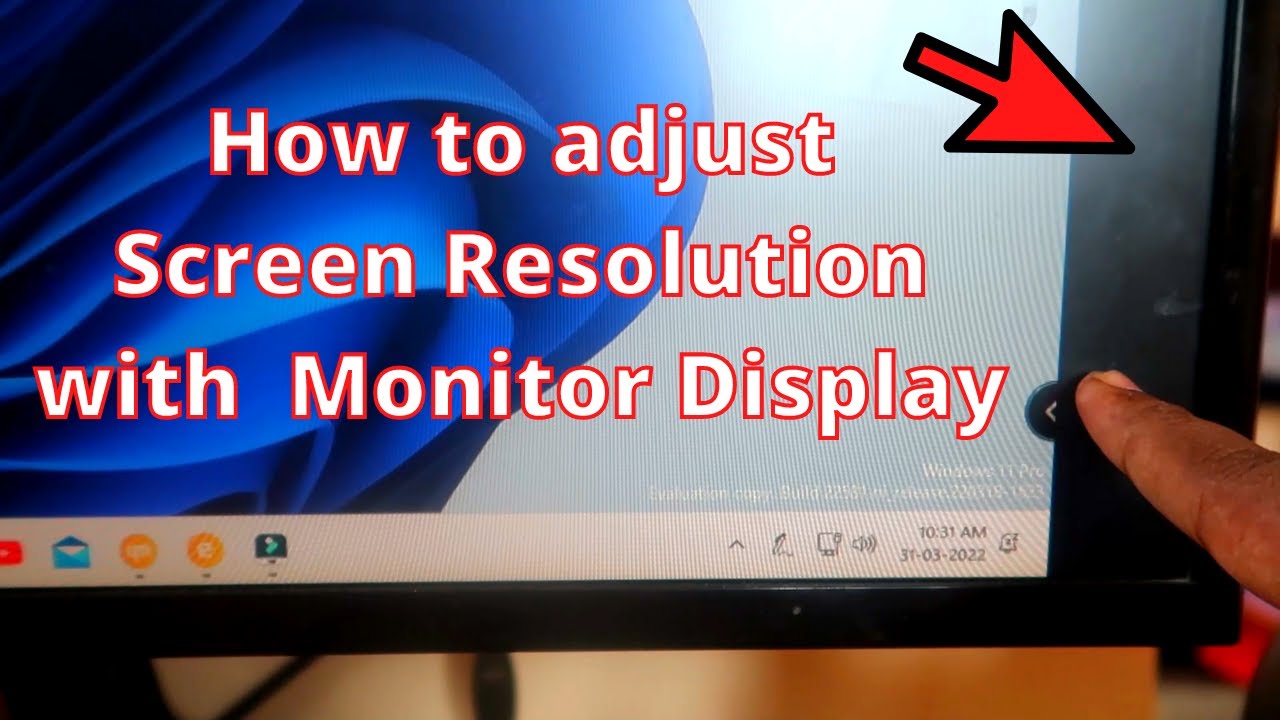
Video guides show step-by-step solutions for resolution issues. Many tech channels offer clear, simple tutorials. Watching videos helps understand complex steps easily. Pause and replay to follow along at your own pace. Videos cover topics from driver updates to settings adjustments.
Credit: www.equationtech.us
Frequently Asked Questions
How To Fix Screen Resolution Issues?
Check and secure monitor cables. Restart your computer. Open Display settings, select the recommended resolution. Update or reinstall graphics drivers if needed. Try different cables or ports for better detection.
How To Make Screen Resolution Back To Normal?
Right-click the desktop and open Display Settings. Scroll to Display resolution and select the recommended option. Confirm changes to restore normal resolution.
Why Is My Resolution Stuck At 1024×768?
Your resolution may be stuck at 1024×768 due to outdated or missing graphics drivers, a faulty cable, or Windows detecting a generic display. Update your GPU drivers, check cable connections, and select the recommended resolution in Display Settings to fix this issue.
How Do I Force 1920×1080 Resolution?
Right-click the desktop and select Display settings. Scroll to Display resolution, choose 1920×1080, then click Apply. Update your graphics driver if needed.
What Causes Screen Resolution Problems On Windows?
Screen resolution issues often come from outdated or corrupt graphics drivers. Loose or damaged cables and incorrect display settings can also cause problems.
Conclusion
Troubleshooting screen resolution issues can improve your viewing experience. Start by checking cables and connections carefully. Use display settings to select the recommended resolution. Update or reinstall your graphics drivers to fix persistent problems. Restart your computer to clear temporary glitches.
Small steps often solve common screen problems quickly. Stay patient and follow these tips to restore your screen’s clarity. Clear visuals make work and entertainment much easier. Keep your device updated for the best display performance.