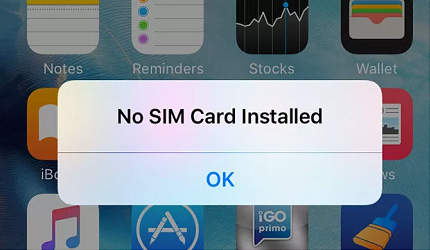
Is your iPhone suddenly showing “No SIM” or not detecting your SIM card? It’s frustrating when your phone can’t connect to the network, leaving you cut off from calls, messages, and data.
But don’t worry—you’re not alone, and most SIM card issues on iPhones have simple fixes you can try right now. In this guide, you’ll discover easy troubleshooting steps that anyone can follow, from restarting your phone to checking for software updates and cleaning your SIM card.
By the end, you’ll know exactly how to get your iPhone back online without a trip to the store. Ready to solve your SIM card problems quickly? Let’s dive in!
Basic Checks
Basic checks help fix common SIM card problems on iPhones. These simple steps often solve issues quickly. Start with easy actions before trying complex solutions. This section covers quick fixes anyone can do at home.
Restart Iphone
Restarting your iPhone clears temporary glitches. Hold the power button until the slider appears. Slide to turn off the phone. Wait a few seconds, then hold the power button again to turn it on. This can restore SIM card connection and network signals.
Toggle Airplane Mode
Turning Airplane Mode on and off resets network connections. Swipe down from the top-right corner to open Control Center. Tap the airplane icon to enable Airplane Mode. Wait 10 seconds, then tap again to disable it. This refreshes the phone’s cellular and Wi-Fi settings.
Reinsert Sim Card
Removing and reinserting the SIM card fixes loose connections. Power off your iPhone first. Use a SIM eject tool or paperclip to open the SIM tray. Gently take out the SIM card. Clean it and the tray with a soft, dry cloth. Place the SIM card back carefully and push the tray in fully. Turn your iPhone on and check the signal.
Software Updates
Software updates play a key role in fixing SIM card issues on your iPhone. Updates improve how your phone connects to the network. They also fix bugs that may cause SIM errors. Keeping your iPhone updated ensures better performance and fewer connection problems.
Carrier Settings Update
Carrier settings updates improve network connectivity. These updates come from your mobile carrier. They help your iPhone communicate better with the cellular network.
To check for carrier updates, open Settings > General > About. If an update is available, a prompt appears. Install the update to fix SIM card issues related to network settings.
Carrier updates can fix problems like no signal or poor call quality. They also update network features your carrier supports.
Ios Update
Updating your iPhone’s iOS can fix SIM card errors caused by software glitches. Apple releases iOS updates to improve system stability and security.
Go to Settings > General > Software Update to see if a new iOS version is available. You need Wi-Fi to download and install it.
Installing the latest iOS version can resolve bugs that stop your SIM card from working properly. It also enhances overall phone performance and network reliability.
Network Settings
Network settings control how your iPhone connects to cellular networks. These settings manage SIM card communication, Wi-Fi, and Bluetooth connections. Sometimes, network settings can become corrupted or outdated. This can cause SIM card errors or poor network performance. Resetting network settings often fixes these issues by restoring defaults without deleting personal data.
Reset Network Settings
Resetting network settings clears saved Wi-Fi passwords and VPN configurations. It also resets cellular and Bluetooth settings. This process can resolve SIM card recognition problems and improve signal strength.
To reset network settings, open the Settings app on your iPhone. Tap General, then select Transfer or Reset iPhone. Choose Reset and then tap Reset Network Settings. Enter your passcode if prompted and confirm the reset.
Your iPhone will restart after the reset. Check your SIM card status once the device powers back on. Reconnect to Wi-Fi and re-enter passwords as needed. This simple step often restores proper network function and fixes SIM card troubles.
Hardware Inspection
Hardware inspection is a key step in fixing SIM card issues on your iPhone. It helps find physical problems that software fixes cannot solve. Checking the SIM card and tray carefully can reveal dirt or damage causing connection errors.
Simple cleaning and a close look at the hardware often restore proper function. This process requires no special tools and can be done at home. Let’s explore how to clean and check your SIM and tray effectively.
Clean Sim And Tray
Remove the SIM card tray from your iPhone using the ejector tool or a small paperclip. Take out the SIM card gently to avoid bending it. Wipe the SIM card surface with a soft, dry cloth. Avoid using liquids or abrasive materials that might damage the card.
Use a dry cotton swab or a small brush to clean the inside of the SIM tray slot. Dust or dirt can block the contacts and cause the iPhone to show “No SIM” errors. Make sure the tray is completely dry before reinserting it. Proper cleaning often restores the connection and fixes the issue quickly.
Check For Physical Damage
Look closely at the SIM card for any scratches, cracks, or bends. Damaged SIM cards can fail to connect properly. If you see any signs of damage, try using a different SIM card to see if the problem persists.
Inspect the SIM tray for warping or broken parts. A damaged tray can prevent the SIM card from sitting correctly in the phone. Also, check the SIM slot inside the iPhone for bent pins or debris. Physical damage may require professional repair or replacement.
Sim Testing
SIM testing helps identify if the issue lies with your iPhone or the SIM card itself. It involves simple steps that separate phone problems from SIM card faults. Testing ensures a clear path to fixing SIM-related errors quickly.
Try Another Sim Card
Insert a different SIM card into your iPhone. This step checks if your phone reads other SIM cards. If the new SIM works, your original SIM card may be damaged or inactive. If the new SIM also fails, the problem might be with your iPhone’s SIM slot or settings.
Test Sim In Another Phone
Place your SIM card into a different phone. This test shows if the SIM card itself is functioning. If the SIM works in another phone, your iPhone could have hardware or software issues. If it does not work, the SIM card likely needs replacement or reactivation by your carrier.

Credit: www.youtube.com
Carrier Support
Carrier support plays a key role in solving iPhone SIM card issues. Carriers manage your network connection and service settings. They can provide vital information about your account and device status.
Sometimes, problems arise from carrier restrictions or account blocks. Knowing how to work with your carrier can save time and restore your service fast. Below are important steps to check with your carrier.
Check Carrier Lock Status
Carrier lock means your iPhone only works with a specific network. To check this, open Settings > General > About. Look for “Carrier Lock” or “Network Provider Lock.”
If you see “No SIM Restrictions,” your phone is unlocked and should work with any carrier’s SIM card. If locked, the iPhone may not accept SIM cards from other networks.
Knowing your carrier lock status helps you understand if your SIM card troubles relate to network restrictions.
Contact Carrier For Assistance
Contact your carrier’s customer service if you face SIM card problems. They can check your account status, network settings, or if there are outages in your area.
Ask if your SIM card is active and correctly registered. Sometimes carriers need to refresh your network connection from their side.
Request a replacement SIM card if yours is damaged or faulty. Carriers can also guide you through special troubleshooting steps tailored to their service.
Carrier support often solves issues that device settings alone cannot fix.
Advanced Troubleshooting
Advanced troubleshooting helps solve tough SIM card problems on your iPhone. This step digs deeper than basic fixes and software checks. It focuses on hardware and professional help. These options come after simple steps do not work. Follow these tips carefully to avoid damage and save time.
Look For Hardware Issues
Hardware problems can cause SIM card errors on iPhones. The SIM tray might be damaged or bent. Check the tray for any cracks or warping. The SIM card itself could be scratched or dirty. Gently clean the card with a soft cloth before reinserting.
Inspect the SIM slot inside the phone. Dust or debris may block the connection. Use a soft brush or compressed air to clear the slot carefully. Avoid using sharp tools that can harm the phone’s internals. If the phone has been dropped, internal hardware may be damaged. This can cause SIM errors or loss of signal.
Seek Professional Repair
Professional repair is the best choice for hardware faults. Certified technicians can open your iPhone safely. They have the right tools and skills to fix SIM slot or motherboard issues. Avoid trying complex repairs yourself. You might void your warranty or cause more damage.
Contact an authorized Apple service center or trusted local repair shop. They can test your phone with special equipment. Repairs may include replacing the SIM tray or fixing internal connections. Professional help ensures your iPhone works correctly again without risks.
Credit: www.kakasoft.com

Credit: discussions.apple.com
Frequently Asked Questions
Why Is My Sim Card Not Working On My Iphone?
Your SIM card may not work due to dirt, improper insertion, software glitches, outdated settings, or hardware damage. Restart your iPhone, clean and reinsert the SIM, toggle Airplane Mode, update iOS and carrier settings, reset network settings, or contact your carrier for help.
Why Is My Phone Not Detecting My Sim Card?
Your phone may not detect the SIM card due to dirt, improper insertion, software glitches, or hardware issues. Restart the phone, clean and reinsert the SIM, toggle Airplane Mode, update software, or reset network settings. Test the SIM in another device or contact your carrier if problems continue.
How To Tell If Your Sim Card Is Bad On An Iphone?
Check for “No SIM” or “Invalid SIM” alerts on your iPhone. Restart the device and clean the SIM card and tray. Test the SIM in another phone or try a different SIM in your iPhone. Persistent issues often indicate a bad SIM card needing replacement.
How To Fix Sim Failure Issue On Iphone?
Restart your iPhone, clean and reinsert the SIM card properly. Toggle Airplane Mode, update iOS and carrier settings. Reset network settings if needed. Test with another SIM or contact your carrier for a replacement. Seek professional repair if hardware issues persist.
Why Is My Iphone Not Detecting The Sim Card?
Your iPhone may not detect the SIM due to dust, improper placement, or software glitches. Restart the phone and clean the SIM slot gently. Also, check for any carrier or iOS updates.
Conclusion
Troubles with your iPhone SIM card often have simple fixes. Restart your phone to clear minor glitches. Clean and reinsert the SIM carefully for better contact. Check for carrier and iOS updates regularly. Turning Airplane Mode on and off can reset connections fast.
Reset network settings if issues continue, but remember it erases saved Wi-Fi passwords. Testing another SIM helps find if the problem is the card or phone. Contact your carrier if problems persist—they can offer support or a new SIM. For hardware damage, seek professional repair to avoid further issues.
Following these steps can restore your iPhone’s SIM function quickly.