Is your SimpliSafe Base Station acting up and causing frustration? Whether it’s flashing yellow lights, constant beeping, or trouble connecting to Wi-Fi, these issues can leave you feeling helpless and worried about your home’s security.
You rely on your SimpliSafe system to keep your property safe, so when the base station misbehaves, it’s urgent to find quick and effective solutions. In this guide, you’ll discover simple troubleshooting steps you can take right now to fix common problems with your SimpliSafe Base Station.
Keep reading to regain control, avoid false alarms, and ensure your security system works flawlessly every time.
Base Station Alerts
Wi-Fi connection problems often cause Simplisafe Base Station issues. These problems disrupt communication between your security devices and the base station. Troubleshooting Wi-Fi connection can restore reliable operation. Understanding key factors helps fix these issues quickly.
Weak Signal Effects
A weak Wi-Fi signal causes slow or lost connections. Sensors might go offline, and cameras may not stream properly. The base station needs a strong and steady signal to work well. Walls, furniture, and appliances can reduce Wi-Fi strength. Check for interference sources and remove obstacles if possible.
Router And Base Station Distance
Distance between your router and base station affects the signal quality. The farther apart they are, the weaker the connection. Ideally, keep the base station near the router. Avoid placing it in basements or behind thick walls. Sometimes, moving the router closer helps improve stability.
Resetting Network Settings
Resetting network settings can fix persistent Wi-Fi issues. This clears old or corrupted data causing connection errors. To reset, power off the base station, unplug it, and wait a minute. Then, plug it back and follow the setup instructions to reconnect to Wi-Fi. This step often restores normal function.
Wi-fi Connection Issues
App and software glitches can disrupt your SimpliSafe Base Station experience. These issues often cause frustration and confusion. Simple problems may stop your security system from working properly. Understanding common errors and update steps helps restore smooth operation quickly. This section breaks down frequent app problems and firmware challenges. Follow clear instructions to fix glitches without hassle.
Common Error Messages
Users see error messages like “unexpected error” or “connection lost.” These errors often appear during alarm setup or status checks. Sometimes the app fails to sync with the Base Station. Such messages signal communication problems or app bugs. Restarting the app or device can clear minor errors. Persistent errors may need updates or reinstallation.
Firmware Update Challenges
Firmware updates fix bugs and improve performance. These updates can fail due to weak Wi-Fi or power loss. Incomplete updates cause the Base Station to freeze or restart. Users often report slow downloads or error codes during updates. Stable internet and full battery ensure smooth updates. Avoid interrupting the process to prevent damage.
Manual Update Steps
Open the SimpliSafe app and log into your account. Navigate to the Base Station settings menu. Select “Check for Updates” to see if new firmware is available. If yes, connect the Base Station to power and Wi-Fi. Tap “Update Now” and wait until the process finishes. Do not close the app or turn off the Base Station. Restart the device after updating to apply changes.
Sensor Connectivity
Proper installation and setup of your SimpliSafe Base Station are vital for a smooth security experience. A correct start helps prevent common issues later. This section covers key tips to get your system running well from the beginning. Focus on device placement, wiring, and signal strength to avoid typical problems.
Optimal Device Placement
Place the Base Station in a central spot in your home. Avoid corners or closed cabinets that block signals. Keep it away from large metal objects and thick walls. Elevate the device on a shelf or table for better range. Good placement ensures strong connection with sensors and your Wi-Fi network.
Doorbell Wiring Issues
Check the doorbell wiring carefully before connecting to the Base Station. Loose or damaged wires cause faults and missed alerts. Use a voltage tester to confirm power is steady. Replace frayed wires to avoid shorts. Proper wiring reduces false alarms and keeps the system reliable.
Avoiding Signal Interference
Other electronics can disrupt your Base Station’s signal. Keep devices like microwaves, cordless phones, and baby monitors away. Metal furniture and thick walls also block signals. Use Wi-Fi extenders or a stronger router to boost coverage. Clear signals help your system stay connected without interruptions.

Credit: support.simplisafe.com
Camera And Motion Problems
Battery and power issues often cause the Simplisafe Base Station to malfunction. Without proper power, the system cannot communicate with sensors or send alerts. Users may notice frequent low battery warnings or the base station shutting down unexpectedly. Addressing these concerns quickly helps keep your home security active and reliable.
Battery Replacement Guide
Locate the battery compartment on the back of the base station. Use a small screwdriver or your fingers to open it gently. Remove the old battery and dispose of it properly. Insert a new battery matching the model recommended by SimpliSafe. Close the compartment securely to avoid dust or moisture entering. Turn on the base station and check for any warning lights. Replace batteries every few years or when alerts appear.
Base Station Power Tips
Always connect the base station to a reliable power outlet. Avoid using extension cords that may cause loose connections. Keep the power adapter and cable away from water or heat sources. Ensure the cable is not pinched or damaged. If the base station shows power issues, unplug it for 30 seconds and plug it back in. This simple reset can solve many power glitches. Use only original SimpliSafe power adapters to avoid compatibility problems.
Battery Life Expectations
The base station battery usually lasts several hours during power outages. It acts as a backup to keep the system running temporarily. Continuous use on battery alone will drain it faster. Expect around 24 to 48 hours of operation without main power. Regular power supply is essential for normal operation and communication. Monitor battery status through the app to avoid surprises. Replace the battery promptly if its life shortens significantly.
App And Software Glitches
Subscription and service play a key role in the performance of your SimpliSafe Base Station. Your monitoring plan affects how the system responds during alarms. Service quality impacts your overall experience and system reliability. Understanding these elements helps you troubleshoot issues effectively and keep your security system running smoothly.
Monitoring Plan Impact
The monitoring plan you choose sets the level of service for your system. Basic plans offer self-monitoring with app alerts. Professional plans include 24/7 monitoring by a team. Without an active plan, some features may not work fully.
Plan status can cause your base station to act unpredictably. Expired subscriptions might disable alerts or emergency dispatch. Always check your plan’s status in the app. Renew or upgrade plans to restore full functionality.
Customer Support Experiences
Customer support is crucial when problems arise. SimpliSafe offers phone and online chat support. Response times vary but usually are quick for urgent issues.
Clear communication helps resolve issues faster. Provide detailed descriptions of the problem. Mention any error codes or unusual behavior. Keep your account information handy for faster verification.
Maximizing System Reliability
Regular maintenance improves your base station’s reliability. Keep firmware updated to fix bugs and improve performance. Check your subscription status regularly to avoid interruptions.
Test your system monthly to ensure sensors and alarms work properly. Replace batteries as needed. Use a strong Wi-Fi connection and place the base station centrally in your home for best coverage.

Credit: www.youtube.com
Installation And Setup Tips
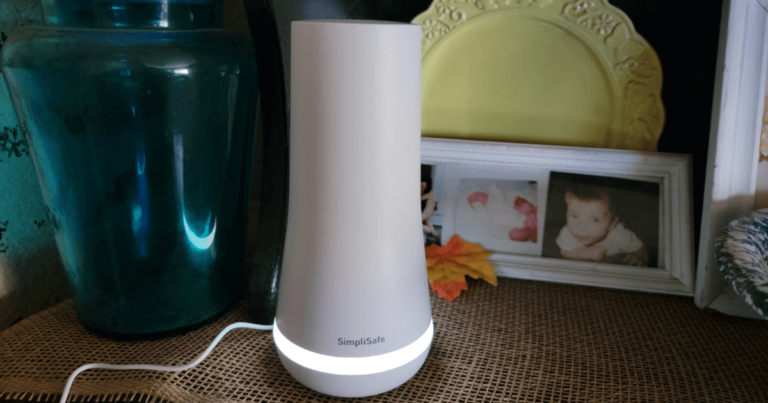
The Simplisafe Base Station is the heart of your security system. Sometimes, it needs a quick reset or restart to fix common issues. This process can clear minor glitches and restore proper function fast. Knowing how to reset your Base Station helps maintain smooth operation without delays.
Unplugging The Base Station
Start by unplugging the Base Station from the power outlet. Leave it disconnected for about 30 seconds. This simple step allows the device to clear temporary errors. After the wait, plug it back in and wait for the lights to stabilize. This quick restart often resolves many connectivity problems.
Soft And Hard Reset Methods
A soft reset restarts the Base Station without erasing your settings. Press and hold the reset button for 10 seconds, then release. The device will reboot and keep your configurations intact.
A hard reset erases all settings and returns the Base Station to factory defaults. Use this only if other fixes fail. To perform a hard reset, press and hold the reset button for 20 seconds until the lights flash. Set up the Base Station again after this reset.
When To Contact Support
If resets do not fix the issue, contact Simplisafe support. Persistent problems may need expert help or hardware replacement. Keep your device details and purchase information ready for faster assistance. Support can guide you through advanced troubleshooting steps.
Credit: www.safewise.com
Frequently Asked Questions
Why Is My Simplisafe Base Station Not Working?
Your SimpliSafe Base Station may not work due to weak Wi-Fi, power issues, or sensor disconnections. Restart the base, check connections, and ensure strong Wi-Fi. Re-pair sensors if needed. Firmware updates or app errors can also cause problems. Contact support if issues persist.
What Are Common Simplisafe Issues?
Common SimpliSafe issues include sensors going offline, weak Wi-Fi causing camera delays, false motion alarms, app errors, firmware update problems, short battery life, and customer service frustrations.
Why Is My Simplisafe Base Station Flashing Yellow And Beeping?
Your SimpliSafe Base Station flashes yellow and beeps to signal trouble, like low battery or communication errors. Check sensor batteries and Wi-Fi connection. Reset or reposition devices for stronger signals to resolve the issue quickly.
How Long Does A Simplisafe Base Station Last?
A SimpliSafe Base Station typically lasts 5 to 7 years with proper care and regular firmware updates. Battery backup supports several hours during outages.
Why Is My Simplisafe Base Station Not Connecting To Wi-fi?
The Base Station may fail to connect due to weak signal or router issues. Restart your router and move the Base Station closer to it. Check your Wi-Fi password and settings for accuracy.
Conclusion
Troubleshooting your SimpliSafe Base Station can often fix common issues quickly. Check connections, restart devices, and ensure strong Wi-Fi signals. Keep sensors close to the base station for better communication. Regularly update your app and firmware to avoid bugs. Simple steps usually solve most problems without hassle.
Stay patient and follow instructions carefully for the best results. This helps your security system work reliably every day.