
Is your Spectrum service acting up right when you need it most? Whether your internet suddenly slows down, your TV won’t load channels, or your connection just drops unexpectedly, it’s frustrating—and you want answers fast.
You’re not alone, and the good news is many common Spectrum issues can be fixed quickly with the right approach. In this guide, you’ll discover simple, step-by-step troubleshooting tips that anyone can follow. By the time you finish reading, you’ll feel confident handling your Spectrum problems like a pro—and get back to streaming, browsing, and gaming without interruptions.
Let’s dive in and solve your Spectrum troubles together!
Credit: www.youtube.com
Common Spectrum Issues
Many Spectrum users face common issues affecting internet and TV services. These problems disrupt daily routines and cause frustration. Understanding frequent issues helps solve them faster and restores smooth service.
Below are common Spectrum problems and basic tips to fix them quickly. These solutions work for most users and require no special technical skills.
No Internet Connection
No internet connection is one of the most reported Spectrum problems. It can happen due to service outages, faulty equipment, or wiring issues.
Start by checking if the modem and router are powered on. Restart both devices by unplugging them for 30 seconds, then plugging back in.
Inspect all cables to ensure they are firmly connected and undamaged. Visit Spectrum’s outage page or app to check for local service interruptions.
Slow Internet Speeds
Slow internet speeds frustrate users trying to stream, browse, or work. Causes include network congestion, outdated hardware, or WiFi interference.
Run a speed test to compare your actual speed with your plan’s promised speed. Restart your modem and router to refresh the connection.
Move your router to a central location free from walls or metal objects. Limit the number of devices connected to the network during heavy use.
Spectrum Tv No Signal
No signal on Spectrum TV often results from loose cables, incorrect input settings, or service outages. Check that all cables connecting your TV and cable box are secure.
Ensure your TV is set to the correct input source matching the cable box connection. Restart your cable box by unplugging it for 10 seconds and plugging it back in.
Check Spectrum’s outage page for any local TV service disruptions affecting signal quality.
Spectrum Tv App Errors
App errors on Spectrum TV prevent streaming and cause playback issues. These errors often arise from outdated apps, poor internet, or software glitches.
Update the Spectrum TV app to the latest version available in your device’s app store. Force close the app and restart your device to clear temporary issues.
Clear the app’s cache or reinstall it if problems persist. Confirm your device is connected to a stable WiFi network for smooth streaming.
Credit: www.spectrum.net
Basic Equipment Checks
Basic equipment checks form the first step in troubleshooting your Spectrum internet or TV service. These checks help identify simple issues causing service disruptions. Resolving these can save time and avoid unnecessary calls to support. Follow these steps to ensure your equipment is functioning properly.
Power And Connection Status
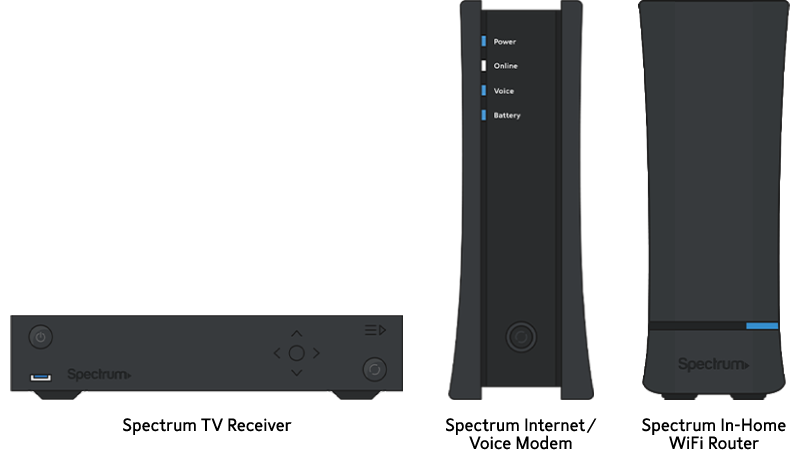
Verify that your modem and router are plugged in and powered on. Look for indicator lights on each device. Green or blue lights usually mean the device is working. No lights or red lights suggest a power or connection problem. Confirm the power outlet is working by testing with another device.
Inspecting Cables And Ports
Check all cables connected to your modem, router, and TV box. Ensure coaxial, Ethernet, and HDMI cables are firmly plugged in. Look for visible damage like cuts or bends. Replace any damaged cables to avoid signal loss. Also, inspect the ports for dust or debris and clean gently if needed.
Rebooting Modem And Router
Turn off your modem and router by unplugging them from power. Wait 30 seconds before plugging them back in. This simple reboot can clear temporary glitches and refresh your connection. Allow a few minutes for the devices to fully restart. Check if your internet or TV service is restored after rebooting.
Signal Reset Techniques
Signal reset techniques are key to fixing many Spectrum TV problems quickly. Resetting the signal can clear errors and restore your service. These steps help refresh your connection and equipment.
Resetting the signal often solves issues like no picture or frozen screens. It works by re-establishing communication between your devices and Spectrum’s network.
Resetting Spectrum Signal
To reset the Spectrum signal, start by logging into your Spectrum account online or via the app. Look for the option to refresh or reset your signal. This process forces the system to resend the correct signal to your receiver.
Wait a few minutes after requesting the reset. The changes take time to apply. Check your TV to see if the signal has returned.
Rebooting Spectrum Tv Receiver
Unplug your Spectrum TV receiver from the power outlet. Leave it unplugged for about 30 seconds. Plug it back in and turn the receiver on.
This reboot clears temporary glitches and helps the receiver reconnect with Spectrum’s servers. Most signal problems resolve after this simple restart.
Resetting Tv On Spectrum
Make sure your TV is on before starting the reset. Find the Reset button on your TV or remote. Press and hold the Reset button for five full seconds, then release it.
The TV will reboot, and the Spectrum logo will appear on the screen. This reset refreshes your TV’s connection with the Spectrum receiver and can fix display issues.
Using Spectrum Tools
Using Spectrum tools can help solve many internet and TV issues quickly. These tools provide simple ways to check your connection and fix problems. They are easy to use and can save time before calling support.
Start with basic checks to see if the problem is on your end or with Spectrum’s service. Then use apps and tests to find detailed information. This approach helps you understand the issue better and take the right steps.
Checking For Service Outages
Begin by checking if there is a service outage in your area. Spectrum updates outage information on their website and app. This helps you know if the problem is widespread or just in your home.
Outages can cause slow speeds or no connection. Confirming an outage avoids unnecessary troubleshooting. If an outage is reported, wait for Spectrum to fix it.
Running Speed Tests
Run a speed test to measure your internet performance. Speed tests show your download and upload speeds. Compare the results with your Spectrum plan to see if speeds are normal.
Slow speeds may indicate network issues or equipment problems. Try running tests at different times of the day. This helps identify if the issue is constant or intermittent.
Using The Spectrum App For Troubleshooting
The Spectrum app offers built-in tools for diagnosing problems. Use it to restart your modem or router remotely. The app also shows your current connection status and alerts.
It allows you to check for outages, run speed tests, and update your account details. The app is user-friendly and works on smartphones and tablets. This tool puts control in your hands for quick fixes.
Fixes For Spectrum Tv App
The Spectrum TV app brings your favorite shows and movies to your devices. Sometimes, it may not work as expected. This section covers simple fixes to get the app running smoothly again. Follow these steps to troubleshoot common issues.
Updating And Restarting The App
Keep the Spectrum TV app updated for the best performance. Visit your device’s app store and check for updates. After updating, close the app completely. Restart it to refresh the connection and clear minor bugs.
Clearing Cache And Data
Cached files can cause the app to slow down or freeze. Clear the cache and data from your device settings. This action removes temporary files and resets app settings without deleting your account.
Reinstalling The App
Uninstall the Spectrum TV app if problems continue. Remove it from your device, then download and install it again. Reinstalling fixes corrupted files and refreshes the app’s system integration.
Account Sign In Issues
Sign-in problems can block access to your content. Double-check your username and password. Reset your password if needed. Logging out and back in can also resolve account verification errors.
Resolving Channel And Service Errors
Resolving channel and service errors is essential for a smooth Spectrum TV experience. These errors can disrupt your viewing and cause frustration. Understanding how to fix common issues helps you get back to your favorite shows quickly. Below are key topics that address these common problems.
Unavailable Channels
Sometimes channels show as unavailable or display a “One Moment Please” message. This often means the channel is not in your current package. Check your channel lineup through the Spectrum app or website to confirm your subscription. You can also try refreshing your service by restarting your cable box. If the problem continues, contacting Spectrum support might help.
Auto Power Off Problems
Your Spectrum box may turn off automatically without warning. This issue can be caused by power-saving settings or overheating. Check if your box is in a well-ventilated area and not covered by other objects. Disable any auto power off feature in your box settings. Restart the device to clear temporary glitches that might cause this problem.
Error Codes Troubleshooting
Spectrum devices show error codes to indicate specific problems. Each code points to a different issue, such as signal loss or hardware failure. Look up the error code on the Spectrum support site for detailed steps. Common fixes include checking cable connections, rebooting your equipment, and verifying your service status. Persistent errors may require a technician’s visit.
Advanced Troubleshooting Steps
Advanced troubleshooting steps help resolve tricky Spectrum internet issues. These steps go beyond basic fixes and provide deeper solutions. Follow each method carefully for better results. These techniques often solve connectivity problems quickly and effectively.
Connecting Via Ethernet For Testing
Use an Ethernet cable to connect your device directly to the modem. This bypasses WiFi and shows if the issue is wireless-related. A wired connection often offers a more stable signal. Check if internet works faster and without drops. If the wired connection works, focus on WiFi settings or router placement.
Refreshing Service Through My Spectrum
Log into your My Spectrum account online or via the app. Find the option to refresh or reset your service. This action sends a signal to your modem to restart and reconnect. It can fix many connection glitches without needing a full reset. Wait a few minutes after refreshing to test your internet speed and reliability.
Contacting Spectrum Support
Reach out to Spectrum support if problems persist after troubleshooting. Use phone, chat, or online help to explain your issue clearly. Keep account details and device information ready for faster service. Support can perform remote diagnostics and guide you through advanced fixes. They may also schedule a technician visit if needed.

Credit: www.amazon.com
Frequently Asked Questions
How Do I Call Spectrum Troubleshooter?
Call Spectrum troubleshooter by dialing Spectrum Customer Service at 1-833-267-6094. Follow voice prompts for technical support.
How Do I Reset My Spectrum Signal?
Unplug your Spectrum modem and router. Wait 30 seconds, then plug them back in. Allow devices to fully reboot. Check for signal restoration.
How Do I Reset My Tv On Spectrum?
To reset your Spectrum TV, press and hold the Reset button on your TV for five seconds. Release it, and the Spectrum logo will appear.
How Do I Troubleshoot My Spectrum Tv?
Check all cables and power connections. Restart your Spectrum TV and cable box. Verify input source. Confirm no local outages on Spectrum’s site or app. Update and restart the Spectrum TV app. Clear app cache or reinstall if needed. Log out and back into your account.
Why Is My Spectrum Internet Not Working Properly?
Spectrum internet may stop working due to service outages or equipment issues. Check cables, restart your modem, and verify outage status online. These steps often fix common connection problems quickly.
Conclusion
Troubleshooting Spectrum issues can save time and reduce frustration. Start by checking all cable connections and power sources. Restart your modem, router, or cable box to refresh the signal. Confirm there are no outages in your area using Spectrum’s support site.
For app problems, updating or reinstalling often helps. Clear cache and sign back into your account for better results. Simple steps like these fix most problems quickly. Stay patient and methodical to restore your service. Reliable internet and TV are just a few easy fixes away.



