
Is your T-Mobile internet acting up when you need it most? Whether you’re trying to stream your favorite show, work from home, or simply browse the web, slow or no internet can be frustrating.
But don’t worry—you’re not alone, and there are simple ways to get your connection back on track. In this guide, you’ll discover easy, step-by-step troubleshooting tips tailored for both your mobile device and T-Mobile home internet. By following these practical solutions, you can quickly fix common issues and enjoy smoother, faster internet.
Ready to solve your T-Mobile internet problems once and for all? Keep reading to regain control of your connection today.

Credit: www.youtube.com
Basic Fixes For Mobile Internet
Basic fixes can solve most T-Mobile internet issues fast. They help refresh your device and network connection. These simple steps often restore your mobile internet without extra tools or support.
Try these easy methods before diving into complex troubleshooting. They work well for phones, tablets, and hotspots using T-Mobile’s network.
Restart And Toggle Settings
Turn off your device and wait 10 seconds. Power it back on to clear temporary glitches. Toggle Airplane Mode on, wait a few seconds, then turn it off. This resets your network connection quickly. Check if mobile data is enabled in your settings. Sometimes, turning data off and on helps reconnect to the network.
Check Coverage And Signal
Look at the signal bars on your device screen. Low or no signal can block internet access. Move to a spot with better reception, such as near a window or outdoors. Avoid places with thick walls or heavy interference. Verify T-Mobile coverage in your area using their coverage map online. Poor coverage zones cause slow or no internet.
Reset Network Settings
Go to your device’s settings menu. Find “Reset” or “General Management.” Select “Reset Network Settings.” This clears old Wi-Fi and mobile data configurations. Enter your PIN if asked and confirm the reset. Your phone will restart. Reconnect to Wi-Fi and mobile data after this. This fix solves many network-related problems by refreshing connection data.
T-mobile Home Internet Tips
T-Mobile Home Internet offers fast and reliable service. Sometimes, small issues can slow down your connection. Simple steps help improve speed and stability. Follow these easy tips to get the best from your T-Mobile Home Internet.
Restart Your Gateway
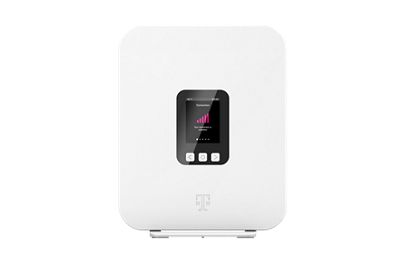
Restarting your gateway clears temporary errors. Unplug the power cable and wait 30 seconds. Plug it back in and let the device fully reboot. This refreshes your connection and often fixes slow speeds or dropped signals.
Improve Gateway Placement
Place your gateway near a window and away from thick walls. Avoid metal objects and electronics that cause interference. Higher placement, like on a shelf, helps the signal reach more rooms. Better placement means stronger and faster internet.
Reduce Device Load
Too many devices use bandwidth at the same time. Disconnect devices not in use to free up speed. Limit high-data activities like streaming or gaming during important tasks. Fewer active devices improve overall internet performance for everyone.
Device-specific Adjustments
Device-specific adjustments can fix many T-Mobile internet problems quickly. Each device has unique settings that affect network performance. Adjusting these settings often restores stable internet access without extra tools. This section covers key tweaks for Android and iPhone users plus important software updates.
Android Network And Apn Settings
Check your Android phone’s network settings to improve T-Mobile internet. Open Settings and go to Mobile Networks. Verify that the Access Point Name (APN) matches T-Mobile’s official settings. Incorrect APN details block data access.
Resetting the APN can help. Delete existing APNs and add a new T-Mobile APN using the correct values. Ensure mobile data is turned on and airplane mode is off. Restart your phone after changes to refresh network connections.
Iphone Carrier And Vpn Settings
On iPhones, carrier settings affect internet connectivity. Go to Settings > General > About to check for carrier updates. Install any updates available. This often resolves network issues.
VPN apps can interfere with T-Mobile internet. Disable VPN temporarily to test connection speed. If internet improves, adjust or remove VPN settings. Also, verify that mobile data is enabled in Settings > Cellular.
Software Updates And Wi-fi Reset
Keep your device’s software updated for optimal network performance. Both Android and iPhone receive updates that fix bugs affecting internet access. Check for system updates regularly and install them promptly.
Resetting Wi-Fi settings can clear conflicts and improve connection. On Android, go to Settings > System > Reset options > Reset Wi-Fi, mobile & Bluetooth. On iPhone, use Settings > General > Reset > Reset Network Settings. This removes saved networks and passwords but often resolves persistent issues.
Credit: www.t-mobile.com
Advanced Troubleshooting
Advanced troubleshooting helps fix persistent T-Mobile internet problems. These steps go beyond basics and target deeper issues. Use these methods if simple fixes do not work. They improve connection stability and speed.
Factory Reset Gateway
Resetting your T-Mobile gateway restores factory settings. This clears corrupt configurations causing internet issues. Press and hold the reset button for 10 seconds. Wait for the device to restart fully. Remember, this deletes custom settings like Wi-Fi name and password. Set them up again after reset.
Check For Local Outages
Outages can disrupt T-Mobile internet service in your area. Visit T-Mobile’s website or use their app to check outage status. You can also call customer support for updates. Knowing about outages saves time and stress. It confirms the problem is not on your side.
Use Ethernet For Stability
Ethernet connections offer more stable internet than Wi-Fi. Connect your device directly to the gateway using an Ethernet cable. This reduces interference and signal drops. It is especially useful for streaming, gaming, or video calls. Ethernet can reveal if Wi-Fi causes your connection issues.
Signal And Connectivity Issues
Signal and connectivity issues can disrupt your T-Mobile internet experience. These problems often cause slow speeds, dropped calls, or no internet access. Simple steps can fix many common issues quickly. Understanding these fixes helps you stay connected without frustration.
Address No Service Errors
No service errors mean your device cannot find a network signal. Start by moving to an open area or near a window. Buildings and walls can block signals. Restart your phone or hotspot to refresh the connection. Check if airplane mode is off and mobile data is on. Reset network settings in your device menu if needed. Make sure your T-Mobile account is active and data plan is valid. Sometimes, local outages affect coverage. Contact T-Mobile to confirm service status.
Wi-fi Calling And Browsing Fixes
Wi-Fi calling may fail if your internet is unstable. Restart your modem and router to improve Wi-Fi strength. Place your router in a central, elevated spot. Update your device’s software and T-Mobile carrier settings. Clear your browser cache to fix loading problems. Use a different browser or app to test internet access. Disable VPNs or firewall settings that might block connections. Ensure your device supports Wi-Fi calling with T-Mobile. These steps often restore smooth calling and browsing.

Credit: www.t-mobile.com
Frequently Asked Questions
Why Is My T-mobile Wi-fi Not Working?
Restart your modem and router to refresh the connection. Check signal strength and device placement. Update firmware and reset network settings. Verify account status and data limits. Contact T-Mobile support if issues continue.
Why Isn’t My Mobile Internet Working?
Mobile internet may fail due to airplane mode being on, weak signal, or disabled mobile data. Restart your device and reset network settings. Update software and check data limits. Ensure correct APN settings and disable VPNs. Contact your carrier if issues continue.
How Do I Reboot My T-mobile Home Internet?
To reboot your T-Mobile home internet, open the More screen in the app. Select Restart your gateway and wait for it to reboot fully. This refreshes your connection and resolves minor issues quickly.
How Do I Refresh My T-mobile Network?
To refresh your T-Mobile network, restart your device and toggle airplane mode off and on. Reset network settings via Settings > General Management > Reset > Reset network settings. Update carrier settings and ensure your device software is current. For home internet, power cycle the gateway and relocate it for better signal.
Why Is My T-mobile Internet Slow Or Not Working?
Slow internet can be due to weak signal or network congestion. Restart your device and move to a location with better reception. Also, check if your data plan is active and not limited.
Conclusion
T-Mobile internet issues often resolve with simple steps. Restart your device and gateway to refresh connections. Check signal strength and move closer to windows for better reception. Keep your software and carrier settings up to date. For mobile, toggle airplane mode and reset network settings if needed.
Monitor data limits and disable VPNs that may block access. Persistent problems may require contacting T-Mobile support or checking for outages. These tips help maintain a steady and reliable T-Mobile internet experience. Stay patient and try each step carefully.



