
Is your Toshiba laptop screen suddenly going black or showing nothing at all? It’s frustrating when you power on your device, but the display refuses to cooperate.
You might feel stuck, unsure whether it’s a simple fix or a serious problem. The good news is, many screen issues with Toshiba laptops can be solved without expensive repairs or tech expertise. In this guide, you’ll discover easy troubleshooting steps tailored specifically for Toshiba laptops.
By the end, you’ll know exactly how to bring your screen back to life and get your laptop working smoothly again. Keep reading to take control of your Toshiba laptop screen problems now!
Common Screen Issues
Screen problems often disrupt the use of Toshiba laptops. These issues can range from no display to strange colors or flickers. Understanding common screen issues helps to find quick solutions. This section covers frequent screen problems users face.
Black Screen On Startup
The black screen on startup means the laptop powers on but shows nothing. It could be a hardware or software fault. Check if the power light is on. Try removing external devices. Resetting the laptop by removing the battery and power cable often helps. If the screen stays black, the display or motherboard may be damaged.
Blank White Screen
A blank white screen is less common but frustrating. This issue might occur due to a loose or damaged display cable. Sometimes the graphics card fails, causing the white screen. Restart the laptop and connect an external monitor. If the external screen works, the laptop display or cable needs repair. Professional help may be necessary.
Flickering Display
Screen flickering annoys users and can cause eye strain. Flickering may happen due to outdated graphics drivers or loose screen connections. Updating the driver often fixes this problem. Check the display cable inside the laptop if flickering continues. In some cases, the screen inverter or backlight might be faulty.
Blue Screen Errors
Blue screen errors cause the laptop to stop and display error codes. These errors usually relate to hardware or driver issues. Note the error code shown on the blue screen for troubleshooting. Running a system diagnostic and updating drivers can reduce these errors. Sometimes reinstalling Windows helps if the problem persists.
Credit: immanuel-ed.org
Basic Hardware Checks
Basic hardware checks are the first step to fix screen problems on Toshiba laptops. These checks help find simple issues that cause the screen to go black or not display correctly. Performing these steps saves time and avoids unnecessary repairs.
Inspect Power And Battery
Check if the laptop is properly plugged into a power source. Make sure the power cable and adapter are not damaged. Remove the battery and connect the laptop to power only. Try turning it on again. A faulty battery can stop the screen from lighting up.
Check Screen Brightness
Sometimes the screen looks off because the brightness is too low. Use the function keys on the keyboard to increase brightness. Look for a sun icon or a light bulb symbol. Adjust brightness step by step until the display becomes visible.
Test External Display
Connect your Toshiba laptop to an external monitor or TV. Use a VGA or HDMI cable depending on the ports available. Switch the display mode by pressing the appropriate function key. If the external screen works, the laptop’s screen or cable may be faulty.
Reseat Ram Modules
Loose RAM can cause display issues and prevent the screen from showing anything. Turn off the laptop and remove the battery. Open the RAM compartment carefully. Remove the RAM sticks and insert them back firmly. Close the compartment and power on the laptop to check the screen.
Advanced Hardware Fixes
Advanced hardware fixes address deeper issues causing screen problems on Toshiba laptops. These steps require opening the laptop carefully. Use a small screwdriver and anti-static tools to avoid damage. Follow each step slowly and double-check connections.
Test Ram Health
Faulty RAM can cause screen glitches or no display. Remove the RAM modules and clean the contacts gently. Reinsert them firmly into their slots. Run a memory test using tools like MemTest86. Replace the RAM if errors appear during testing.
Replace Cmos Battery
The CMOS battery powers the BIOS settings. A dead battery can cause startup screen errors. Locate the small round battery on the motherboard. Remove it carefully and replace it with a new one of the same type. Reset BIOS settings after replacement.
Check Lcd Cable Connection
The LCD cable connects the screen to the motherboard. Loose or damaged cables cause flickering or no display. Open the laptop and find the ribbon cable near the hinge. Disconnect and reconnect the cable securely. Inspect for tears or bends; replace if damaged.
Lcd Screen Replacement
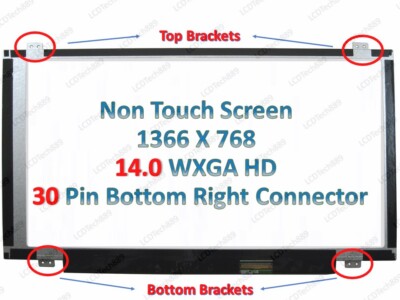
If the screen is cracked or not showing any image, replacement may be necessary. Remove the bezel around the screen using a plastic pry tool. Unscrew the broken LCD panel and disconnect the cables. Install a new compatible screen and reassemble carefully.

Credit: www.youtube.com
Software Troubleshooting
Software problems often cause Toshiba laptop screen issues. Troubleshooting software can fix many display errors without hardware repairs. Simple steps can bring your screen back to life quickly.
Start with basic software checks. Safe Mode helps isolate driver or software conflicts. Updating or rolling back graphics drivers can resolve driver-related display problems. Restarting Windows Explorer refreshes the desktop environment. System Restore can undo recent changes that caused the screen trouble.
Boot Into Safe Mode
Safe Mode loads Windows with minimal drivers and services. It helps identify if software or drivers cause the screen issue. To enter Safe Mode, restart your laptop and press F8 or Shift + F8 before Windows loads. Choose “Safe Mode” from the options.
If the screen works in Safe Mode, the problem likely comes from a recent software update or driver. Use this mode to uninstall new programs or updates that might cause trouble.
Update Or Roll Back Graphics Drivers
Graphics drivers control your laptop’s display. Outdated or corrupted drivers can cause black or flickering screens. Open Device Manager, find “Display adapters,” and right-click your graphics card. Select “Update driver” to get the latest version.
If updating does not help, try rolling back the driver. This option restores a previous driver version that worked well. Restart your laptop after any changes to see if the screen issue clears.
Restart Windows Explorer
Windows Explorer manages your desktop and taskbar. Sometimes it crashes, leaving a blank or frozen screen. Press Ctrl + Shift + Esc to open Task Manager. Find “Windows Explorer” under the Processes tab.
Right-click “Windows Explorer” and choose “Restart.” This action refreshes the desktop and can fix screen display problems without rebooting the laptop.
Perform System Restore
System Restore reverts your laptop to an earlier state. It removes recent changes that might cause screen problems. Search for “System Restore” in the Start menu and open it.
Choose a restore point dated before the screen issue began. Follow the on-screen instructions to complete the process. Your Toshiba laptop will restart with settings that worked before the display problem.
Reset And Recovery Options
Reset and recovery options help fix Toshiba laptop screen issues. These tools restore your system to a working state. Using these options can solve problems like black screens or frozen displays. They are useful if other troubleshooting steps fail. Follow the methods below carefully to reset or recover your Toshiba laptop.
Use Recovery Console
The recovery console lets you repair your system files. Restart your laptop and press the recovery key repeatedly. Usually, it is the F8 or 0 (zero) key. This opens the recovery environment. Choose “Repair Your Computer” from the menu. Follow the instructions to fix startup problems or restore system settings.
Factory Reset Steps
Factory reset restores your Toshiba to original settings. Back up important files before starting. Turn off your laptop. Press and hold the 0 (zero) key and power it on. Release the key when the recovery screen appears. Select “Factory Reset” or “Restore to Factory Defaults.” Confirm your choice and wait for the process to complete. Your laptop will restart with fresh settings.
Locate Reset Button
Some Toshiba models have a physical reset button. It is usually a small hole on the laptop’s bottom or side. Use a paperclip to press and hold the button for 10 seconds. This forces a hard reset. If no reset button exists, remove the battery and power for a similar effect. This step can resolve unresponsive screens or frozen systems.
Tips To Prevent Screen Problems
Screen problems on Toshiba laptops can disrupt your work and cause frustration. Preventing these issues is easier than fixing them. Simple habits help keep your screen healthy and clear for longer. Follow these tips to avoid common screen troubles and maintain your laptop’s performance.
Regular Software Updates
Keep your laptop’s software up to date. Updates fix bugs and improve screen performance. Update your graphics drivers regularly. This prevents display errors and flickering. Use Toshiba’s official update tools for best results. Updated software ensures smooth screen operation.
Proper Shutdown Habits
Always shut down your laptop properly. Avoid forcing shutdowns by holding the power button. Improper shutdowns can cause screen glitches. Close all applications before turning off. This protects your display settings and hardware. Proper shutdown extends screen life and prevents errors.
Avoid Physical Damage
Handle your laptop with care. Avoid dropping or bumping the screen. Use a padded laptop bag for transport. Keep liquids away from the laptop to prevent spills. Clean the screen gently with a soft cloth. Physical damage often causes permanent screen problems.
When To Seek Professional Help
Knowing when to seek professional help for Toshiba laptop screen issues is important. Some problems need expert care to avoid further damage. Early intervention can save time and money. Understanding the signs helps you decide the right moment to call a technician.
Persistent Screen Issues
Screen problems that do not improve after basic fixes need expert attention. Flickering, lines, or blank screens lasting more than a day are serious. Professionals can diagnose complex issues quickly. Waiting too long may worsen the damage.
Hardware Replacement Advice
Some screen problems come from failing hardware parts. Experts know which parts need replacement and how to install them safely. Trying hardware repair without skills might cause more harm. A technician can suggest the best replacement options for your Toshiba laptop.
Data Backup Recommendations
Before any repair, backing up your data is crucial. Professionals often advise saving important files first. This protects your information if the repair affects your system. Use an external drive or cloud storage to keep your data safe during troubleshooting.

Credit: learn.microsoft.com
Frequently Asked Questions
Why Is My Toshiba Laptop Turning On But No Display?
Your Toshiba laptop powers on but shows no display due to faulty RAM, loose display cables, or a damaged LCD screen. Check connections, reseat RAM, or test with an external monitor to identify the issue.
Where Is The Reset Button On A Toshiba Laptop?
The reset button on a Toshiba laptop is usually a small pinhole on the bottom or side. Use a paperclip to press it gently. Some models require removing the battery and holding the power button for 15 seconds to reset.
Check your manual for exact location.
How To Fix Laptop Display Problems?
Check all hardware connections and cables for damage or looseness. Restart your laptop and boot into Safe Mode. Update or roll back graphics drivers. Adjust brightness and external display settings. If the screen stays blank, try a system restore or consult a technician for hardware issues.
What Is The F8 Key On Toshiba Laptop?
The F8 key on a Toshiba laptop opens the Advanced Boot Options menu during startup. It helps access Safe Mode and troubleshooting tools quickly.
Why Is My Toshiba Laptop Screen Black But Still On?
A black screen often means a display or hardware issue. Check connections, try restarting, or test with an external monitor.
Conclusion
Troubleshooting Toshiba laptop screen issues can be simple with the right steps. Check connections and restart your device first. Testing hardware like RAM or the LCD cable helps find the problem. Updating drivers or booting in safe mode often fixes display errors.
Remember to stay patient and follow each step carefully. These actions save time and money before seeking professional help. Keep this guide handy for quick screen troubleshooting on your Toshiba laptop.



