Is your TP-Link Deco Wi-Fi acting up just when you need it the most? You’re not alone, and the good news is that most Deco issues can be fixed quickly with a few simple steps.
Whether your internet keeps dropping, your Deco units aren’t connecting properly, or the LED lights are blinking in confusing patterns, this guide will walk you through clear, easy-to-follow solutions. You don’t need to be a tech expert to get your network back on track.
Stick with me, and by the end, you’ll know exactly how to troubleshoot your TP-Link Deco and enjoy smooth, reliable Wi-Fi again. Let’s get started!
Basic Troubleshooting Steps
Basic troubleshooting steps help fix common TP-Link Deco problems fast. Start with simple checks before moving to complex fixes. These steps improve network speed and reliability.
Follow these easy actions to restore your Deco Wi-Fi system. Each step targets key issues that cause slow or dropped connections.
Reboot Deco Units And Modem
Turn off all Deco units and your modem. Wait 30 seconds before powering them back on. Rebooting clears temporary bugs and refreshes network settings. This often solves many connection problems quickly.
Check Firmware Updates
Open the Deco app and check for firmware updates. Updated firmware improves performance and fixes bugs. Install the latest version to keep your system secure and stable. Regular updates prevent many common issues.
Secure Cable Connections
Inspect all Ethernet and power cables. Loose or damaged cables cause weak signals and disconnections. Firmly plug cables into the correct ports. Replace any worn or broken cables to ensure strong, stable connections.
Optimize Device Placement
Place Deco units in open areas, away from walls and metal objects. Avoid placing units near microwaves, cordless phones, or thick furniture. Proper placement improves signal strength and coverage. Spread units evenly for the best Wi-Fi range.
Connection Issues
Connection issues with your TP-Link Deco can disrupt your internet experience. These problems may cause slow speeds, frequent drops, or no connection at all. Troubleshooting connection issues often involves simple steps that anyone can follow.
Start by checking your device settings and the Deco system features. Small changes can improve stability and performance. Focus on key areas like Fast Roaming, network settings, and power sources.
Disable Fast Roaming
Fast Roaming helps devices switch between Deco units quickly. Sometimes, it causes connection drops or delays. Disabling Fast Roaming can stabilize your Wi-Fi connection. Open the Deco app, find Fast Roaming in settings, and turn it off. Test your connection after this change.
Verify Device Network Settings
Check your phone, tablet, or computer network settings. Make sure Wi-Fi is enabled and connected to the correct Deco network. Forget the Deco network on your device and reconnect. Confirm the IP address is set to automatic (DHCP) for easy connection. Static IPs can cause conflicts.
Try Different Power Adapter Or Socket
Power issues can affect Deco performance. Use the original power adapter supplied with the Deco unit. Try plugging the adapter into a different power socket. Avoid using power strips or extension cords that may cause power drops. A stable power source keeps the Deco running smoothly.
Common Problems And Fixes
Troubleshooting your TP-Link Deco system is simpler than it seems. Most problems have quick fixes. Start with basic checks like rebooting devices and updating firmware. Verify all cables are secure and units are well placed. Avoid interference from other electronics or thick walls. For persistent issues, resetting the Deco to factory settings can help. Below are common problems and easy solutions.
No Internet Or Unstable Connection
Check all Ethernet cables for tight connections or damage. Swap cables to rule out faults. Connect a computer directly to your modem to test internet service. If it works, the Deco may need a reset. Clone your old router’s MAC address to the main Deco unit if your ISP requires it. Disable Fast Roaming in the Deco app to improve stability. Reboot your modem and Deco units in sequence: modem first, then Deco.
Slow Speeds
Place Deco units away from thick walls and electronic devices that cause interference. Update Deco firmware to ensure optimal performance. Pause heavy downloads or streams on other devices to check speed changes. Use the Deco app to check which devices use the most bandwidth. Switch your Wi-Fi channel in the app to avoid crowded frequencies. Connecting devices closer to a Deco unit can boost speed.
Deco Unit Offline Or Led Status
Check the LED color and pattern on your Deco unit for status clues. A blinking blue means ready for setup. Solid yellow shows startup or reset in progress. If a unit is offline, unplug it for 30 seconds and plug it back in. Make sure the unit is within range of the main Deco. Check power connections and try a different power outlet. Factory reset the unit if it stays offline.
App Malfunctions
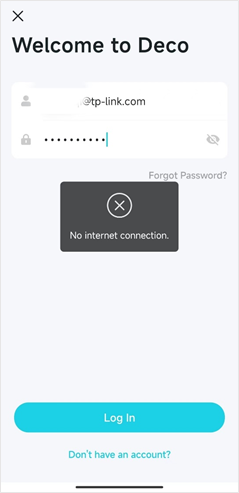
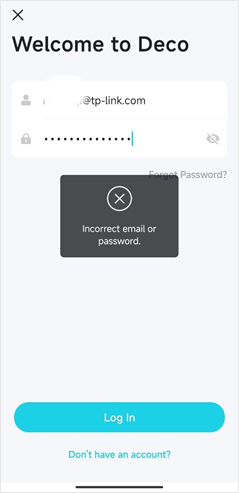
Close and reopen the Deco app to fix minor glitches. Ensure your phone or tablet is connected to the Deco network. Update the app to the latest version from your app store. Clear the app cache or reinstall the app if it freezes or crashes. Restart your mobile device to improve app performance. Use another device to check if the app problem is device-specific.

Credit: community.tp-link.com
Led Color Indicators
The LED color indicators on your TP-Link Deco device provide clear signals about its current status. These lights help identify what the device is doing or if it needs attention. Understanding these colors saves time during troubleshooting.
Each color and blinking pattern has a specific meaning. Recognizing them guides your next steps for fixing issues. Below, learn what different LED colors indicate and what actions to take.
Yellow Pulse And Solid
A yellow pulse means the Deco is resetting to factory settings. This usually happens after a manual reset or during troubleshooting.
A solid yellow light shows the Deco is powering on and initializing. Wait a few minutes for it to finish starting up before proceeding.
Blue Pulse And Solid
A blue pulse indicates the Deco is ready for setup. It waits to connect with your phone app or other Deco units.
A solid blue light means the Deco is currently setting up the network. Do not unplug or turn off the device during this phase.
Green Pulse
A green pulse signals that the Deco is upgrading its firmware. This update improves performance and security.
During this time, avoid powering off the device to prevent update failure or corruption.
Advanced Troubleshooting
Advanced troubleshooting helps fix complex TP-Link Deco issues. It dives deeper than basic checks. This approach can solve stubborn problems that simple steps miss.
Using advanced methods often restores network stability. It improves device performance and connectivity. Follow these steps carefully to avoid data loss or configuration errors.
Factory Reset And Reconfiguration
Resetting your Deco returns it to default settings. Hold the reset button for 10 seconds until the LED blinks yellow. This erases all custom settings and connections.
After reset, open the Deco app to start setup. Re-enter your network name and password. Reconfigure features like parental controls and device prioritization. This step clears hidden faults and software glitches.
Mac Address Cloning
Some ISPs bind your connection to a specific MAC address. If your Deco can’t connect, try cloning the old router’s MAC address. This tricks the ISP into recognizing your Deco as the previous device.
To clone, open the Deco app and find the MAC Clone option. Enter the MAC address from your old router or device. Save settings and restart your Deco. This often solves no internet or limited connectivity issues.
Testing With Direct Modem Connection
Test your Deco by connecting it directly to the modem. Remove other network devices or switches. This isolates the Deco and modem for accurate diagnosis.
If the Deco works fine with a direct modem link, the problem lies in other network parts. Check cables, switches, or additional routers. If the Deco still fails, the issue may be with the device or modem itself.
Credit: www.tp-link.com
When To Contact Support
Knowing when to contact support can save time and frustration with your TP-Link Deco system. Some problems need expert help beyond basic troubleshooting steps. Recognizing these signs helps you get the right assistance quickly. Here are key situations when reaching out to TP-Link support is necessary.
Persistent Hardware Issues
Repeated Deco unit failures point to hardware problems. Lights that never change or constant blinking indicate device faults. Physical damage or unusual heat also suggests hardware trouble. If resets and firmware updates fail, contact support for repair or replacement options.
Isp Related Problems
Sometimes issues stem from your internet service provider, not the Deco system. If your modem or external connection drops frequently, the problem lies with the ISP. Support can help identify if the Deco is incompatible with your service or if special settings are needed.
Continued Network Instability
Frequent disconnections and slow speeds after all fixes mean deeper network problems. This may involve interference, firmware bugs, or configuration errors. Support can guide advanced troubleshooting or firmware patches to restore stable performance.
Credit: service-provider.tp-link.com
Frequently Asked Questions
Why Is My Tp-link Suddenly Not Working?
Your TP-Link may stop working due to firmware issues, loose cables, or network interference. Reboot the router and devices. Check firmware updates and cable connections. Disable Fast Roaming if needed. Reset network settings or perform a factory reset if problems persist.
What Does It Mean When My Deco Is Blinking Blue?
A blinking blue Deco LED means the device is powered on and ready for setup or pairing with your network.
How Do I Reboot My Tp-link Deco?
Open the Deco app, tap More > System > Reboot Deco, then confirm. The device will restart shortly.
What Do The Lights Mean On Deco Wi-fi?
Deco Wi-Fi lights indicate status: yellow pulse means resetting, yellow solid is starting up, blue pulse shows ready for setup, blue solid means setting up, and green pulse signals firmware upgrade.
What Does A Blinking Blue Light On Deco Mean?
A blinking blue light means the Deco is ready for setup. It shows the device is powered on and waiting to pair.
Conclusion
Troubleshooting your TP-Link Deco does not have to be hard. Start simple: reboot devices and check all connections. Keep your firmware updated for smooth performance. Watch Deco LED lights for status clues. Adjust Deco placement to avoid interference. Use the app to reboot or reset if needed.
These steps often fix common Deco issues quickly. Stay patient and follow each step carefully. Your network will run better with a little attention.