
Is your TP-Link router acting up right when you need it most? Slow speeds, dropped connections, or mysterious red lights can turn your online experience into a frustrating puzzle.
But don’t worry—you’re not alone, and fixing these issues might be easier than you think. In this guide, you’ll discover simple, step-by-step troubleshooting tips designed specifically for your TP-Link router. Whether you’re struggling with Wi-Fi drops, confusing LED signals, or complete internet loss, we’ll walk you through the exact actions to get your network back on track fast.
Ready to stop the guessing and start enjoying smooth, reliable internet? Keep reading—your solution is just ahead.
Common Tp-link Router Lights
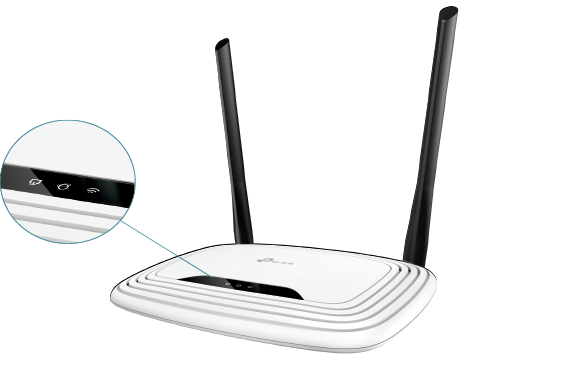
TP-Link routers use LED lights to show their status and help with troubleshooting. These lights give quick clues about power, connection, and network activity. Understanding what each light means helps to fix common issues fast. This guide explains the usual TP-Link router lights and their meanings.
Power And Connection Leds
The power LED shows if the router is on. A steady green light means power is good. If it is off, the router has no power. The connection LED shows the internet link status. A solid light means the router is connected to the internet. A blinking light shows data is being sent or received. No light means no internet connection.
Ethernet And Wi-fi Indicators
Ethernet LEDs indicate wired connections. Each light corresponds to a port on the router. A steady light means a device is connected by cable. Blinking means data is transferring. Wi-Fi LEDs show wireless network activity. A steady light means the wireless network is active. Blinking means devices are using Wi-Fi right now.
Red Light Issues
A red light usually signals a problem. On power or connection LEDs, it means the router is not working properly. Common causes include firmware errors, hardware faults, or no internet from the provider. Restart the router first to clear minor errors. Persistent red lights may need a factory reset or support help.
Basic Troubleshooting Steps
Basic troubleshooting steps help solve most TP-Link router issues quickly. These steps target common problems like no internet or slow speed. Follow each carefully to identify and fix the issue.
Power Cycling Modem And Router
Turn off your modem and router by unplugging their power cords. Wait for about 30 seconds to let them reset fully. Plug the modem back in first and wait until all lights are stable. Then plug in the router and wait for its lights to settle. This often clears temporary glitches affecting your connection.
Inspecting And Reseating Cables
Check all cables connecting your modem, router, and wall outlet. Make sure they are plugged in tightly and not damaged. Loose or broken cables can cause connection drops or no internet access. If a cable looks worn out, try replacing it with a new one to see if it improves the connection.
Testing Direct Modem Connection
Connect your computer directly to the modem using an Ethernet cable. Power cycle the modem again before testing. If the internet works on your computer, the router might be the problem. If there is still no internet, the issue may be with the modem or your internet service provider.
Device And Network Checks
Device and network issues often cause TP-Link router problems. Simple checks help find the cause fast. These checks focus on your device and the network setup. Fixing small issues here can restore your internet quickly.
Forgetting And Reconnecting Network
Start by forgetting the Wi-Fi network on your device. This removes old settings and possible errors. After that, reconnect to the network by entering the password again. This refreshes the connection and can fix many common problems.
Testing Multiple Devices
Try connecting different devices to your TP-Link router. Use a phone, tablet, or computer to test. If all devices have trouble, the router or network likely has an issue. If only one device struggles, the problem is with that device.
Checking Modem Status Lights
Look at the lights on your modem carefully. Each light shows part of the connection status. A solid or blinking green light usually means good internet. Red or no lights may signal a problem with your internet service or modem. Check cables to make sure they are tight and undamaged.
Advanced Router Fixes
Advanced router fixes help solve deeper issues with your TP-Link router. These fixes go beyond basic steps and can improve your network’s performance. They require simple actions but give effective results. Follow these methods carefully to keep your router running smoothly.
Updating Firmware
Firmware updates improve your router’s security and features. Visit the TP-Link support site and download the latest firmware for your model. Log in to the router’s admin page and find the firmware update option. Upload the downloaded file and start the update. Do not turn off the router during this process. After updating, your router will restart automatically.
Changing Dns Settings
DNS settings affect how fast websites load. Open your router’s settings and locate the DNS section. Replace the default DNS with public DNS like Google’s (8.8.8.8 and 8.8.4.4). Save changes and restart your router. This can improve browsing speed and reliability on your devices.
Mac Address Cloning
Some internet providers use MAC address filtering. MAC cloning helps your router use a different MAC address to connect. Find the MAC address clone option in your router’s settings. Enable it and enter the MAC address of your old device or your computer. Save and reboot the router. This step can fix connection problems related to MAC filtering.
Performing Factory Reset
A factory reset restores your router to default settings. Use a paperclip to press the reset button on the back of the router. Hold it for 10 seconds until the lights blink. The router will reboot and erase all custom settings. Set up your network again using default login details. This fix clears many complex issues and starts fresh.
Troubleshooting Tp-link Deco Systems
Troubleshooting TP-Link Deco systems involves understanding common issues and simple fixes. Deco mesh systems provide seamless Wi-Fi coverage. Problems may arise due to connectivity or hardware errors. Identifying the problem quickly helps restore smooth internet access. Below are key tips to solve common Deco issues.
Red Light On Deco Units
A red light on Deco units signals a problem. It usually means no internet connection. Check if the modem is working properly. Restart both the modem and the Deco unit. Ensure all cables are securely connected. If the red light stays, reset the Deco to factory settings.
Ensuring Main Deco Connectivity
The main Deco unit connects your mesh network to the modem. Place it near your modem for the best signal. Check Ethernet cables for damage or loose connections. Power cycle the main Deco and modem to refresh connections. Use the Deco app to verify if the main unit is online.
Optimizing Mesh Placement
Mesh nodes should be placed where they get a strong signal. Avoid walls, metal objects, and appliances that block Wi-Fi. Place nodes halfway between the main Deco and dead zones. Keep nodes visible and off the floor. Proper placement improves speed and coverage throughout your home.
Credit: www.tp-link.com
Fixes For Tp-link Extenders
Fixing issues with TP-Link extenders can improve your Wi-Fi coverage significantly. These devices boost your main router’s signal to reach farther corners of your home or office. Simple steps often resolve common extender problems quickly. Follow easy fixes to restore strong and stable connections.
Signal Strength And Placement
Place your TP-Link extender where it receives a strong signal from the main router. Avoid walls, metal objects, and appliances that block signals. A good spot is halfway between your router and the area needing better coverage. Check the extender’s LED lights to confirm signal strength.
Resetting The Extender
Resetting the extender clears old settings and fixes many issues. Find the reset button, usually a small hole on the device. Press and hold it for about 10 seconds using a paperclip. Wait for the extender to restart and the lights to stabilize before reconnecting.
Reconnecting To Main Router
Re-establish a connection between your extender and router after resetting. Use the WPS button on both devices for an easy setup. Press the router’s WPS button first, then the extender’s WPS button within two minutes. Wait for the extender’s LED to show a successful connection.
When To Contact Your Isp
Knowing when to contact your Internet Service Provider (ISP) can save time and frustration. Some problems with your TP-Link router need expert help beyond basic troubleshooting. Recognizing these moments helps avoid unnecessary effort. It also speeds up restoring your internet connection.
Identifying Service Outages
Check if the internet is down in your area first. Visit your ISP’s website or use their app to see outage reports. You can also call their customer support for updates. If many users report issues, wait for the ISP to fix it. No need to adjust your router during a known outage.
Confirming Modem Connectivity
Verify your modem shows proper connection lights. Usually, solid or blinking green means good connection to your ISP. If the modem’s lights are off or red, the issue might be with the ISP or modem itself. Try unplugging and restarting the modem. If the problem stays, contact your ISP for help with the modem.
Reporting Persistent Issues
If problems continue after rebooting your router and modem, call your ISP. Explain the troubleshooting steps you already tried. Mention if connecting a device directly to the modem still fails. Persistent issues often require ISP intervention. They can check your line or send a technician if needed.
Credit: www.tp-link.com

Credit: www.youtube.com
Frequently Asked Questions
What Do The Lights Mean On A Tp-link?
TP-Link lights indicate status: Power (solid means on), Internet (blinking shows activity), and Ethernet (solid means connected). Red or blinking lights signal issues.
Why Is My Router Suddenly Not Connecting To The Internet?
Your router may lose internet connection due to modem issues, loose cables, ISP outages, or router firmware problems. Restart both modem and router, check all cables, and test your connection on another device. Contact your ISP if problems persist.
How To Fix Tp-link Router Red Light?
Unplug your modem and TP-Link router. Wait 30 seconds, then plug them back in. Check Ethernet cables for damage and secure connections. Connect a device directly to the modem to test internet. Update the router’s firmware if the red light persists.
Contact your ISP if issues continue.
How To Reset Tp-link Router?
To reset a TP-Link router, press and hold the reset button for 10 seconds. Release it and wait for the router to reboot. This restores factory settings and fixes many issues.
How Do I Reset My Tp-link Router To Factory Settings?
To reset your TP-Link router, press and hold the reset button for 10 seconds. This restores all settings to default and clears any errors.
Conclusion
Troubleshooting your TP-Link router can restore your internet quickly. Start by checking all cables and power cycling devices. Observe the router lights; they show connection status. Testing other devices helps find if the problem is with one device or the network.
Connecting directly to the modem can isolate router issues. Resetting the router often fixes persistent problems. If problems continue, contact your Internet Service Provider for help. Following these simple steps keeps your WiFi running smoothly and your connection stable.



