
Is your Uconnect Bluetooth acting up when you need it most? Whether your phone won’t pair, the connection keeps dropping, or audio playback refuses to start, these issues can quickly turn your drive from smooth to frustrating.
You rely on your Uconnect system to stay connected, hands-free and hassle-free, so when Bluetooth troubles hit, it’s more than just an inconvenience. But don’t worry—this guide is here to help you fix those common Bluetooth headaches step-by-step. By the time you finish reading, you’ll know exactly how to troubleshoot your Uconnect Bluetooth and get back to enjoying seamless calls and music on the road.
Ready to solve your connection problems once and for all? Let’s dive in.

Credit: www.dodge-dart.org
Software Updates
Keeping your Uconnect system updated is key to fixing Bluetooth troubles. Software updates improve system stability and add compatibility for new devices. They fix bugs that cause connection issues. Regular updates make your Bluetooth work smoother and more reliable.
Check For System Updates
Start by checking your Uconnect system for updates. Go to the settings menu on the touchscreen. Look for a section named “System” or “Software Update.” The system will search for the latest update available. If an update appears, follow the on-screen steps to download and install it.
Make sure your vehicle is parked and the engine is running during the update. Interrupting the process can cause errors. Updating at home with a strong Wi-Fi signal helps speed up the download. After updating, test your Bluetooth connection again.
Update Via Dealership
Some Uconnect updates require a visit to the dealership. They have tools to install updates that cannot be done at home. Call your dealership and ask if your vehicle needs a software update for Bluetooth issues. They may schedule a service appointment.
Dealership technicians can also check for other problems in the system. They perform a full diagnostic and update all needed software. This option ensures your Uconnect system is fully up to date and working well.
Resetting Connections
Hardware issues often cause Bluetooth problems in Uconnect systems. Checking hardware parts helps identify faults early. This step avoids unnecessary software fixes. Simple hardware inspections can restore Bluetooth functions quickly. Follow these key checks carefully to ensure your system works properly.
Inspect Bluetooth Module Fuse
Locate the vehicle’s fuse box, usually under the dashboard. Find the fuse labeled for Bluetooth or Uconnect. Use a fuse puller or tweezers to remove it gently. Check if the fuse wire is broken or burnt. Replace the fuse with one of the same rating if damaged. A faulty fuse can stop the Bluetooth module from working.
Perform System Hard Reset
Turn off the vehicle and open the driver’s door. Wait for about one minute without touching any controls. Close the door and restart the engine. This reset clears temporary glitches in the Uconnect system. It often fixes Bluetooth connection errors without deeper intervention. Try reconnecting your device after the reset.
Battery Disconnect Procedure
Switch off the engine and remove the key. Disconnect the negative battery terminal carefully using a wrench. Wait for 10 minutes to let the system fully power down. Reconnect the battery terminal and tighten it securely. This process resets all electronic modules, including Bluetooth. It can fix persistent issues that normal resets miss.
Hardware Checks
Phone compatibility plays a crucial role in resolving Uconnect Bluetooth issues. Not every phone pairs smoothly with the system. Some phones may face connection problems due to hardware or software differences. Checking compatibility helps identify if the phone is the cause of Bluetooth trouble. This step saves time and avoids unnecessary fixes on the vehicle system.
Try Different Phones
Test your Uconnect system with another phone. Use a phone from a different brand or model. This step shows if the issue lies with your original phone. If the second phone pairs successfully, the problem is likely with your first phone. If no phone connects, the Uconnect system may need attention. Trying multiple phones narrows down the source of the problem quickly.
Ensure Phone Software Is Updated
Keep your phone’s software up to date. Phone updates fix bugs that affect Bluetooth. Older versions may lack support for Uconnect’s Bluetooth features. Check for updates in your phone’s settings regularly. Updated software improves phone and system communication. This simple action often resolves many pairing and connection issues.

Credit: infotainment.zohodesk.com
Phone Compatibility
Bluetooth issues with Uconnect systems are common among many drivers. These problems often affect the connection quality and user experience. Understanding the typical causes helps in quick troubleshooting. Some issues relate directly to the hardware condition of the screen and internal components.
Below are two frequent problems that affect Uconnect Bluetooth performance. Recognizing them can save time and avoid unnecessary repairs.
Screen Adhesive Failures
The Uconnect screen uses adhesive to hold layers together. Over time, this glue can weaken or fail. When adhesive fails, the screen may show ghost touches or lag. This impacts the Bluetooth menu and settings access. Drivers may notice unresponsive touch controls or random actions. Adhesive failure can also cause the screen to separate slightly. Dust and dirt then enter, worsening the problem. Replacing or repairing the screen often fixes these issues.
Heat And Sun Damage Effects
Heat and direct sunlight harm the Uconnect system. High temperatures can melt or weaken internal parts. The screen adhesive is especially vulnerable to heat damage. Sun exposure also fades the display and causes glitches. Bluetooth connection may drop or fail to establish. This happens because heat affects wiring and chips inside. Parking in shade or using sunshades can reduce damage. If problems persist, a professional inspection is needed.
Common Issues
Bluetooth connection issues with Uconnect can cause frustration. Simple troubleshooting steps often fix common problems quickly. Try the following tips to restore your Bluetooth connection and enjoy seamless audio and hands-free calls.
Restart Infotainment System
Turn off your vehicle and open the door. Wait for about one minute. Close the door and restart the vehicle. This process resets the Uconnect system. It clears temporary glitches affecting Bluetooth. Check if your phone reconnects after the restart.
Toggle Phone Bluetooth Settings
Go to your phone’s Bluetooth settings. Turn Bluetooth off and wait a few seconds. Turn Bluetooth back on to refresh connections. This step can fix minor connection errors. Try pairing your phone to Uconnect again after toggling.
Delete Bluetooth Profiles
On your Uconnect screen, open Bluetooth settings. Find the list of paired devices. Select and delete old or unused profiles. On your phone, remove the Uconnect profile too. This clears stored data causing conflicts. Re-pair your phone to create a fresh connection.
Troubleshooting Tips
Knowing when to seek help with your Uconnect Bluetooth issues can save time and frustration. Basic troubleshooting works for many problems. Some issues, however, need expert support. Recognizing these signs helps you get the right help quickly.
Contact Uconnect Support
Reach out to Uconnect Support if simple fixes fail. They offer guidance for complex Bluetooth problems. Support agents can walk you through advanced troubleshooting steps. They also provide updates about system bugs and recalls. Use official Uconnect phone numbers or website chat for reliable help.
Visit Authorized Service Center
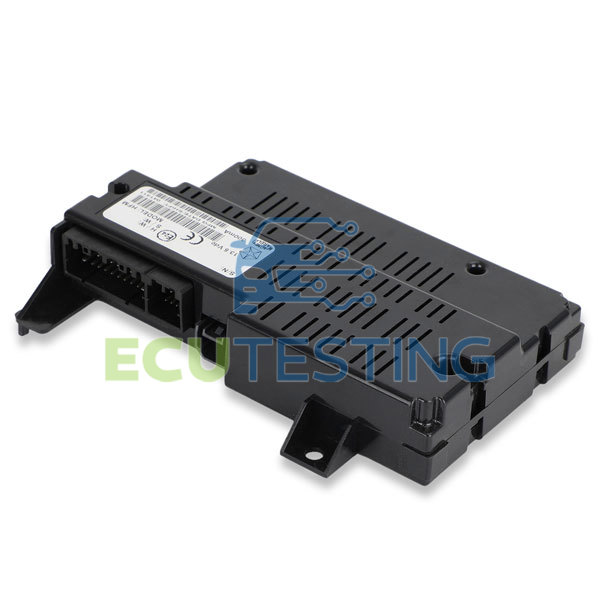
Visit an authorized service center when hardware or software faults persist. Certified technicians have tools to diagnose and fix Uconnect Bluetooth issues. They can replace damaged modules or update software safely. Service centers ensure repairs keep your vehicle’s warranty intact. Schedule a visit if your system shows continuous errors or no connection.
Credit: www.ecutesting.com
Frequently Asked Questions
How To Fix Uconnect Bluetooth Issues?
Update Uconnect software via system settings or dealership. Clear paired devices. Check Bluetooth fuse. Perform system reset or battery disconnect if needed. Re-pair your phone after these steps.
How To Reset Bluetooth On Uconnect?
To reset Bluetooth on Uconnect, delete all paired devices in settings. Update Uconnect software. Reboot the system or disconnect the car battery briefly if needed. Then, re-pair your phone for a fresh connection.
What Are Common Uconnect Problems?
Common Uconnect problems include Bluetooth connection failures, screen unresponsiveness, software glitches, and pairing issues caused by outdated software or hardware faults.
How Do I Fix The Bluetooth Pairing Problem?
Delete all paired devices on Uconnect, update your phone’s software, then re-pair the device. Check the Bluetooth fuse and reset the system if needed.
How Do I Fix Uconnect Bluetooth Connection Issues?
Restart your vehicle and phone to refresh the connection. Clear old paired devices and try pairing again. Check for software updates on your Uconnect system.
Conclusion
Troubleshooting Uconnect Bluetooth issues can feel frustrating. Start with simple steps like updating software and clearing old connections. Check fuses and perform resets if needed. Small fixes often solve most problems quickly. Keep your phone’s Bluetooth updated and try reconnecting.
Persistent issues may require professional help or dealer support. Staying patient and following these tips improves your Uconnect experience. Enjoy seamless calls and music on every drive.



