
Is your Verizon router acting up just when you need it most? Slow speeds, no internet connection, or confusing blinking lights can be frustrating, especially when you rely on your network for work, entertainment, or staying connected.
But don’t worry—you’re in the right place. This guide will walk you through simple, effective Verizon router troubleshooting steps that anyone can follow. By understanding what those lights mean and how to fix common issues, you’ll get your internet back up and running in no time.
Keep reading to take control of your connection and say goodbye to those annoying interruptions.
Credit: www.verizon.com
Router Light Signals
Router light signals are your first clue to the health of your Verizon internet connection. These lights show the router’s status and help diagnose issues quickly. Understanding what each light means can save time and avoid frustration.
Each color and blink pattern has a specific meaning. Some lights show power status, others indicate internet connection or Wi-Fi activity. Paying attention to these signals helps identify problems early.
White And Green Lights
A solid white light means your router has a normal internet connection. It shows the router is online and working well.
A flashing white light means the router is starting up or updating its software. Wait for it to finish before using the internet.
Green lights usually show power and Wi-Fi status. A solid green light means the power is on or Wi-Fi is enabled.
A blinking green light shows data activity. This means your router is sending or receiving information.
Blue Light Indicators
A solid blue light signals a successful WPS pairing. This means a device has connected securely to your Wi-Fi.
If the blue light flashes, the router is in pairing mode. It is ready to connect a new device using WPS.
Yellow And Red Warnings
A solid yellow light warns of no internet or limited service. Your connection is weak or unavailable.
A solid red light means a serious problem, like hardware failure or connection loss. Immediate attention is needed.
A flashing red light may indicate overheating or a WPS error. Check your router’s placement and retry WPS pairing.
Power Light Issues
If the power light is off, your router has no power. Check if the cable is plugged in properly.
Try a different power outlet to rule out socket problems. A faulty power adapter can also cause this issue.
Without power, the router cannot function or connect to the internet. This is the first thing to check during troubleshooting.
Credit: www.verizon.com
Quick Router Restart
A quick router restart often solves common Verizon internet issues fast. It refreshes your connection and clears temporary glitches. This simple step can restore your internet without complex fixes. Restarting the router regularly helps maintain smooth performance and stable speeds.
Using My Verizon App
Open the My Verizon app on your phone. Sign in with your account details. Select your router or internet service from the menu. Tap the restart option to reboot the router remotely. Wait a few minutes while the router restarts. Check if your internet connection improves after the restart.
Manual Power Cycle
Locate your Verizon router’s power cable. Unplug the power cable from the router. Wait about 30 seconds to 1 minute. Plug the power cable back into the router. Allow the router to fully restart and the lights to stabilize. Test your internet connection for normal operation.
Wi-fi Connectivity Fixes
Wi-Fi connectivity issues with your Verizon router can disrupt your online activities. Simple fixes often restore a stable connection quickly. This section covers easy steps to improve your Wi-Fi performance and keep your devices connected.
Checking Device Connections
Start by verifying your device is properly connected to the Wi-Fi network. Ensure Wi-Fi is enabled on your device and it shows the correct network name. Forget the network and reconnect if needed. Check the router’s LED lights. A solid white or green light means the connection is active. Restart your device and router to refresh the connection.
Resolving Ip And Dns Errors
IP and DNS errors cause slow or no internet access. Renew your device’s IP address by disconnecting and reconnecting to Wi-Fi. Clear your DNS cache by restarting your device or running simple commands like “ipconfig /flushdns” on Windows. Set your DNS server manually to Google DNS (8.8.8.8) or Verizon’s recommended settings. These steps resolve common network address problems.
Updating Network Drivers
Outdated network drivers can cause Wi-Fi drops and slow speeds. Check your device’s driver status in Device Manager on Windows or System Preferences on Mac. Download and install the latest drivers from the manufacturer’s website. Keeping drivers updated improves compatibility and connection stability with your Verizon router.
Credit: www.reddit.com
Checking Router Hardware
Checking your Verizon router hardware is a key step in troubleshooting connection issues. Hardware problems often cause slow or no internet access. This step helps identify physical faults before diving into software fixes. Carefully examining the router can save time and effort.
Inspecting Cables And Ports
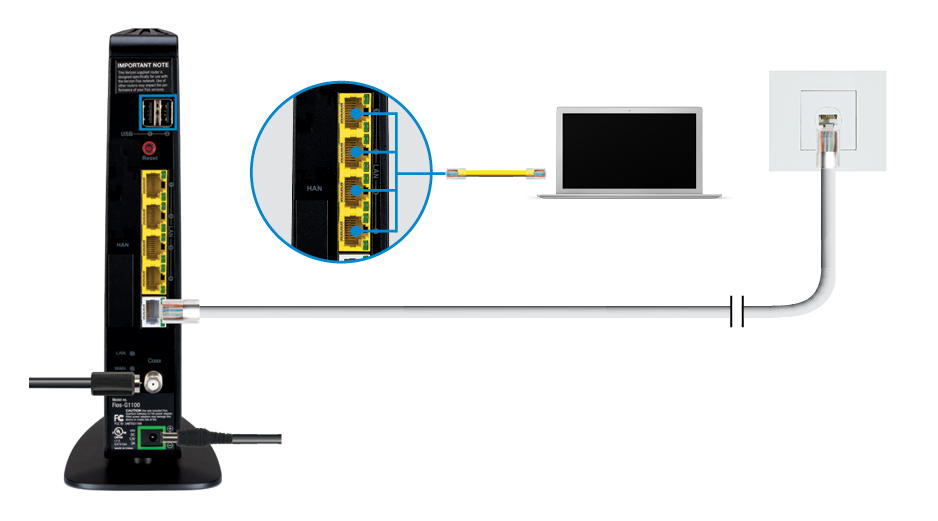
Start by looking at all cables connected to the router. Make sure each cable is firmly plugged in. Loose or damaged cables can cause connection drops. Check the Ethernet and power cables for any signs of wear or fraying. Also, inspect the router’s ports for dust or debris. Clean the ports gently with a dry cloth if needed. Replace any cables that appear broken or worn out.
Avoiding Overheating
Overheating can cause the router to slow down or stop working. Place the router in a well-ventilated area away from direct sunlight. Avoid covering it with cloth or placing it inside cabinets. Ensure there is enough space around the device for air to flow freely. Clean dust from vents regularly to prevent blockage. If the router feels hot to touch, turn it off and let it cool down before using it again.
Advanced Troubleshooting
Advanced troubleshooting helps solve complex Verizon router issues. It goes beyond basic fixes like restarting or checking cables. This section covers key steps to restore your router’s performance and ensure stable internet.
Follow these methods carefully to avoid data loss or connection problems. They require more attention but often fix persistent issues effectively.
Resetting To Factory Settings
Resetting your Verizon router returns it to original factory settings. This clears all custom settings and stored data. Use this option if other troubleshooting steps fail.
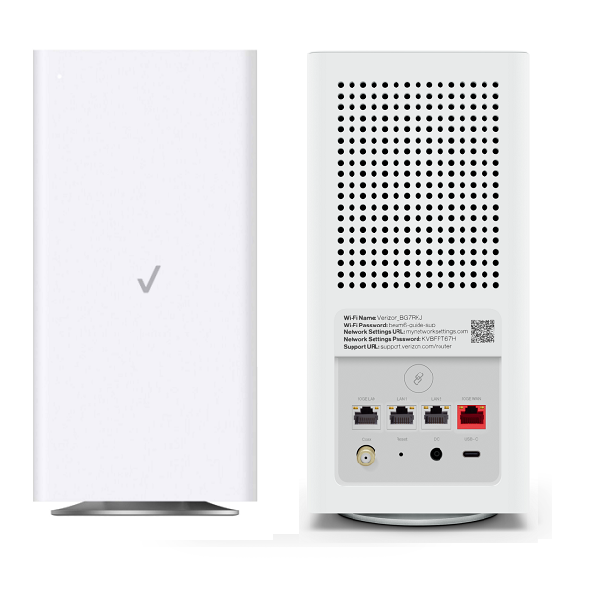
Locate the reset button on the router’s back or bottom. Press and hold it for about 10 seconds using a paperclip or similar tool. Wait for the router to restart automatically.
After reset, reconfigure your network name, password, and other settings. Remember, this step deletes all personalized configurations.
Firmware Updates
Firmware controls your Verizon router’s functions. Updating it can fix bugs and improve security. Check for updates regularly to keep your router running smoothly.
Log into the router’s web interface using its IP address. Find the firmware section and follow instructions to download and install the latest version.
Do not turn off the router during the update. This process may take several minutes. A successful update often resolves hidden software problems.
Contacting Verizon Support
If problems persist after advanced troubleshooting, contact Verizon support. They offer expert help and remote diagnostics to identify issues.
Prepare your account details and router information before calling. This speeds up the support process.
Use Verizon’s official website or customer service number to reach them. Support agents can guide you through complex steps or arrange technician visits if needed.
Improving Signal Strength
Improving the signal strength of your Verizon router can make a big difference in your internet experience. A stronger signal means faster speeds and fewer dropouts. Small changes can boost your Wi-Fi coverage and reduce dead spots in your home. Focus on simple steps that help your router send a better signal throughout your space.
Optimal Router Placement
Place your router in a central spot in your home. Avoid corners, basements, or areas blocked by thick walls. High shelves or open areas work best. Keep the router away from metal objects and appliances that cause interference. Devices like microwaves and cordless phones can weaken the signal. Make sure the router’s antennas point upward and are not blocked.
Using Wi-fi Extenders
Wi-Fi extenders increase your router’s signal range. They catch the existing signal and send it further. Put extenders where the signal is still strong but near weak areas. This setup helps cover dead zones in large or multi-story homes. Choose extenders compatible with your Verizon router for best results. Extenders improve coverage without needing extra wires or new routers.
Frequently Asked Questions
What Lights Should Be On My Verizon Router?
Your Verizon router should show a solid white light for internet, solid green for power and Wi-Fi, and blinking green for activity. Yellow or red lights indicate issues needing troubleshooting.
How Do I Troubleshoot My Verizon Router?
Restart your Verizon router by unplugging it for 30 seconds, then plug it back in. Check cables and connections. Confirm LED lights show normal status: solid white for internet and solid green for power. Reset to factory settings if issues persist.
Contact Verizon support for further help.
How To Reboot A Verizon Wifi Router?
To reboot a Verizon WiFi router, unplug its power cord, wait 30 seconds, then plug it back in. Wait for lights to stabilize.
Why Is My Wi-fi Router Connected But No Internet?
Your router may connect to Wi-Fi but lack internet due to ISP issues, incorrect settings, or hardware problems. Restart your router and check cables. Verify modem status lights; yellow or red indicates connection issues. Contact your ISP if the problem persists.
What Do Verizon Router Lights Mean During Normal Operation?
Verizon router lights show connection status. Solid white means internet is connected. Green lights indicate power and Wi-Fi are on.
Conclusion
Troubleshooting your Verizon router becomes easier with these simple steps. Check the LED lights first to understand the issue quickly. Solid white and green lights mean your connection works fine. Yellow or red lights indicate problems needing attention. Restart your router and verify all cables are secure.
Update your router’s firmware regularly to avoid glitches. Keep your router in a cool, open area for better performance. Use Verizon’s support resources if problems persist. Staying calm and following these tips helps restore your internet fast. Reliable internet makes daily tasks smoother and stress-free.



