
Is your Vizio TV suddenly playing silent movies instead of your favorite shows? Sound problems can be frustrating, especially when you just want to relax and enjoy your entertainment.
But don’t worry—you’re not alone, and fixing your Vizio TV sound issues might be easier than you think. In this guide, you’ll discover simple and effective steps to troubleshoot your Vizio TV’s audio problems. From quick fixes like unmuting and checking volume levels to more detailed tips like adjusting audio settings and updating firmware, we’ll walk you through everything you need to hear your shows loud and clear again.
Keep reading to take control of your TV’s sound and get back to enjoying every moment!
Credit: www.esseg.eu
Basic Sound Checks
Basic sound checks help quickly fix common audio problems on your Vizio TV. Start with simple steps before deeper troubleshooting. These checks often restore sound without extra tools or settings changes.
Checking the mute status and volume level can solve most issues. Also, physical buttons on the TV provide a direct way to control sound. These easy actions save time and effort.
Unmute And Increase Volume
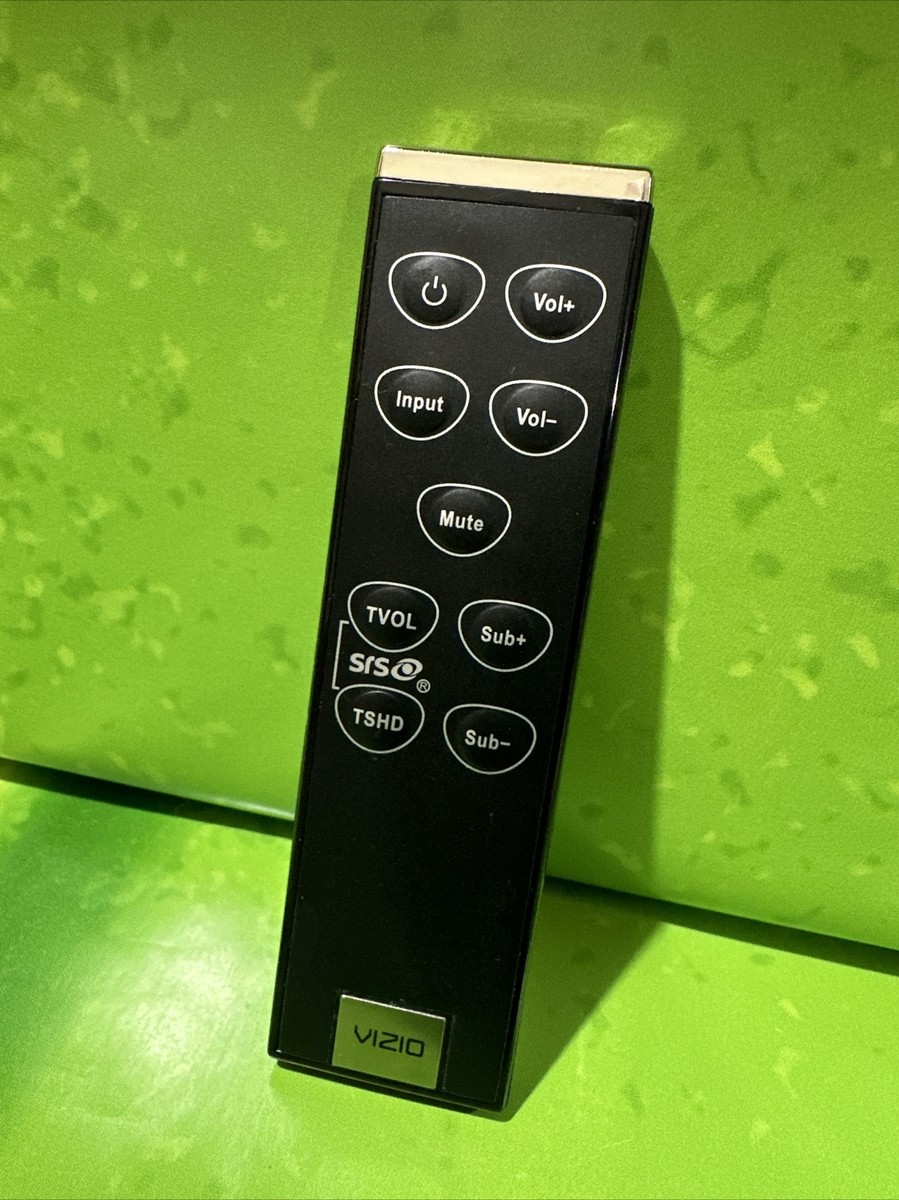
Look at your remote control. Press the mute button once to unmute the TV. Sometimes the TV stays muted without clear signs.
Next, press the volume up button several times. Confirm the sound level is loud enough. Low volume can seem like no sound at all.
Try testing different channels or apps. This ensures the problem is not from the content source.
Use Tv Physical Buttons
Find the volume buttons on the TV itself. They are usually on the back, side, or bottom edge of the screen.
Press the volume up button to increase sound. This bypasses remote control issues that block commands.
Use the power button to turn the TV off and on. Restarting can clear small glitches affecting sound.
Adjusting Audio Settings
Adjusting the audio settings on your Vizio TV can solve many sound issues. These settings control how the TV processes and outputs sound. Simple changes often improve audio clarity and fix common problems. Follow these steps to find and adjust key audio options easily.
Access Audio Menu
Press the Menu button on your remote. Select “Audio” or “TV Settings” then “Audio.” This opens the sound settings panel. Here, you can change output modes and other sound features. Navigating this menu is the first step to fixing sound problems.
Set Audio Output
Choose the correct audio output for your setup. Use “TV Speakers” for built-in speakers. Select “External Speakers” if you use a soundbar or home theater system. Wrong output settings can cause no sound or low volume.
Disable Volume Leveling
Volume Leveling evens out loud and soft sounds. Sometimes it lowers overall volume or causes distortion. Turn it off by selecting “Volume Leveling” or “Auto Volume” and choosing “Off.” This can improve sound quality and volume control.
Toggle Surround Sound
Surround Sound adds depth to the audio experience. Try turning it on or off to test sound changes. Some content works better with surround sound off. Others may sound richer with it on. Adjust based on your preference and content type.
Choose Audio Format
Audio Format controls how sound data is sent to speakers. Select “Bitstream” if you use an external receiver or soundbar. Choose “PCM” for direct TV speaker output. The right format prevents audio dropouts and sync issues.
Troubleshooting External Devices
External devices often cause sound issues on Vizio TVs. Checking these devices can solve many problems quickly. Start by focusing on the soundbar or cable box connected to your TV. Proper connections and device resets often restore audio without hassle.
Check Soundbar Or Cable Box Volume
Soundbars and cable boxes have their own volume controls. Make sure these volumes are not muted or too low. Use the remote controls of these devices to raise the volume. Sometimes, the TV volume is fine, but the external device is muted.
Verify Connections
Loose or faulty cables can stop sound from reaching your TV. Check all HDMI, optical, or RCA cables connecting the TV and devices. Unplug and plug cables back to ensure a secure fit. Swap cables if you suspect one might be damaged. Proper connections help maintain clear audio signals.
Reboot External Devices
Power cycling external devices can fix many sound problems. Turn off your soundbar or cable box completely. Unplug from the power source and wait about 30 seconds. Plug them back in and turn them on. This can clear temporary glitches affecting sound output.
Credit: tvpartstoday.com
Cable And Connection Checks
Checking cables and connections ranks high in fixing Vizio TV sound problems. Loose or faulty cables often cause no sound issues. Simple inspections can save time and avoid complex fixes. Start by looking closely at all HDMI and audio cables linked to your TV and devices.
Ensure all cables fit tightly into their ports. Over time, cables can loosen from frequent use or movement. A loose connection might cut off sound even if the picture stays clear. Also, check for visible damage like frayed wires or bent pins. Damaged cables need replacement to restore sound.
Inspect And Swap Hdmi Or Audio Cables
Try swapping the HDMI or audio cables with known working ones. This step tests if the cable itself causes the sound issue. Use a different HDMI port on your TV to rule out port problems. If sound returns, the original cable or port may be faulty.
Check audio cables such as optical or RCA connectors if you use external speakers or soundbars. Replace old or worn cables with new ones. Keep cables organized to avoid stress on connectors. Good cable health ensures clear and stable audio signals.
Software Updates And Resets
Software updates and resets play a key role in fixing sound issues on Vizio TVs. Firmware updates improve your TV’s performance and fix bugs. A factory reset clears software glitches that may cause audio problems. These steps often restore normal sound quickly and safely.
Update Tv Firmware
Updating the TV firmware ensures it runs the latest software version. New updates often fix bugs affecting sound quality and volume. To update, press the Menu button on your remote. Navigate to Support > System Update or Software Update. Select Check for Updates and follow the on-screen prompts. Keep your TV connected to the internet during this process. After updating, restart the TV and test the sound again.
Perform Factory Reset
A factory reset returns your Vizio TV to its original settings. This removes any corrupted files or wrong settings causing sound issues. To reset, press the Menu button on the remote. Go to System > Reset & Admin > Reset TV to Factory Defaults. Confirm your choice to start the reset. The TV will turn off and on during this process. Set up your TV again and check if the sound problem is fixed.
Fixing Audio Interruptions
Audio interruptions on your Vizio TV can disrupt your viewing experience. Fixing these sound issues restores clear, consistent audio. This section covers simple steps to address common audio interruptions. Follow these tips to eliminate sound problems quickly.
Address Sound Cutting Out
Sound cutting out can happen due to loose connections. Check all cables linking your TV and sound devices. Unplug and replug HDMI or audio cables firmly. Use different cables to test if the current ones are faulty.
Turn off your TV and unplug it from power. Wait 60 seconds, then plug it back in and power on. This resets the audio system and can stop cutting out. Also, check if your TV’s audio settings match your setup. Set Audio Out to “TV Speakers” if no external device is used.
Resolve Humming Or Distorted Audio
Humming or distorted sound often comes from interference or bad cables. Move cables away from power cords and other electronics. Replace old or damaged cables with new high-quality ones.
Adjust audio settings to reduce distortion. Disable Volume Leveling or Auto Volume in the audio menu. Try switching Surround Sound on or off to find the best sound quality. Updating your TV’s firmware can fix software glitches causing sound distortion.
Volume Control Without Remote
Controlling the volume on your Vizio TV without a remote is possible and quite simple. Sometimes, the remote might be misplaced or not working. In these cases, the TV’s built-in buttons can help manage volume levels easily. This method keeps your viewing experience smooth without extra tools.
Use Tv Buttons To Adjust Volume
Most Vizio TVs have physical buttons located on the side, back, or bottom edge. Look closely for a small cluster of buttons. Usually, you will find volume up (+) and volume down (-) buttons there.
Press the plus (+) button to increase the volume. Press the minus (-) button to decrease it. This direct control works instantly and does not require any setup.
Some models have a single button that cycles through options. Press it multiple times until you reach volume control. Then use the same button to raise or lower the sound.
If you cannot find volume buttons, check the TV’s manual or the manufacturer’s website for exact button placement. Using these buttons is the quickest way to adjust volume without a remote.

Credit: www.youtube.com
Frequently Asked Questions
How To Fix Vizio Tv Sound Problems?
Unmute your Vizio TV and raise the volume. Power cycle the TV. Adjust audio settings, check cables, update firmware. Use factory reset only if needed.
Why Has My Tv Suddenly Lost Sound?
Your TV may lose sound due to muted volume, incorrect audio settings, loose cables, or outdated firmware. Check these first.
How To Reset Volume On Vizio Tv?
To reset volume on your VIZIO TV, unmute, increase volume, power cycle the TV, then adjust audio settings. Check cables and update firmware if needed. Use factory reset only if issues persist.
How Do I Fix The Sound Glitch On My Tv?
Unmute your TV and raise the volume. Power cycle the TV by unplugging it for 30 seconds. Check audio settings, select TV speakers, disable volume leveling, and toggle surround sound. Inspect or replace cables. Update the firmware. Perform a factory reset if problems persist.
Why Is My Vizio Tv Sound Not Working But Picture Shows?
Your Vizio TV may be muted or volume set to zero. Check audio settings and ensure TV speakers are selected.
Conclusion
Troubleshooting Vizio TV sound issues can feel frustrating. Start with simple steps like checking volume and cables. Adjust audio settings carefully to match your setup. Keep your firmware updated for best performance. External devices like soundbars may also need attention.
If problems continue, a factory reset might help. Taking these actions usually restores clear sound quickly. Remember, patience and methodical checks solve most audio troubles. Your Vizio TV can deliver great sound again with some easy fixes.



