Is your Zebra ZD421 printer acting up right when you need it most? Whether it’s refusing to print, showing confusing lights, or giving you error messages, these issues can bring your workflow to a halt.
But don’t worry—you’re not alone, and fixing your Zebra ZD421 is easier than you think. In this guide, you’ll discover clear, step-by-step solutions to the most common problems. By understanding what those blinking lights mean and how to calibrate or clean your printer, you’ll get back to printing smoothly in no time.
Keep reading to troubleshoot your Zebra ZD421 quickly and confidently—because your productivity shouldn’t have to wait.

Credit: www.youtube.com
Common Printer Errors
Zebra ZD421 printers may face common errors during use. Understanding these errors helps fix problems quickly. This section covers typical printer issues and easy solutions. Clear steps improve printer performance and reduce downtime.
Flashing Red Or Yellow Lights
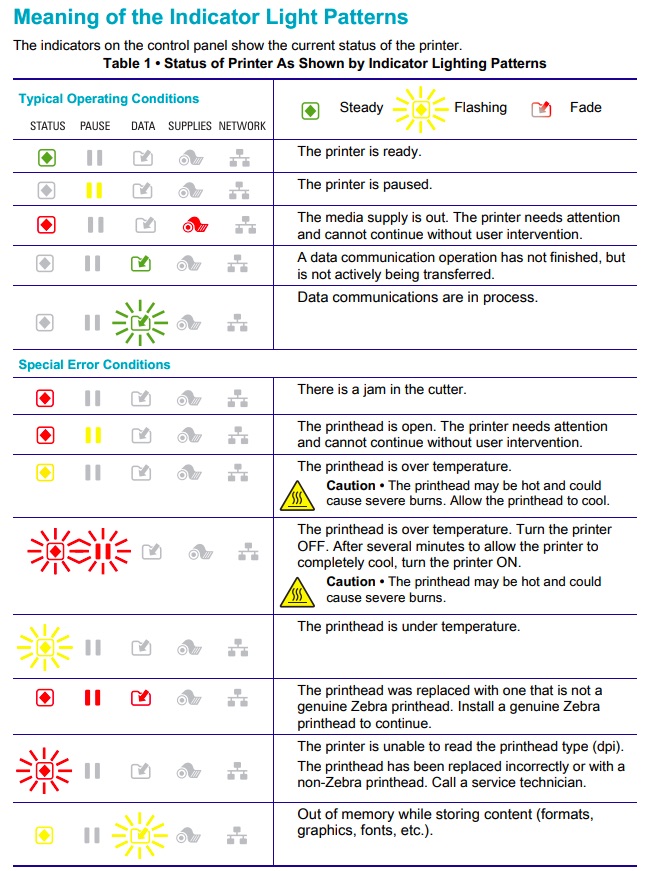
Flashing red or yellow lights signal an error. Check if the printer lid is open or not closed properly. Look for paper jams blocking the print path. Low ribbon on cartridge models can also cause these lights to flash. Correct these issues to clear the error lights.
No Print Or Faded Output
No print or faint printing often means media is loaded incorrectly. Ensure labels or paper face the right side. Clean the printhead and sensors gently with a soft cloth. Check printer settings in Zebra Setup Utilities. Set the media type correctly for thermal transfer or direct thermal printing.
Skipping Labels And Media Out Errors
Skipping labels or media out errors relate to sensor problems. Adjust the movable media sensor to the center of the label. Run SmartCal or manual calibration after sensor adjustment. Clean the media sensors to remove dust and residue. Proper sensor setup prevents skipping and false errors.
Overheating Issues
Overheating can stop the printer from working. Turn off the printer and unplug it. Let the printer cool down for several minutes before restarting. Avoid blocking vents or placing the printer in hot areas. Proper ventilation keeps the printer running smoothly.
Credit: support.revelsystems.com
Basic Troubleshooting Steps
Basic troubleshooting steps help fix common issues with the Zebra ZD421 printer. These steps are easy to follow and often solve many problems. Performing these tasks regularly keeps the printer running smoothly. Start with simple checks before moving to advanced solutions.
Checking Status Lights
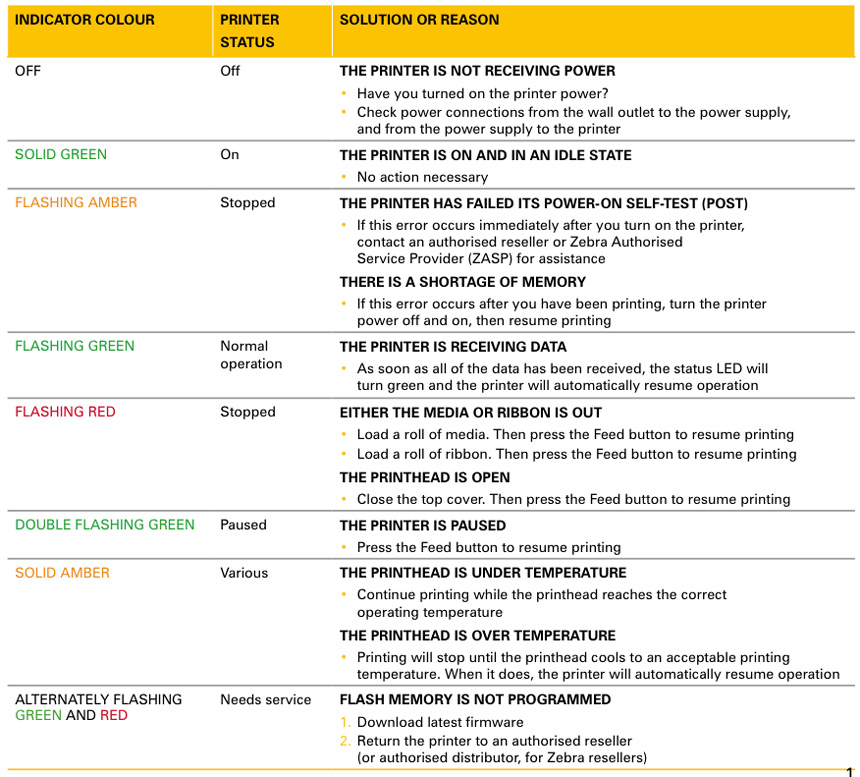
Status lights give quick information about printer health. A solid green light means the printer is ready. Flashing or red lights indicate errors. Common causes include paper jams, open covers, or low ribbon supply. Refer to the user manual for specific light codes. Fix the problem shown by the light before continuing.
Running Calibration
Calibration aligns the printer with the loaded media. It ensures correct label positioning and print quality. Use SmartCal or manual calibration features in the printer menu. Calibration adjusts sensors to detect media size and type. Run calibration after loading new media or if labels print incorrectly.
Cleaning Printhead And Sensors
Dirty printheads and sensors cause poor print quality and errors. Turn off the printer before cleaning. Use a lint-free cloth with isopropyl alcohol to clean the printhead gently. Wipe sensors to remove dust and adhesive residue. Clean regularly for optimal performance.
Verifying Printer Settings
Incorrect settings cause printing errors and label misalignment. Open Zebra Setup Utilities to check printer configuration. Confirm the media type matches the loaded labels (thermal transfer or direct thermal). Check print speed and darkness settings. Adjust settings to match your media and printing needs.
Advanced Fixes
Advanced fixes for the Zebra ZD421 go beyond basic troubleshooting. These steps help resolve deeper issues affecting printer performance. Understanding and applying these fixes can restore your printer’s functionality quickly. They require careful attention but are simple to perform.
Updating Printer Firmware
Firmware controls your printer’s core functions. Outdated firmware can cause errors and reduce performance. Visit Zebra’s official website to download the latest firmware version. Use the Zebra Setup Utilities tool to update the printer safely. Make sure the printer stays powered during the update. This process can fix bugs and add new features.
Resetting To Factory Defaults
Resetting the printer clears all custom settings and returns it to its original state. This step helps fix persistent issues caused by incorrect configurations. Turn off the printer first. Hold both the Pause and Feed buttons, then press the power button to turn it on. Keep holding the Pause and Feed buttons until the printer resets. This method erases errors and restores default settings.
Resolving Driver Conflicts
Driver conflicts often cause printing problems or prevent jobs from starting. Check the installed drivers on your computer and remove duplicates. Download the latest driver version from Zebra’s support page. Install the correct driver for your operating system. Restart your computer and printer after installation. Proper drivers ensure smooth communication between your computer and the printer.
Media And Ribbon Tips
Proper handling of media and ribbon is key to smooth Zebra ZD421 printer operation. Media and ribbon problems often cause print errors, poor print quality, or sensor alerts. Understanding how to load media, adjust sensors, and pick the right ribbon can prevent these issues. Follow these simple tips to keep your printer working well and your labels clear.
Loading Media Correctly
Open the printer cover and place the media roll inside. Ensure the printable side faces up. The media should feed under the media sensor. Pull out a small length of media to avoid jams. Close the cover firmly to secure the media. Avoid bending or folding the media as you load it. Check that the media roll turns freely without resistance.
Adjusting Media Sensors
The media sensor detects label gaps or black marks. Locate the sensor inside the printer near the media path. Slide the sensor left or right to match the label size. The sensor should align with the gap between labels. Run a calibration after adjusting the sensor to ensure correct detection. A misaligned sensor causes print skipping or “media out” errors. Clean the sensor regularly with a soft cloth to remove dust.
Choosing The Right Ribbon Type
Select a ribbon compatible with your media type. Wax ribbons work well with paper labels. For synthetic labels, choose resin ribbons for durability. Mixed wax-resin ribbons offer moderate resistance to smudging. Use the correct ribbon width matching your media roll width. Avoid using old or damaged ribbons to prevent print defects. Always install the ribbon with the ink side facing the media for proper transfer.
Preventive Maintenance
Preventive maintenance is key to keeping your Zebra ZD421 printer running smoothly. Small, regular care tasks help avoid common issues. This saves time and repair costs. Focus on cleaning, managing heat, and storing the printer well.
Regular Cleaning Schedule
Clean the printhead and platen roller often. Use a lint-free cloth and isopropyl alcohol. Remove dust and residue from sensors and media paths. Dirt buildup causes poor print quality and jams. Set a weekly cleaning routine for busy printers.
Avoiding Overheating
Overheating can damage internal parts. Keep the printer in a cool, ventilated area. Avoid blocking vents or placing it near heat sources. Turn off the printer during long breaks. Use the recommended print speed to reduce heat.
Proper Storage Practices
Store the printer in a dry, dust-free place. Cover it with a dust cover or cloth. Avoid exposing it to direct sunlight or moisture. Disconnect cables if not in use for a long time. Proper storage extends printer life and prevents damage.
When To Seek Professional Help
Knowing when to seek professional help with your Zebra ZD421 printer saves time and prevents damage. Some problems require expert attention beyond basic troubleshooting. Recognizing these signs helps you act fast and keep your printer working well.
Identifying Hardware Failures
Hardware issues often show clear signs. Printer won’t power on or stays stuck on startup. Buttons or display stop responding. Paper jams keep happening even after clearing. Print quality suddenly drops with streaks or missing lines. Strange noises like grinding or clicking may appear. These problems usually need a technician’s diagnosis and repair.
Contacting Zebra Support
Zebra’s support team offers expert guidance. They can help confirm if the issue is hardware or software. Provide your printer model and serial number for faster help. Follow their instructions carefully to avoid voiding warranty. Support can also guide you on firmware updates and driver fixes. Use official Zebra channels for reliable information.
Using Authorized Service Centers
Authorized service centers have trained technicians and original parts. They ensure repairs meet Zebra’s quality standards. Avoid unauthorized repairs to keep warranty valid. Service centers handle complex repairs like circuit board replacement or sensor fixes. Locate the nearest center through Zebra’s website or support contact. Professional repair extends your printer’s life and performance.
Credit: www.myzebra.co.uk
Frequently Asked Questions
How Do I Reset My Zebra Zd421?
To reset your Zebra ZD421, turn off the printer. Hold Pause and Feed buttons, then press Power. Release all buttons after the lights flash. This performs a factory reset and clears settings.
Why Is My Zebra Label Printer Not Printing Anything?
Your Zebra printer may not print due to incorrect media loading, paused jobs, or misconfigured settings. Check sensors, clean printhead, and run calibration. Power cycle the printer, update drivers, and reset to factory defaults if needed. Ensure the printer is set as default and no errors show.
What Does Blinking Lights Mean On Zebra Zd421?
Blinking lights on Zebra ZD421 indicate printer status or errors. Flashing red/yellow signals issues like open lids, low ribbon, or paper jams. Solid green means ready. Check media loading, sensors, and calibration to resolve problems. Refer to the manual for specific light patterns and troubleshooting steps.
What Do The Lights Mean On My Zebra Printer?
Zebra printer lights indicate status: green means ready, flashing red or amber signals errors like open lid or paper jam. Check media, sensors, and settings. Calibrate and clean regularly. Refer to the manual for specific light codes and troubleshooting steps.
How Do I Fix Zebra Zd421 Not Printing Labels?
Check if media is loaded correctly with the printable side up. Clean the printhead and sensors gently. Restart the printer and verify settings in Zebra Setup Utilities.
Conclusion
Troubleshooting the Zebra ZD421 printer becomes easier with clear steps. Check the status lights first to find common errors. Clean the printhead and sensors regularly to keep printing smooth. Calibrate the printer after loading new media or ribbons. Adjust settings in Zebra Setup Utilities to match your materials.
Update firmware if problems continue after basic fixes. Small actions can solve many printing issues quickly. Keep this guide handy for fast, simple Zebra ZD421 troubleshooting. Your printer will run better and reduce downtime.