
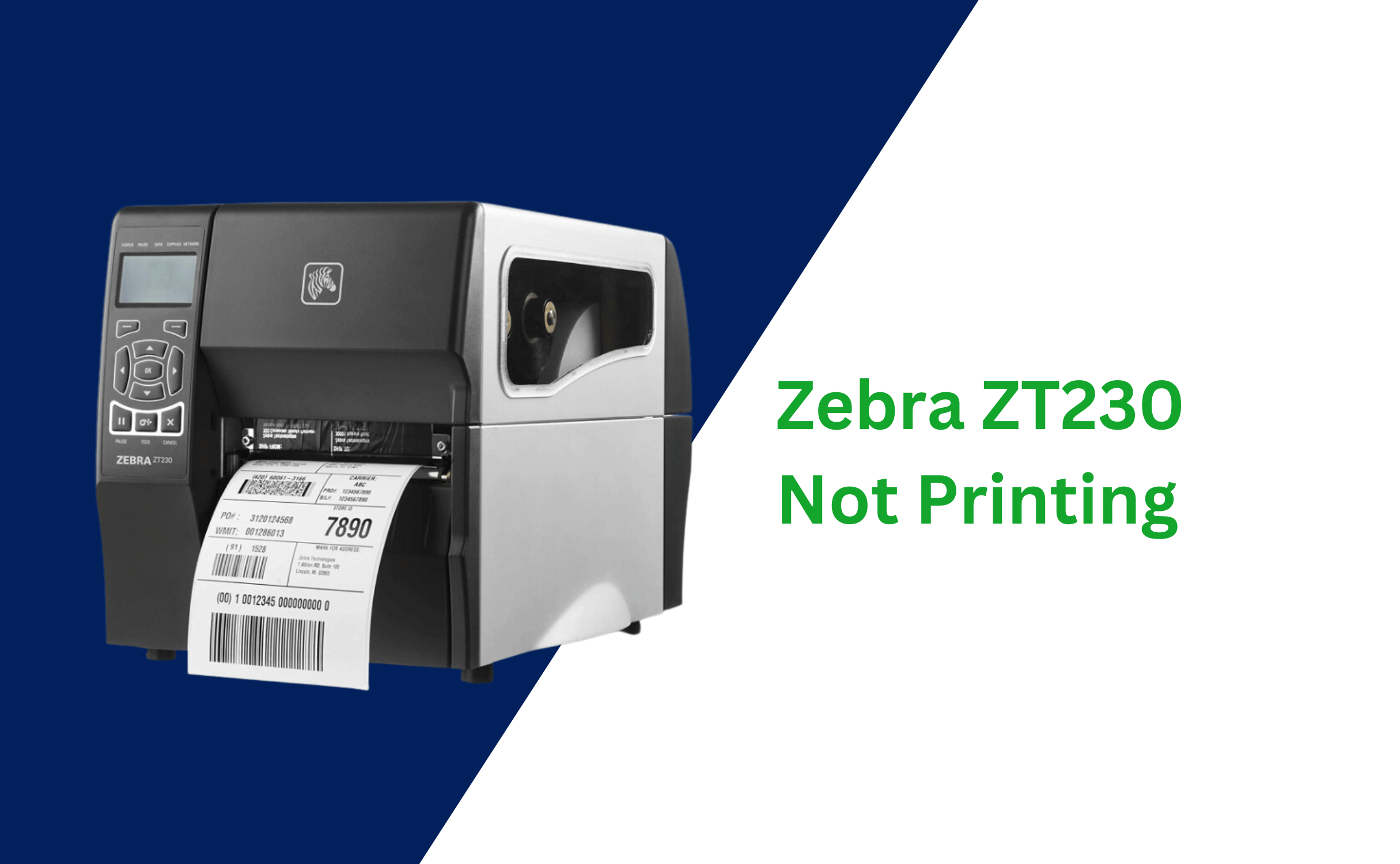
If you rely on your Zebra ZT230 printer for labeling tasks, running into issues can bring your workflow to a halt. You might be wondering why your printer isn’t responding, why the print quality is poor, or how to fix persistent error messages.
Don’t worry—this guide is designed to help you quickly troubleshoot the most common problems with your Zebra ZT230. By understanding simple checks and fixes, you can get your printer back up and running without wasting time or money. Keep reading to discover easy solutions that will help you solve your Zebra ZT230 troubles today.
General Issues
The Zebra ZT230 printer is reliable but can face common problems. These general issues often stop printing or cause errors. Understanding basic troubleshooting helps fix these quickly. Below are some frequent problems and simple solutions to get your printer working again.
Power Problems
Check if the power cable is firmly connected to the printer and outlet. Try plugging into a different outlet to rule out power source issues. If the printer still does not turn on, the internal power supply might be faulty and need repair.
Restarting The Printer
Turning the printer off and on can clear temporary glitches. Power off the printer and wait for about one minute. Then, switch it back on. This simple step often solves many minor errors and freezes.
Clearing Pause Requests
The printer may pause due to errors or empty media. Press the Pause button on the control panel to clear any pause requests. This action resumes printing if the issue is resolved. Make sure labels and ribbons are properly loaded before continuing.
Flashing Green Led Meaning
A flashing green LED means the printer is receiving data but not printing yet. Wait for the printer to finish processing the data. Avoid turning off the printer during this time. If the light keeps flashing for too long, check the print job or connection.
Media And Print Quality
Maintaining excellent media and print quality is vital for the Zebra ZT230 printer’s performance. Print clarity depends on proper media handling and printer settings. Poor print quality can cause unreadable labels and wasted materials. Troubleshooting these issues involves checking media loading, sensor calibration, and printhead settings.
Loading Media And Ribbon
Load the media roll correctly to avoid jams and misprints. Align the labels straight under the guides. Remove any slack in the ribbon to prevent wrinkles. The ribbon must be installed with the ink side facing the media. Check that the media sensor can detect the labels properly.
Sensor Calibration
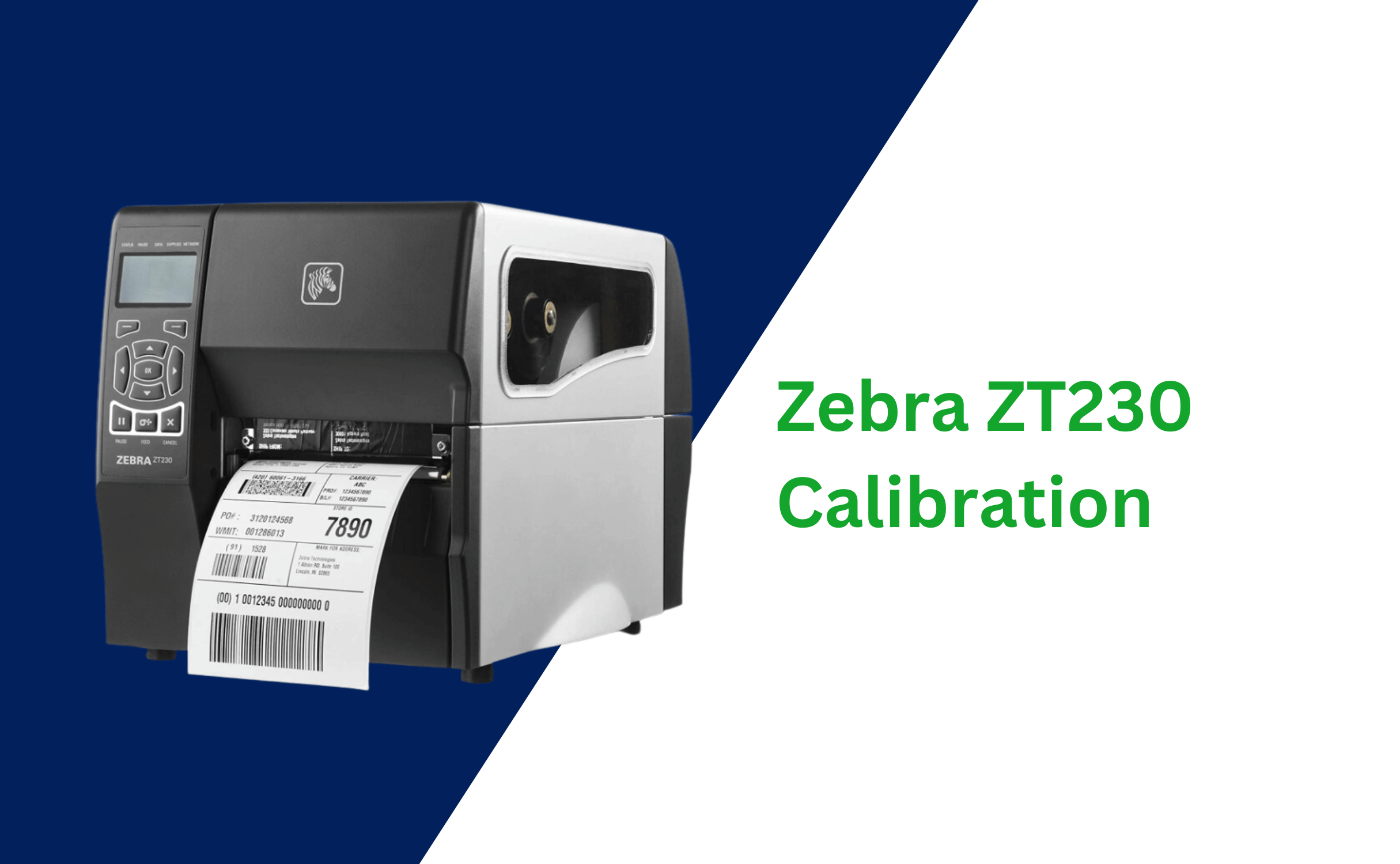
Sensor calibration helps the printer detect the label size and gaps. Use the printer’s menu to run a manual calibration. This adjusts the sensors for new media types or sizes. Proper calibration reduces label misalignment and print errors. Repeat calibration after changing media or ribbon.
Adjusting Printhead Pressure
Printhead pressure affects ink transfer and label clarity. Too much pressure can cause smudging or damage media. Too little pressure leads to faint or incomplete prints. Adjust the pressure using the printer’s side knobs. Test print after each adjustment to find the best setting.
Choosing The Right Media Type
Select media compatible with the Zebra ZT230 for best results. Use thermal transfer media with the correct ribbon type. Direct thermal media works without ribbons but fades faster. Check media specifications for thickness and coating. Matching media and ribbon improves print durability and sharpness.
Connectivity And Drivers
The Zebra ZT230 printer depends on stable connectivity and correct drivers to work properly. Faulty connections or outdated drivers often cause printing problems. Troubleshooting these areas helps restore smooth printing without delays. This section covers key steps to fix driver issues and network setup problems.
Reinstalling Drivers
Start by uninstalling the current Zebra ZT230 driver from your computer. This removes any corrupted files causing errors. Next, download the latest driver version from the official Zebra website. Install the new driver following the on-screen instructions carefully.
Restart your computer after installation. This ensures the new driver loads correctly. Test the printer by sending a print job. If printing fails, check the device manager for any warning symbols next to the printer. Repeat the reinstall process if needed.
Network Setup And Troubleshooting
Check the printer’s network settings to confirm it connects to your local network. Verify the IP address matches your network range. Use the printer’s control panel to print a network configuration label for details.
Ping the printer’s IP address from your computer to test connectivity. No response means a network issue. Restart your router and printer to refresh connections. Ensure cables are securely plugged in and not damaged.
Disable firewalls or antivirus software temporarily. These can block communication between your computer and the printer. Re-enable security after testing. Adjust settings in your network to allow printer traffic if needed.

Credit: www.youtube.com
Fixing Specific Errors
Fixing specific errors on the Zebra ZT230 printer helps keep it running smoothly. Understanding common error messages speeds up troubleshooting. This section covers key errors and simple fixes. Follow these steps to resolve issues quickly and get back to printing.
Ribbon Out Alerts
Ribbon out alerts mean the printer thinks the ribbon is empty. First, check if the ribbon is really finished. Sometimes the sensor gets dirty or misaligned. Clean the sensor gently with a soft cloth. Reload the ribbon, making sure it is tight and properly placed. If the alert stays, reset the printer by turning it off and on.
Unknown Device Issues
The printer may show an unknown device error if the computer cannot recognize it. Check the USB cable for damage and reconnect it securely. Try a different USB port on your computer. Update or reinstall the printer driver from Zebra’s official website. Restart both the printer and the computer to refresh the connection.
Pause Request Error
The pause request error stops printing until you clear it. Press the Pause button on the printer’s control panel to resume printing. If the error persists, check for paper jams or ribbon problems. Remove any stuck media carefully. Restart the printer after clearing any jams to reset the error state.
Cartridge Checks
Cartridge errors often relate to label or ribbon cartridges. Ensure the cartridges are compatible with the Zebra ZT230. Check that cartridges sit firmly in their slots without gaps. Replace worn or damaged cartridges to avoid print quality issues. Regularly inspect cartridges for dust and dirt, and clean them if necessary to maintain good contact.
Reset And Firmware
Resetting your Zebra ZT230 printer and updating its firmware can solve many printing problems. These steps help clear errors and improve printer performance. Resetting returns the printer to its original settings. Firmware updates fix bugs and add new features. Follow the instructions below carefully for best results.
Factory Reset Steps
Turn off the printer completely. Press and hold the Feed and Pause buttons simultaneously. While holding both buttons, turn the printer back on. Keep holding the buttons until the printer restarts and the lights flash. Release the buttons now. The printer is reset to factory defaults. This clears all user settings and errors.
Firmware Reloading
Download the latest firmware from Zebra’s official site. Connect your printer to the computer using a USB cable. Open the Zebra Setup Utilities software. Select your printer from the list. Click on the Open Communication With Printer option. Choose Send File and select the firmware file you downloaded. Wait for the firmware to upload fully. Do not disconnect or turn off the printer during this process. Restart the printer after the upload finishes. The firmware is now updated and ready to use.
Credit: www.lexicontech.com
Credit: www.lexicontech.com
Frequently Asked Questions
Why Is My Zebra Zt230 Not Printing?
Your Zebra ZT230 may not print due to power issues, incorrect media loading, paused status, or driver problems. Restart the printer, check connections, calibrate sensors, and reinstall drivers to fix common errors. Ensure correct media type and ribbon use for proper printing.
How To Hard Reset Zebra Zt230?
To hard reset Zebra ZT230, press and hold the Feed and Pause buttons. Turn on the printer while holding them. Release buttons after restart. The printer resets to factory settings.
Why Is My Zebra Label Printer Not Working?
Zebra label printers often stop working due to power issues, wrong media loading, or driver problems. Restart the printer, check cables, and reload labels correctly. Reinstall drivers and confirm network settings. Perform a factory reset if needed. Contact Zebra support for persistent errors.
How Do I Get My Zebra Printer Out Of Error State?
Turn off the Zebra printer and disconnect power. Check cables and media alignment. Hold Feed and Pause buttons, power on to reset. Restart the printer to clear errors. Update firmware if needed. Contact Zebra Support for persistent issues.
Why Is My Zebra Zt230 Printer Not Printing Labels?
Check if the printer has media and ribbon loaded correctly. Ensure the print head is clean and the printer is online. Restart the printer to clear any temporary errors.
Conclusion
Troubleshooting the Zebra ZT230 can be simple with clear steps. Check connections and power first to avoid common issues. Restarting the printer often fixes temporary glitches quickly. Proper media loading and calibration improve print quality significantly. Adjusting printhead settings helps prevent smudges and errors.
Following these tips keeps your printer running smoothly. Consistent care saves time and reduces frustration. Remember, patience and methodical checks solve most problems easily. Stay confident handling your Zebra ZT230 printer!



