
Having trouble with Zoom right when you need it most? You’re not alone.
Whether your video won’t turn on, your microphone stays silent, or your connection keeps dropping, these issues can feel frustrating and overwhelming. But don’t worry—fixing Zoom problems is easier than you think. In this guide, you’ll discover simple, practical steps to troubleshoot common Zoom glitches quickly.
By the end, you’ll be ready to join meetings smoothly and confidently, without those annoying interruptions holding you back. Keep reading to unlock the secrets to hassle-free Zoom calls!

Credit: help.gohighlevel.com
General Fixes
General fixes solve many common Zoom problems fast. They focus on simple steps anyone can do. These steps improve app performance and connection quality. Follow each step carefully to get Zoom working well again.
Restart Device
Turn off your computer or phone. Wait a few seconds. Turn it back on. Restarting clears temporary errors and frees memory. This step often fixes freezing or crashing Zoom.
Update Zoom
Open Zoom and check for updates. Use the latest version to avoid bugs. Updates improve security and add new features. An old app version can cause connection problems.
Reinstall Zoom
Remove Zoom from your device completely. Download the newest version from the official website. Reinstalling fixes corrupted files and settings. It resets Zoom to default, solving many hidden issues.
Check Internet
Test your internet speed and stability. Use a wired connection if possible. Restart your modem or router if connection is slow. A strong internet connection is essential for smooth Zoom calls.
Close Background Apps
Shut down other programs using internet or device resources. Apps like video streaming or downloads reduce Zoom quality. Closing them frees bandwidth and improves audio and video.
Clear Cache
Open Zoom settings and find the cache option. Clear cache and cookies to remove old data. This step fixes loading errors and improves app speed. Clearing cache keeps Zoom running smoothly.

Credit: haa.fas.harvard.edu
Audio Problems
Audio problems disrupt Zoom meetings and cause frustration. Clear sound is key for good communication. Many users face issues like no sound, low volume, or echoes. These problems often have simple fixes. Understanding how to troubleshoot helps save time and keeps meetings smooth.
Check Microphone Settings
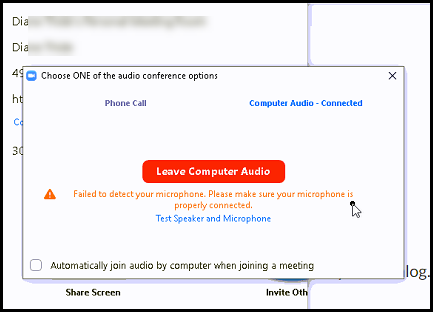
Ensure Zoom has permission to use your microphone. Open Zoom audio settings and select the correct microphone device. Test the mic by speaking and watching the input level. Turn off mute if active. Disable exclusive control by other apps in your computer’s sound settings.
Verify Audio Hardware
Check if your microphone or headset is properly connected. Use a different USB port or audio jack if needed. Try another microphone or headset to rule out device failure. Restart your computer to refresh hardware detection. Update audio drivers to avoid compatibility issues.
Adjust Volume Levels
Set microphone volume to a moderate level in Zoom and system settings. Avoid setting volume too low or too high to prevent distortion. Check speaker volume so you can hear others clearly. Test sound by joining a test Zoom meeting or using the audio preview feature.
Video Issues
Video issues during Zoom meetings disrupt communication and cause frustration. Common problems include a blank screen, blurry video, or the camera not turning on. Troubleshooting these issues quickly helps maintain smooth video calls.
Several simple steps can fix most video problems. These steps involve checking permissions, closing conflicting applications, updating drivers, and reinstalling the Zoom app. Each step targets a common cause of video failure.
Grant Camera Permissions
Zoom needs access to your camera to show video. Check your device settings and grant Zoom permission to use the camera. On Windows, go to Privacy settings and enable camera access for Zoom. On Mac, open System Preferences and allow Zoom under Security & Privacy.
Without camera permissions, Zoom cannot display your video feed. Confirming this setting solves many video issues.
Close Conflicting Apps
Other programs may use your camera, blocking Zoom from accessing it. Close apps like Skype, Teams, or camera software before starting Zoom. This frees the camera for Zoom’s use.
Check your system tray or task manager for apps running in the background. Ending these tasks often restores video functionality in Zoom.
Update Camera Drivers
Outdated camera drivers cause poor video quality or connection errors. Visit your device manufacturer’s website to download and install the latest camera drivers. This ensures compatibility with Zoom and better video performance.
Device Manager on Windows can also check for driver updates automatically. Keeping drivers current prevents many video issues.
Restart Or Reinstall
Restart your computer to clear temporary glitches affecting the camera. A simple reboot often fixes video problems. If issues persist, uninstall Zoom completely and reinstall it from the official Zoom website.
Reinstallation replaces corrupted files and restores default settings. This step resolves deeper software conflicts blocking video display.
Connection Troubles
Connection troubles can disrupt Zoom meetings and cause frustration. These issues often stem from incorrect links, app problems, or network blocks. Resolving connection problems quickly helps maintain smooth communication and productivity.
Follow these simple steps to fix common Zoom connection troubles and join your meetings without delay.
Confirm Meeting Link
Check the meeting link before joining. Make sure it matches the invite exactly. Typing errors or outdated links cause connection failures. Use the link provided by the host or meeting organizer. Avoid clicking suspicious or shortened URLs to prevent errors and security risks.
Use Desktop App
Using the Zoom desktop app improves connection reliability. Browser versions may have limited features or compatibility issues. Download the latest app from the official Zoom website. The desktop app handles video and audio better than browsers. It also updates automatically to fix bugs and improve performance.
Check Zoom Status
Sometimes Zoom services face outages or slowdowns. Visit the Zoom status page to see if there are any active issues. Service interruptions can cause failed connections or poor quality. Knowing about ongoing problems helps avoid confusion and saves time troubleshooting on your end.
Review Firewall Settings
Firewalls and antivirus programs can block Zoom connections. Check your device’s firewall settings to allow Zoom traffic. Add Zoom as an exception or trusted app in security software. Network firewalls at work or school may also restrict Zoom. Contact your network administrator if you cannot connect due to firewall rules.
Error Code Solutions
Zoom error codes can disrupt your calls and meetings. Understanding these errors helps fix problems quickly. Each code points to a different issue in the app or device. Solving these errors improves your Zoom experience and reduces interruptions.
Manage System Resources
Zoom needs enough memory and CPU to run well. Close unused programs to free up system resources. Restart your device to clear memory leaks and slowdowns. Check your device’s task manager to see which apps use most resources. Avoid running heavy software alongside Zoom for better performance.
Handle Crashes And Freezes
Crashes and freezes often happen due to outdated software or conflicts. Update Zoom to the latest version regularly. Clear Zoom’s cache to remove corrupted files. Disable unnecessary background apps that may interfere with Zoom. Reinstall Zoom if crashes persist after other fixes. Keep your device’s operating system up to date for stability.
Update And Installation
Keeping Zoom updated and properly installed ensures smooth video calls. Updates fix bugs and improve security. Proper installation prevents crashes and connection issues.
Regularly check for the latest Zoom version. Outdated apps cause glitches and poor performance. Correct installation helps Zoom run without errors on any device.
Troubleshoot Installation
Installation errors stop Zoom from working. Check system requirements before installing. Close other apps to avoid conflicts. Run the installer as administrator to grant permissions. Disable antivirus temporarily if it blocks setup. Follow on-screen instructions carefully during installation. Restart your device after installation completes.
Fix Update Failures
Update failures happen due to poor internet or app conflicts. Verify your internet connection is stable. Close Zoom and other bandwidth-heavy apps. Restart your device to clear temporary bugs. Check storage space; low space stops updates. Manually download the latest Zoom version from the official site. Avoid interrupting the update process once started.
Reinstall For Stability
Reinstalling Zoom fixes persistent problems and crashes. Uninstall Zoom from your device completely. Clear leftover files and cache to prevent issues. Download the latest installer from Zoom’s official website. Install Zoom fresh and follow setup steps carefully. Reboot your device to apply changes. Test Zoom by joining a test meeting for stability.
Advanced Tips
Advanced troubleshooting tips help solve persistent Zoom issues. These steps go beyond basics and improve app performance. They target deeper problems that simple fixes miss. Follow these advanced tips carefully for a smoother Zoom experience.
Clear Zoom Cache Thoroughly
Zoom stores temporary files that can cause errors. Clearing the cache removes corrupted data. Open Zoom settings and find the cache clear option. Restart Zoom after clearing the cache. This often fixes freezing and loading problems quickly.
Optimize Network Settings
Slow or unstable internet disrupts Zoom calls. Adjust your network for better speed and reliability. Use a wired connection instead of Wi-Fi if possible. Close apps that use bandwidth heavily during meetings. Change DNS settings to faster servers like Google DNS or Cloudflare. These steps reduce lag and improve call quality.
Contact Zoom Support
If issues persist, reach out to Zoom support. They offer expert help for complex problems. Prepare details like your Zoom version, device type, and error messages. Use Zoom’s official support page to submit a ticket or chat live. Quick, professional support can resolve tough issues fast.
Credit: it.stonybrook.edu
Frequently Asked Questions
Why Is My Zoom Suddenly Not Working?
Check your internet connection and restart your device. Update Zoom to the latest version. Close bandwidth-heavy apps. Verify microphone and camera permissions. Reinstall Zoom or clear its cache if issues persist.
What Is The Biggest Problem With Zoom?
The biggest problem with Zoom is privacy and security concerns, including data breaches and unauthorized meeting access.
Why Is Zoom Not Working Now?
Zoom may not work due to unstable internet, outdated app, or device glitches. Restart devices, update Zoom, and check permissions to fix issues.
How Do I Contact Zoom Tech Support?
Visit Zoom’s official support page at zoom. us/support for live chat, email, and phone options. Use your Zoom account to access personalized help.
Why Is My Zoom Audio Not Working Properly?
Check your microphone settings and volume levels in Zoom and your device. Make sure Zoom has permission to access your microphone. Closing other apps using audio can also help.
Conclusion
Troubleshooting Zoom can feel simple with clear steps. Check your internet connection first. Keep the Zoom app updated for best results. Restart your device to fix common glitches. Close other apps that use your camera or mic. Review Zoom’s permissions in your device settings.
Reinstall the app if problems continue. These actions usually solve most Zoom issues fast. Remember, patience helps when fixing tech troubles. Stay calm and follow these tips to enjoy smooth meetings.



