
Most brookstone photoshare frame troubleshooting starts with a full power cycle and Wi-Fi reconnection, which fixes the majority of display and syncing failures. The most common cause isn’t broken hardware but a lost network handshake after a router update or power outage. If your frame shows a blank screen or won’t load new images, unplug it for 60 seconds, plug it back in, and reconnect through the PhotoShare app. This single step resolves most issues without needing technical support or replacement parts.
Why Brookstone PhotoShare frames stop working
These digital frames fail for three specific reasons that look similar but need different fixes. Understanding which one you’re facing saves hours of wasted effort on solutions that don’t apply to your situation. The symptoms overlap, so checking them in order matters more than guessing.
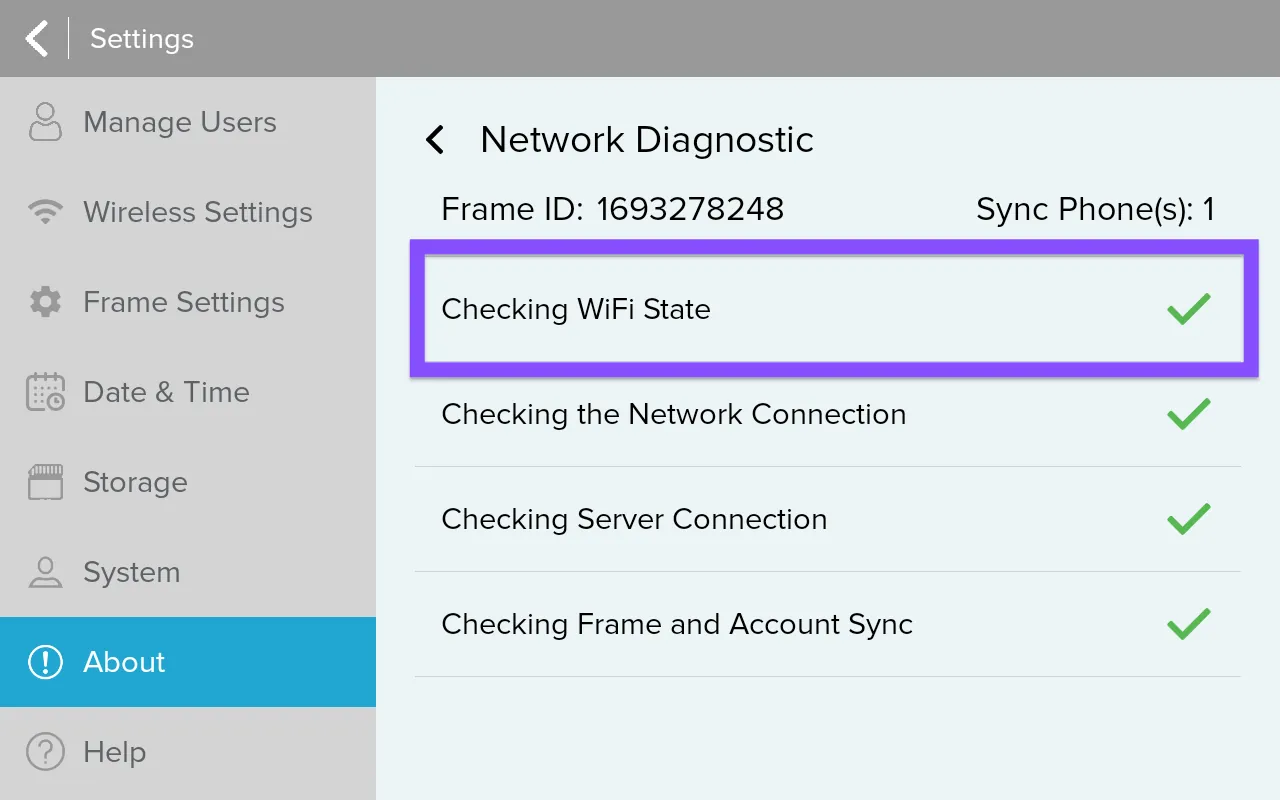
Network authentication drops are the primary culprit behind sync failures. Your router may have updated its security protocol or changed channels automatically, breaking the frame’s saved connection even though other devices work fine. The frame doesn’t always show a clear “no Wi-Fi” message; instead, it displays old photos or a loading spinner that never finishes.
Corrupted cache data causes frozen screens and app crashes. When the frame’s internal storage fills with temporary files from failed uploads, it can’t process new commands properly. This happens gradually over months, making it hard to notice until the device stops responding entirely. A simple reboot clears some cache, but stubborn cases need a factory reset through the settings menu.
Power supply degradation creates intermittent problems that mimic software bugs. The original adapter may deliver inconsistent voltage after years of use, causing random restarts or dim displays. You’ll see this if the frame works perfectly when first plugged in but fails after running for several hours. Testing with a compatible replacement adapter confirms whether power is the issue before pursuing complex software fixes.
Reset network connection through app
Re-establishing the Wi-Fi link through the PhotoShare app fixes connectivity issues when basic rebooting doesn’t work. This method forces a fresh authentication handshake between the frame and your router, clearing stale credentials that cause silent failures. It’s the right fix when your frame powers on but won’t receive new photos or shows an endless loading state.
Open the PhotoShare app on your phone and navigate to device settings. Select your frame, tap “Wi-Fi Setup,” and follow the prompts to reconnect. Keep your phone within 10 feet of the frame during this process, as the initial pairing uses Bluetooth Low Energy before switching to Wi-Fi. The entire sequence takes about two minutes, and you’ll know it worked when the frame displays a confirmation message and begins downloading queued photos.
This fix assumes your router broadcasts a 2.4 GHz signal, since these frames don’t support 5 GHz networks. If you have a dual-band router with combined SSIDs, temporarily separate the bands or create a dedicated 2.4 GHz guest network for setup. For mesh systems, place the frame near the primary node rather than a satellite during reconnection. If the app can’t find the frame after three attempts, the issue likely isn’t network-related and you should move to the next solution.
Clear cached data with factory reset
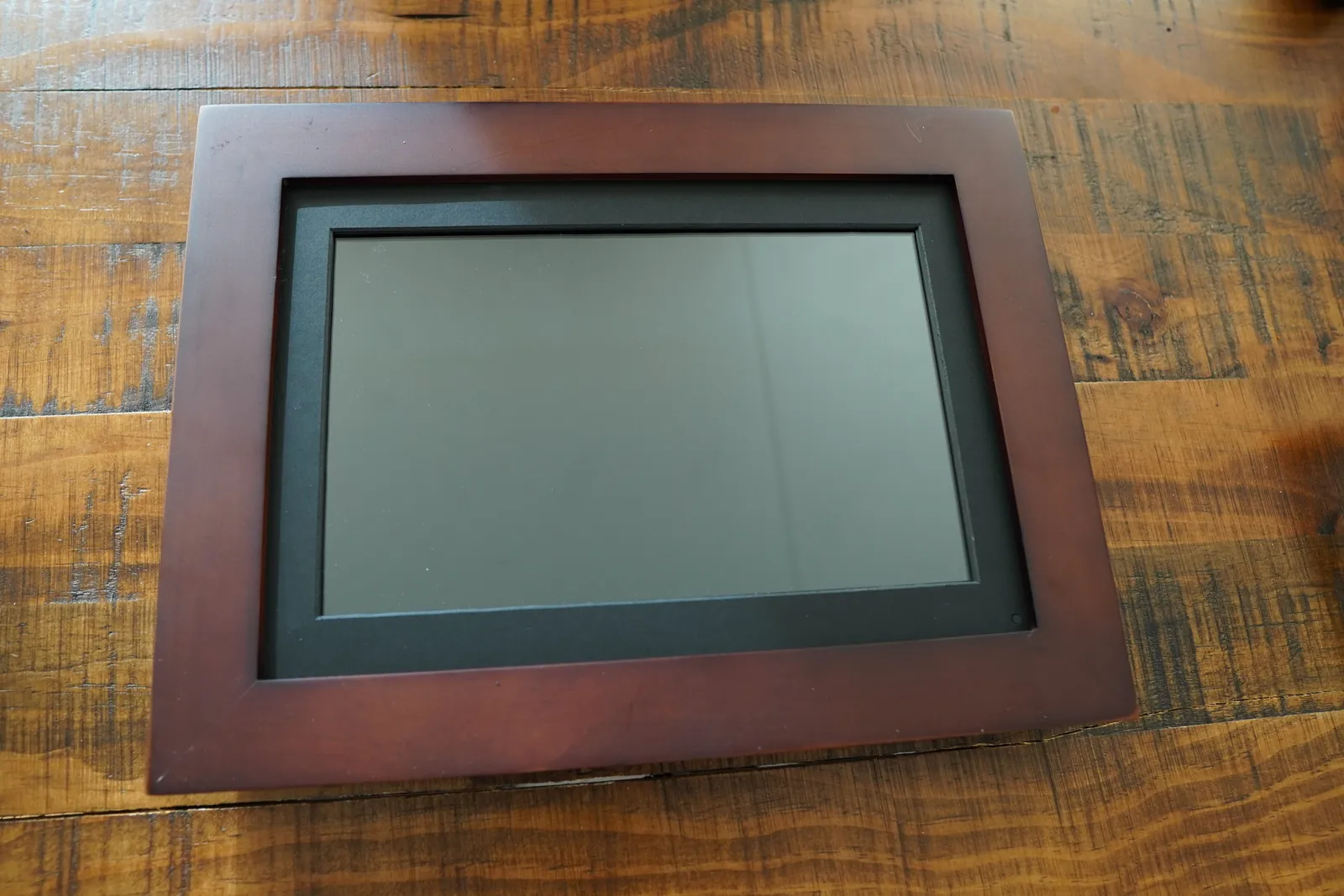
A factory reset eliminates persistent software glitches caused by corrupted temporary files that survive normal reboots. This is your second-line defense when network reconnection succeeds but the frame still freezes, displays artifacts, or refuses to accept new uploads. The trade-off is losing all locally stored photos and custom settings, so only proceed after backing up important content through the app’s export feature.
Access the reset option through the frame’s physical buttons since the touchscreen may be unresponsive. Press and hold the small recessed button on the back panel for 15 seconds while the device is powered on.
Release when you hear a chime or see the startup logo appear. The frame will take 3-5 minutes to rebuild its system partition, during which it shouldn’t be unplugged. After completion, you’ll need to redo the initial setup process exactly as when the frame was new.
This fix works best for frames that are less than four years old and haven’t suffered physical damage. Older units sometimes develop flash memory wear that mimics software corruption, and resetting won’t help those cases. If problems return within two weeks of a clean reset, the underlying issue is likely hardware failure rather than software decay. At that point, further troubleshooting yields diminishing returns compared to evaluating repair versus replacement costs based on your frame’s age and warranty status.
Test power adapter output stability
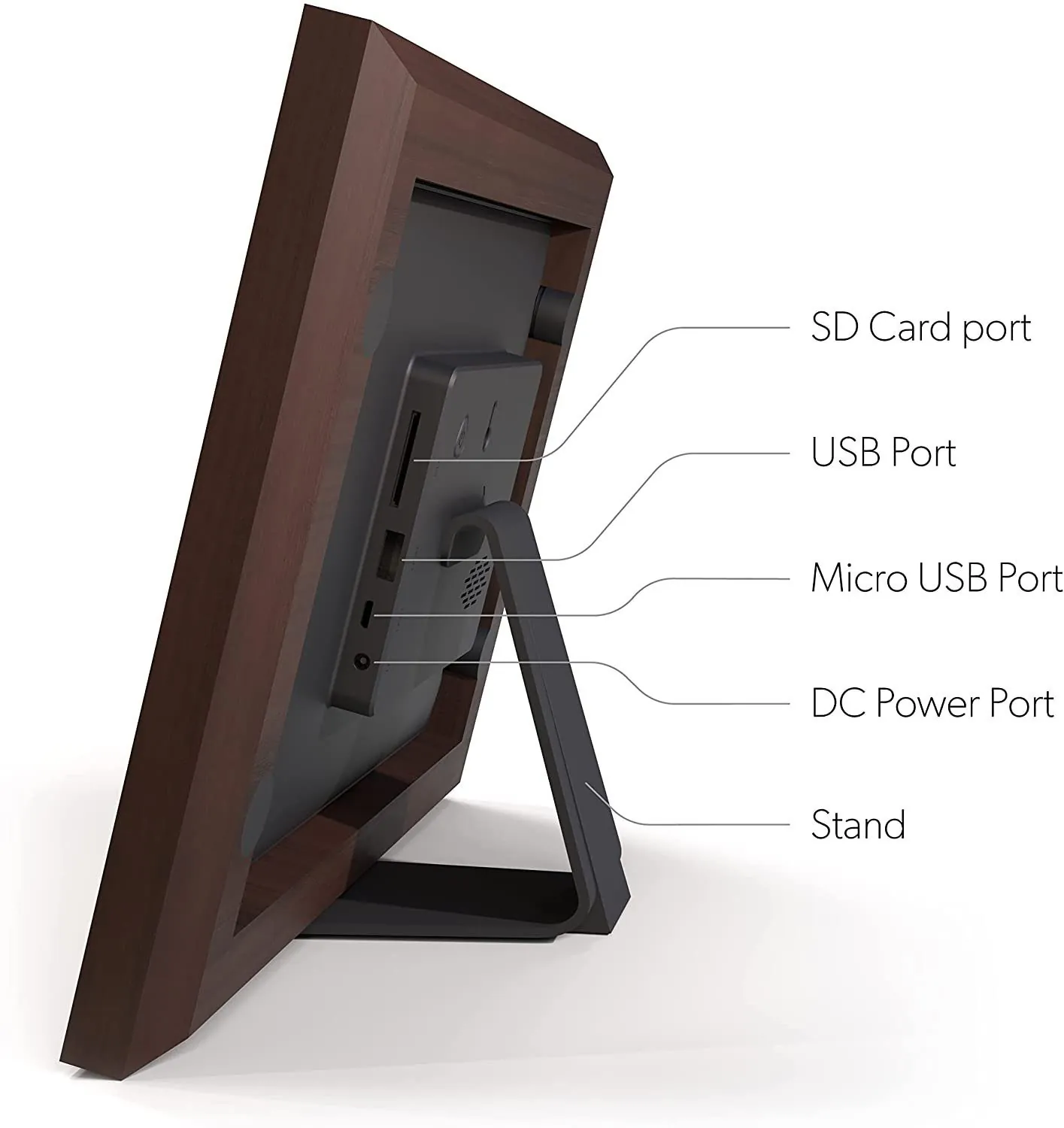
Watch for these specific signs: the frame works normally for 30-60 minutes after plugging in, then dims or restarts; the display flickers at regular intervals; or the device feels unusually warm to the touch near the power port. These symptoms indicate the adapter can’t maintain stable output under sustained load. Try a known-good 5V/2A USB-C or barrel connector adapter matching your frame’s specifications, which you can verify on the label near the power input port.
If swapping adapters solves the problem permanently, replace the original unit rather than continuing to use it intermittently. Operating electronics on degraded power accelerates component wear and risks permanent damage to the mainboard. However, if a confirmed-good adapter produces identical symptoms, the fault lies in the frame’s internal power regulation circuitry. This level of repair requires soldering skills and schematic access that exceed typical home troubleshooting scope, making professional service or replacement the practical next step.
Common mistakes with PhotoShare frames
- Assuming any USB charger works: Using low-amperage phone chargers (5V/1A) provides enough power to light the screen but not enough to run Wi-Fi and image processing simultaneously, causing mysterious crashes during photo downloads.
- Resetting router instead of frame: Restarting your router clears its DHCP table but leaves the frame’s stale credentials intact, wasting time when the actual problem is the device’s saved network profile needing renewal through the app.
- Ignoring 2.4 GHz requirement: Attempting setup on 5 GHz-only networks or mesh systems without band steering guarantees failure, yet many users spend hours troubleshooting app issues before checking their router’s broadcast settings.
- Force-closing app during sync: Interrupting the photo transfer process corrupts the local database, creating the exact caching problems you’re trying to solve; always let transfers complete or cancel properly through the app interface.
- Skipping firmware updates: Outdated frame software contains known bugs that newer versions fix, but users often avoid updates fearing they’ll break working setups when the opposite is usually true.
Prevent future PhotoShare frame failures
Maintaining reliable operation requires adjusting habits that accelerate wear or create preventable software conflicts. Small changes in how you interact with the frame extend its functional lifespan significantly beyond typical failure points.
| If you’re doing this | Do this instead | Why |
|---|---|---|
| Leaving frame on 24/7 | Schedule auto-sleep or use smart plug timer | Continuous heat degrades capacitors and LCD backlight faster than intermittent use |
| Using generic USB cables | Use original or certified data+power cables | Charge-only cables lack data lines needed for stable firmware updates and large transfers |
| Placing near router/modem | Maintain 3+ feet separation from RF sources | Electromagnetic interference causes Wi-Fi packet loss that looks like signal weakness |
| Uploading 100+ photos at once | Batch uploads in groups of 20-30 | Large queues overwhelm buffer memory and increase corruption risk during interruptions |
| Ignoring app notifications | Enable update alerts and install promptly | Delayed patches leave known vulnerabilities open and miss performance optimizations |
| Cleaning screen with glass cleaner | Use microfiber cloth slightly dampened with water | Ammonia-based cleaners degrade anti-glare coating and seep into bezel gaps damaging internals |
The variable that determines your frame’s actual longevity is ambient temperature and humidity in your specific location, which you can monitor with any basic indoor hygrometer placed near the installation site.
Frequently asked questions
Can I use Brookstone PhotoShare without Wi-Fi?
No, the frame requires an active internet connection for initial setup and ongoing photo synchronization. While previously downloaded images remain visible offline, you can’t add new content, receive shared albums, or access cloud features without Wi-Fi. The device doesn’t support USB drives or SD cards for local media playback, making internet connectivity mandatory for core functionality beyond displaying cached content.
Why does my PhotoShare frame keep disconnecting?
Frequent disconnections typically stem from weak 2.4 GHz signal strength or router incompatibility with older Wi-Fi standards. Check your frame’s placement relative to the router, ensuring no thick walls or metal appliances block the path. If signal appears strong, log into your router admin panel and verify WPA2-PSK encryption is enabled, as WPA3-only modes aren’t supported. Persistent drops despite good signal suggest failing internal Wi-Fi module requiring professional assessment.
How long does PhotoShare frame setup take?
Initial setup takes 8-12 minutes assuming stable 2.4 GHz Wi-Fi and current app version. This includes account creation, device pairing, firmware check, and first photo sync. Factors extending this timeline include slow internet speeds below 10 Mbps, outdated app requiring download, or router needing configuration changes for 2.4 GHz compatibility. Subsequent reconnections after power loss typically complete in 2-3 minutes.
Is it safe to leave PhotoShare frame plugged in constantly?
Yes, the frame includes overcharge protection and thermal management designed for continuous operation. However, constant use accelerates backlight aging and increases electricity consumption unnecessarily. Using scheduled sleep modes or smart plugs reduces wear while maintaining convenience. Ensure adequate ventilation around the device and avoid enclosing it in cabinets or placing against fabric surfaces that trap heat.
What happens if I factory reset my PhotoShare frame?
Factory reset erases all locally stored photos, custom settings, and saved Wi-Fi credentials, returning the device to out-of-box state. You must complete full setup again including account login and network configuration. Cloud-stored photos remain accessible after re-login, but any content existing only on the frame is permanently lost. Back up unique local content through the app before proceeding.
How do I update PhotoShare frame firmware?
Firmware updates install automatically when connected to Wi-Fi and plugged into power, typically occurring overnight. To force a manual check, go to Settings > About > Check for Updates in the frame’s menu. Updates require stable internet and shouldn’t be interrupted; the frame restarts automatically upon completion. If automatic updates fail repeatedly, perform factory reset then retry, as corrupted system files often block installation.
Conclusion
Brookstone PhotoShare frames respond well to systematic troubleshooting when you address causes in order of likelihood. Starting with network reconnection, progressing through cache clearing, and finally testing power delivery resolves most issues without specialized tools or technical expertise. When these steps don’t restore normal function, the remaining possibilities involve hardware degradation that makes replacement more economical than repair for out-of-warranty units.