
Having trouble with your HDMI connection? You’re not alone.
Whether your TV shows “No Signal” or the picture keeps flickering, HDMI issues can be frustrating and confusing. But don’t worry—most HDMI problems have simple fixes that you can do yourself. In this guide, you’ll learn easy, step-by-step troubleshooting tips to get your HDMI working perfectly again.
From checking cables and ports to adjusting settings on your devices, you’ll gain the confidence to solve common HDMI glitches quickly. Ready to stop the interruptions and enjoy your screen without hassle? Let’s dive into the best HDMI troubleshooting solutions for you.

Credit: www.sony.co.uk
Common Hdmi Problems
HDMI cables connect many of our devices like TVs, monitors, and gaming consoles. Problems with HDMI can stop your screen from showing pictures or make the image flicker. These issues often come from simple causes. Knowing the common HDMI problems helps you fix them quickly.
Signal Loss And Flickering
Signal loss causes the screen to go black or show no picture. Flickering means the image keeps blinking on and off. These problems usually happen because the HDMI cable is damaged or old. Sometimes, electrical interference from other devices can cause flickering. Try replacing the cable or moving other electronics away.
Loose Connections
Loose HDMI connections make the signal weak or stop it completely. The cable might not be plugged in all the way. Dust or dirt inside the HDMI port can also cause a bad connection. Always unplug and plug the cable back in firmly. Clean the ports gently with a soft brush if needed.
No Signal Messages
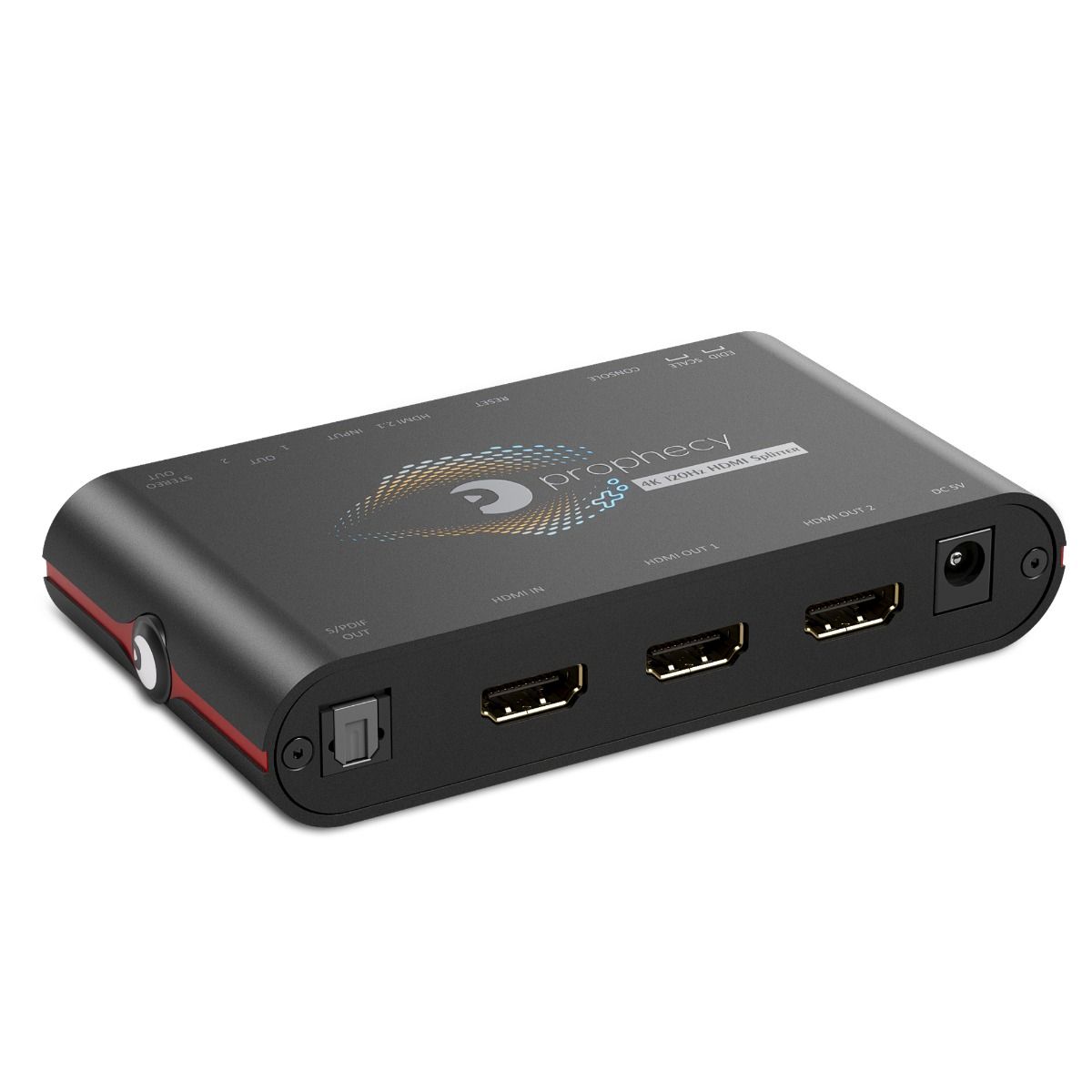
The “No Signal” message appears when the TV or monitor does not detect an HDMI input. This can happen if the wrong input source is selected on the display. It also occurs when the device sending the signal is off or not working. Check the input source and power on all connected devices to fix this.
Credit: www.gofanco.com
Basic Hdmi Fixes
Basic HDMI fixes help solve common connection issues quickly. These simple steps often restore your video and audio signal without needing advanced tools. Start by checking the input and source settings. Next, ensure all cable connections are secure. Finally, power cycle your devices to reset the connection and clear temporary glitches.
Check Input And Source
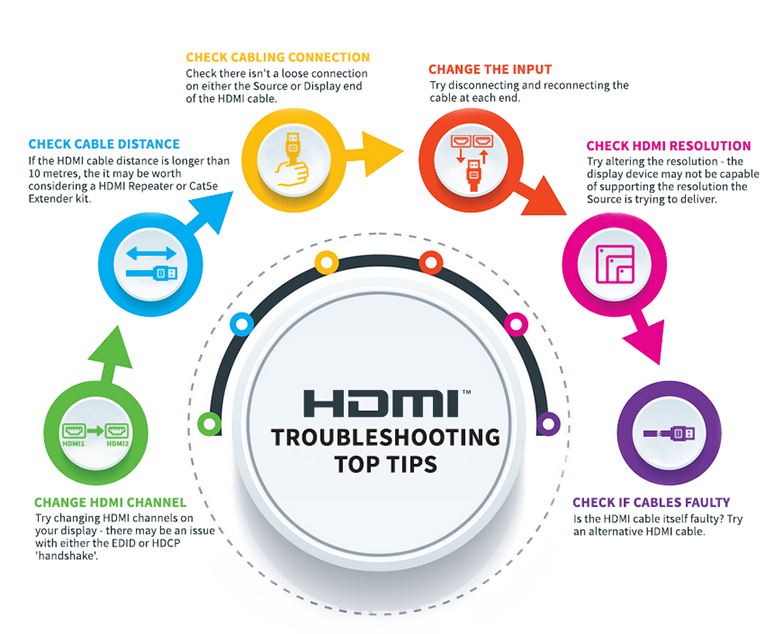
Make sure your TV or monitor is set to the correct HDMI input. Use the remote or buttons to select the right source. Sometimes the device may be on the wrong input, causing no signal.
Also, check the source device like a Blu-ray player or game console. Confirm it is turned on and sending a signal. If possible, test with another device to rule out source problems.
Secure Cable Connections
Loose or faulty cables often cause HDMI issues. Unplug the HDMI cable from both devices. Inspect the cable ends for dirt or damage. Clean gently if needed.
Plug the cable back in firmly. Make sure it clicks or fits snugly in the ports. Avoid bending or twisting the cable sharply to prevent damage.
Power Cycle Devices
Turn off both the display and the source device. Unplug their power cords from the wall outlet. Wait about 30 seconds to 1 minute.
Plug them back in and turn on the devices. This resets the HDMI connection and clears temporary errors. Try the HDMI connection again to check if the issue is fixed.
Cable And Port Checks
Checking the HDMI cable and ports is a key step in troubleshooting connection issues. Problems often arise from damaged cables or dirty ports that block signals. A close inspection can reveal visible issues that cause HDMI failures. Testing different cables and ports helps isolate the problem quickly. These steps are simple but effective to restore your HDMI connection.
Inspect For Damage And Dirt
Look closely at the HDMI cable for cuts or bends. Check both ends of the cable for bent or broken pins. Examine the HDMI ports on your devices for dust or dirt. Use a soft brush or compressed air to clean out debris. Dirt can block signals and cause connection problems. Damaged cables or ports often prevent a stable HDMI link.
Try Different Cables
Use another HDMI cable to see if the problem persists. Cables can wear out or become faulty over time. Testing with a new or known working cable rules out cable issues. If the new cable works, then the original cable is likely defective. This simple swap can save time in troubleshooting.
Switch Hdmi Ports
Plug the HDMI cable into a different port on your TV or monitor. Ports can sometimes fail or become loose. Trying another port helps identify if the problem is with the port itself. Make sure the cable fits snugly in the new port. A secure connection ensures proper signal transmission.
Device Settings
Device settings play a crucial role in HDMI connection issues. Incorrect settings often cause no signal or poor display problems. Adjusting these settings can restore the HDMI function quickly. Understanding the key settings helps fix the problem efficiently.
Check Device Power And Mode
Ensure both devices are powered on. Some devices need to be in a specific mode to send HDMI signals. For example, set the source device to output video through HDMI. Check the TV or monitor input to match the connected HDMI port.
Adjust Display Settings
Adjust screen resolution to match your TV or monitor. Wrong resolution can cause a blank or flickering screen. On PCs, open display settings and select the correct display mode. Choose “Duplicate” or “Extend” depending on your needs. Make sure the refresh rate is compatible with your display.
Update Graphics Drivers
Outdated or corrupted graphics drivers can block HDMI output. Go to Device Manager on your computer. Find Display Adapters, right-click your graphics card, and select “Update driver.” Installing the latest drivers improves compatibility. Restart your device after updating to apply changes.
Tv Firmware And Settings
TV firmware and settings play a key role in HDMI connection issues. Outdated firmware can cause compatibility problems. Incorrect input settings may block the HDMI signal. Adjusting these can restore smooth video and audio output.
Look For Firmware Updates
Manufacturers release firmware updates to fix bugs and improve performance. Check your TV’s settings menu for system or software updates. Install any available updates to keep your TV up to date. Updated firmware often resolves HDMI detection and signal problems.
Reset Tv Input Settings
Sometimes input settings become corrupted or misconfigured. Resetting the TV’s input options can clear errors. Go to the input or source settings and choose the reset option. This action restores defaults and can fix HDMI input recognition. After reset, reconnect your HDMI device and test the connection.
Credit: cie-group.com
Advanced Troubleshooting
Advanced troubleshooting helps fix HDMI issues beyond basic checks. It targets deeper problems that simple resets or cable swaps miss. These methods can restore signal and improve connection quality.
Follow these steps carefully to identify hidden HDMI faults. Each tip improves your device’s chance to display correctly.
Clean Hdmi Ports And Cable Ends
Dust and dirt can block HDMI connections. Use a soft brush or compressed air to clean ports and cable ends. Avoid liquids that may cause damage. Clean contacts help maintain a stable signal and prevent flickering.
Test With Another Device
Try connecting your HDMI cable to a different device. This test shows if the issue lies with the original device or the cable itself. Testing multiple devices narrows down the problem source quickly.
Use Alternative Connection Methods
Try other connection types like DisplayPort, DVI, or VGA if available. This step checks if the HDMI port or cable is faulty. Alternative methods can keep your display working while you fix HDMI issues.
Frequently Asked Questions
How Do I Reset My Hdmi Port?
To reset your HDMI port, power off and unplug both devices. Wait a minute, then reconnect and power on. Unplug and firmly reseat the HDMI cable on both ends. Select the correct input on your TV or monitor to restore the connection.
What Are Common Hdmi Problems?
Common HDMI problems include no signal, loose connections, flickering display, damaged cables, and incorrect input settings.
Why Is My Tv Saying No Signal When Hdmi Is Plugged In?
Your TV shows “no signal” due to wrong input, loose cable, faulty HDMI, device sleep mode, or TV glitches. Check input source, firmly reconnect cables, power cycle devices, try different HDMI ports or cables, and verify device output settings to fix the issue.
Why Won’t My Computer Connect To My Tv With Hdmi?
Your computer may not connect to your TV via HDMI due to loose cables, wrong input selection, faulty HDMI cable, outdated graphics drivers, or incompatible display settings. Check connections, select the correct input, update drivers, restart devices, or try a different HDMI cable or port to fix the issue.
What Causes Hdmi No Signal Error On Tv Or Monitor?
A loose HDMI cable or wrong input source often causes no signal errors. Also, damaged cables or outdated device drivers can block the signal.
Conclusion
HDMI issues can be simple to fix with the right steps. Always check your cables and connections first. Restart your devices to clear minor glitches. Try different HDMI ports or cables to isolate problems. Keep your device drivers and TV firmware updated.
Clean the ports gently if you see dust or dirt. These easy tips help you enjoy a clear, stable signal. Troubleshooting HDMI saves time and avoids frustration. Stay patient and methodical for the best results.



