Most connection issues with your device are solved by checking the app permissions or swapping the USB adapter, as effective depstech endoscope troubleshooting usually starts with verifying the physical link between your phone and the camera. You should first ensure that your phone’s operating system is granting the camera app permission to access external hardware. If the light on the camera head turns on but the screen remains black, the problem is almost always a driver mismatch or a faulty data cable.
Depstech endoscope connection troubleshooting
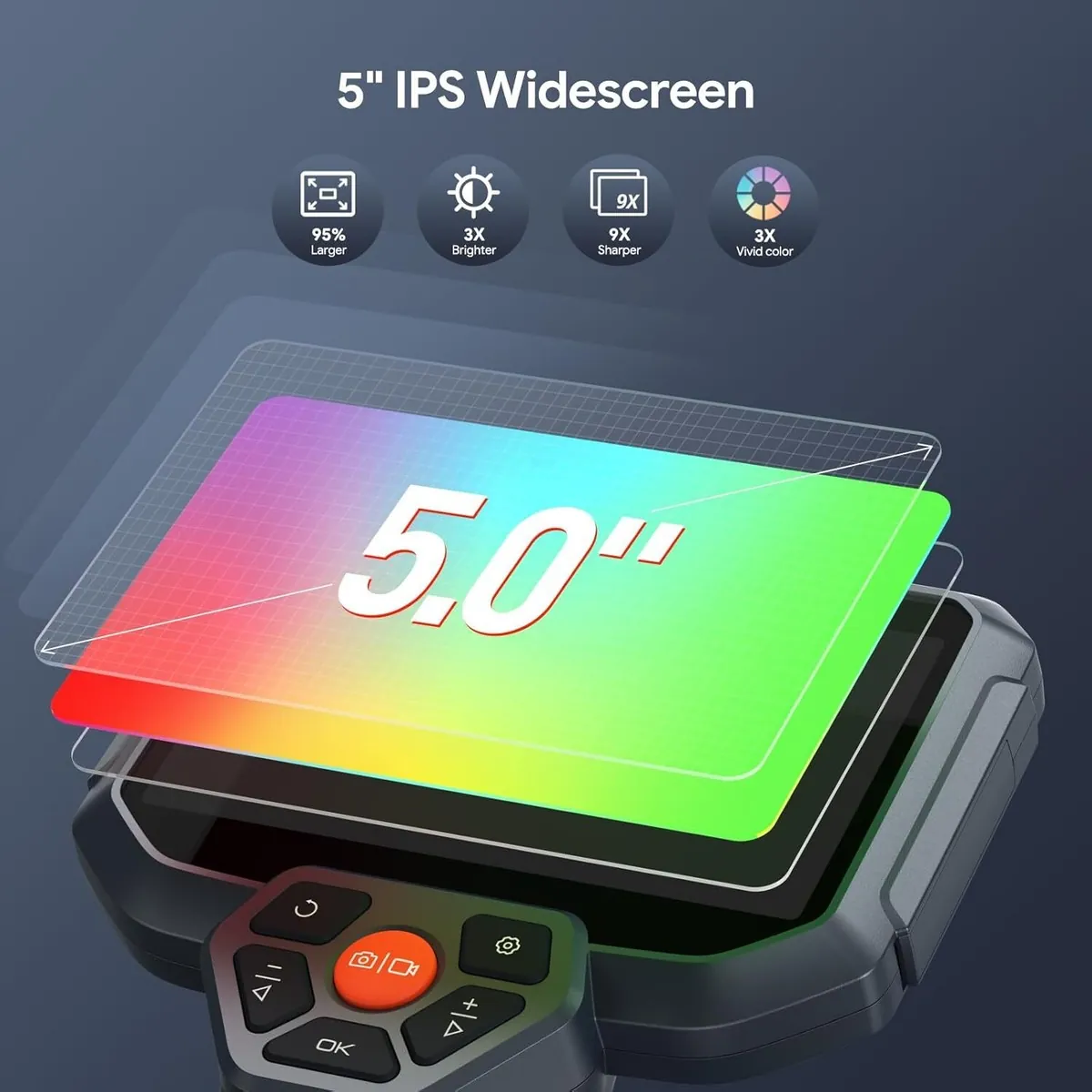
The most common reason for a failed connection is that the software on your smartphone isn’t communicating with the external lens. When you plug the device into a modern phone, your operating system must recognize it as a USB video class (UVC) device. If the phone doesn’t request permission to open the hardware, the app will never receive a video signal, leaving you with a blank screen.
Another frequent cause involves the physical adapter you’re using. If you’re plugging a USB-A endoscope into a USB-C port on your phone, the adapter must be capable of data transfer, not just charging. Many cheap adapters are designed only for power and will block the data packets required to send video, which makes the camera appear dead even when it’s receiving power.
Finally, hardware damage within the cable itself can cause intermittent signal loss. Because these cables are often thin and designed to reach into tight, industrial spaces, they can suffer from internal wire fatigue. If the camera works only when the cable is held at a specific angle, the internal copper wiring has likely broken. You can verify this by checking the official product support documentation for your specific model to see if your operating system version is still supported.
Check Your App Permissions and Settings
If your camera isn’t showing an image, the first step is to confirm that your phone’s security settings aren’t blocking the hardware. Go to your phone’s main settings menu and locate the app you use to view the feed. You must ensure that the app has “Camera” or “External Device” permissions enabled. If these permissions are set to “Deny,” the phone will ignore the camera entirely, even if it’s physically plugged in and powered.
Many users mistakenly assume a black screen indicates a hardware failure. Before buying a replacement, check the “Background Activity” settings for your camera app. If your operating system restricts background data, the app may fail to initialize the video stream upon launch. Toggle this setting to “Allow” to see if the feed stabilizes.
For Android users, you should also try a different UVC-compliant camera app from the Google Play Store if the default one fails. Sometimes the native software doesn’t update fast enough for newer Android versions. If the camera works in a third-party app, the issue is with the original software, not the hardware. If it fails to show an image in multiple apps, you have confirmed that the issue lies within the cable or the phone’s port.
Inspect and Clean the USB Connection
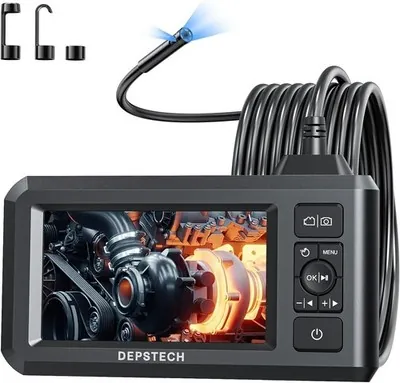
A dirty or loose connection is a simple but common failure point. Inspect the USB port on your phone and the connector on the endoscope cable for any lint, dust, or debris. Use a small, dry wooden toothpick to gently clear the port if you see buildup. Never use metal tools, as these can permanently damage the sensitive pins inside the port.
If the connection feels loose, it might not be seating fully. Many modern cases feature thick, rigid rubber or plastic surrounding the charging port, which prevents the plug from clicking into place. If you can see a gap between the cable housing and the phone frame, the connection is incomplete. Remove your phone case and try plugging the cable directly into the port.
If the image flickers or appears immediately after removing the case, you have identified the obstruction. If the connection remains loose without the case, the port’s internal tension springs may be worn out. In this specific case, you must avoid wiggling the cable to force a signal, as this can snap the internal solder joints.
Test with Another Device
When you can’t get a signal, the fastest way to rule out a broken camera is to test it on a different piece of hardware. Try plugging the endoscope into a laptop with a standard USB port instead of your phone. If the computer recognizes the device as a webcam, the endoscope is working perfectly and the fault lies with your smartphone or its adapter.
Check your computer’s device manager or system report to confirm the hardware is detected. If the device appears in the list but shows an error code, you may simply need to install a generic UVC driver. This step saves you from discarding a perfectly functional tool due to a software handshake failure.
If the camera fails to show up on the computer as well, the internal camera module or the wire is likely broken. This is a common issue if the cable has been bent at a sharp angle or crushed in a door.
If the device is under warranty, contact the manufacturer for a replacement. If it’s out of warranty, you must purchase a new unit. These sealed, waterproof cameras can’t be repaired without destroying their integrity, rendering them useless for any future wet or dirty environments.
Common Mistakes That Damage Hardware
Forcing the plug: Never push the USB connector if it doesn’t slide in smoothly. Forcing it bends the delicate copper pins inside your phone’s charging port. If you feel resistance, stop immediately and check for debris or misalignment. A bent pin often requires a full port replacement, which is significantly more expensive than simply cleaning the port.
Pulling by the wire: Always grip the hard plastic head of the connector. Pulling by the cable stretches the internal copper strands, leading to intermittent signal loss. If your video feed flickers when the cord moves, the internal shielding is already compromised.
Submerging the plug: Even if the camera head is waterproof, the USB end is not. If you drop the plug in water, it will short out immediately. If this happens, disconnect power instantly and let the port air-dry for at least 24 hours.
Using high-voltage chargers: Don’t connect the device to a “fast charge” power brick. These bricks often push higher voltages that exceed the camera’s tolerance, causing the internal components to overheat or fry. Stick to a standard 5V/1A wall adapter to ensure safe operation.
Preventing Future Connection Issues
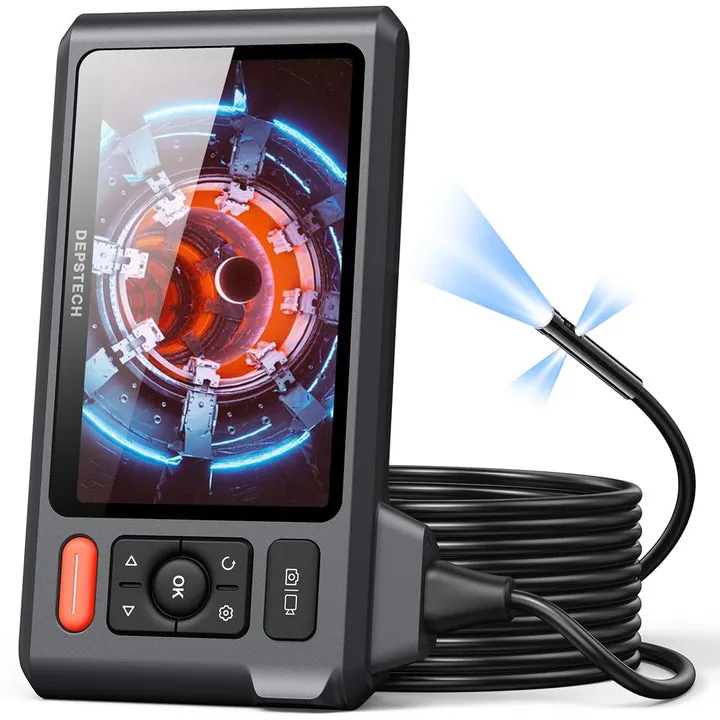
You can keep your device running longer by being careful with how you store the cable. Avoid wrapping the cable tightly around the camera head, as this creates sharp loops that stress the internal copper wiring. Instead, coil the cable in large, loose circles at least eight inches in diameter and secure it with a soft hook-and-loop tie.
Most users make the mistake of pulling the cable taut to save space in a gear bag. This tension causes microscopic fractures in the shielding, which eventually leads to intermittent signal loss during inspections. If you notice the feed flickering when you bend the cable near the connector, the internal wires have likely already begun to fray.
| If you’re doing this | Do this instead | Why |
|---|---|---|
| Storing in a tight knot | Coil in loose loops | Prevents internal wire breakage |
| Leaving it in the car | Store in a cool, dry place | Heat degrades the camera sensor |
| Cleaning with water | Use a dry microfiber cloth | Water can enter the seals |
| Plugging in while wet | Dry the lens completely | Prevents short circuits in the head |
If the seal looks brittle or cracked, replace it immediately to prevent internal corrosion.
Frequently asked questions
Can I use this with an iPhone?
Yes, provided your camera model supports the necessary lightning or USB-C adapter. Most endoscopes require a specific app and must support OTG data transfer to function. Always verify the packaging confirms iOS compatibility, as many older units lack the hardware chips required to communicate with Apple devices.
How long should the cable last?
The cable usually lasts for several years if it’s stored loosely and never bent at sharp angles. Because the wire is thin, its lifespan is determined entirely by how much tension you put on the connection points. If you see the outer rubber sheath starting to crack or reveal the shielding underneath, the cable is nearing the end of its life and will likely fail soon.
Why is the light on but the screen black?
The light is powered by the 5V line of the USB connection, but the video feed requires the data lines to be active. If the light is on, your phone is providing power, but the data isn’t being transmitted. This happens if your adapter is a “power only” cable or if the app doesn’t have the correct permissions to access the video stream.
Is it safe to use if the cable is frayed?
No, you should stop using it immediately if the internal wires are exposed or if the cable feels hot to the touch. A damaged cable can cause a short circuit that might damage the charging port on your phone or tablet. If you see any signs of melting or exposed copper, the safest choice is to replace the unit to protect your phone.
What happens if I drop the camera in water?
The camera head is typically rated for IP67 or IP68 water resistance, meaning it can survive short-term immersion. However, the USB plug and the body of the device aren’t waterproof and will fail if they get wet. If you accidentally submerge the USB end, unplug it from your phone immediately and let it dry for at least 24 hours in a dry room before attempting to use it again.
How do I know if my phone port is broken?
You can test your port by plugging in a known working USB drive or a different data cable to see if your phone reacts. If your phone refuses to recognize other USB devices, the port itself is likely clogged with debris or has damaged pins. This is a common issue that makes it impossible for the phone to communicate with external peripherals like your endoscope.
Conclusion
The best way to ensure your device stays functional is to treat it as a precision instrument rather than a standard charging cable. Always store it in its original case or a soft pouch and keep the lens clean with a dry cloth to prevent blurry images. If you have followed these steps and the camera still won’t show a feed, the hardware has likely reached the end of its useful life.