Are your headphones not working the way they should? It’s frustrating when the sound cuts out, one side stops playing, or the connection keeps dropping.
You rely on your headphones every day for music, calls, or gaming, so when problems pop up, you want quick and simple fixes. This guide will help you troubleshoot your headphones step-by-step. By the end, you’ll know exactly how to get your headphones back to perfect sound without any hassle.
Keep reading—your ears will thank you!
Common Sound Issues
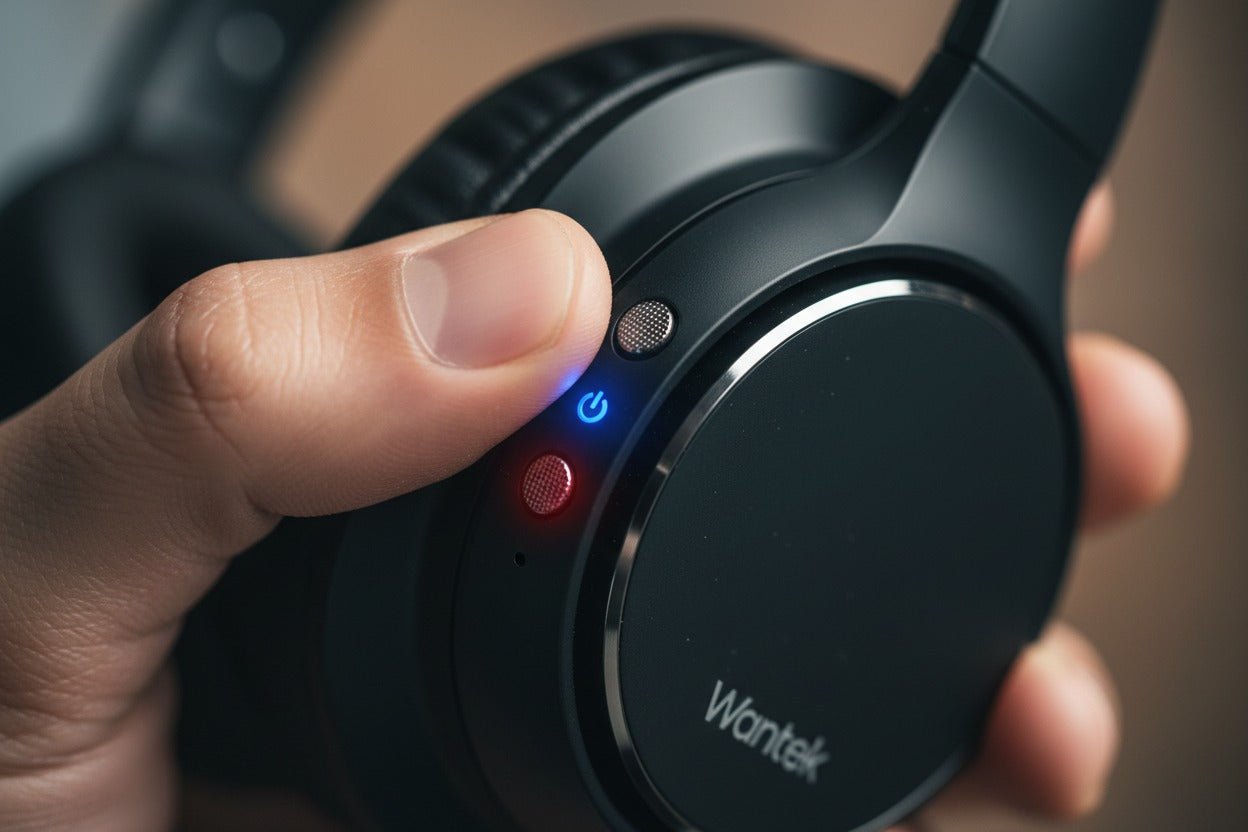
Headphones can have several sound problems that stop you from enjoying your music or calls. These issues can be caused by hardware faults, connection problems, or software settings. Understanding common sound issues helps you fix them fast and get back to clear audio.
No Sound From Headphones
No sound is the most obvious problem. Check if the headphones are properly plugged into the device. Look for dirt or debris in the headphone jack that may block the connection. Test the headphones on another device to see if they work. Also, check your device’s audio settings and volume level.
Distorted Or Crackling Audio
Distorted sound or crackling noises make listening unpleasant. This can be caused by a damaged cable or loose connections. Try moving the wire gently to find if the crackling changes. Wireless headphones may have interference or low battery. Make sure the headphone drivers are clean and undamaged.
Uneven Sound Between Ears
When sound is louder in one ear, it can be annoying. Check if the headphone cable is twisted or broken. Clean the headphone speakers carefully to remove earwax or dust. Some devices have balance settings; adjust them to equalize the sound. Test headphones on another device to rule out device issues.
Low Volume Problems
Low volume can make it hard to hear audio clearly. Ensure the volume is turned up on both the device and headphones. Check if any sound limiters or equalizer settings are active. Damaged wires or connectors can reduce volume. Try using different headphones to see if the problem is with your device.
Basic Checks
Basic checks are the first steps to fix headphone problems. These checks help find simple issues fast. They save time and avoid more trouble. Before trying complex solutions, start with these easy steps.
Inspecting The Cable And Connectors
Look closely at the headphone cable for cuts or bends. A damaged cable often causes sound issues. Check both ends of the cable. Make sure the connectors are clean and dry. Dirt or dust can block sound. Gently clean the connectors with a soft cloth.
Testing With Different Devices
Try your headphones with another device. This test shows if the problem is with headphones or device. Use a phone, laptop, or tablet to test. If the headphones work on another device, the first device may have issues. If not, the headphones might need repair.
Adjusting Volume And Settings
Check the volume level on your device. Sometimes volume is too low or muted. Also, check sound settings for headphone output. Some devices have separate controls for headphones. Adjust equalizer settings if available. This can improve sound quality and fix issues.
Cleaning And Maintenance
Keeping your headphones clean helps them last longer and work better. Dirt and sweat build-up can block sound and cause damage. Regular cleaning and simple care keep your headphones fresh and safe.
Removing Dirt And Debris
Use a soft, dry cloth to wipe the headphone surface. Gently brush the small parts with a dry, soft toothbrush. Avoid using water or harsh chemicals on electronic parts. Remove any visible dirt from the cable and connectors carefully.
Cleaning Ear Pads And Mesh
Remove ear pads if possible. Wipe them with a damp cloth and mild soap. Let the pads dry completely before reattaching. For mesh parts, use a dry brush or a cloth. Do not press hard to avoid damage.
Protecting Headphones From Damage
Store headphones in a case or pouch to avoid dust. Keep them away from direct sunlight and moisture. Avoid pulling or twisting the cables roughly. Handle your headphones gently to prevent wear and tear.
Software And Driver Fixes
Software and driver issues often cause headphone problems. These problems can stop sound or cause poor audio quality. Fixing software and drivers can solve many headphone troubles. It is important to check drivers and device settings. Sometimes, resetting connections helps restore sound.
Updating Audio Drivers
Audio drivers control how sound works on your device. Outdated drivers can cause sound errors. Check for the latest driver updates on your device’s support page. Download and install updates carefully. Restart your device after updating. This step often fixes many sound issues.
Checking Sound Settings On Devices
Sound settings control volume and audio output. Open the sound settings on your device. Make sure the headphones are selected as the output device. Check the volume level and mute status. Adjust settings to ensure audio plays through headphones. This simple check can fix common problems.
Resetting Bluetooth Connections
Bluetooth headphones may lose connection or have pairing issues. Turn off Bluetooth on your device. Turn off the headphones and wait a few seconds. Turn Bluetooth back on and reconnect the headphones. This reset can fix connection errors and improve sound quality.
Advanced Troubleshooting
Advanced troubleshooting helps fix headphone issues beyond simple checks. It involves tools and skills to find hidden problems. This guide covers testing, repairing, and replacing parts for better sound.
Testing With Audio Troubleshooters
Audio troubleshooters are software tools that find sound issues. Run these tools on your device to test headphone output. They detect driver problems or settings blocking sound. Follow instructions on the screen for best results. These tools save time and help target specific faults quickly.
Repairing Broken Cables
Broken cables cause sound loss or distortion. Check the cable for cuts, bends, or loose wires. Use electrical tape to fix minor damage temporarily. For lasting repair, cut the damaged section carefully. Strip the wires and reconnect them with solder or wire nuts. Test headphones after repair to confirm the fix.
Replacing Faulty Components
Sometimes parts inside headphones fail, like speakers or jacks. Identify the faulty part by testing different headphone sections. Order replacement parts from trusted sellers. Use small tools to open headphone casing carefully. Remove the broken part and install the new one. Ensure all connections are secure before closing the case.
Preventing Future Issues
Preventing future issues with headphones saves time and money. Small daily habits protect your device. Taking care of headphones helps keep sound clear and parts working well. Follow simple steps to avoid common problems like broken wires or muffled sound.
Proper Storage And Handling
Store headphones in a dry, cool place. Avoid folding or twisting cables tightly. Use a case or pouch to keep them safe from dust and damage. Handle the cable gently when plugging or unplugging. Rough use can break wires inside.
Regular Cleaning Routine
Clean headphones often to stop dirt buildup. Use a soft cloth to wipe ear pads and headband. Remove earwax from earbuds with a dry brush. Avoid water or harsh chemicals, which can harm the electronics. Clean parts last longer and sound stays clear.
Using Protective Accessories
Use covers or cushions on ear pads to reduce wear. A cable protector stops wires from bending too much. These accessories add a layer of safety. They help headphones last longer and keep comfort high.

Frequently Asked Questions
Why Are My Headphones Not Producing Any Sound?
Check if the headphones are properly plugged in or paired via Bluetooth. Also, ensure the device volume is turned up. Sometimes, a simple restart fixes the issue.
How Can I Fix Static Or Crackling Noises In Headphones?
Static sounds often come from loose connections or damaged cables. Try reconnecting or using another device to test. Cleaning headphone jacks can also help.
What Should I Do If One Side Of Headphones Is Not Working?
Check the cable and connectors for any visible damage. Test with another device to rule out hardware issues. Sometimes, dirt inside the ear cup blocks sound.
How Do I Reset Bluetooth Headphones That Won’t Connect?
Turn off the headphones and remove them from your device’s Bluetooth list. Turn them back on and pair again. Reset instructions vary by brand, so check your manual.
Why Do My Headphones Sound Distorted Or Muffled?
Distorted sound might mean the headphone speakers are damaged or dirty. Make sure the audio source is clear and volume levels are moderate. Cleaning the ear pads may improve sound quality.
Conclusion
Troubleshooting headphones can save time and money. Start by checking the connection and volume. Clean the headphone jack to avoid sound issues. Test with another device to find the problem. Replace damaged cables or faulty parts when needed. Regular care keeps headphones working well longer.
Simple steps often fix common audio troubles fast. Stay patient and try each tip carefully. Good sound can make a big difference every day. Keep these easy fixes in mind for smooth listening.