The most effective way to address your vehicle connectivity issues is to perform a honda handsfreelink troubleshooting reset by deleting your phone from the system and clearing the vehicle’s pairing memory. This problem is usually caused by outdated Bluetooth software on your mobile device or a full cache in the car’s infotainment system. Before you begin any complex steps, ensure your phone’s operating system is fully updated to avoid compatibility errors.
Troubleshoot your Honda HandsFreeLink connection failures
Most connectivity issues happen because the digital “handshake” between your phone and the car’s system has become corrupted. Every time you update your phone’s software, the security protocols for Bluetooth can change slightly. If the car’s system still expects the old protocol, the connection will drop or fail to initiate entirely. This is a common software mismatch that happens after major OS updates on smartphones.
Another cause is a full memory bank within the car’s hands-free system. Most Honda units have a limit on how many devices they can store in their internal memory. Once that limit is reached, the system struggles to manage new requests, leading to failed pairing attempts or intermittent audio drops.
If you live in a high-density area, external radio frequency interference can also play a role. Bluetooth operates on the 2.4 GHz spectrum, which is shared by many household devices and Wi-Fi networks. While this is less common inside a moving car, parked vehicles near high-traffic Wi-Fi zones may occasionally experience difficulty establishing a stable initial link. If your phone connects in some locations but not others, environmental interference is the likely culprit rather than a hardware fault.
Delete and re-pair your mobile device
To fix a persistent connection error, remove the existing pairing profile from both your phone and your vehicle. Go to the Bluetooth settings on your smartphone and select the “Forget This Device” or “Unpair” option for the Honda system. Then, navigate to the vehicle’s settings menu on the dashboard screen to delete the phone profile from the stored list. This clears out corrupted cache data that often prevents a clean reconnection.
Once both sides are cleared, restart your smartphone to ensure all temporary background processes are closed. Turn the vehicle’s ignition to the “Accessory” or “On” position to power the infotainment system. Set your phone to discoverable mode and initiate the pairing process from the vehicle’s menu. If the system prompts for a PIN, the default is usually 0000 or 1234, though the screen will display the exact code required for your model.
If you have more than one phone paired to the car, delete all of them during this process. A secondary phone can sometimes “hijack” the connection, causing the primary device to fail. If you’re unable to delete profiles because the screen is frozen, wait for the vehicle to power down completely for at least 15 minutes. This allows the internal volatile memory to cycle, which often resolves temporary software hangs without requiring professional intervention.
Update your smartphone software version
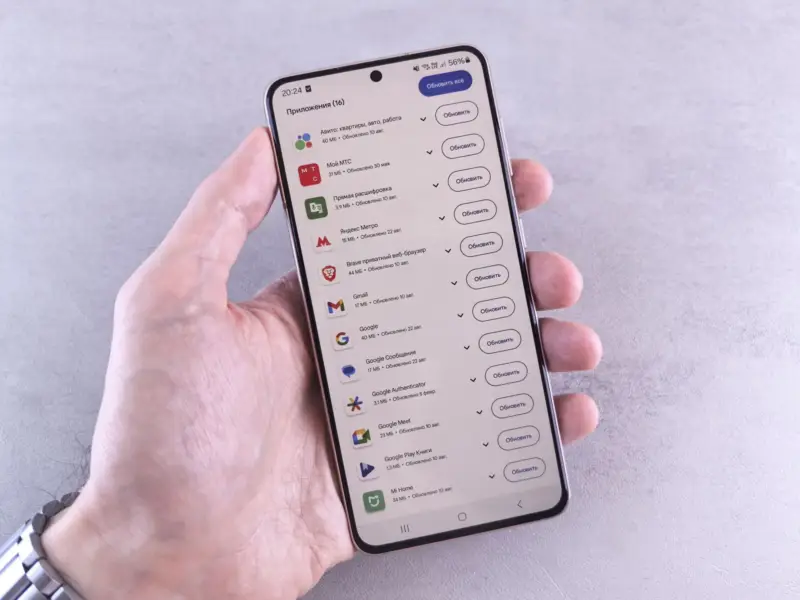
If the connection continues to drop after re-pairing, your smartphone might be using a Bluetooth profile that’s too new for your vehicle’s firmware. Check your phone’s settings menu for “Software Update” and ensure you’re running the latest version provided by your manufacturer. Newer updates often include patches for Bluetooth stability that help older vehicle head units communicate more effectively.
This fix is ideal if you recently bought a new phone or performed a major OS upgrade. If your car is older than five years, realize that the hardware inside the dashboard has a finite capacity for supporting modern Bluetooth features. If the phone updates don’t resolve the issue, you may need to use a wired connection via USB if your model supports Apple CarPlay or Android Auto.
Most users make the mistake of using a generic charging cable that lacks data transfer capabilities. If your cable only carries power, the Honda HandsFreeLink system will never register the device. Always use the original cable that came with your phone or a high-quality, certified data cable.
If the system fails to recognize the phone via USB after a cable change, the issue is likely within the vehicle’s USB port or the infotainment unit itself. Test the port by plugging in a different device, such as a flash drive containing music.
If the system reads the drive but ignores your phone, the fault lies with the phone’s handshake protocol. If neither device connects, the port is physically damaged. In these cases, contact your local dealership service department for a firmware check or a port inspection.
Perform a hard system reset
When standard pairing fails, a hard reset of the infotainment system can clear deeper software errors. Locate the “System” or “General” settings menu on your vehicle’s display and look for a “Factory Data Reset” or “Initialize” option. This will wipe all saved settings, including your radio presets, navigation history, and paired devices, returning the unit to its original out-of-the-box state.
Only use this method if you have already tried deleting individual phone profiles and the system remains unresponsive. A factory reset isn’t for the impatient, as you’ll need to re-configure all your personal preferences once the process is complete. If you’re uncomfortable navigating these deep system menus, you can visit a certified technician at a dealership. They can perform a “hard reboot” using diagnostic tools that don’t require wiping your personal settings.
Before committing to a full wipe, check if your phone is the bottleneck. If your vehicle connects to a second device without issue, the problem is your specific phone’s cache. In this case, perform a “Network Settings Reset” on your phone rather than the car. This clears corrupted Bluetooth handshakes without losing your vehicle’s saved navigation data.
If the screen remains black or completely unresponsive to touch, don’t attempt to pry it open or modify the wiring. The internal components are sensitive to static electricity and improper handling can void your remaining warranty. If a full reset doesn’t restore functionality, the issue likely resides in the main control module, which requires specialized diagnostic equipment to repair or replace safely.
Common myths about connection issues
“Disconnecting the car battery fixes everything”: While this can reset some electronics, it often causes the security system to lock the radio, requiring a specific unlock code from the dealer. You lose your saved radio presets and climate control memory, forcing a tedious manual recalibration that rarely solves a handshake error.
“Bluetooth signal boosters improve car audio”: These devices are meant for home Wi-Fi and don’t work with vehicle Bluetooth systems; they create more interference than they solve. If your signal drops, look for metal objects or thick phone cases blocking the antenna, not external hardware.
“You must delete the app to fix the link”: The hands-free connection is a system-level function, not an app-specific one, so removing apps won’t change how the phone talks to the car. Instead, toggle your phone’s Bluetooth off and on to force a fresh handshake.
“The microphone is broken if pairing fails”: Pairing errors are purely digital communication issues, whereas microphone problems relate to physical hardware or wiring inside the headliner. If you can hear audio but can’t be heard, the issue is your microphone, not the Bluetooth link.
Prevent future connectivity problems
The best way to keep your connection stable is to limit the number of devices you keep paired to the system. Most drivers only need one primary phone, and removing inactive devices prevents the car from searching for signals that are no longer present.
If you notice the system stuttering during startup, check your device list immediately. A common mistake is leaving old tablets or secondary phones paired, which forces the Honda HandsFreeLink to cycle through a handshake sequence for every ghost device before it finds your current phone. This delay can cause the audio to drop out or the screen to freeze.
| If you’re doing this | Do this instead | Why |
|---|---|---|
| Keeping 5+ devices paired | Keep only 1 or 2 | Reduces search time and memory load |
| Ignoring phone updates | Update to latest version | Fixes known Bluetooth handshake bugs |
| Using a worn-out cable | Use a certified data cable | Ensures stable power and data flow |
| Leaving Wi-Fi on in the car | Turn Wi-Fi off if not in use | Prevents interference with Bluetooth |
If you switch between two phones, delete the one you aren’t using for the day. This simple habit prevents the system from defaulting to the wrong device, which saves you from manual resets while driving.
Related guides
- Airplay Troubleshooting: Fix Connectivity Issues Fast
- Myq App Troubleshooting: Fix Connectivity Issues Fast
- Frontier Troubleshooting: Mastering Connectivity Issues
Frequently asked questions
Can I fix a frozen screen myself?
Yes, you can often fix a frozen screen by performing a power cycle of the infotainment system. Turn the vehicle off and open the driver’s door to ensure the ignition is fully powered down, then wait for at least 15 minutes before restarting. If the screen remains frozen after the restart, the system may have a hardware fault that requires a professional to examine the internal control module.
How long does the pairing process take?
The pairing process typically takes 2 to 5 minutes from start to finish, depending on how quickly your phone detects the vehicle’s signal. If the system stays on a “searching” screen for longer than 10 minutes, the handshake has stalled. In this case, cancel the request on both the phone and the car, turn your phone’s Bluetooth off and on again, and try the process from the beginning.
Is it safe to reset the system settings?
Yes, it’s safe to perform a factory reset via the menu, as this is a standard feature built into the system for users. The only risk is that you’ll lose your personal data, such as saved navigation addresses, radio presets, and paired contacts. Ensure you have written down any information you want to keep before choosing the reset option in the vehicle’s settings menu.
Why does my audio skip during calls?
Audio skipping is usually caused by interference from other electronic devices or a weak Bluetooth signal between the phone and the car. Try moving your phone to a different location, such as the center console or a cup holder, to see if the signal improves. If the skipping persists, ensure that your phone isn’t simultaneously connected to another device, such as a smartwatch or wireless headphones.
What happens if the pairing code is wrong?
If you enter the wrong pairing code, the system will reject the connection and display an error message on the screen. Most systems will allow you to attempt the entry again immediately. If the system locks you out after three failed attempts, wait for 5 minutes before trying again, as this is a security feature to prevent unauthorized devices from attempting to connect to your vehicle.
Conclusion
If you still can’t connect after these simple fixes, don’t worry. It’s a good idea to visit your local dealership’s service center. They’ll quickly check if your car’s software needs a professional update. You’ll be back to enjoying your favorite playlists and hands-free calls in no time at all.