Is your MacBook suddenly struggling to connect to WiFi? You’re not alone, and the frustration can be real.
Slow internet or dropped connections disrupt your work, streaming, and everything in between. But don’t worry—fixing your MacBook’s WiFi issues might be easier than you think. In this guide, you’ll discover simple, effective steps that get your connection back on track quickly.
Keep reading, and say goodbye to those annoying WiFi problems once and for all.
Common Wifi Issues On Macbook
MacBook users often face wifi problems that slow down their work or disrupt their entertainment. These common wifi issues can be frustrating and hard to fix without clear guidance. Understanding the typical wifi problems helps in finding quick solutions.
Many MacBooks experience wifi troubles due to software settings, hardware issues, or network conflicts. Knowing the specific problem makes troubleshooting easier and more effective. Below are the common wifi issues MacBook users report most often.
Slow Internet Speeds
Slow internet can make browsing and streaming difficult. This problem may result from weak signals, crowded networks, or outdated software. Sometimes, background apps use bandwidth without notice. Checking network strength and closing unused apps can help improve speeds.
Wifi Not Connecting
At times, the MacBook fails to connect to the wifi network. This issue happens due to wrong passwords, incorrect settings, or router problems. Restarting the MacBook and router often restores the connection. Verifying the wifi password is also important.
Frequent Disconnections
Interruptions in wifi connection can break video calls or downloads. This happens because of unstable signals or interference from other devices. Moving closer to the router or changing the channel may reduce disconnections. Updating the MacBook’s system can also stabilize the connection.
Network Detection Problems
Sometimes, the MacBook does not show available wifi networks. This issue may be caused by disabled wifi, hardware faults, or software glitches. Turning wifi off and on again can fix detection problems. Running network diagnostics helps find hidden errors too.
Basic Wifi Fixes
Wifi issues on a MacBook often start with simple problems. Basic fixes can solve many connection troubles quickly. Try these easy steps first. They help save time and avoid frustration.
Restarting Your Macbook
Turn off your MacBook completely. Wait for a few seconds. Turn it back on. Restarting refreshes the system. It clears temporary glitches that block wifi.
Toggling Wifi Off And On
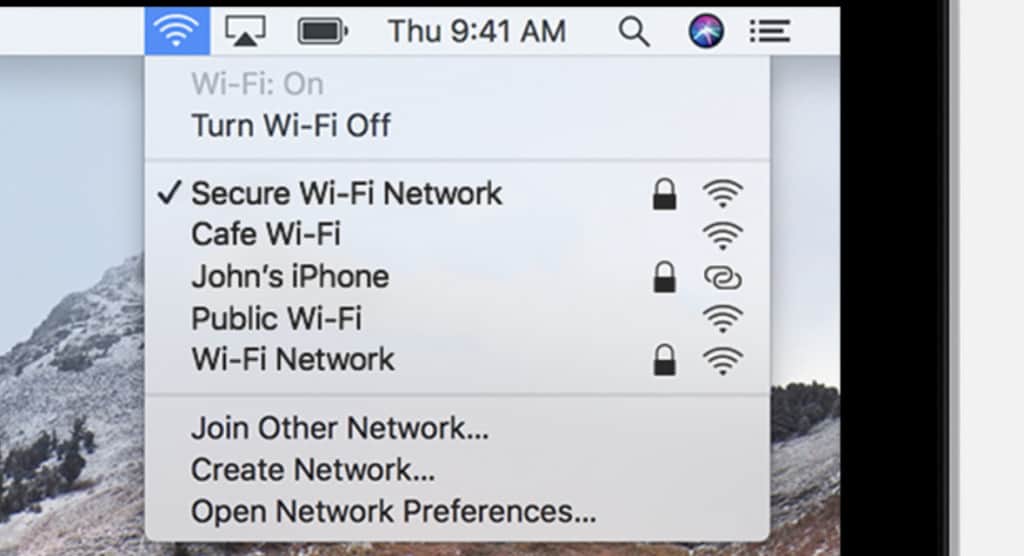
Click the wifi icon on the menu bar. Switch wifi off. Wait 5 seconds. Turn wifi back on. This resets the wifi connection. It often fixes minor network errors.
Checking Router And Modem
Look at your router and modem. Make sure they are powered on. Check for blinking lights. Restart the router by unplugging it. Wait 10 seconds and plug it back in. This resets your internet source.
Moving Closer To The Router
Signal strength weakens with distance. Move your MacBook nearer to the router. Walls and furniture block wifi signals. Closer position improves connection speed and stability.
Advanced Troubleshooting Steps
Advanced troubleshooting steps can fix stubborn MacBook WiFi problems. These methods go beyond basic checks and help solve deeper network issues. Follow these steps carefully to improve your connection.
Resetting Network Settings
Resetting network settings clears old WiFi data and errors. Open System Preferences and go to Network. Select your WiFi and remove it by clicking the minus (-) button. Add WiFi again by clicking the plus (+) button and reconnect.
This process refreshes your connection and often fixes hidden problems.
Renewing Dhcp Lease
DHCP lease assigns your MacBook an IP address. Sometimes this lease expires or conflicts with other devices.
Go to System Preferences > Network > WiFi > Advanced. Click the TCP/IP tab. Hit “Renew DHCP Lease” to get a new IP address. This step can solve many connectivity issues fast.
Clearing Wifi Preferences
Corrupted WiFi preferences can cause connection problems. Deleting these files forces your Mac to create fresh settings.
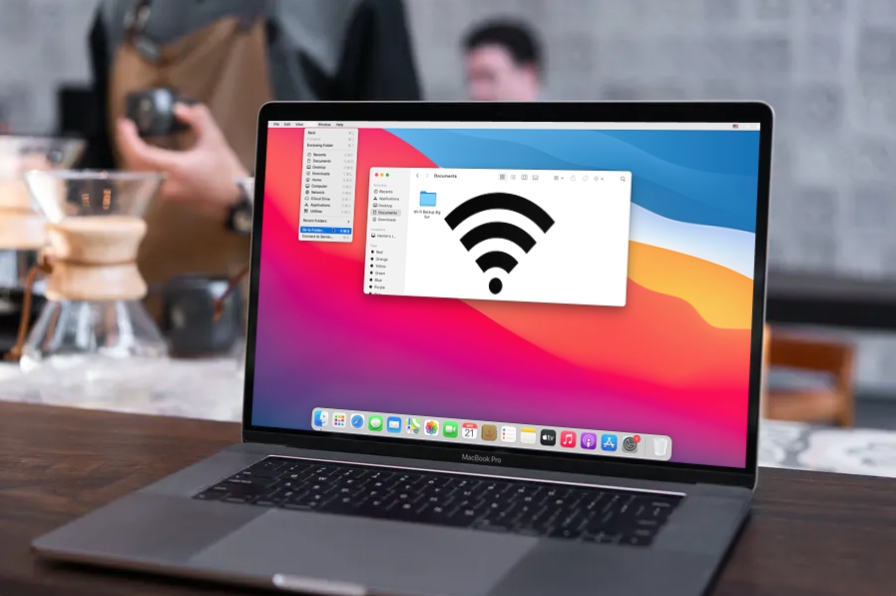
Open Finder and press Command + Shift + G. Enter /Library/Preferences/SystemConfiguration/ and delete files like:
- com.apple.airport.preferences.plist
- com.apple.network.identification.plist
- com.apple.wifi.message-tracer.plist
Restart your MacBook and reconnect to WiFi networks.
Updating Macos For Wifi Drivers
MacOS updates include improved WiFi drivers and bug fixes. Keeping your system updated ensures better WiFi performance.
Open System Preferences and select Software Update. Install any available updates. This process may resolve compatibility and driver issues affecting WiFi.
Using Terminal Commands
Using Terminal commands offers a direct way to fix WiFi problems on your MacBook. These commands let you change network settings quickly. They help clear errors that block internet access. No need for complex steps or extra software.
Terminal commands can refresh your connection and fix common issues fast. You type simple commands, and your MacBook handles the rest. This guide covers two useful commands to improve your WiFi.
Flushing Dns Cache
DNS cache stores website addresses to speed up browsing. Sometimes, this cache holds wrong data, causing connection troubles. Flushing the DNS clears old data and forces your MacBook to get fresh information.
Open Terminal and type this command:
sudo dscacheutil -flushcache; sudo killall -HUP mDNSResponderPress Enter, then enter your password if asked. This command resets your DNS cache immediately. It often fixes problems like slow loading or pages not opening.
Resetting Network Interfaces
Network interfaces handle your MacBook’s connection to WiFi and other networks. Resetting them can solve issues caused by temporary glitches. It restarts the network hardware and clears errors.
In Terminal, type this command:
sudo ifconfig en0 down && sudo ifconfig en0 upPress Enter and provide your password if needed. This turns off and on the WiFi interface. Your MacBook reconnects to the network, which can restore internet access.
Managing Wifi Networks
Managing WiFi networks on your MacBook helps keep your internet connection smooth. It lets you control which networks your MacBook connects to automatically. You can remove old networks, set your favorites first, and add new locations easily. These steps fix common WiFi issues and improve your online experience.
Removing And Re-adding Networks
Sometimes, a saved WiFi network causes connection problems. Removing it clears old settings that may block access. Go to System Preferences, then Network, and select WiFi. Click Advanced to see saved networks. Choose the problem network and click the minus button to remove it. After that, reconnect by selecting the network and entering the password. This refresh often solves connection errors.
Prioritizing Preferred Networks
Your MacBook may remember many networks but connects to the wrong one first. You can change this order. In the same Advanced WiFi settings, drag your preferred networks to the top of the list. This makes your MacBook try those networks first. It avoids connecting to weaker or slower networks automatically.
Setting Up New Wifi Locations
Creating new WiFi locations helps manage different network settings. This is useful if you use your MacBook in many places. In System Preferences, open Network, and click the Location drop-down menu. Choose Edit Locations and click the plus button to add a new one. Name it after your new location, like Home or Office. This keeps network settings separate and reduces connection issues.

Hardware Checks And Solutions
Hardware issues can cause WiFi problems on your MacBook. Checking hardware helps find the root cause. It saves time and avoids unnecessary repairs. Follow these steps to inspect and diagnose hardware problems.
Inspecting Wifi Antenna
The WiFi antenna is inside your MacBook’s case. It sends and receives wireless signals. A loose or broken antenna causes weak or no connection.
Look for physical damage on your MacBook’s body. Drops or bumps can affect the antenna. Opening the MacBook requires care. Use a proper screwdriver and work on a clean surface.
Check the antenna cable for damage or looseness. Reconnect it gently if loose. Replace the cable if broken.
Running Apple Diagnostics
Apple Diagnostics can test your MacBook’s hardware. It checks WiFi components and other parts. Shut down your MacBook first.
Turn it on and hold the D key until the test starts. Follow the on-screen instructions. The test shows error codes if problems are found.
Note down the codes for reference. Search Apple’s support site for solutions based on codes. This tool helps identify hardware faults fast.
When To Visit Apple Support
Visit Apple Support if hardware issues persist. Especially after checking the antenna and running diagnostics. They have tools and expertise to fix complex problems.
Apple technicians can replace damaged parts safely. Repairs outside Apple may void warranty or cause more damage. Make an appointment at an Apple Store or authorized service provider.
Professional help ensures your MacBook’s WiFi works properly again.
Tips For Maintaining Wifi Stability
Keeping your MacBook’s WiFi connection stable is important for smooth internet use. Simple steps can improve your WiFi performance and reduce drops. This section shares practical tips to help maintain a steady WiFi signal on your MacBook.
Regular Software Updates
Keep your MacBook updated with the latest software. Updates often include fixes for WiFi issues. They improve security and network performance. Check for updates in System Preferences under Software Update. Install updates as soon as they are available.
Optimizing Router Settings
Adjust your router settings to boost WiFi stability. Choose a less crowded WiFi channel to avoid interference. Set your router to use the 5 GHz band if your MacBook supports it. Position your router in a central, open place for better coverage.
Avoiding Interference Sources
Keep your MacBook away from devices that cause interference. Microwaves, cordless phones, and Bluetooth gadgets can weaken WiFi signals. Walls and metal objects also block signals. Clear the area around your MacBook and router for better connection.
Frequently Asked Questions
Why Is My Macbook Not Connecting To Wifi?
Check if WiFi is turned on in your MacBook’s settings. Restart your router and MacBook. Make sure the WiFi password is correct.
How To Fix Slow Wifi On Macbook?
Close apps using the internet and move closer to the router. Restart your router and MacBook. Update your MacBook’s software for better performance.
Can Wifi Issues Be Solved By Restarting Macbook?
Yes, restarting your MacBook can fix many WiFi problems. It refreshes network settings and clears temporary glitches.
How To Reset Wifi Settings On Macbook?
Go to System Preferences > Network. Select WiFi and click “Advanced. ” Remove old networks and add your WiFi again.
Why Does Macbook Keep Dropping Wifi Connection?
WiFi drops can happen due to weak signal or router issues. Check your router’s placement and update its firmware. Also, make sure your MacBook’s software is up to date.
Conclusion
Fixing MacBook WiFi issues can be simple with the right steps. Restart your device and router first. Check your network settings carefully. Sometimes, updating software solves the problem fast. Resetting your WiFi preferences can help too. Don’t forget to test with other networks.
Slow or no internet often has small fixes. Keep your MacBook clean from dust and damage. If problems persist, seek help from experts. Staying patient and following these tips improves your connection. A strong WiFi makes using your MacBook easier every day.