Are you frustrated because your Comcast modem keeps acting up? When your internet slows down or suddenly stops working, it can feel like your whole day is on hold.
But don’t worry—you don’t have to be a tech expert to fix it. In this guide, you’ll discover simple, effective steps to troubleshoot your Comcast modem and get your connection back fast. Keep reading, and you’ll learn how to solve common problems quickly, so you can enjoy smooth, reliable internet without the hassle.
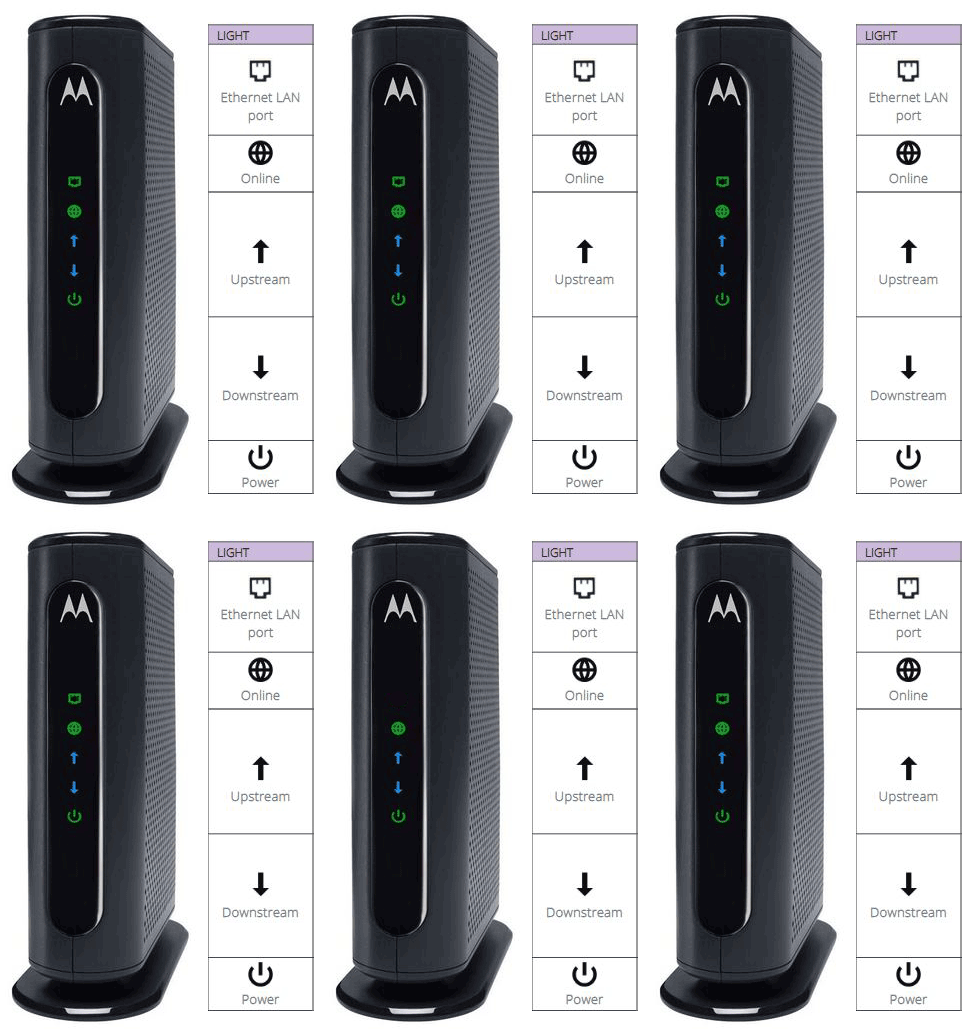
Common Modem Issues
Comcast modem users often face a few common issues. These problems can stop your internet from working right. Knowing the usual issues helps fix them fast. This saves time and avoids frustration.
No Internet Connection
No internet connection is the most common problem. The modem might be on but not connected to the internet. Check all cables and make sure they are plugged in well. Sometimes, restarting the modem solves this issue. If the problem stays, contact Comcast support for help.
Slow Internet Speeds
Slow internet speeds affect streaming, browsing, and downloads. Many factors cause slow speeds, including network congestion and old modem models. Reset the modem and close unused apps or devices that use the internet. Testing the speed can show if the problem is with Comcast or your setup.
Frequent Disconnections
Internet cutting out often is frustrating. This can happen due to loose cables, firmware issues, or signal problems. Check the connections and restart the modem. Updating the modem’s firmware can improve stability. If disconnections continue, try moving the modem to a better location.
Modem Not Powering On
A modem that won’t turn on needs quick attention. First, check the power outlet and the modem’s power cable. Try a different outlet to rule out power issues. If the modem still does not power on, it may need repair or replacement. Contact Comcast for guidance and support.
Basic Troubleshooting Steps
Basic troubleshooting steps help fix common Comcast modem problems. These steps are simple and quick to follow. They often solve connection issues without extra help. Start with easy checks before calling support.
Restarting The Modem
Turn off the modem by unplugging it from power. Wait for about 30 seconds to 1 minute. Plug the modem back in and let it fully restart. This clears temporary glitches and refreshes the connection. Many times, restarting fixes slow or no internet.
Checking Cable Connections
Look at all cables connected to the modem. Make sure the coaxial cable is tight and not loose. Check the power cable and Ethernet cables as well. Damaged or loose cables cause poor or no internet signals. Secure cables firmly to maintain a stable connection.
Verifying Account Status
Confirm that your Comcast account is active and in good standing. Unpaid bills or service outages can disrupt your internet. Log in to your Comcast account online or call customer service. Fixing account issues restores your internet service quickly.
Advanced Fixes
Advanced fixes can solve many Comcast modem issues. These steps go beyond basic troubleshooting. They help improve modem performance and connection stability. Use these methods carefully to avoid new problems.
Resetting The Modem To Factory Settings
Resetting the modem clears all custom settings. It restores the device to its original state. This step fixes deep software glitches. Find the reset button, usually a small hole. Press and hold it for about 10 seconds. Release and wait for the modem to restart. Note that you must reconfigure your modem after this reset.
Updating Firmware
Firmware controls the modem’s internal software. Outdated firmware can cause slow speeds or disconnections. Check the modem’s admin page for updates. Download and install the latest firmware version. Keep the modem powered on during the update. This process can improve security and performance.
Adjusting Modem Placement
Modem location affects signal strength and speed. Place the modem in a central, open area. Avoid walls, metal objects, and electronic devices. Higher placement often provides better coverage. Keep the modem away from cordless phones and microwaves. Small changes can boost your internet quality.
Dealing With Signal Issues
Signal problems can cause slow or dropped internet connections with your Comcast modem. Fixing these issues helps keep your internet fast and stable. This section covers how to check signal strength, boost weak signals, and find sources of interference.
Testing Signal Levels
Start by checking your modem’s signal levels. Log into your modem’s dashboard using its IP address. Look for downstream and upstream signal strength. Ideal levels are usually between -15 dBmV and +15 dBmV for downstream. Upstream power should be between 35 dBmV and 50 dBmV. Levels outside these ranges can cause problems. Note any unusual readings and restart your modem to see if they improve.
Using A Signal Booster
Weak signals may need a signal booster. These devices amplify your cable signal strength. Install the booster near the cable entry point. It helps maintain strong signals over long cable runs. Make sure the booster is compatible with Comcast’s network. Avoid using cheap or unapproved boosters. Proper installation can reduce signal loss and improve internet speed.
Identifying Interference Sources
Interference can disrupt your modem’s signal. Common sources include old wiring, electrical devices, and splitters. Check cables for damage or loose connections. Keep the modem away from microwaves, cordless phones, and routers. Remove unnecessary splitters or replace them with high-quality ones. Clear interference helps maintain a clean and strong signal.
When To Contact Comcast Support
Knowing the right time to contact Comcast support can save you time and frustration. Some modem issues fix themselves. Others need expert help. Understanding when to reach out helps you get faster solutions.
Recognizing Persistent Problems
Temporary glitches happen often. Restarting the modem can fix many issues. Call support if problems last more than a day. Slow internet, frequent disconnections, or no connection at all are clear signs. Also, watch for error lights on the modem that stay on or blink unusually.
Preparing For A Support Call
Before calling, gather important details. Have your account number and modem model ready. Note the exact problem and when it started. This helps the support team diagnose quickly. Stay calm and clear when explaining the issue. Write down any instructions or steps they give you.
Scheduling A Technician Visit
Sometimes, a remote fix is not enough. Comcast may need to send a technician. Ask for a visit if the problem persists after troubleshooting. Schedule a time that fits your day. Keep the modem and cables accessible. The technician will check connections and replace faulty equipment if needed.
Tips For Maintaining Fast Internet
Keeping your internet fast and reliable takes some effort. Simple steps help your Comcast modem work well. These tips keep your connection steady and quick.
Regular Modem Reboots
Restart your modem often. It clears temporary errors and frees up memory. A quick reboot can fix slow speeds. Try rebooting once a week for best results.
Securing Your Network
Protect your Wi-Fi with a strong password. An open network lets others use your internet. This slows your speed and risks your data. Use WPA3 or WPA2 security settings.
Upgrading Equipment
Old modems can limit your internet speed. Check if your modem supports your plan’s speed. Upgrading to a newer model can improve performance. Newer devices handle more data and newer technology better.

Frequently Asked Questions
How Do I Reset My Comcast Modem Safely?
Unplug the modem’s power cable. Wait 30 seconds, then plug it back in. This clears temporary errors.
Why Is My Comcast Modem Not Connecting To The Internet?
Check all cable connections for tightness. Restart the modem to refresh the connection. Contact support if problem continues.
How Can I Check My Comcast Modem’s Signal Strength?
Log in to the modem’s web page using its IP address. Look for signal or status information. Strong signals mean better connection.
What To Do If My Comcast Modem Keeps Dropping Connection?
Restart the modem and router. Ensure firmware is up to date. If drops persist, call Comcast for help.
Can I Improve Comcast Modem Speed With Simple Fixes?
Place the modem in an open area. Avoid thick walls or metal objects nearby. This can boost signal strength and speed.
Conclusion
Troubleshooting your Comcast modem can fix many common issues fast. Restart the modem to clear temporary glitches. Check all cables are tight and undamaged. Use the Comcast app for easy support and updates. Keep your modem’s firmware up to date.
Contact Comcast support if problems continue. Staying calm helps you solve issues step-by-step. A working modem means better internet for all your needs. Small fixes often save time and stress. Stay patient, and your connection will improve soon.