You can fix a denon receiver troubleshooting no sound issue by checking the input source selection and ensuring your speaker wires are firmly connected to the terminals. Most of the time, this problem happens because the receiver is set to the wrong input or the mute function is accidentally active. If the display shows the volume level but you hear nothing, check your external devices first. You can find official guides for your model on the Denon support website.
Why your receiver has no sound
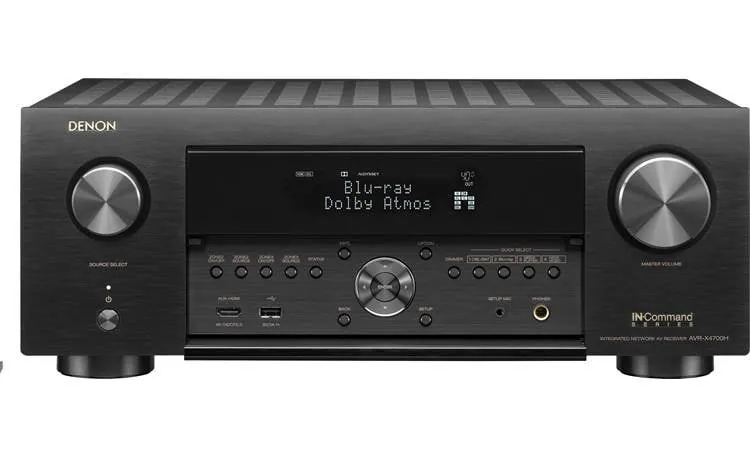
The most frequent cause for a silent receiver is a simple mismatch between the active input and the device you’re trying to play. If your TV is plugged into the HDMI 1 port but the receiver is set to “Media Player,” no signal will pass through. You should cycle through the input buttons on your remote to ensure the label on the receiver’s front display matches the physical port you used.
Another common cause involves the speaker configuration settings inside the receiver’s menu. If the unit was recently reset or if a firmware update occurred, the speaker output might be turned off or set to a “Zone 2” mode. This means the sound is being sent to a different room instead of your main speakers. You can check this by pressing the “Setup” button on your remote and verifying that the speaker output is assigned to the “Main” zone.
Finally, consider the digital handshake between your devices. HDMI cables carry both video and audio data, and sometimes the communication between the TV and the receiver fails. If you see video but hear no audio, try turning off both the TV and the receiver, unplugging their power cords for 60 seconds, and then turning them back on in sequence. This often forces the devices to re-negotiate their connection and restore the audio stream.
Check input and output connections
This fix is for users who have verified that the receiver is powered on but hear nothing through the speakers. First, look at the back of the unit. Ensure that every speaker wire is pushed fully into the spring clip or binding post. A single loose strand of copper wire touching the metal chassis can trigger a protection mode that cuts all sound to prevent a short circuit.
If the wires look secure, look at your remote control. Press the “Info” or “Status” button to see if the receiver detects an incoming signal. If it shows “No Signal” or “PCM 2.0,” the issue is likely with the source device, such as your cable box or game console. If the receiver shows a signal but no sound, ensure that the “Mute” button wasn’t pressed.
If you still hear nothing, check the “Speaker A/B” or “Zone” settings on the front panel. If you accidentally selected a zone that has no speakers connected, the main unit will remain silent. If you aren’t comfortable moving heavy equipment or working with small wires, contact a local home theater professional to inspect your setup. Never attempt to open the outer casing of the receiver, as it contains components that hold a high voltage charge even when unplugged.
Perform a factory reset
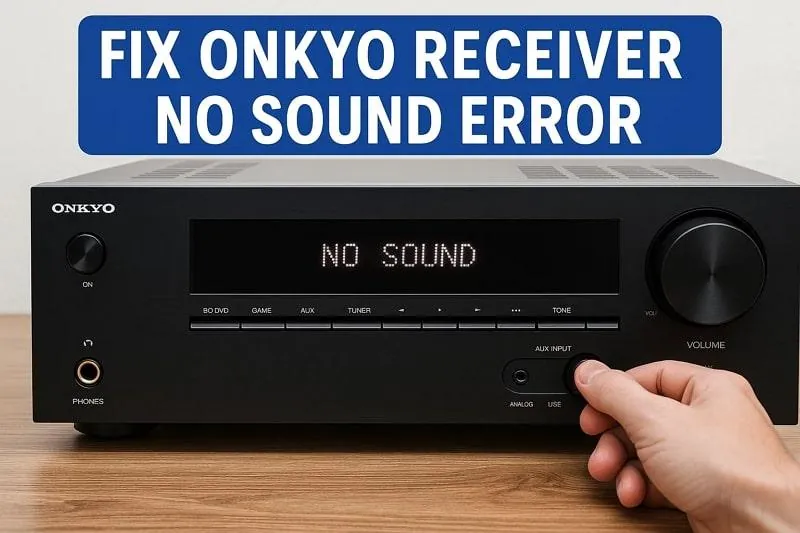
A factory reset is the best step if you have checked all physical connections but the unit still refuses to output audio. This procedure clears all software glitches and restores the factory defaults. Please note that this will erase your calibration settings, such as your Audyssey room correction data and your custom network preferences, so you’ll need to set those up again from scratch.
To perform this, locate the power button and the two “Zone” or “Tuner” buttons on the front panel. While the receiver is on, hold down the two specific buttons indicated in your owner’s manual while pressing the power button. The front display will usually flash, indicating that the unit is resetting to its original state. Once the process finishes, the receiver will restart as if it were brand new.
If the reset doesn’t bring the sound back, the internal digital-to-analog converter or the amplifier stage may have failed. This is a hardware limit that can’t be solved by software changes. If you still have no sound after a full reset, the unit requires professional service. Don’t attempt to repair internal circuit boards yourself, as this will void your warranty and could lead to electrical hazards.
Advanced signal troubleshooting
This method is for users who have multiple devices connected and need to isolate which one is causing the silence. If you have a DVD player, a game console, and a streaming box, test each one individually. Plug the device that’s currently failing into an HDMI port that you know works with another device. If the audio returns, the issue is with the device itself, not the receiver.
You should also check the audio output settings on your TV. Sometimes, the TV is set to send audio only through its internal speakers rather than through the HDMI ARC or eARC port to the receiver. Navigate to your TV’s “Sound” or “Audio” menu and look for an option labeled “Audio Output” or “Speaker Selection.” Set this to “External Speaker” or “Receiver” to ensure the audio signal is routed correctly through the HDMI cable.
Be aware that some legacy devices don’t send audio over HDMI. If you’re using an older cable box or a vintage gaming console, you might need to use a separate optical or RCA cable for audio. If your receiver settings are correct but you still have no audio from a specific device, consult that device’s manual to see if it requires a specific audio format setting, such as “Bitstream” or “PCM,” to communicate properly with the receiver.
Avoid these common mistakes
Increasing the volume to max: This won’t fix a connection issue and risks blowing out your speakers if the sound suddenly kicks back in. If you’re troubleshooting, keep the volume at a moderate level—typically around -30dB—to prevent sudden spikes from damaging your equipment.
Assuming the receiver is broken: Most audio issues are caused by configuration errors or loose cables, not by a total failure of the receiver hardware. Before seeking professional repair, perform a factory reset. If the receiver still fails to output sound after a reset, only then should you consider a hardware fault.
Ignoring the display messages: Always read what the front screen says. It often tells you exactly why no sound is playing, such as “Protection Mode.” If you see this, check your speaker wires for a short circuit immediately.
Swapping cables while powered on: Always turn off the power before moving cables. A spark caused by a loose wire can fry sensitive HDMI ports, costing you hundreds in repairs.
Prevent future audio issues
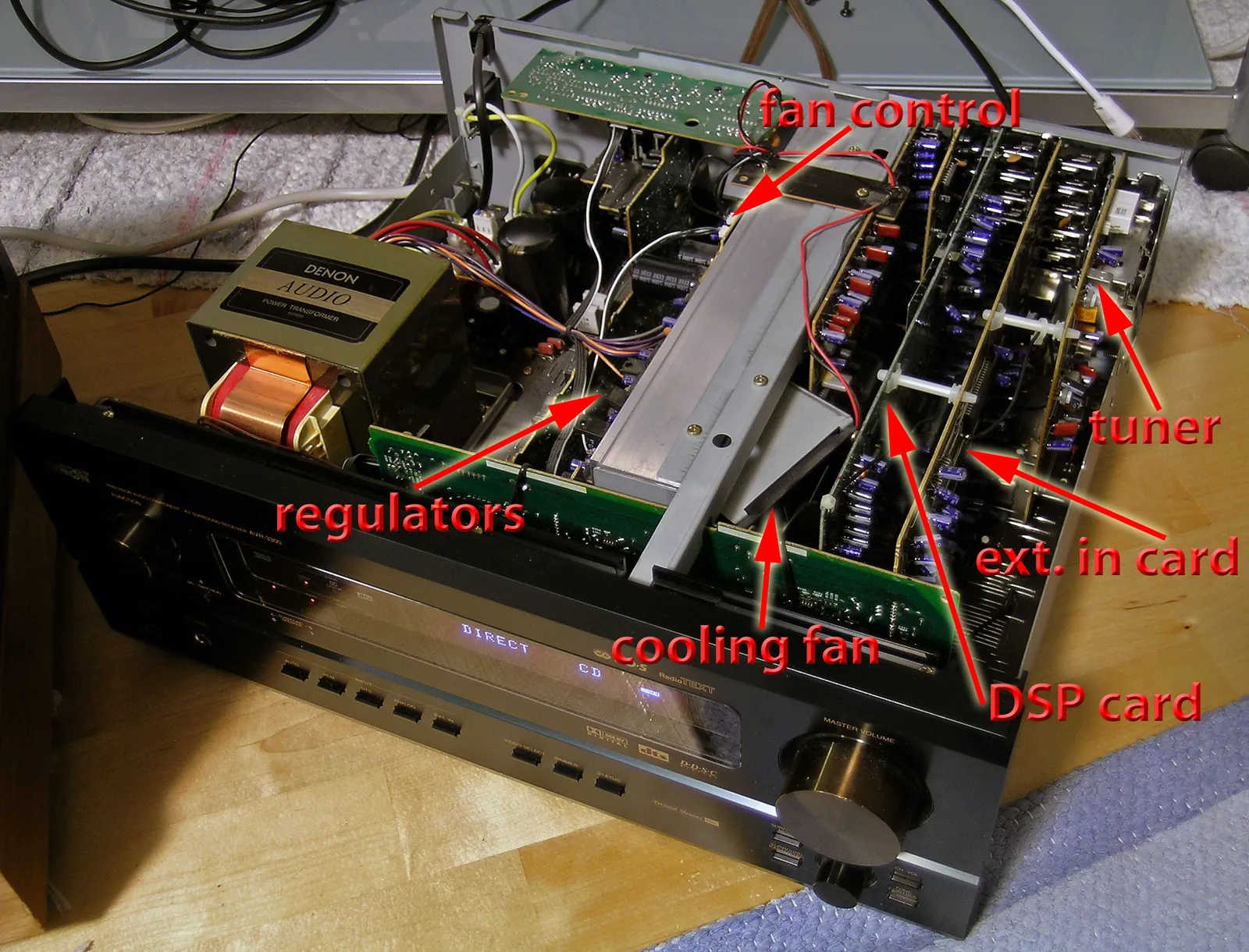
The best way to keep your sound consistent is to standardize your connection paths and keep your firmware updated. If your receiver is connected to the internet, it will occasionally prompt you for an update. These updates often fix communication bugs with modern TVs that cause audio dropouts.
| If you’re doing this | Do this instead | Why |
|---|---|---|
| Leaving wires loose | Use banana plugs | They provide a secure, permanent connection. |
| Using old HDMI cables | Use high-speed cables | Modern audio formats require higher bandwidth. |
| Plugging into any port | Label your input cables | Prevents selecting the wrong input source. |
| Ignoring software updates | Enable auto-updates | Keeps the receiver compatible with new TVs. |
Most users mistake a temporary glitch for a hardware failure. If you lose sound, toggle your TV’s HDMI-CEC setting before replacing expensive gear. This setting often resets the handshake between devices.
If your system uses a dedicated digital-to-analog converter, ensure the sample rate matches your source material. Mismatched rates cause audible popping or total silence. Use the 48kHz standard for video content to avoid these sync errors.
Finally, keep your power cables separated from your signal cables by at least six inches. Crossing them creates electromagnetic interference that manifests as a low-frequency hum. If you hear that hum, move the power cord to see if the noise vanishes instantly.
Frequently asked questions
Can I fix denon receiver troubleshooting no sound by unplugging it?
Unplugging the receiver for 60 seconds clears temporary memory errors by forcing a full system restart. This power cycle prompts the processor to re-scan all connected HDMI devices and resolve minor software hangs. Ensure you disconnect the power cord from the wall outlet to completely break the electrical connection.
Why is my denon receiver in protection mode?
Protection mode happens because the receiver detects a short circuit or an overheating issue. This is a safety feature designed to prevent permanent damage to the amplifier. Check your speaker wires immediately for any stray strands of copper touching other wires or the back of the unit. If the wires are clear and the unit still enters protection mode, it may have an internal fault that requires professional repair.
How long does a factory reset take?
A factory reset typically takes between 30 to 60 seconds to complete. The receiver will usually display a message like “Initializing” or “Resetting” on the front panel while it clears its memory. Once it finishes, the unit will turn off or return to its standby state. You’ll then need to run the initial setup wizard to reconfigure your speaker distances and input names for your specific room.
Is it safe to leave my receiver on all the time?
No, leaving your receiver on constantly can lead to overheating and premature component wear. Always turn the unit off when you aren’t actively using it to allow the internal fans or heat sinks to cool down. If you notice the receiver feels very hot to the touch during use, ensure there’s at least 6 inches of open space around the top and sides for proper ventilation.
What happens if I keep getting no sound?
If you have performed a factory reset, checked all cables, and verified your input settings with no success, the unit likely has a failed internal component. At this point, the problem is beyond a simple user fix. Contact the manufacturer or an authorized service center to discuss repair options. Continuing to use a receiver that’s in a failed state can lead to further damage to your speakers or other connected equipment.
How do I know if my speakers are the problem?
Test your speakers by connecting a known working device directly to them or by swapping the receiver channels. If a silent speaker remains quiet when moved to a functional port, the speaker itself is likely damaged. If the speaker works on another port, the issue lies with the receiver.
Conclusion
If these checks don’t bring your audio back, don’t worry. You shouldn’t hesitate to reach out to a local technician or Denon’s customer service team for extra help. They’ve seen it all and can guide you through more advanced settings. You’ll be back to enjoying your favorite music in no time.