Is your HDMI port giving you trouble right when you need it most? Whether your screen stays black, the sound cuts out, or your device won’t connect, these issues can be frustrating.
But don’t worry—you’re not alone, and fixing HDMI problems is easier than you think. You’ll discover simple, step-by-step solutions to get your HDMI port working perfectly again. Keep reading, and you’ll be back to enjoying your favorite shows, games, or presentations without a hitch.
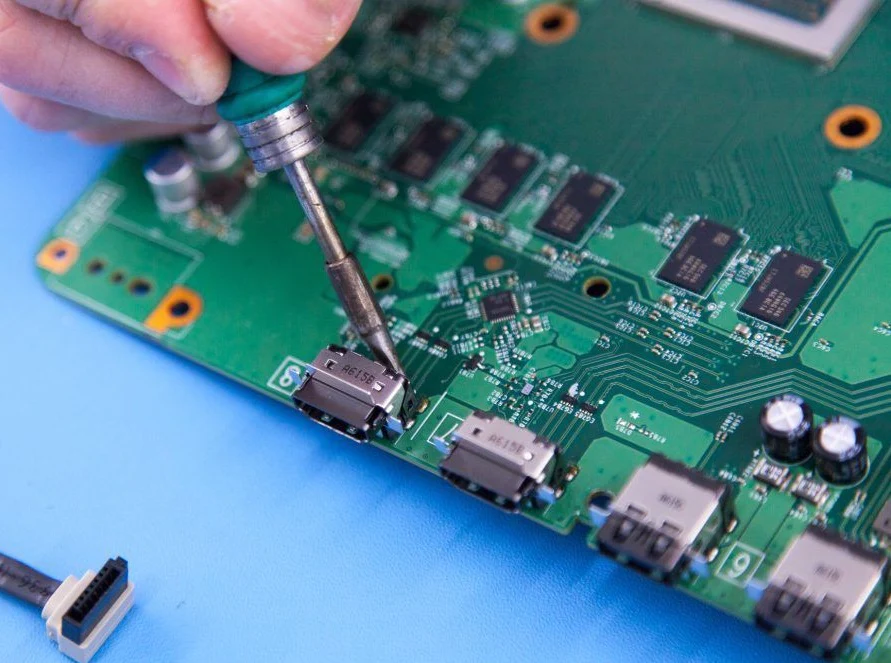
Common Hdmi Issues
HDMI ports connect devices to your TV or monitor. Problems with HDMI can stop your device from working right. Common HDMI issues cause frustration but are often easy to fix. Knowing these issues helps you solve them faster.
No Signal Detected
This issue happens when the TV or monitor shows “No Signal.” The HDMI cable might be loose or damaged. The device may not be set to the correct input. Check all connections and input settings first. A faulty HDMI port can also cause this problem.
Poor Picture Quality
Blurry or pixelated images often mean a bad HDMI connection. Low-quality or damaged cables reduce picture quality. Wrong resolution settings on your device can cause this too. Try replacing the cable or adjusting the resolution.
No Sound Output
Sometimes the picture works, but no sound comes from the speakers. The HDMI cable carries both video and audio signals. Check the audio output settings on your device. Make sure the TV or monitor volume is not muted or too low.
Intermittent Connection
The screen may flicker or go black randomly. This problem often comes from a loose or damaged HDMI cable. Moving the cable can cause the connection to drop. Try a different cable or port to see if the problem stops.
Basic Checks
Basic checks are the first step in fixing HDMI port problems. Many issues happen because of simple mistakes. Checking these basics can save time and avoid frustration. Start by looking at the HDMI cable, device compatibility, and input selection.
Inspecting The Hdmi Cable
Look closely at the HDMI cable for damage. Check for bent or broken pins inside the connectors. A damaged cable can cause poor or no signal. Try using a different HDMI cable to see if the problem goes away. Make sure the cable is fully plugged into both devices.
Verifying Device Compatibility
Not all devices work well together. Some older devices may not support newer HDMI versions. Check if your devices support the same HDMI standards. Look at the device manuals or online specifications. Using compatible devices ensures the signal passes correctly.
Ensuring Proper Input Selection
TVs and monitors often have multiple HDMI ports. Select the correct input source on your display. Use the remote or buttons on the device to switch HDMI inputs. Sometimes the device shows “No Signal” because the wrong input is active. Confirm the input matches the port you use.
Cable And Port Solutions
HDMI port problems often come from cable or port issues. Fixing these can restore your device’s connection quickly. Simple steps like testing cables, cleaning ports, and preventing damage help a lot.
These solutions save time and avoid extra costs. Understanding how to handle cables and ports improves your tech experience. Let’s explore easy ways to fix HDMI connection troubles.
Testing With A Different Cable
Start by trying another HDMI cable. The original cable might be broken inside. A new cable can tell if the problem is the cable or the port. Use a cable that you know works well. Connect it to your devices and check the picture and sound. No signal means the problem is not the cable. This step helps find the exact cause fast.
Cleaning Hdmi Ports
Dust and dirt can block HDMI ports. This can stop signals from passing through. Turn off your device before cleaning. Use a soft brush or a can of compressed air. Gently remove any dust or debris from the port. Avoid using sharp tools or liquids. After cleaning, reconnect the cable and test. Clean ports improve contact and signal quality.
Avoiding Cable Damage
HDMI cables break easily if bent or pulled hard. Keep cables straight and avoid tight bends. Use cable clips or ties to keep cables organized. Do not force cables into ports. Pull cables out by the plug, not the cord. Proper care extends cable life and keeps connections strong. Good habits prevent future HDMI problems.

Device Settings Adjustments
Adjusting your device settings can fix many HDMI port issues. Settings control how your device sends video and audio signals. Checking and changing these settings often solves connection problems. Focus on display settings, audio output, and device updates. Each area affects HDMI performance.
Configuring Display Settings
Set the correct screen resolution for your display. Wrong resolution may cause no signal or a blank screen. Choose the resolution that matches your TV or monitor. Change the refresh rate to match your display’s capability. Use the display settings menu on your device to make these changes.
Adjusting Audio Output
HDMI carries both video and audio signals. Audio must be set to output through HDMI. Check the sound settings on your device. Select HDMI as the default audio output device. This step ensures sound plays through your TV or speakers connected by HDMI.
Updating Firmware And Drivers
Outdated firmware or drivers can cause HDMI problems. Visit your device manufacturer’s website for updates. Install the latest firmware for your device. Update graphics and audio drivers to improve compatibility. Regular updates keep your device working smoothly with HDMI.
Advanced Fixes
Advanced fixes help solve HDMI port problems that basic steps cannot. These methods need careful attention and some technical skill. They can restore connection and improve signal quality when simpler fixes fail.
Try these advanced techniques to get your HDMI working again. Each step targets different causes of HDMI issues. Follow them to narrow down the problem and fix it effectively.
Resetting Devices
Resetting devices can clear errors and refresh connections. Turn off all devices connected by HDMI, including TVs and consoles. Unplug them from power for at least one minute. This step removes residual power and resets internal circuits.
Plug devices back in and turn them on one by one. Check if the HDMI signal is stable. This simple reset often fixes handshake problems between devices.
Using Hdmi Splitters And Switches
HDMI splitters and switches can cause signal issues if faulty or incompatible. Test the connection by removing these devices. Connect the source directly to the display with a single HDMI cable.
Use high-quality splitters or switches that support your resolution and refresh rate. Low-grade devices can degrade the signal or cause dropouts. Replace any suspect hardware to improve connection stability.
Checking Hdcp Compliance
HDCP is a security feature on HDMI devices to prevent piracy. Non-compliant devices may block video output. Verify that both source and display support the same HDCP version.
Older TVs or cables might not handle newer HDCP standards. Update device firmware or try different cables. Ensuring HDCP compliance solves many no-signal or black screen problems.

Preventive Tips
Preventive tips help keep your HDMI port working well. They reduce problems and save repair time. Following simple steps protects your devices and gives a smooth connection.
Small actions can stop big issues. Start with good habits. These steps make your HDMI port last longer and work better.
Proper Cable Management
Keep HDMI cables tidy and untangled. Avoid bending cables sharply. Use clips or ties to hold cables in place. This prevents damage to the cable and port. Do not pull cables forcefully when unplugging. Handle cables gently to protect the connectors.
Regular Device Maintenance
Clean HDMI ports carefully to remove dust and dirt. Use a soft brush or compressed air. Check cables and ports for signs of wear. Replace damaged cables immediately. Keep devices in a dry, cool place to avoid moisture damage.
Choosing Quality Accessories
Use HDMI cables and adapters from trusted brands. Cheap accessories may cause connection problems. Look for cables with good reviews and proper certifications. Higher quality products last longer and provide better signals. Avoid mixing different cable types or low-grade parts.
Frequently Asked Questions
What Causes Hdmi Port Not To Detect The Device?
HDMI ports may fail to detect devices due to loose connections or damaged cables. Check the cable and port for any visible damage. Also, ensure both devices are powered on and set to the correct input.
How To Fix Hdmi Port With No Signal Issue?
Try unplugging and reconnecting the HDMI cable firmly on both ends. Restart your devices and select the correct HDMI input source. Updating your device’s software can also help fix signal problems.
Why Is Hdmi Audio Not Working But Video Is?
Audio issues often happen due to incorrect audio settings or outdated drivers. Check your device’s sound settings and select HDMI as the output device. Updating your audio drivers can restore sound through HDMI.
Can A Faulty Hdmi Cable Cause Display Problems?
Yes, a damaged or low-quality HDMI cable can cause flickering or no display. Test with a different cable to rule out cable issues. Always use cables that support your device’s resolution and refresh rate.
How To Clean A Dirty Hdmi Port Safely?
Use a soft, dry brush or compressed air to remove dust gently. Avoid using liquids or sharp objects that can damage the port. Cleaning helps improve connection and reduce signal issues.
Conclusion
Troubleshooting HDMI ports can solve many common connection issues. Check cables and ports carefully for damage or dirt. Restart devices to refresh the connection. Try different HDMI cables or ports to find the problem. Keep your device drivers updated for smooth performance.
Small steps like these often fix the problem quickly. Don’t give up if it doesn’t work right away. Patience and testing each part help you find the fault. Clear images and sound will come back soon. Simple fixes save time and avoid extra costs.