
To fix your playback issues, you should perform disney plus troubleshooting by checking your internet connection speed and restarting your streaming device. The most common cause is a temporary network glitch that prevents the app from reaching Disney’s servers. If you’re experiencing a buffering screen or an error code, a power cycle of your modem and router often restores the connection instantly. Always confirm your device has the latest system update installed before trying more complex fixes.
Fixing Disney Plus connection issues
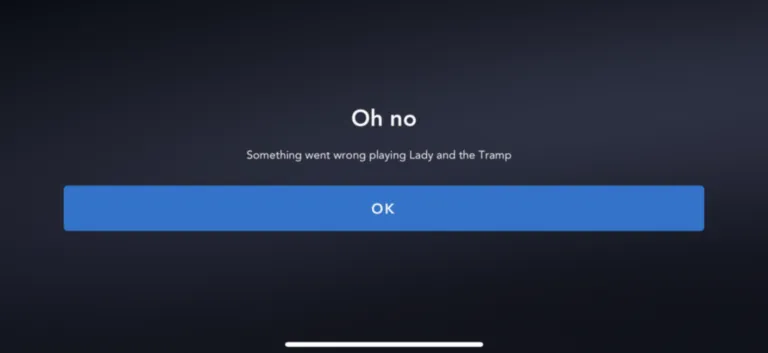
When your stream fails to load, the issue usually stems from a breakdown in communication between your home network and the content servers. A weak Wi-Fi signal is often the culprit, especially if other devices in your home are downloading large files or streaming high-definition video at the same time. If you see a spinning icon, your device is struggling to pull data fast enough to maintain the current stream quality.
Another frequent cause involves outdated application software. If the version of the app on your TV or tablet is behind, it may lose the ability to authenticate your account or process the stream properly. You can verify if your connection meets the recommended speeds for smooth playback by visiting the Disney Plus Help Center which outlines the specific bandwidth requirements for different video resolutions.
Finally, consider the status of the service itself. Sometimes the problem isn’t on your end, but a result of a server-side outage. If you’re using a VPN, turn it off, as these services can hide your location and trigger security blocks that stop the video from playing. If you have tried these basic steps and the app still fails to open, you should check your device’s storage capacity, as a full cache can prevent the app from launching new sessions.
Power cycle your streaming hardware
This fix is intended for users who see frozen screens, persistent error codes, or apps that refuse to launch on smart TVs and dedicated streaming boxes. A power cycle clears the temporary memory, or RAM, of your device, which is often where software errors hide. To do this, unplug your streaming device from the power outlet and wait for at least 60 seconds before plugging it back in.
If you’re using a smart TV, don’t just turn it off with the remote. You must pull the power plug from the wall to force the internal hardware to shut down completely. Once the device restarts, launch the app again. If the video starts playing normally, the issue was a simple software hiccup.
If the problem persists, check your device’s network settings to see if it’s connected to a 2.4GHz or 5GHz band. If you’re far from the router, the 2.4GHz band is usually more stable through walls. If you’re close, the 5GHz band offers faster speeds for 4K streaming. This isn’t for users with hardware damage; if your screen is physically cracked or the device power light doesn’t turn on, you need to contact the manufacturer for a repair.
Update the application software
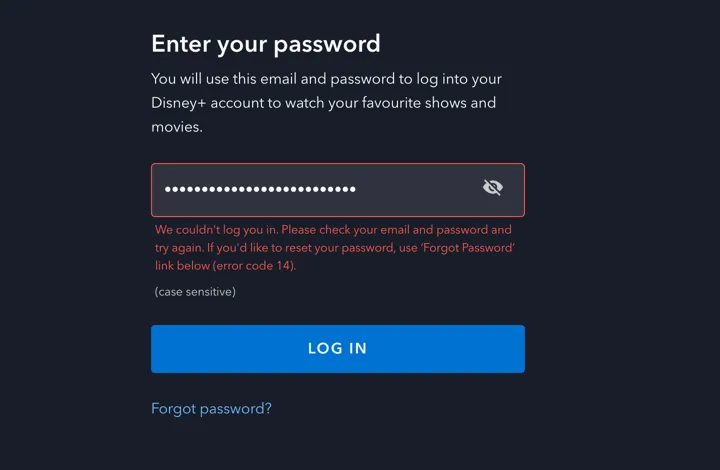
This process works best for users who can open the app but see glitches, missing menus, or poor image quality. Developers frequently release updates to fix bugs that cause compatibility issues with newer streaming standards. Go to your device’s app store or system settings menu and look for a section labeled “Updates” or “Manage Apps.”
Select the app and choose “Update” if a new version is available. After the update finishes, you should sign out of your account and sign back in. This forces the application to refresh your authentication token and clear any corrupted profile data. If you can’t find an update button, uninstalling the app and downloading a fresh copy is the most reliable way to get the latest version.
This fix isn’t for users who have no internet access at all. If your home network is down, updating the app will be impossible. If you’re unsure how to update your specific model of smart TV, check the user manual provided by your TV manufacturer. They often have dedicated support pages that explain how to navigate their specific operating system menus to find the software update section.
Clear the application cache
Clearing the cache is a more advanced step for users who experience persistent crashing or login loops that a simple restart didn’t fix. The cache stores small pieces of data to help the app load faster, but these files can become corrupted over time. Go to the “Settings” menu of your streaming device, find the “Apps” or “Applications” section, and locate the app in the list.
Select “Clear Cache” and “Clear Data” if your device allows it. Note that clearing the data will likely require you to sign in again with your email and password. This is a safe process that doesn’t delete your account or your watch history, as those are stored on Disney’s servers. It only removes the temporary files stored on your local hardware.
This step is worth the effort if you have tried restarting and updating but still see the same error code repeatedly. It isn’t helpful if your internet connection is the root cause. If you have a very slow connection, clearing the cache might make the first load of the app take slightly longer than usual, as it has to download all the interface images again from scratch.
Common troubleshooting mistakes
Deleting your account to fix errors: This rarely resolves technical glitches and triggers permanent data loss. You’ll lose your entire watch history, saved playlists, and personalized recommendations. Before taking this step, try clearing the app cache instead.
Assuming the internet is fine because other sites work: Streaming requires significantly higher, more consistent bandwidth than loading text-based websites. If your connection speed drops below 5 Mbps, high-definition video will buffer even if your email still syncs. Check your speed using a dedicated tool rather than relying on browser performance.
Using a VPN while troubleshooting: Many streaming platforms block VPN traffic to enforce regional licensing agreements. If your connection is routed through an external server, the app may trigger a security error. Always disable your VPN before diagnosing playback issues.
Ignoring device firmware updates: Outdated operating systems often lack the necessary drivers for modern app protocols. If your TV firmware is more than six months old, the app may fail to handshake with your hardware.
How to manage your stream quality
If you’re currently struggling with playback, you can compare your habits against these common practices to prevent future interruptions.
| If you’re doing this | Do this instead | Why |
|---|---|---|
| Using a wireless connection | Use an Ethernet cable | Cables provide a more stable, interference-free connection |
| Streaming in 4K on all devices | Limit 4K to one device | 4K requires significantly more bandwidth than HD |
| Leaving apps running in background | Close unused apps | Background apps consume memory and network bandwidth |
| Placing router in a cabinet | Move router to open space | Walls and metal cabinets block and degrade Wi-Fi signals |
Most users mistake signal strength for actual speed. A full Wi-Fi bar doesn’t guarantee the 25 Mbps required for a stable 4K stream. If your speed test shows under 20 Mbps, drop your resolution to 1080p immediately.
Check your router’s frequency settings next. If you live in a dense apartment complex, switch your device to the 5GHz band. The 2.4GHz band is often congested by microwaves and Bluetooth devices, leading to dropped frames.
Finally, prioritize your traffic. If you’re gaming while streaming, enable Quality of Service (QoS) settings in your router dashboard. This ensures your video packets take precedence over background downloads. If your buffer keeps filling, prioritize the stream over all other network tasks.
Frequently asked questions
Why does my stream keep buffering?
Buffering occurs when your device fails to receive data fast enough for smooth playback. This is typically caused by network congestion from too many devices sharing your connection. You may need to disconnect other devices or move your router closer to improve your signal.
Is it safe to clear my app cache?
Yes, clearing your application cache is safe and won’t affect your account or watch history. This action only removes temporary files used for faster loading. You’ll simply need to log in again once the process is complete.
How long does it take for a server outage to end?
Most service outages are resolved within 1 to 4 hours, depending on the severity of the technical problem. Disney maintains a central server network, and if there’s a widespread issue, their engineering teams usually fix it as quickly as possible. You can check third-party status websites or the official social media support channels for the company to see if other users are reporting the same issue in your region.
Can I use a public Wi-Fi network?
You can use public Wi-Fi, but these networks are often unstable and may have bandwidth limits. Public networks are frequently congested, which leads to buffering and lower video resolution. Expect a lower-quality experience compared to a private, high-speed home network.
What happens if I keep getting the same error code?
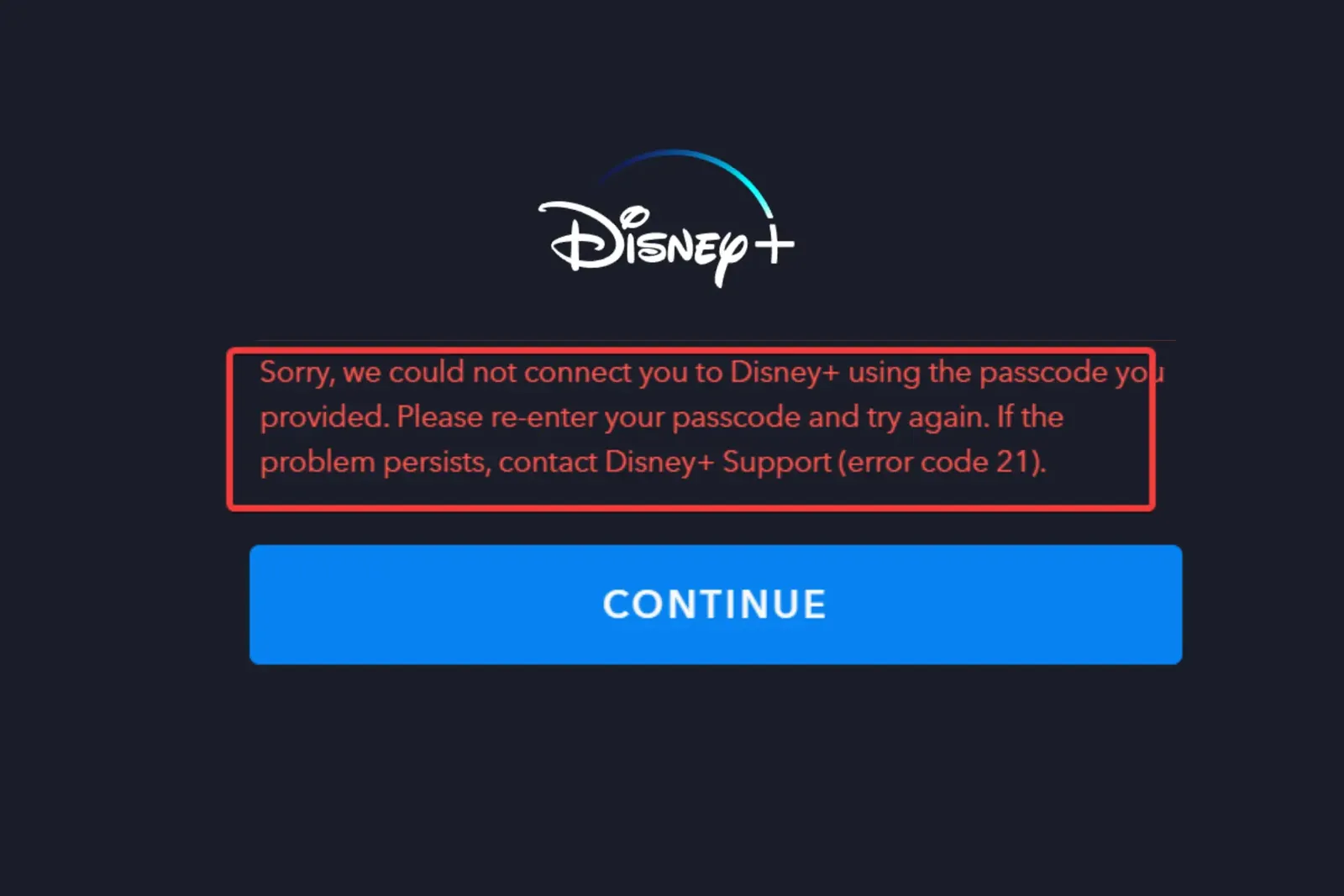
If you keep seeing the same error code after restarting your device and updating the app, you should note the specific code and contact customer support. Most error codes have a specific meaning, and support agents can tell you exactly which step to take next. If the code persists, it might indicate a deeper issue with your account credentials or a hardware incompatibility that a standard user can’t resolve on their own.
How many devices can I stream on at once?
You can typically stream on up to 4 supported devices simultaneously, depending on your subscription plan. If you exceed this limit, an error message will appear on the additional device. Check your account settings to manage and sign out of currently active devices.
Conclusion
If you have tried all the steps above and your service is still not working, you should contact the official support team for the platform. They can check your account status, verify if there’s a regional issue, or help you troubleshoot specific hardware conflicts that aren’t covered by standard self-help procedures.