You can resolve most signal issues by checking your cable connections and clearing obstructions, which is how dish tailgater troubleshooting often starts. The most common cause is a loose coaxial cable connection between the antenna and the receiver. If the system still fails to lock onto a satellite signal after you tighten these connections, you should ensure the antenna has a clear, unobstructed view of the southern sky. When these basic steps don’t work, you may need to perform a full system power cycle or reset the receiver.
Why your Dish Tailgater loses signal
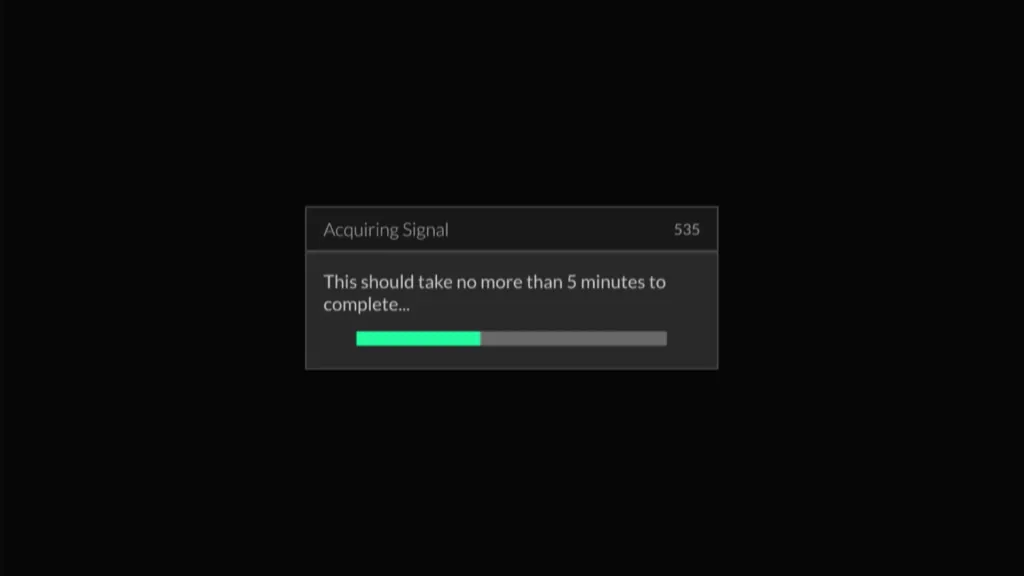
Signal loss usually happens because the antenna can’t see the satellite clearly or the data path is broken. Obstructions like tree branches, buildings, or heavy rain can block the signal path. Even a small leaf or a layer of snow on the antenna cover can interfere with reception. If you’re parked in a dense forest or near tall structures, the antenna will struggle to establish a connection.
Another frequent cause is the physical state of the coaxial cable. If the cable is bent sharply, crushed, or has corroded ends, it won’t carry the signal properly to the receiver. This is especially common if the cable is frequently coiled and uncoiled for travel. You should inspect the entire length of the cable for visible damage or signs of wear.
Finally, the receiver itself might be stuck in a software loop. If the unit has been powered on for a long time without a restart, it may stop recognizing the antenna input.
This assumes you’re using the standard factory-provided cable; if you’re using an aftermarket extension cable longer than 50 feet, the signal strength may drop below the threshold required for a stable lock. You can check the Dish official support portal to confirm the maximum recommended cable lengths for your specific antenna model.
Tighten all coaxial cable connections
This fix is for users who see a “Searching for Satellite” error message on their television screen. First, locate the coaxial cable running from the antenna to the power inserter and then to the receiver. Ensure every connection is tight by hand; don’t use pliers, as overtightening can damage the internal pins. Once all connections are secure, unplug the power cord of the receiver from the wall outlet for at least 60 seconds.
After the wait, plug the receiver back in and wait for the reboot process to complete. If the antenna is working, you’ll hear the internal motor moving as it scans for the satellite. If you hear the motor but the screen remains blank, check the input source on your TV remote to ensure it matches the port connected to your receiver.
This step is for the primary user; if you have a multi-receiver setup, you must ensure the primary receiver is the one connected to the antenna first. If you can’t reach the cables or the receiver is mounted in a locked cabinet, seek help from a professional RV technician to avoid damaging the wall plates or internal wiring.
Clear obstructions and reposition the antenna
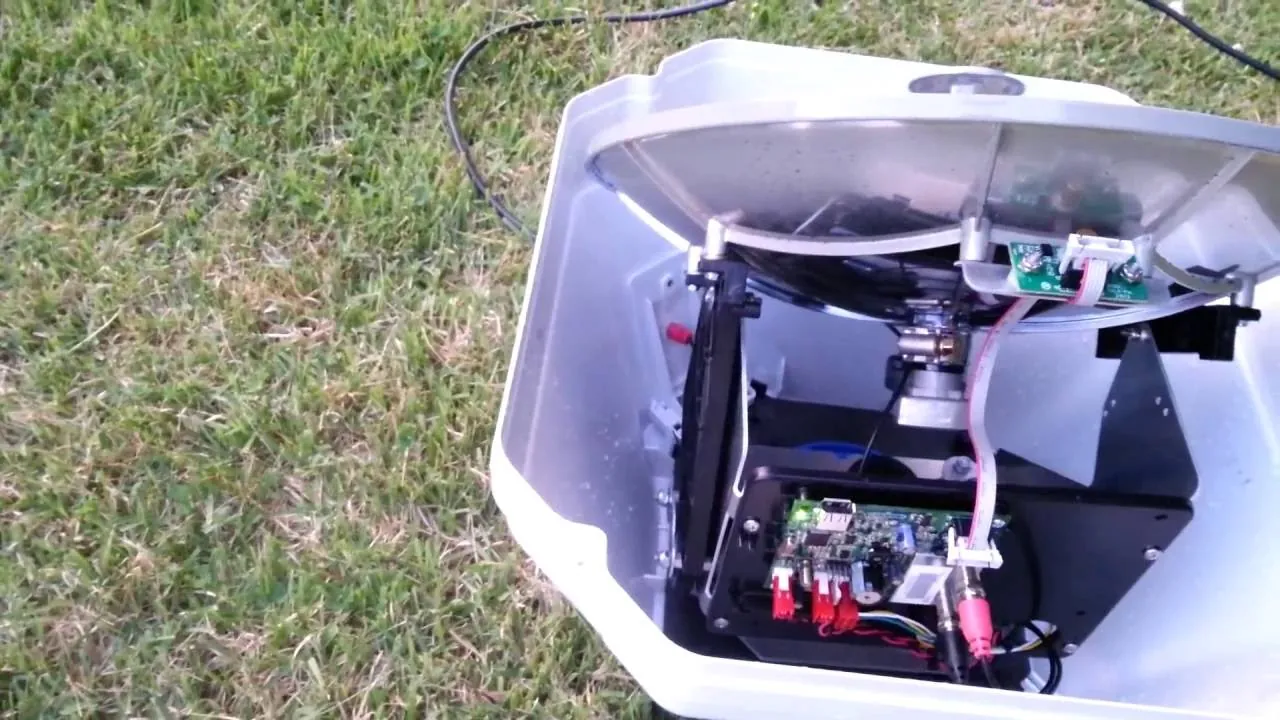
This fix is necessary if your antenna is in an open area but still fails to find the signal. The antenna requires a line-of-sight view of the southern sky to receive signals from the satellites. Move the antenna to a location where there are no trees, poles, or buildings blocking the path. If you’re in a location with heavy tree cover, even moving the antenna just 10 feet in any direction can make a significant difference.
Ensure the antenna is sitting on a flat, level surface. If the unit is tilted on an uneven rock or a slanted table, the internal leveling mechanism may fail to calibrate correctly. If you’re using a portable tripod, ensure it’s stable and not swaying in the wind.
This fix isn’t for users who are experiencing issues while the vehicle is in motion, as the antenna must be stationary to lock onto a signal. If you find that the antenna is physically damaged or the plastic shell is cracked, it’s time to contact the manufacturer, as internal components aren’t serviceable by the owner.
Reset the receiver software settings
Use this method when the antenna is clearly moving and the sky is open, but the receiver refuses to show a picture. First, navigate to the “Menu” on your TV screen using the Dish remote. Select “Settings” and then look for the “Diagnostics” or “Point Dish” screen. This screen displays the signal strength bars for your current location. If the bars are grey or empty, the receiver isn’t communicating with the antenna.
Perform a factory reset of the receiver settings through the system menu. This will clear temporary data that might be blocking the connection. If the receiver asks for a zip code, enter your current location accurately, as the satellite list depends on where you’re parked. If the system still reports zero signal, check the power inserter light.
If the light on the power inserter is off or blinking red, the unit isn’t getting enough power. In this case, verify that the power outlet you’re using provides a steady 120V of electricity. If you’re using a portable generator or an inverter, ensure it provides a pure sine wave, as modified sine waves can cause the receiver to malfunction or fail to boot entirely.
What to avoid when fixing signal issues
Don’t force the antenna to rotate by hand. This strips the internal nylon gears, causing permanent mechanical failure that requires a full motor replacement.
Avoid using splitters on the coaxial line. A single splitter can reduce signal strength by 3.5 decibels, which is often enough to prevent the receiver from sending the necessary power commands to the antenna.
Never attempt to open the antenna dome. The internal sensors are precision-calibrated in a clean-room environment; even a microscopic amount of dust or humidity will degrade sensor accuracy and eventually ruin the device.
Don’t assume the signal is perfect just because the weather is clear. If you experience intermittent drops, check the atmospheric pressure in your region. Distant storm fronts can refract satellite signals even when your local sky is blue. If the signal remains weak during clear weather, the issue is likely a misaligned dish rather than atmospheric interference.
How to maintain your satellite signal
You can improve your system reliability by checking the equipment status before every trip. This helps you identify small issues before they turn into complete signal loss when you’re miles away from home.
| If you’re doing this | Do this instead | Why |
|---|---|---|
| Leaving cables coiled | Lay cables flat or in large loops | Tight coils can cause internal wire breakage |
| Ignoring the dome | Clean the dome with mild soap | Dirt and sap block the signal path |
| Moving while powered | Turn off the receiver first | Sudden jolts can damage the internal motor |
| Using long extensions | Use the shortest cable possible | Longer cables reduce signal strength |
Most users fail to account for signal attenuation caused by cable degradation. If your cable run exceeds 50 feet, you must use high-grade RG-6 coaxial cabling to prevent significant data loss. If you notice intermittent pixelation, verify that your connectors are hand-tightened. A loose connection often allows moisture to corrode the copper core, which permanently degrades your signal quality.
If you’re parked near dense tree cover, a clear sky view isn’t enough. You need at least 15 degrees of clearance above the dish’s horizon line. If the signal remains weak despite a clear path, check the dish elevation motor for debris. A single twig caught in the gear track can prevent the dish from locking onto the satellite, costing you hours of troubleshooting time.
Frequently asked questions
Can I use a regular TV antenna cable for my dish?
No, you must use RG6 coaxial cable rated for satellite use. Regular cables often lack the shielding required to carry high-frequency satellite signals. If you’re unsure about your cable type, replace it with a new, certified RG6 cable to avoid signal drops.
How long does it take for the antenna to find the signal?
The antenna usually takes 5 to 15 minutes to lock onto the signal after power-on. This assumes a clear view of the sky and a pre-configured receiver. If it takes longer than 20 minutes, power-cycle the system to force a fresh scan.
Is it safe to leave the antenna out in the rain?
Yes, the antenna is weather-resistant and operates during rain or snow. Heavy precipitation can cause “rain fade” as water droplets absorb satellite waves. You must wait for the storm to pass, as this is a physical limitation of satellite technology.
Why does my signal drop when the wind blows?
Your signal drops because wind causes the antenna to vibrate, shifting its aim away from the satellite. Even slight movement can cause the receiver to lose its lock. Secure your tripod with sandbags or ensure your roof mount is tightened firmly.
What happens if I move the antenna while it’s scanning?
The antenna reports a “Signal Loss” error because it has lost its reference point during the scan. The internal software requires the base to remain perfectly still to calculate the satellite position. Restart the process by power-cycling the receiver if the unit is bumped.
How often should I update the receiver software?
You should check for software updates once every month if the receiver is plugged in. The device typically downloads these updates automatically while in standby mode. If the receiver stalls during an update, leave it connected to power for one hour to finish.
Conclusion
Properly maintaining your connections and ensuring a clear view of the sky resolves the vast majority of signal issues. If you have checked these items and the system still fails to operate, contact the Dish technical support line for a remote diagnostic test. They can see if your receiver is sending power to the antenna or if the antenna has suffered a hardware failure that requires professional repair or replacement.