Are you struggling with a blurry screen, no sound, or a blank display when using your HDMI cable? It can be frustrating when your devices won’t connect properly, especially when you just want to enjoy your favorite movie or get work done.
The good news is, many common HDMI issues are easier to fix than you think. In this guide, you’ll discover simple steps to troubleshoot your HDMI cable problems quickly and confidently. Keep reading, and you’ll be back to a clear, sharp picture and perfect sound in no time.
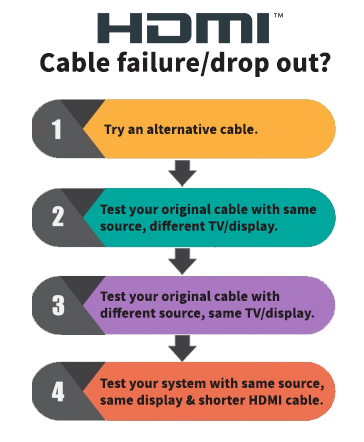
Common Hdmi Issues
HDMI cables connect many devices like TVs, monitors, and gaming consoles. Despite their popularity, they can have common problems. These issues affect picture and sound quality. Understanding these problems helps fix them quickly. This section covers frequent HDMI issues and their symptoms.
No Signal Detected
This happens when the TV or monitor shows “No Signal.” The cable may be loose or not plugged in properly. The device might be off or set to the wrong input source. Sometimes, a faulty HDMI cable causes this issue.
Flickering Or Intermittent Signal
The screen may flicker or go blank for a few seconds. This can be due to a bad connection or a damaged cable. Electrical interference or outdated device firmware can also cause signal drops.
Poor Picture Quality
Blurry or pixelated images often mean a weak HDMI connection. The cable may not support high resolution or could be damaged. Using a longer cable without a signal booster can reduce quality.
No Audio Output
Sometimes, the picture works but no sound comes from the speakers. The HDMI cable may not carry audio, or the device settings may mute sound. Checking audio settings and using a good cable can solve this.

Basic Troubleshooting Steps
Basic troubleshooting steps help fix HDMI cable issues fast. These steps cover common problems with simple fixes. Follow each step carefully to find the cause. Most HDMI problems come from loose connections or damaged cables.
Check Cable Connections
First, check if the HDMI cable is plugged in tightly. Loose connections cause no signal or bad picture. Unplug the cable and plug it back in firmly. Check both ends: the TV and the device. Make sure the ports are clean and free of dust.
Test With Different Hdmi Ports
Try connecting the cable to another HDMI port on the TV. Sometimes, one port may stop working properly. Switching ports helps identify if the problem is the port or cable. Change the input source on your TV to the new port.
Restart Devices
Turn off your TV and the connected device. Unplug them from power for about 30 seconds. Plug them back in and turn them on. Restarting refreshes the hardware and often fixes minor glitches.
Use A Different Hdmi Cable
Swap the current HDMI cable with a different one. Faulty cables cause no signal or flickering screens. Using a new cable checks if the problem lies in the wire. Choose a cable that matches your device’s HDMI version.
Advanced Fixes
Advanced fixes can solve many HDMI cable problems. These methods go beyond simple checks. They help when basic steps do not work. Follow these tips to improve your HDMI connection.
Update Firmware And Drivers
Devices use firmware and drivers to communicate. Outdated software can cause HDMI issues. Check the device manufacturer’s website. Download and install the latest updates. This improves compatibility and fixes bugs.
Adjust Display Settings
Wrong display settings block the HDMI signal. Open your device’s display options. Change the resolution to match the screen. Set the correct input source on the TV. These tweaks can restore the image and sound.
Reset Hdmi Devices
Resetting clears temporary errors. Turn off all connected devices. Unplug the HDMI cable from all ports. Wait for a few minutes. Plug everything back and turn devices on. This simple step often restores HDMI function.
Use Hdmi Signal Boosters
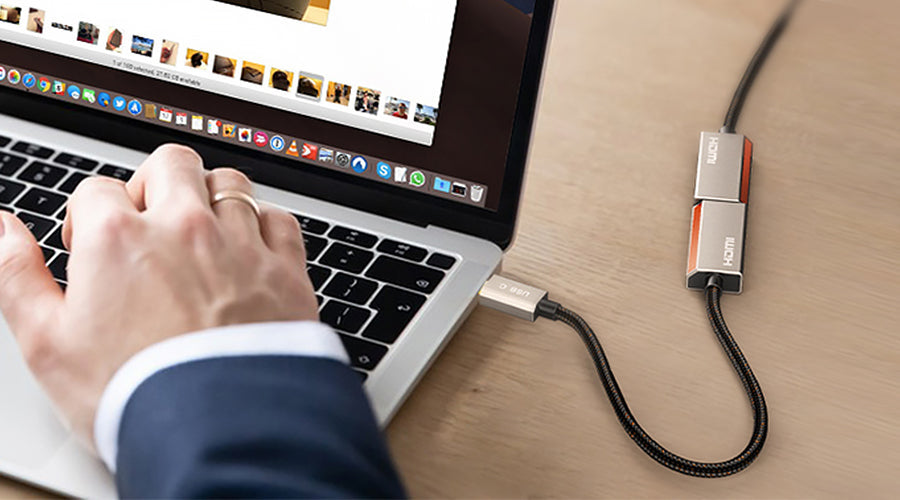
Long or low-quality cables reduce signal strength. Signal boosters help send a clear signal. Connect the booster between the cable and device. This extends the cable range without losing quality. A useful fix for distant devices.
Preventing Future Hdmi Problems
Preventing future HDMI problems saves time and frustration. Taking simple steps helps keep your connections strong and clear. Regular care and smart choices improve your HDMI experience.
Choose Quality Cables
Cheap cables often cause signal loss and connection issues. Invest in well-made HDMI cables with good reviews. Quality cables last longer and support higher resolutions better.
Avoid Excessive Cable Lengths
Long cables weaken the signal and cause flickering or no picture. Use the shortest cable length needed for your setup. If a long cable is necessary, choose one designed for extended distances.
Proper Cable Handling
Pulling or bending cables can damage wires inside. Always unplug by holding the connector, not the cable. Store cables coiled loosely and avoid tight loops or sharp bends.
Keep Firmware Updated
Devices with HDMI ports use software to manage connections. Check for updates on your TV, monitor, or receiver regularly. Updated firmware fixes bugs and improves HDMI compatibility.
Frequently Asked Questions
Why Is My Hdmi Cable Not Showing Any Signal?
Check if both devices are powered on and set to the correct input. A loose connection or damaged cable can cause no signal issues.
How Can I Fix A Flickering Hdmi Screen?
A flickering screen may result from a bad cable or loose connection. Try replacing the HDMI cable or reseating it firmly.
What To Do If Hdmi Audio Is Not Working?
Ensure your device’s audio output is set to HDMI in the settings. Also, check the cable and device compatibility for audio support.
Why Does My Hdmi Picture Look Blurry Or Pixelated?
Blurry or pixelated images often happen with low-quality cables or wrong resolution settings. Use a high-speed HDMI cable and adjust your device’s display resolution.
How Can I Test If My Hdmi Cable Is Faulty?
Try the HDMI cable with another device or TV. If the problem persists, the cable is likely faulty and should be replaced.
Conclusion
Troubleshooting HDMI cables can be simple with the right steps. Check connections carefully and test different cables. Clean ports gently to avoid dirt or dust issues. Restart devices to refresh the connection. Replace the cable if problems continue. Small fixes often solve common HDMI problems quickly.
Staying patient helps find the cause without stress. Use these tips to enjoy clear and smooth video signals. Keep your setup working well with regular checks and care. Easy fixes save time and avoid frustration.