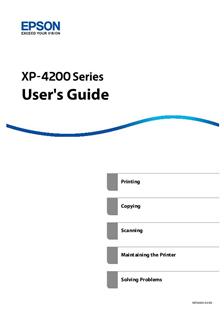
Is your Epson XP 4200 acting up when you need it most? Frustrating printer problems can slow you down and waste your time.
But don’t worry—this guide is here to help you fix those issues quickly and easily. Whether your printer won’t print, is showing error messages, or has connection troubles, you’ll find simple steps to get it working again. Keep reading, and you’ll be back to printing smoothly in no time.
Printer Not Responding
The Epson XP 4200 printer may sometimes stop responding. This issue can be frustrating, especially during important tasks. Simple steps can often fix this problem quickly. Follow these easy tips to get your printer working again.
Check Power And Connections
First, check if the printer is properly plugged in. Ensure the power cable is secure and the outlet works. Look at the USB or Wi-Fi connection between your printer and computer. Loose or broken cables can stop communication. Make sure the printer is turned on and shows no error lights.
Restarting The Printer
Turn off the printer and wait for 30 seconds. This pause helps clear temporary errors. Turn the printer back on and watch for normal startup sounds. Restarting refreshes the printer’s system and can restore its response. Try printing a test page to see if it works.
Resetting The Printer
If restarting does not help, try resetting the printer. Press and hold the reset button, or use the menu settings to find reset options. Resetting clears any stuck commands or glitches. After reset, reconnect the printer to your device and test it. This step often solves deeper software issues.
Paper Jams
Paper jams are a common problem with the Epson XP 4200 printer. They stop your printing and cause frustration. Understanding how to clear jams and avoid them helps keep your printer working smoothly.
Removing Jammed Paper
Turn off the printer before handling jammed paper. Open the printer cover carefully. Gently pull the stuck paper out in the direction of the paper path. Avoid tearing the paper inside the printer. Check for small bits of torn paper. Remove any scraps to prevent future jams. Close the cover and turn the printer back on. Try printing a test page to confirm the jam is cleared.
Preventing Future Jams
Keep the printer clean and free of dust. Store paper in a dry and flat place. Fan the paper stack before loading it. Do not overload the paper tray. Align the paper guides properly with the paper size. Avoid using wrinkled or folded paper. Regular maintenance helps the printer feed paper smoothly.
Using Correct Paper Types
Use paper that fits the Epson XP 4200 specifications. Check the printer manual for recommended paper types. Avoid thick or glossy paper not supported by the printer. Use plain, inkjet, or photo paper as advised. Incorrect paper can cause jams and damage the printer. Always load paper with the print side facing down. Proper paper choice improves print quality and reduces issues.
Print Quality Problems
Print quality problems can be frustrating. Blurry images, streaks, and faded colors reduce the value of your documents and photos. These issues often come from common printer faults.
Fixing print quality problems on the Epson XP 4200 is simple. Basic maintenance can restore sharp, clear prints quickly. Follow these steps to improve your printer’s output.
Cleaning The Print Head
Print heads can clog with dried ink. This causes streaks or missing lines in prints. Use the printer’s cleaning function to fix this.
Access the cleaning option in the printer menu. Run the cleaning cycle once or twice. Avoid overusing it, as it wastes ink.
After cleaning, print a test page. Check if the print quality improves. Repeat if needed but stop if no change occurs.
Aligning The Print Head
Misaligned print heads create blurry or doubled images. The Epson XP 4200 offers a tool to align the print head properly.
Find the alignment option in the printer’s settings. Follow on-screen instructions carefully. The printer will print alignment pages to guide the process.
Proper alignment ensures all colors and lines print clearly. This step is important after replacing ink cartridges or moving the printer.
Replacing Ink Cartridges
Low or old ink cartridges cause faded prints and color issues. Check the ink levels on the printer display or software.
Replace cartridges that are empty or very low. Use genuine Epson cartridges for best results. Install them carefully to avoid damage.
After replacing, run a print head cleaning and alignment. This keeps the printer in good condition and improves print quality.

Connectivity Issues
Connectivity issues with the Epson XP 4200 printer can disrupt your printing tasks. These problems often cause delays and frustration. Understanding how to fix these issues helps you print smoothly. This section covers common connectivity troubles and easy solutions.
Wi-fi Setup Troubleshooting
Check if the printer is connected to the correct Wi-Fi network. Use the printer’s control panel to verify the network name. Restart your router and printer to refresh the connection. Avoid placing the printer too far from the router. Make sure your Wi-Fi password is correct. Update the printer’s firmware for better compatibility.
Usb Connection Tips
Use a high-quality USB cable to avoid connection drops. Connect the USB cable directly to your computer, not through a hub. Try a different USB port if the printer is not detected. Restart both your computer and printer after connecting. Ensure drivers are installed and updated on your computer. Avoid using very long cables.
Network Reset Procedures
Resetting the network settings can fix many connectivity issues. Go to the printer’s settings menu and find the network reset option. Confirm the reset to clear old network data. After reset, set up your Wi-Fi connection again. This helps clear incorrect settings and refreshes the network. Keep your Wi-Fi credentials ready for reconfiguration.
Error Messages
Error messages on the Epson XP 4200 can stop your printing work. They show up on the screen or the printer’s lights blink. These messages help you know what is wrong. Understanding these codes saves time and avoids frustration.
Some errors are simple and easy to fix. Others may need more attention. This section explains the most common error messages. It also gives clear steps to fix them. Follow these tips to get your printer working fast again.
Interpreting Common Codes
The Epson XP 4200 uses codes to explain errors. For example, “E-01” means a paper jam. “E-02” shows an ink cartridge issue. Learn these codes to know the problem fast. The printer manual lists all error codes and meanings. Keep it handy for quick checks.
Watch the printer lights too. Different blinking patterns show different problems. One blink means a small issue. Three blinks warn of a serious error. Note these signals to act quickly.
Resolving Paper Feed Errors
Paper feed errors happen when the printer cannot pull paper inside. First, open the paper tray. Check if paper is stuck or bent. Remove any jammed sheets carefully. Use a flashlight to see inside the printer. Clear all bits of paper.
Reload the paper stack neatly. Make sure the paper guides fit snugly. Do not overfill the tray. Close the tray firmly and try printing again. If the error persists, clean the paper rollers with a soft cloth.
Clearing Ink Cartridge Errors
Ink cartridge errors occur if cartridges are empty or not installed right. Open the printer cover and check cartridges. Remove them gently and inspect for damage. Reinsert them until they click in place. Replace any empty cartridges with new ones.
Clean the cartridge contacts with a dry cloth. Avoid touching the nozzles. After cleaning, close the cover and restart the printer. This usually clears the error. If not, check for blocked nozzles or use the printer’s cleaning function.
Software And Driver Problems
Software and driver problems often cause Epson XP 4200 printer issues. These problems stop the printer from working correctly. Printer drivers connect your computer and printer. If drivers are outdated or corrupted, printing errors occur. The right software keeps the printer running smoothly.
Fixing these problems is simple. It involves updating, reinstalling, and checking compatibility of the software. These steps can solve most software-related errors fast.
Updating Printer Drivers
Old drivers cause many printer errors. Updating the driver can fix bugs and add new features. Visit Epson’s official website to find the latest driver. Download the version that matches your computer’s system. Install it by following the on-screen instructions. Restart your computer after installation. This refresh helps the printer work better.
Reinstalling Printer Software
Sometimes the software files get damaged or lost. Reinstalling the printer software can restore these files. First, uninstall the current printer software from your computer. Use the Control Panel or Settings app. Next, download the latest software from Epson’s site. Install it carefully and restart the computer. This process often fixes deeper software problems.
Compatibility Checks
Software must match your computer’s operating system. Check if your Epson XP 4200 drivers support your OS version. Using incompatible software causes errors or the printer not to work. Look for the OS details in your computer settings. Confirm that Epson’s software supports this OS. If not, find a compatible driver or update your computer system.
Maintenance Tips
Maintaining the Epson XP 4200 keeps it running smoothly and extends its life. Simple steps can prevent many common issues. Regular care avoids print errors and poor quality prints.
Regular Cleaning Routine
Clean the printer often to remove dust and ink build-up. Use a soft, dry cloth for the outside. For inside parts, follow the printer’s manual instructions. Clean the print head to avoid smudges and streaks. Keep the scanner glass free of dirt for clear copies.
Replacing Consumables
Check ink levels regularly. Replace cartridges before they run out to avoid damage. Use genuine Epson cartridges for best results. Also, replace the paper and ink pads when needed. This keeps the printer working without errors.
Firmware Updates
Update the printer firmware to fix bugs and add features. Visit Epson’s official website to download updates. Install updates carefully by following on-screen instructions. Firmware updates improve performance and fix known problems.

Frequently Asked Questions
How To Fix Epson Xp 4200 Paper Jam Issues?
Turn off the printer and gently remove stuck paper. Check the paper path and reload paper correctly. Avoid overfilling the tray to prevent jams.
Why Is Epson Xp 4200 Not Printing In Color?
Check ink levels and replace empty cartridges. Ensure color printing is enabled in printer settings. Clean the printhead if colors look faded.
How To Reset Epson Xp 4200 Printer Error Messages?
Turn off the printer and unplug it for 5 minutes. Plug it back in and turn it on. This often clears minor error codes.
What To Do If Epson Xp 4200 Won’t Connect To Wi-fi?
Restart your router and printer to refresh the connection. Verify the Wi-Fi password is correct. Use the printer’s control panel to reconnect.
How To Clean The Printhead On Epson Xp 4200?
Use the printer’s maintenance menu to run printhead cleaning. Repeat if print quality doesn’t improve. Avoid manual cleaning to prevent damage.
Conclusion
Troubleshooting the Epson XP 4200 can be simple with clear steps. Follow each fix carefully and take your time. Small issues often have quick solutions at hand. Keep your printer clean and update its software regularly. Stay calm and patient during the process.
This helps avoid mistakes and saves time. With practice, handling problems becomes easier. Your Epson XP 4200 can work well again soon. Keep this guide nearby for future help.