You can fix your display issues by checking your cable connections and updating your computer’s graphics drivers, as dual monitor troubleshooting usually points to a simple hardware or software conflict. The most common cause is a loose video cable or a driver that isn’t communicating correctly with your operating system. Most modern computers identify a second screen automatically, but a failure to detect it often stems from a setting that needs a manual refresh or a faulty port.
Troubleshoot dual monitor connection issues
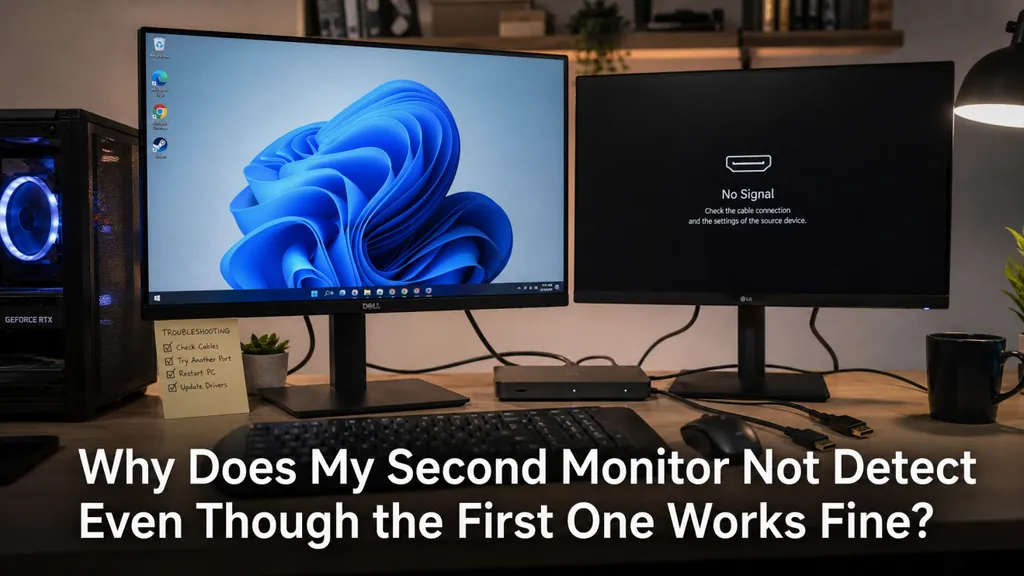
The primary reason for a screen failing to show an image is a physical connection that has become loose or damaged. Video signals require a secure path from the graphics card to the monitor, and even a slight movement can break this link. If you’re using an adapter or a docking station, these devices often fail before the cable itself, causing the computer to lose sight of the second screen entirely.
Software settings represent the second most frequent cause of connection issues. Your computer might be set to “PC screen only” mode, which ignores any extra monitors connected to the system. You can check your display settings in the Windows display support guidelines to see if your system is correctly configured to extend or duplicate your desktop. If the operating system doesn’t see the screen, it can’t send a signal to it.
Finally, outdated or corrupted graphics drivers can prevent the computer from managing multiple outputs. When the driver software doesn’t match the hardware capabilities, the system may default to a single-monitor state to remain stable. If you have recently updated your operating system, the old driver might no longer be compatible with the new version, leading to a blank screen on your secondary monitor.
Safety: Inside a mains-powered machine, the parts behind the outer cover can hold a dangerous electrical charge even after it has been unplugged — that’s why they sit behind a cover. Opening the housing, or testing or replacing anything behind it, is a job for a qualified technician, never a home repair.
Check your physical video connections
If you’re struggling to get a signal, start by inspecting every point of contact between your computer and the monitors. Turn off both the computer and the displays before you pull any cables out of their ports. A loose connection often looks secure but may have shifted just enough to break the signal. Push each cable firmly into its port until you feel a solid click or see that it’s flush against the device.
If you use a docking station or a USB-C hub, remove it and connect the monitor directly to your computer if possible. This helps you determine if the hub is the source of the failure. If the screen wakes up when plugged directly into the PC, you know the hub is likely damaged or underpowered.
Check for bent pins on older cables like VGA or DVI, as these can’t be fixed and require a new cable. For HDMI or DisplayPort cables, look for fraying or sharp bends that might have broken the internal wiring. If you have an extra cable that you know works, swap it out to rule out a faulty cord.
If the monitor doesn’t turn on even with a known good cable, the issue is likely with the monitor’s internal power supply. This is a common point of failure for older hardware, and you should contact the manufacturer for repair options rather than opening the unit yourself.
Update your display driver settings
When the physical connections are solid, the issue is likely buried in your software. You need to ensure your computer knows that a second monitor is present by forcing a hardware scan. On most Windows systems, you can open your display settings, scroll down to the “Multiple displays” section, and click the “Detect” button. This tells the operating system to look for any new devices connected to the graphics card.
If the system still doesn’t find the screen, you should update the graphics driver. Visit the website of your graphics card manufacturer—such as NVIDIA, AMD, or Intel—and download the latest version for your specific model. Avoid using third-party driver update tools, as these can sometimes install incorrect or unstable software that makes your display issues worse.
If you’re using a laptop, check if there’s a function key—usually labeled with a monitor icon—that toggles external displays. Pressing this key while holding the “Fn” button can manually switch the output mode. This is a common fix for users who accidentally disabled their external output during a meeting or presentation.
If you continue to see a blank screen after an update, the graphics card might have a hardware limitation on how many displays it can support at once. You can verify your card’s maximum display count in your system’s device manager or the manufacturer’s technical specifications.
Adjust your screen resolution settings
Sometimes the monitor is detected, but it sends a signal that your computer can’t display properly. This happens when the resolution or refresh rate is set higher than what the monitor or the cable can handle. Lowering the resolution in your display settings can often bring a “black screen” monitor back to life. If the picture appears but looks stretched or blurry, adjusting the scale and layout settings to the manufacturer’s recommended percentage will usually fix the clarity.
This fix is ideal if you can see a mouse cursor on the second screen but nothing else. If you’re using a high-resolution monitor, check if your cable is rated for that speed; an older HDMI cable might not carry enough data for a 4K display. If you have a professional graphics card, you might also need to use the dedicated control panel software provided by the card maker to enable “Surround” or “Eyefinity” modes for multi-monitor setups.
Be aware that using different brands or sizes of monitors can cause software conflicts. If you have one 4K monitor and one 1080p monitor, the computer may struggle to manage the different pixel densities.
If you can’t get them to work together, try unplugging the secondary monitor and setting the primary one to a lower, compatible resolution before reconnecting the second screen. If you still have trouble, it’s time to consult a professional computer technician to check for a failing graphics card.
Avoid these common troubleshooting mistakes
- Don’t try to open your monitor housing to fix internal components, as this creates a high risk of electrical shock.
- Avoid using cheap, unbranded adapters, because they rarely provide enough power to maintain a stable connection to a second screen.
- Don’t force a cable into a port if it doesn’t fit, as you might permanently damage the delicate pins inside.
- Stop changing complex registry settings in your operating system, since this can cause system-wide instability that’s very difficult to reverse.
How to stop it happening again
Maintaining a stable dual-monitor setup requires keeping your hardware and software in good condition. The most important step is to keep your cables organized so they don’t pull on the ports, which prevents the internal connection pins from wearing out over time.
| If you’re doing this | Do this instead | Why |
|---|---|---|
| Leaving cables hanging | Use cable clips | Prevents gravity from pulling ports loose |
| Using old, thin cables | Use high-speed rated cables | Ensures enough data flows for clear images |
| Ignoring driver updates | Update as needed | Keeps software compatible with your hardware |
| Forcing connections | Check the port shape | Prevents permanent damage to the hardware |
| Leaving monitors on 24/7 | Use sleep mode settings | Extends the lifespan of the screen backlight |
Frequently asked questions
Can a bad power cable cause a monitor to not be detected?
Yes, a faulty power cable or wall outlet can prevent your monitor from turning on. Check that the cable is firmly connected to both the wall and the screen. If the issue persists, try using a different power cord to rule out a cable failure.
How long should a monitor cable last?
A high-quality video cable can last for many years if it isn’t moved or bent frequently. If you notice the image flickering when you wiggle the wire, the internal shielding has likely broken and the cable should be replaced immediately. Cables that stay in a fixed position behind a desk rarely fail unless they’re crushed by furniture or damaged by high heat from a nearby radiator or vent.
Is it safe to use a docking station for two monitors?
Yes, it’s safe to use a docking station if it meets your computer’s power and data requirements. If your monitors cut out, the dock may lack sufficient power from its adapter. Always use the original power supply to ensure stable connections and prevent potential hardware damage.
Why does my second monitor turn off when I open a game?
Your graphics card may be hitting its limit, or the game is trying to force a refresh rate that your second monitor can’t support. Many games default to “exclusive fullscreen” mode, which can sometimes disable secondary displays to focus all resources on the primary screen. Try changing the game settings to “borderless windowed” mode, which allows the operating system to keep managing both monitors while you play your game.
How do I know if my graphics card is broken?
If you have tested different cables and updated your drivers without success, your graphics card port may be faulty. A failing card often displays artifacts like flickering pixels or strange lines before failing completely. If your monitors work on another computer, consult a professional to verify if your card needs replacement.
What happens if I use the wrong driver version?
Using the wrong driver version can cause your system to crash, display the “blue screen of death,” or simply fail to recognize your hardware. Your computer relies on these drivers to translate commands from your software into images on your screen. If the language of the driver doesn’t match your specific graphics hardware, the monitor will remain blank because it isn’t receiving any usable instructions from the computer.
Conclusion
Always verify your hardware specifications before installing new software to avoid these compatibility issues. If you have already installed the wrong driver, you can usually fix this by booting your computer into safe mode and uninstalling the driver through the device manager. Once removed, restart your computer and let the operating system install the generic, stable version of the driver, then visit the official manufacturer website for the correct update.