Is your Spectrum router acting up and slowing down your connection? You’re not alone, and the good news is that most issues are easier to fix than you might think.
Whether your Wi-Fi keeps dropping or your internet speed isn’t what it should be, this guide will help you get back online quickly. By the end of this article, you’ll have simple, clear steps to troubleshoot your Spectrum router like a pro.
Ready to take control of your internet again? Let’s dive in.
Common Router Issues
Router problems can disrupt your internet use and cause frustration. Knowing common router issues helps you fix problems faster. These issues often affect your connection quality and speed. Understanding these problems makes troubleshooting easier and less stressful.
Connection Drops
Connection drops happen when your internet cuts out suddenly. This issue may occur due to weak Wi-Fi signals or interference. Sometimes, outdated router firmware causes frequent disconnections. Restarting the router often restores the connection temporarily.
Slow Internet Speeds
Slow internet speeds reduce your browsing and streaming quality. This problem may result from too many devices using the network. Router settings or outdated hardware can also cause slow speeds. Checking your router’s placement can improve speed significantly.
No Internet Access
No internet access means your device connects to the router but not online. This issue might occur due to ISP outages or incorrect router settings. Restarting the router or resetting network settings often solves the problem. Verifying cables and connections helps as well.
Router Not Powering On
Router not powering on stops all internet access immediately. This problem can be caused by a faulty power adapter or outlet. Checking the power source and replacing the adapter may fix this. If the router still won’t power on, professional help may be needed.
Basic Troubleshooting Steps
Basic troubleshooting steps help fix many common router problems. They are simple and quick to try. These steps often restore your internet connection without extra help.
Start with these easy actions to get your Spectrum router working smoothly again. Follow each step carefully to avoid mistakes.
Restarting The Router
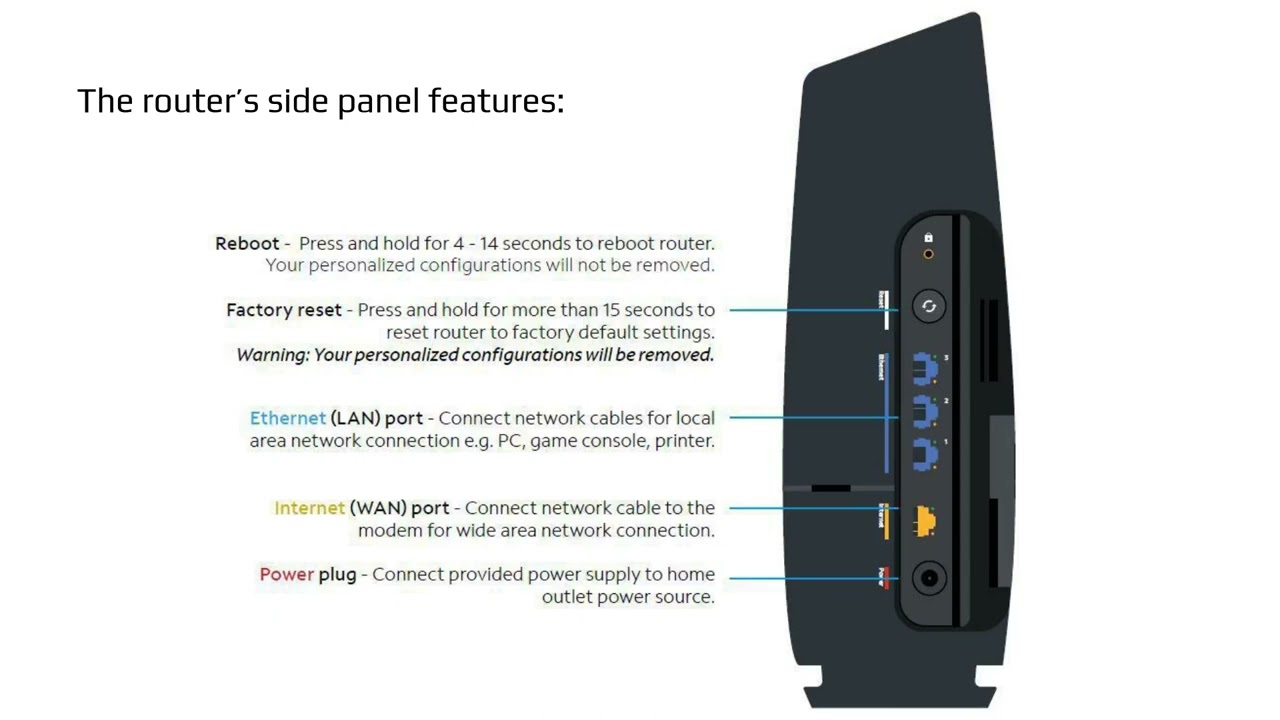
Turn off your router by pressing the power button or unplugging it. Wait about 30 seconds to 1 minute. This pause lets the device reset fully. Plug it back in or turn it on. Wait a few minutes for the router to reconnect to the internet. This step clears temporary glitches that can slow or stop your connection.
Checking Cable Connections
Look at all cables connected to the router. Make sure the power cable is secure and the LED lights are on. Check the Ethernet and coaxial cables. They should be firmly plugged into the right ports. Loose or damaged cables cause poor or no internet connection. Replace any cables that look worn out or broken.
Verifying Service Status
Sometimes, the problem is with Spectrum’s service, not your router. Visit the Spectrum website or use their app to check for outages in your area. You can also call customer support for updates. Knowing about service issues helps avoid unnecessary troubleshooting. Wait for the provider to fix the problem if there is an outage.
Advanced Router Fixes
Advanced router fixes help solve deeper issues with your Spectrum router. These steps improve performance and connection quality. They go beyond basic restarts or checking cables. Try these methods to keep your internet running smoothly.
Resetting To Factory Settings
Resetting your router clears all custom settings. It returns the router to the original factory state. Use a small pin to press the reset button for 10 seconds. Wait for the router to restart fully. This can fix many persistent connection problems.
Updating Firmware
Firmware is the software inside your router. It controls how the router works. Updating firmware can improve speed and security. Visit the router’s admin page by typing its IP address in a browser. Check for firmware updates and install the latest version.
Changing Wireless Channels
Wireless channels carry your Wi-Fi signal. Many routers use the same default channel. This causes interference and slows down Wi-Fi. Change the channel to a less crowded one. Use the router’s settings page to select channels 1, 6, or 11 for better performance.
Adjusting Router Placement
Router placement affects signal strength and coverage. Place the router in a central, open area. Avoid walls, metal objects, and electronics nearby. Keep it away from floors and corners. Higher placement often gives better signal reach throughout your home.

Improving Wi-fi Performance
Improving Wi-Fi performance helps you enjoy faster internet and stable connections. Many factors affect your router’s Wi-Fi speed and range. Small changes can make a big difference. Focus on practical steps to boost your Spectrum router’s Wi-Fi without extra cost or complex setup.
Using Wi-fi Extenders
Wi-Fi extenders help increase your signal range in large homes. They catch your router’s signal and send it further. Place extenders where the Wi-Fi signal starts to weaken. Avoid walls and large objects that block signals. Extenders create a stronger connection in hard-to-reach places.
Securing The Network
Protect your Wi-Fi from unauthorized users. Use a strong password with letters, numbers, and symbols. Change the default router password right away. Enable WPA3 or WPA2 encryption in your router settings. A secure network stops outsiders from slowing your Wi-Fi speed.
Managing Connected Devices
Too many devices can slow down your Wi-Fi. Check how many devices connect to your network. Disconnect devices not in use. Prioritize important devices for better speed. Some routers allow setting device priority for smoother streaming and browsing.
When To Contact Support
Knowing when to contact Spectrum support saves time and stress. Some router problems need expert help. Basic troubleshooting might not fix all issues. Recognizing signs that require professional support is key.
Persistent Connectivity Issues
Persistent connection problems mean the issue is deeper. Restarting your router often fixes minor glitches. If the problem repeats after several resets, contact support. They can check network settings and signal quality. Persistent drops or slow speeds need expert analysis.
Hardware Replacement Options
Sometimes, the router hardware is faulty or damaged. Old or broken devices cause frequent interruptions. Spectrum support can test your equipment remotely. They offer replacement if your router is under warranty. Requesting a new router ensures better performance and security.
Scheduling Technician Visits
Some issues require a technician’s visit to fix. Problems with wiring or signal strength need hands-on help. Schedule a visit through Spectrum’s customer service. A technician will check your home setup and repair faults. This service helps restore your internet quickly and reliably.
Frequently Asked Questions
How To Reset My Spectrum Router Safely?
Press and hold the reset button on your router for 10 seconds. This restores factory settings and clears errors. Use a paperclip or pin to press the button.
Why Is My Spectrum Router Not Connecting To Wi-fi?
Check if the router is powered on and cables are secure. Restart the router to fix temporary connection issues. Also, ensure your device is within Wi-Fi range.
How Can I Improve My Spectrum Wi-fi Signal Strength?
Place your router in a central, open area away from walls. Avoid interference from microwaves or cordless phones. Updating router firmware can also help boost signal.
What To Do If Spectrum Router Lights Are Blinking Red?
Red blinking lights usually mean a service issue or hardware problem. Restart the router and check your internet service status. Contact Spectrum support if the problem continues.
How Do I Update The Firmware On My Spectrum Router?
Log in to your router’s web page using its IP address. Look for the firmware update option and follow the instructions. Keeping firmware updated improves security and performance.
Conclusion
Troubleshooting your Spectrum router can solve many common issues fast. Restart the router and check all cable connections first. Use the Spectrum app or website to run quick tests. Keep your router’s firmware updated for better performance. Resetting to factory settings helps if problems persist.
Contact Spectrum support for help when needed. Staying calm and following these steps makes fixing easier. Enjoy smoother internet with a little patience and care.