Is your PC acting up, leaving you frustrated and stuck? Your motherboard might be the culprit.
Understanding how to troubleshoot your PC motherboard can save you time, money, and a lot of headaches. In this guide, you’ll discover simple steps to identify common motherboard problems and fix them quickly. Whether you’re a beginner or just need a refresher, this article will empower you to take control of your PC’s health.
Keep reading, and you’ll soon know exactly what to do when your computer won’t start or behaves strangely.

Identifying Common Motherboard Problems
Motherboards are the heart of your PC. They connect all parts to make your system run. Problems here can stop your computer from working properly. Knowing common motherboard issues helps in quick fixes. This section highlights key signs to watch for.
No Power Or Boot Issues
Your PC may not turn on or start up. This can signal motherboard failure. Check power connections and cables first. Faulty capacitors or damaged circuits often cause no power. The motherboard’s BIOS chip may also be corrupted. These issues stop your computer from booting.
Random System Crashes
Unexpected shutdowns or restarts can point to motherboard faults. Over time, loose connections or damaged parts cause instability. Faulty RAM slots or chipsets often trigger crashes. Watch for blue screens or error messages. These signs show motherboard trouble affecting system stability.
Peripheral Connectivity Failures
USB ports or other connections may stop working. Devices like keyboards or mice might not respond. This often means motherboard port damage or driver conflicts. Dust or debris inside ports can cause failures too. Testing ports and updating drivers can help identify problems.
Overheating Symptoms
Motherboards get hot during use, but extreme heat is harmful. Overheating causes slowdowns or sudden shutdowns. Check if fans and heatsinks work properly. Faulty temperature sensors can misread heat levels. Proper airflow and cleaning can prevent overheating issues.
Basic Diagnostic Steps
Basic diagnostic steps help find motherboard problems fast. These steps check simple things first. They stop small issues from turning into big problems.
Start with easy checks to save time and effort. Follow the steps carefully. Each step points to common faults and fixes.
Visual Inspection For Damage
Look closely at the motherboard for visible damage. Check for burnt spots, broken parts, or bulging capacitors. These signs show electrical problems or wear. Clean dust and debris gently. Dirt can cause shorts and poor connections.
Checking Power Supply Connections
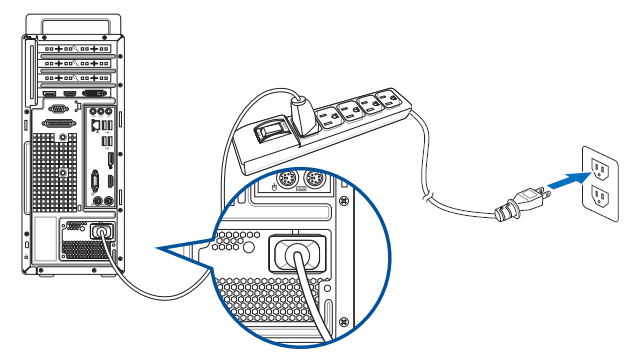
Make sure all power cables connect firmly to the motherboard. Loose wires cause no power or unstable operation. Confirm the main 24-pin and CPU power plugs are secure. Inspect cables for cuts or damage. Replace any faulty wires before testing again.
Resetting Bios Settings
Resetting BIOS clears wrong settings that block startup. Find the CMOS battery on the board. Remove it for a few minutes, then reinsert. This resets BIOS to default. Use the clear CMOS jumper if available. This step often fixes boot and hardware detection issues.
Testing With Minimal Hardware
Remove all non-essential parts from the system. Keep only the CPU, one stick of RAM, and power supply connected. This setup helps isolate the motherboard from other devices. Turn on the PC and watch for error codes or beeps. Add parts back one by one to find the faulty component.
Fixing Power And Boot Failures
Power and boot failures can stop your PC from starting properly. These issues often point to problems with the motherboard or power supply. Fixing these failures involves checking key components and replacing small parts if needed. This section guides you through simple steps to help your PC boot again.
Verifying Power Supply Unit
Check if the power supply unit (PSU) is working well. A faulty PSU may not deliver power to the motherboard. Use a PSU tester or swap with a known good unit. Look for any unusual noises or smells from the PSU. Ensure the PSU fan spins freely during startup.
Inspecting Power Connectors
Loose or damaged power connectors can cause boot failures. Examine the 24-pin motherboard power cable and 8-pin CPU power cable. Make sure they fit tightly and have no bent pins. Clean any dust or debris around the connectors. Secure all cables firmly to avoid power loss.
Replacing Cmos Battery
The CMOS battery keeps BIOS settings saved. A dead battery can cause boot issues and wrong time settings. Remove the old coin-cell battery carefully from the motherboard. Replace it with a new CR2032 battery. Reset BIOS settings if needed after replacement.

Resolving Crash And Freeze Issues
Crash and freeze issues can disrupt your PC’s performance. These problems often stem from motherboard-related faults. Fixing them requires a step-by-step approach. This section covers key methods to resolve these issues effectively.
Updating Bios Firmware
The BIOS controls your motherboard’s basic functions. Outdated BIOS can cause crashes and freezes. Check your motherboard’s website for the latest BIOS update. Follow the instructions carefully to update it. A fresh BIOS often improves system stability and compatibility.
Checking Ram And Slots
Faulty RAM or bad slots cause many system freezes. Remove and clean RAM modules gently. Reinsert them firmly into the slots. Test your RAM using tools like MemTest86. Replace any defective RAM sticks immediately to avoid errors.
Monitoring Temperature Levels
High temperatures can make your PC unstable. Use software like HWMonitor to check motherboard temperature. Clean dust from fans and heatsinks regularly. Ensure good airflow inside your PC case. Keep temperatures within safe limits to prevent crashes.
Addressing Peripheral And Connectivity Problems
Peripheral and connectivity problems can stop your PC from working well. These issues often come from ports, expansion cards, or drivers. Fixing them helps your computer run smoothly. Simple checks and updates often solve these problems fast.
Start by testing the ports and cards. Then check the drivers. This way, you can find the exact cause. Let’s explore how to do this step-by-step.
Testing Usb And Audio Ports
Check USB ports by plugging in a known working device. If it does not work, try another port. This shows if the problem is with the port or the device. For audio ports, connect headphones or speakers. Listen for sound or static noise. Clean the ports carefully to remove dust or dirt. This may improve contact and fix the issue.
Re-seating Expansion Cards
Expansion cards can become loose inside the PC. Turn off the computer and unplug it. Open the case and find the cards on the motherboard. Remove them gently and then place them back firmly. This ensures a good connection. Close the case and turn the PC on. Check if the problem is fixed.
Updating Device Drivers
Drivers control hardware and how it works with the PC. Old or broken drivers cause many problems. Go to the device manager on your computer. Look for devices with a warning sign. Update their drivers from the official website or software. Restart the PC to apply changes. Updated drivers help devices work better and avoid errors.
Preventive Maintenance Tips
Preventive maintenance keeps your PC motherboard working well. It stops many problems before they start. Simple care steps improve your computer’s life and performance.
Regular checks help find small issues early. Fix them fast to avoid bigger troubles. Follow these tips to keep your motherboard safe and sound.
Regular Cleaning And Dust Removal
Dust blocks air and makes parts hot. It causes errors and short circuits. Use a soft brush or air blower to clean. Do this every few months. Keep your workspace dust-free too.
Ensuring Proper Cooling
Motherboards need good airflow to stay cool. Check that fans work well and spin freely. Replace broken fans quickly. Use extra cooling if your PC runs hot often.
Routine Hardware Checks
Look over all connections and cables. Make sure parts fit tightly and show no damage. Test memory and other components regularly. Early fixes prevent crashes and data loss.
Frequently Asked Questions
What Are Common Signs Of A Faulty Pc Motherboard?
A faulty motherboard can cause random shutdowns, no power, or failure to boot. Other signs include USB ports not working and strange beeping sounds. These hints help identify motherboard problems early.
How Can I Test If My Motherboard Is Working Properly?
Use a POST card tester or listen for beep codes during startup. Check if all fans spin and the system powers on. These steps confirm if the motherboard is functioning.
Why Does My Pc Not Start After Installing A New Motherboard?
Incorrect connections or incompatible components often cause startup issues. Double-check power cables and CPU seating. Also, verify the motherboard matches your CPU and RAM type.
Can Bios Issues Cause Motherboard Problems?
Yes, corrupted BIOS can prevent your PC from booting or cause instability. Resetting BIOS by removing the CMOS battery often fixes this. Updating BIOS can also help with hardware compatibility.
What Should I Do Before Replacing A Motherboard?
Back up all important data and note your system settings. Disconnect all power and components before removing the old board. This ensures safety and smooth installation of the new motherboard.
Conclusion
Troubleshooting your PC motherboard can save time and money. Start with simple checks like cables and connections. Watch for beep codes or unusual lights. Test components one by one to find the problem. Keep your tools and workspace ready. Patience helps when diagnosing tricky issues.
Follow these steps to keep your PC running smoothly. You can fix many motherboard problems yourself. Stay calm and take it step by step. This approach makes troubleshooting easier and less stressful.