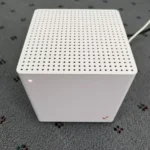
You can often fix connection drops or slow speeds by performing a simple power cycle of your equipment. Effective verizon 5g home internet troubleshooting usually starts by unplugging your gateway from the wall, waiting at least 60 seconds, and plugging it back in to refresh the network handshake. If your signal remains weak after a reboot, the most common cause is the placement of your gateway relative to windows and external obstacles. A device that can’t find a clear path to the nearest cell tower will struggle to maintain a stable data stream.
Troubleshooting weak Verizon home internet signals

The primary cause of connection instability is signal interference from physical structures. Radio waves used for high-speed data have a hard time passing through thick materials like concrete, brick, or low-emissivity glass. When your gateway sits deep inside a house, the signal must travel through multiple walls, which weakens the connection significantly before it even reaches your hardware.
Another common issue is electronic interference. Devices that operate on similar frequencies, such as older cordless phones or microwave ovens, can disrupt the wireless handshake between your gateway and the tower. If your gateway is tucked into a closed cabinet, the metal or wood surrounding it may block incoming waves and trap heat. This overheating can force the internal modem to throttle its performance to prevent hardware damage.
You should also consider network congestion. If you live in a dense area, many neighbors might be hitting the same local cell tower at the same time. This is common during peak evening hours when streaming demand is high.
While you can’t change the tower’s capacity, moving your gateway to a different side of your house may allow it to connect to a less crowded sector of the network. You can check your official Verizon gateway placement tips to see how the company recommends positioning your specific model for the best possible coverage.
Reposition the gateway for better reception
Placement is the single most important factor for a strong connection. You need to move your gateway to a location that minimizes physical obstructions between the device and the outside world. This fix is for users who experience intermittent drops or consistently low download speeds despite a functional gateway.
Find a room on the side of your house that faces the nearest cell tower. Place the unit on a high surface, such as a shelf or table, rather than on the floor. Ideally, the device should be near a window that doesn’t have metal screens or thick, tinted glass. Avoid placing it behind televisions, mirrors, or large metal appliances, as these reflect and absorb the 5G signals.
After moving the device, look at the light indicator on the front. A solid white light usually indicates a strong, stable connection. If the light remains red or blinking, you need to move it again.
If you have moved the device to three different windows and still see no improvement, you likely have a physical barrier nearby, such as a dense tree line or a building, that’s blocking the signal. In this case, you can’t improve the speed through placement alone. You’ll need to contact Verizon customer support to verify if your specific address has adequate line-of-sight coverage for the 5G signal.
Reset the network settings and hardware
If your signal strength is fine but your devices still can’t access the internet, the issue might be a software glitch within your gateway. A full power cycle clears the temporary cache and forces the device to re-authenticate with the Verizon network. This fix is for users whose Wi-Fi network appears connected but shows “no internet access” on laptops or phones.
To do this correctly, disconnect the power cord from the back of the gateway, not just from the wall outlet. Wait for the lights on the device to turn off completely. Leave it unplugged for at least 60 seconds to ensure the internal capacitors discharge. Plug the power cord back in and wait up to 10 minutes for the boot sequence to finish. You’ll know it’s working when the status light returns to a steady, solid color.
If this doesn’t resolve the issue, check the cables connected to your gateway. Ensure the power cable is pushed all the way into the port. If you’re using an Ethernet cable to connect a computer directly to the gateway, try swapping it with a different cable to rule out a broken wire.
If the gateway remains unresponsive after a power cycle and cable check, it may have a hardware failure. At that point, you shouldn’t attempt to open the device yourself as you risk voiding your warranty and losing your service agreement.
Advanced connection management
If you’re comfortable with basic tech, you can use the mobile app to manage your network. This is for users who have stable signal strength but experience slow performance when multiple people are streaming at once. Check the device list in your management app to see if unauthorized devices are connected to your Wi-Fi, as these consume bandwidth without your knowledge.
You can also try changing the Wi-Fi frequency band. Most modern gateways broadcast both 2.4GHz and 5GHz signals. If your device is far from the gateway, the 2.4GHz band is often more reliable because it travels through walls better. If you’re close to the gateway, the 5GHz band provides much faster speeds.
If your gateway uses “band steering,” it attempts to do this automatically. If you notice devices constantly dropping, try naming the 2.4GHz and 5GHz networks differently in the settings to manually assign your devices to the band that works best for them.
Be aware that some older smart home devices only work on 2.4GHz. If you disable the 5GHz network or hide it, those devices will disconnect. Keep track of which network name you use for your high-speed devices versus your smart home gear. If you still see high latency during gaming or video calls after these changes, you may need a mesh Wi-Fi system to extend your coverage.
Common mistakes to avoid
Don’t place the gateway inside a metal enclosure or a closed drawer, as the metal acts as a shield and kills your signal. Even thick glass or mirrors near the unit can cause signal reflection, so keep the device at least three feet away from any reflective surfaces.
Don’t restart the device repeatedly in short intervals. Waiting 10 minutes between attempts is necessary for the gateway to stabilize its connection to the Verizon tower. If you reboot too quickly, you risk corrupting the firmware update process, which can leave the device stuck in a boot loop.
Don’t use an extension cord if you can avoid it. Poor-quality cords cause voltage drops that lead to random reboots. If you must use one, ensure it’s a heavy-duty, short-length cable.
Don’t rely on the signal bars on your phone to judge the gateway’s performance. Your phone uses different radio bands than the home gateway. Always use the My Verizon app to check the specific signal strength of your gateway.
How to optimize your network
You can improve your daily experience by changing how you manage your hardware. If you’re currently keeping the gateway in a basement or a central closet, you’re forcing the device to work harder than necessary. Moving it to an elevated position near a window significantly improves the signal-to-noise ratio.
Aim for a location where you have a clear line of sight to the nearest cell tower. If your home has thick brick or concrete walls, prioritize a window facing the direction of the tower. You can identify this direction by checking the signal strength bars on the Verizon gateway interface.
| If you’re doing this | Do this instead | Why |
|---|---|---|
| Keeping gateway on floor | Move it to a table | Floors block signal paths |
| Hiding it in a cabinet | Place it in open air | Cabinets cause overheating |
| Using long power cords | Use the original cable | Voltage drops cause reboots |
| Ignoring firmware updates | Use the mobile app | Updates fix known bugs |
Most users mistake a slow connection for a service outage. If your speeds drop below 50 Mbps, reboot the gateway by unplugging it for sixty seconds. If performance remains sluggish, check for physical obstructions like mirrors or large metal appliances that reflect and scatter the 5G signal.
Related guides
- Verizon Phone Troubleshooting: Quick Fixes for Common Issues
- Tmobile Home Internet Troubleshooting: Quick Fixes for Fast Relief
- Coleman Mobile Home Furnace Troubleshooting: Expert Tips
Frequently asked questions
Can I move my gateway to a different room?
You can move your gateway to any room with a strong signal from the nearest cell tower. Test the connection using the signal indicator on the device or mobile app. Note that interior rooms without windows may result in weaker connection speeds.
How long does it take for the gateway to connect?
It typically takes 5 to 10 minutes for the gateway to boot up and establish a connection. During this time, the device lights will cycle or blink as it installs necessary updates. Don’t unplug the device until the light turns solid.
Is it safe to leave the gateway on 24/7?
You should leave your gateway on at all times to ensure constant internet access and receive background firmware updates. The system manages its own cooling and signal optimization automatically. Ensure the device is in a well-ventilated area to prevent overheating.
Why is my internet slow only at night?
Network congestion from high neighborhood usage is the primary cause of slower evening speeds. When many users share the same cell tower, available bandwidth for each connection decreases. This is a common characteristic of cellular-based home internet services.
How do I know if my gateway is broken?
Your gateway is likely faulty if the status light remains red or blinking amber after multiple power cycles. If you have confirmed there’s no local tower outage, the internal modem may have failed. Contact support to discuss a replacement.
Conclusion
If these adjustments don’t solve your connection issues, don’t hesitate to reach out to customer support through the My Verizon app. They’ll be able to run a remote diagnostic test to see if there’s a larger outage in your area. You shouldn’t have to settle for anything less than reliable service.