Are you tired of your wifi cutting out right when you need it most? Slow speeds, dropped connections, or no internet at all can be frustrating and disrupt your day.
But don’t worry—fixing your wifi issues might be easier than you think. In this guide, you’ll discover simple steps to troubleshoot your wifi connection and get back online quickly. Keep reading to unlock easy solutions that save you time and stress.
Your frustration ends here.
Common Wifi Issues
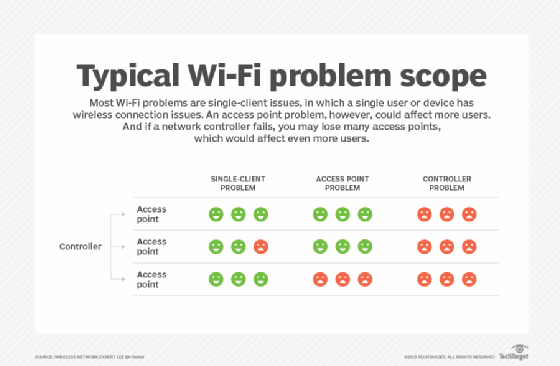
Wifi problems can disrupt your daily tasks and cause frustration. Recognizing common issues helps fix them quickly. Many users face similar challenges with their wireless connections. Identifying the problem is the first step to a stable internet experience.
Slow Speeds
Slow wifi speeds make browsing and streaming difficult. This issue can happen due to too many devices on the network. Distance from the router also reduces speed. Walls and furniture block wifi signals. Sometimes, the internet plan limits your speed.
Intermittent Connection
The wifi signal drops on and off without warning. This breaks video calls and interrupts downloads. Interference from other electronics causes weak signals. Routers with outdated software might disconnect frequently. Moving the router can improve the connection.
No Internet Access
Your device connects to wifi but cannot access the internet. This happens when the router is not linked to the modem. DNS server errors can stop internet access. ISP outages also cause this issue. Restarting the modem and router can help.
Device Connectivity Problems
Some devices fail to connect to your wifi network. Incorrect wifi passwords block access. Devices with old wifi standards might not connect. Too many devices can overload the router. Restarting devices often solves this problem.
Basic Troubleshooting Steps
Basic troubleshooting steps can fix many common WiFi problems. Start with simple checks before trying complex fixes. These easy actions often restore your connection quickly.
Restart Router And Modem
Turn off your router and modem. Wait for about 30 seconds. Turn them back on. This refreshes the network and clears minor errors. Many connection issues resolve this way.
Check Device Settings
Look at your device’s WiFi settings. Ensure WiFi is turned on. Check if airplane mode is off. Confirm the device is set to connect to the correct network. These small steps help avoid simple mistakes.
Verify Network Password
Enter the WiFi password carefully. Passwords are case-sensitive. A wrong password stops connection. Recheck the password from your router label or network admin. Correct entry is key.
Move Closer To Router
Distance affects WiFi strength. Move your device near the router. Walls and objects reduce signal quality. Being closer improves speed and reduces drops. Try this before changing settings.
Advanced Fixes
Advanced fixes help solve tough WiFi problems. These steps go beyond basic checks. They can improve speed and connection stability. Try these methods if your WiFi keeps dropping or runs slow. They require some technical steps but are easy to follow.
Change Wifi Channel
WiFi routers use channels to send signals. Many routers use the same channel by default. This causes signal overlap and slows down your connection. Changing the WiFi channel reduces interference. Access your router settings to select a less crowded channel. Channels 1, 6, and 11 are often the best options.
Update Firmware And Drivers
Firmware is the software inside your router. Drivers control your computer’s WiFi hardware. Old firmware and drivers can cause connection issues. Check the router’s website for firmware updates. Update your computer’s network drivers from the device manager. Keeping these updated improves performance and fixes bugs.
Reset Network Settings
Resetting network settings clears errors and restores defaults. This removes saved WiFi passwords and custom settings. On Windows, go to Network & Internet settings and choose reset. On phones, find network reset in the system settings. After reset, reconnect to your WiFi and check the connection.
Check For Interference
Other electronics can block WiFi signals. Microwaves, cordless phones, and baby monitors cause interference. Move your router away from these devices. Thick walls and metal objects also weaken signals. Place your router in an open, central location. This helps signals travel better and reach more areas.
Optimizing Your Wifi Setup
Optimizing your wifi setup improves speed and connection stability. Small changes can make a big difference in your home or office network. Focus on where and how your devices connect to get the best performance.
Router Placement Tips
Place your router in a central location. Avoid walls and metal objects that block signals. Keep it high, like on a shelf or table. This helps the signal reach more areas. Avoid placing it near microwaves or cordless phones. These devices cause interference and slow down your wifi.
Use Of Wifi Extenders
Wifi extenders boost signals to hard-to-reach areas. Place extenders halfway between the router and weak signal zones. This enlarges your wifi coverage without new wiring. Choose extenders compatible with your router. They keep a steady connection across your space.
Switching To 5ghz Band
The 5GHz band offers faster speeds with less interference. Use it for devices close to your router. It is great for streaming and gaming. The 2.4GHz band covers longer distances but is slower. Switching bands based on distance improves overall wifi quality.
Secure Your Network
Protect your wifi from unauthorized access. Use strong passwords with letters, numbers, and symbols. Enable WPA3 or WPA2 encryption on your router. Turn off network name broadcasting to hide your wifi. Secure networks reduce slowdowns caused by unwanted users.
When To Seek Professional Help
Knowing when to seek professional help can save time and reduce frustration. Some wifi problems need expert skills to fix. Professionals have the right tools and knowledge for complex issues. This section explains key signs that show it’s time to call a technician.
Persistent Connectivity Issues
Wifi that drops often or won’t connect is a sign to get help. Troubleshooting basic settings may not fix the problem. Persistent connection failures can mean deeper software or network faults exist. A professional can identify and solve these hidden issues.
Hardware Failures
Broken routers, damaged cables, or faulty modems cause wifi problems. These devices wear out or get damaged over time. Detecting hardware problems requires special testing tools. Experts can replace or repair parts correctly to restore your wifi.
Isp Related Problems
Sometimes, the internet service provider causes wifi troubles. Outages, slow speeds, or account issues affect your connection. Professionals can check your ISP status and help communicate with them. This speeds up problem resolution and brings reliable service back.

Frequently Asked Questions
Why Is My Wifi Connection Slow Sometimes?
Slow WiFi can happen due to many devices using the network at once. Walls or distance from the router also reduce speed. Restarting your router often helps improve the connection.
How Do I Fix Wifi That Keeps Disconnecting?
Frequent disconnections may be caused by interference or outdated router firmware. Try moving closer to the router and update its software. Resetting network settings on your device can also help.
What Should I Do If Wifi Won’t Connect At All?
Check if the router is powered on and cables are secure. Restart both your device and the router. Enter the correct WiFi password carefully when connecting.
How Can I Improve Weak Wifi Signal In My Home?
Place the router in a central, open spot away from walls and metal objects. Use WiFi extenders or mesh systems to cover larger areas. Avoid interference from microwaves and cordless phones.
Why Does Wifi Work On Some Devices But Not Others?
Different devices may have varying network settings or hardware issues. Restart the device and forget then reconnect to the WiFi network. Update the device’s software to fix compatibility problems.
Conclusion
Troubles with WiFi can feel frustrating and slow down your work. Simple steps often fix most connection problems quickly. Restart your router and check cables first. Move closer to the router to get a stronger signal. Make sure your device’s software is up to date.
Sometimes, changing your WiFi channel helps reduce interference. Keep your network secure with a strong password. These tips can help you enjoy faster, more reliable internet. Stay patient and try each step carefully. Good WiFi means better browsing, streaming, and working from home.