Is your computer microphone not working when you need it most? Whether you’re trying to join an important video call, record a podcast, or just chat with friends, a faulty microphone can be frustrating.
But don’t worry—you’re not alone, and fixing it might be easier than you think. In this guide, you’ll discover simple steps to troubleshoot your computer microphone and get it back up and running quickly. Keep reading, and you’ll save time, avoid stress, and never miss a word again.
Common Microphone Issues
Microphones play a key role in computer communication and recording. Common issues can stop them from working well. Understanding these problems helps you fix them fast. Here are some frequent microphone troubles and their signs.
No Sound Detected
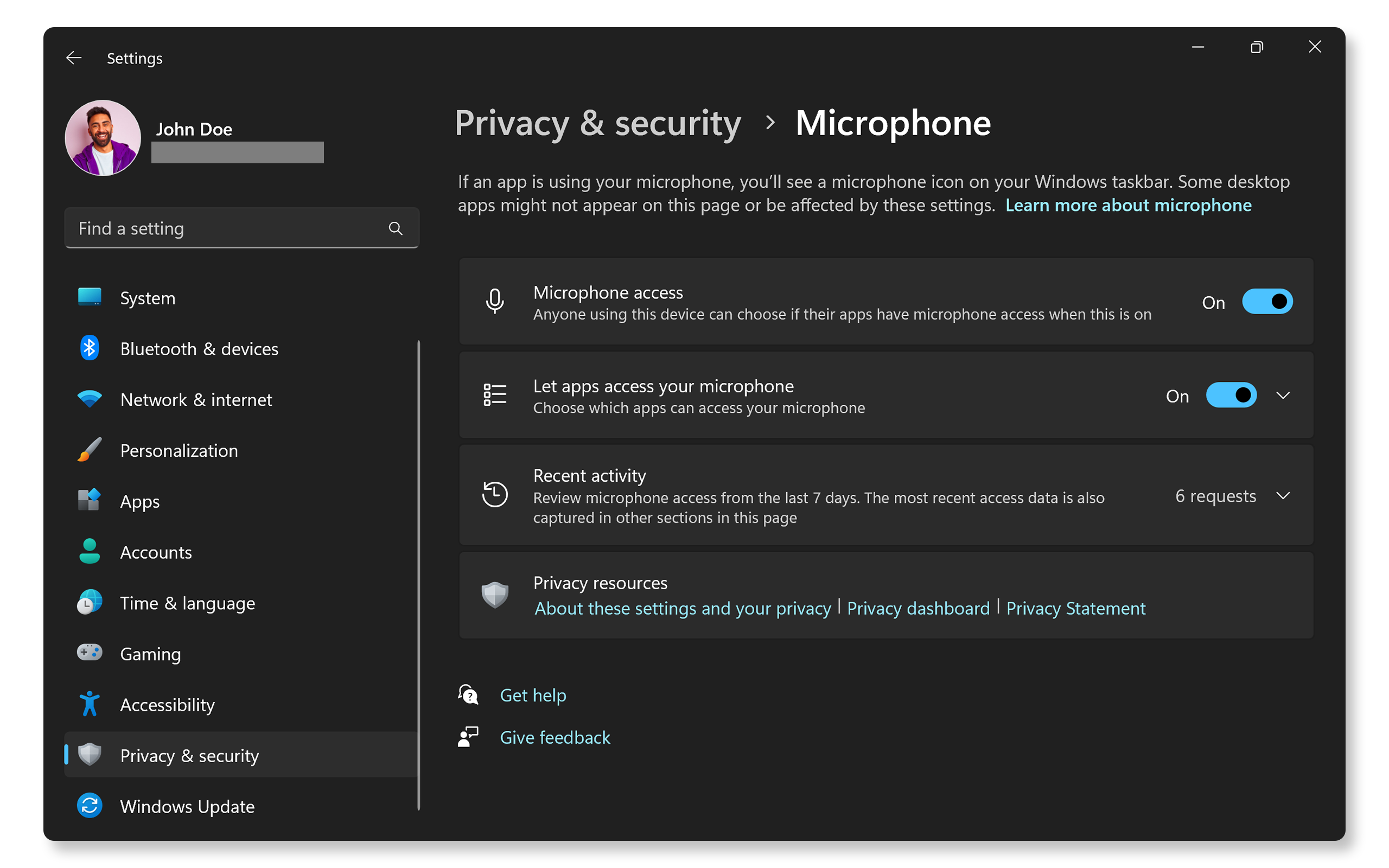
Sometimes, the microphone does not pick up any sound. This issue may happen if the device is not connected properly. Check the cable or USB plug. The microphone might be muted or disabled in the system settings. Testing with another app can show if the problem is software-related.
Distorted Audio
Distorted or unclear sound can ruin audio quality. This happens when the microphone is too close to the mouth. Background noise may also cause distortion. Faulty or old hardware can affect sound clarity. Adjust the mic position and test it on different programs to find the cause.
Low Volume Levels
Low microphone volume makes it hard for others to hear you. The input level might be set too low in the sound settings. Dirt or damage on the mic can reduce its sensitivity. Using the volume controls or cleaning the device often improves the sound.
Background Noise Problems
Unwanted background noise can distract from your voice. Poor mic quality or placement often causes this. Noisy environments increase the issue. Use noise-canceling features or move to a quieter place. Checking and adjusting settings can also help reduce noise.
Basic Checks
Basic checks are the first step in fixing microphone problems. They help find simple issues fast. Checking these can save time and avoid frustration. Start with easy steps before moving to complex fixes.
Verify Physical Connections
Check if the microphone is plugged in tightly. Loose cables cause no sound or bad quality. Try unplugging and plugging it back in. Use a different port if possible. For USB mics, try another USB slot. For jacks, ensure the plug matches the microphone port color.
Check Microphone Mute Settings
Look at the microphone mute button or switch. Some mics have a physical mute option. Make sure it is turned off. Also, check mute settings in software or apps. Mute may be enabled by accident. Unmute the microphone to restore sound.
Inspect Volume Controls
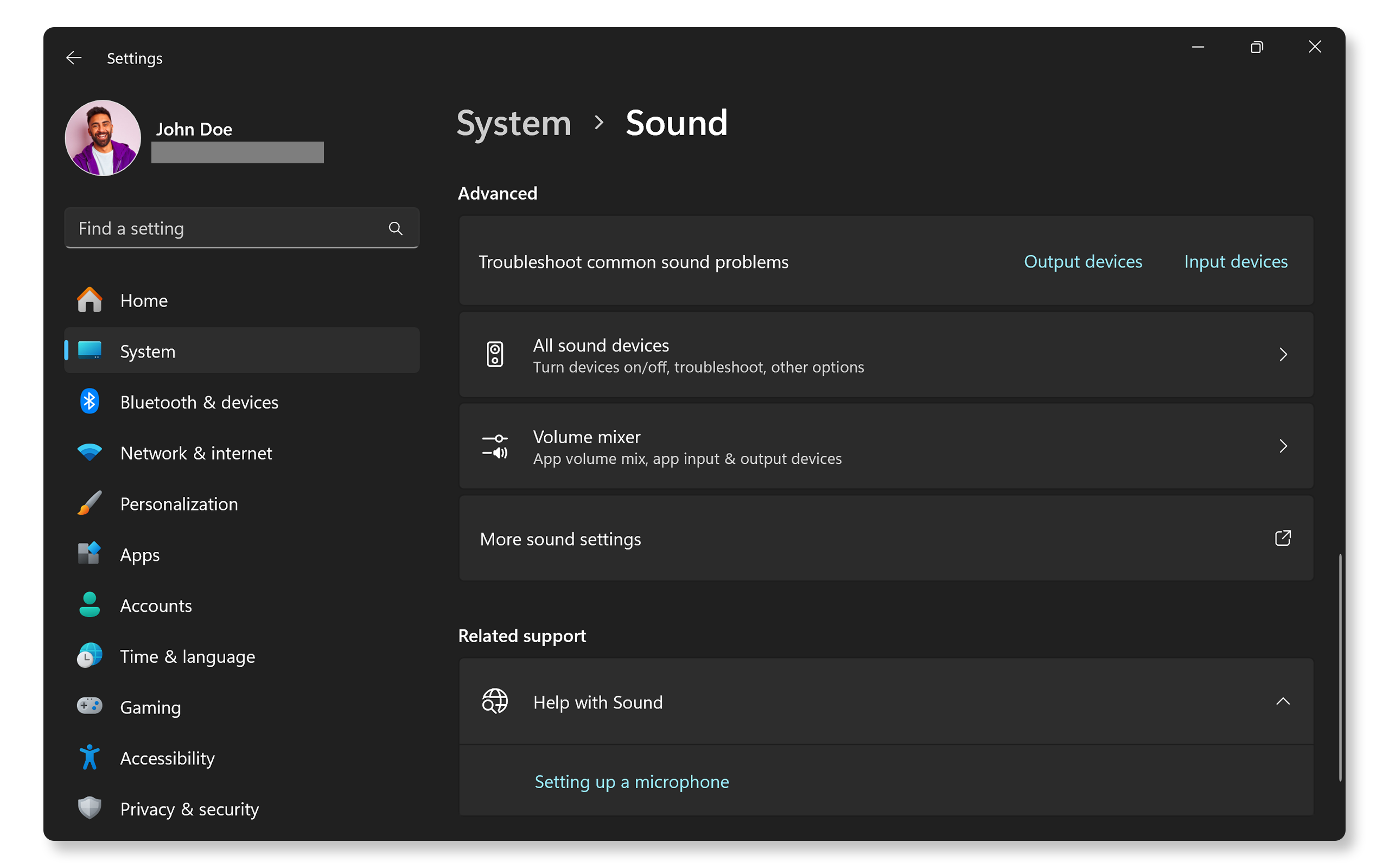
Check the microphone volume on your computer. Open sound settings and find input devices. Make sure the microphone volume is not too low. Increase it if needed. Also, check app-specific volume controls. Some apps have their own mic volume settings.
Software Settings
Software settings control how your computer uses the microphone. These settings can affect sound quality and volume. Checking and adjusting these options can fix many microphone issues. Follow the steps below to ensure your microphone works well with your computer.
Set Default Recording Device
Open the sound settings on your computer. Look for the “Recording” tab. Find your microphone in the list. Click on it and select “Set as Default.” This tells your computer to use that microphone for all recordings. Without this step, the wrong device may pick up sound.
Adjust Input Levels
Still in the sound settings, select your microphone again. Click on “Properties” or “Device Properties.” Find the “Levels” tab. Move the slider to increase or decrease the input volume. Too low means your voice will be quiet. Too high can cause noise or distortion.
Update Audio Drivers
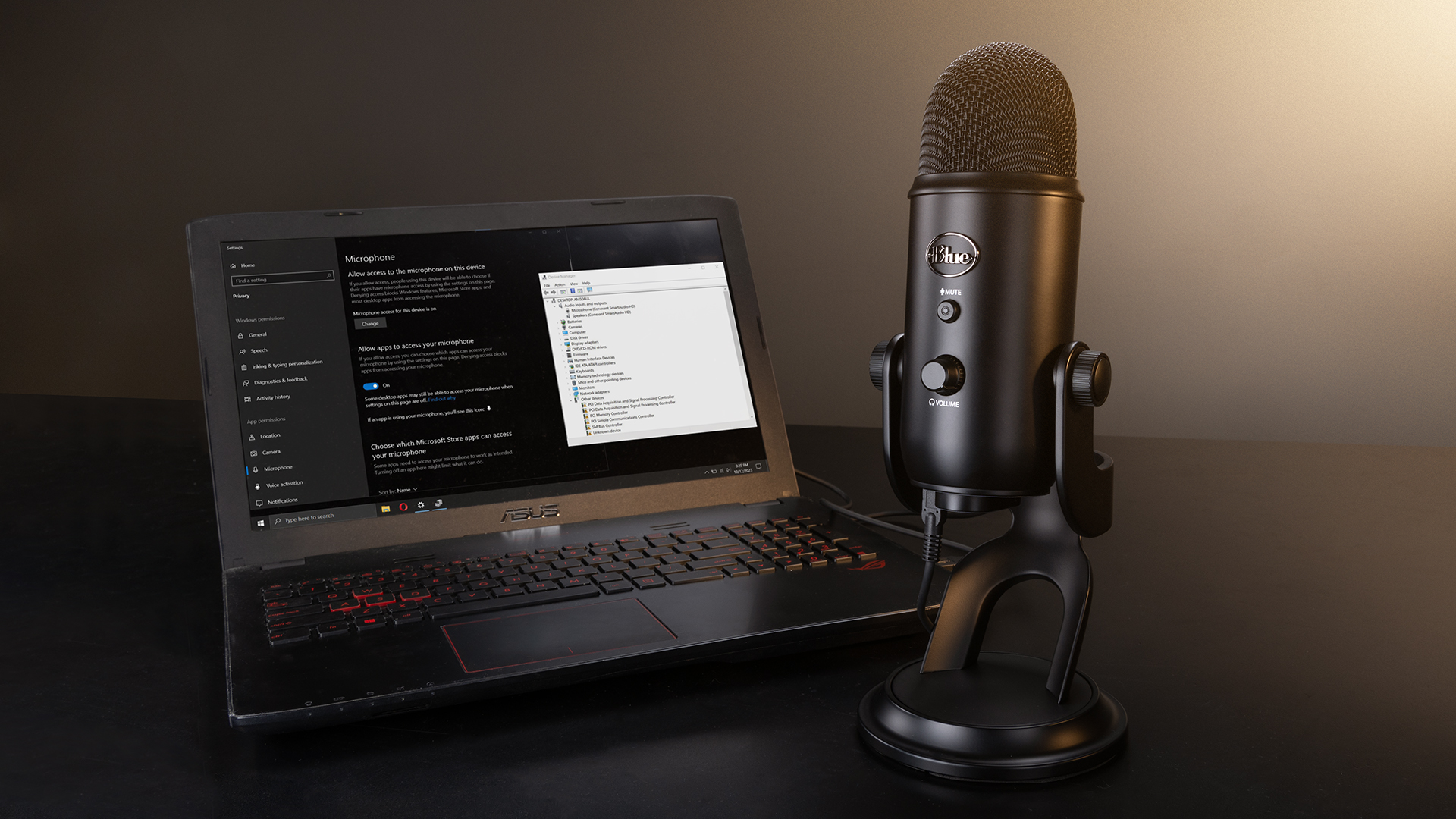
Outdated drivers can cause microphone problems. Open “Device Manager” from the Start menu. Find “Sound, video and game controllers.” Right-click your audio device and choose “Update driver.” Select “Search automatically.” Windows will find and install the latest driver. Restart your computer after updating.
Advanced Troubleshooting
Advanced troubleshooting helps fix hard microphone problems. It digs deeper than basic checks. These steps can find hidden issues and solve them fast.
Test On Another Device
Try your microphone on a different device. This shows if the microphone works well. If it fails again, the microphone might be broken. If it works, the problem is with your computer.
Disable Audio Enhancements
Audio enhancements can cause microphone trouble. Turn off these features in your sound settings. This stops unwanted effects from affecting sound quality. Your microphone might work better after this change.
Run Audio Troubleshooter
Use the built-in audio troubleshooter in your system. It scans for sound problems automatically. Follow the on-screen instructions to fix detected issues. This tool can repair many common microphone errors quickly.
Preventive Tips
Keeping your computer microphone in good shape saves time and stress. Simple habits prevent common problems. Small actions keep your mic working well. Follow these preventive tips to avoid issues.
Keep Drivers Updated
Drivers help your computer talk to the microphone. Outdated drivers cause glitches or no sound. Check for updates often. Use your computer’s update tool or visit the manufacturer’s website. Updated drivers improve sound quality and fix bugs.
Regularly Clean Microphone Ports
Dust and dirt block microphone ports easily. Blocked ports cause poor sound or no sound. Clean ports gently with a soft brush or compressed air. Avoid liquids or sharp tools. Regular cleaning keeps connections clear and sound crisp.
Use Quality Audio Accessories
Cheap cables or headphones harm sound quality. Poor accessories cause static, dropouts, or no sound. Choose well-made, tested products. Good accessories last longer and protect your microphone. Invest a little for better sound and fewer problems.
Frequently Asked Questions
How To Fix A Computer Microphone Not Working?
Check if the microphone is properly plugged in and selected as the input device. Update or reinstall the audio driver to resolve software issues.
Why Is My Computer Microphone Volume Too Low?
Adjust the microphone volume in your sound settings or control panel. Check for physical damage or dirt blocking the mic.
How To Test If My Microphone Is Working On Windows?
Open the Sound settings and look for input level bars moving when you speak. Use the built-in Voice Recorder app for a quick test.
What Causes Microphone Echo Or Feedback On Pc?
Echo happens when speakers and microphone are too close or volume is too high. Lower speaker volume or use headphones to reduce feedback.
How To Fix Static Or Crackling Noise In Microphone?
Static noise can come from loose cables or poor connections. Try a different port or cable and avoid wireless interference.
Conclusion
Fixing computer microphone issues can be simple. Check connections and settings first. Restart your device to clear minor errors. Update drivers to improve performance. Test the microphone with different apps. Small steps often solve common problems. Stay calm and patient during troubleshooting.
Clear sound helps in calls and recordings. Keep your system updated for best results. Troubleshooting saves time and avoids frustration. A working microphone makes communication easy.