When your device loses connection or fails to trigger alerts, effective arlo doorbell troubleshooting usually involves checking the power supply or resetting the network signal. The most common cause for these issues is a low battery or a weak Wi-Fi signal at your front door. If your device is hardwired, the problem often stems from a voltage drop that prevents it from staying online consistently.
Troubleshoot Arlo doorbell power and connection issues
Most connectivity problems occur because the distance between your router and the front door exceeds the signal’s effective range. Thick walls, metal siding, or large appliances between the router and the doorbell can block the wireless signal, leading to intermittent offline status. If you’re using a battery-powered model, the unit may enter a low-power mode to conserve energy, which causes it to stop responding until it’s fully charged.
Test your signal strength by standing at the door with your phone connected to the same Wi-Fi network. If you show fewer than two bars on your device, the doorbell is likely struggling to maintain a handshake with the router. You can solve this by installing a Wi-Fi extender halfway between the router and the door.
Another frequent cause involves the internal transformer for hardwired units. If your existing doorbell transformer doesn’t provide the required voltage, the device will struggle to maintain a stable connection to your home network. According to the Arlo support center, your system requires a transformer providing between 16V AC and 24V AC to function reliably.
Many homeowners make the mistake of assuming their old mechanical chime transformer is sufficient. These legacy units often provide only 10V or 12V, which is enough to ring a bell but insufficient for modern video processing.
If your doorbell restarts whenever you attempt to view a live feed, the voltage is likely dropping under load. Check the label on your existing transformer box, usually found near your breaker panel or internal chime. If the output is below 16V, replacing the transformer is the only way to ensure consistent performance.
Safety: Inside a mains-powered machine, the parts behind the outer cover can hold a dangerous electrical charge even after it has been unplugged — that’s why they sit behind a cover. Opening the housing, or testing or replacing anything behind it, is a job for a qualified technician, never a home repair.
Reset the wireless connection
If your doorbell shows as offline in the app, the first step is to restart the connection without removing the device from your account. Start by opening the app and navigating to the device settings to see if a firmware update is pending. If the app shows the device is offline, toggle your phone’s Wi-Fi off and on, then try to refresh the dashboard.
If the device remains unresponsive, you must perform a power cycle. For battery units, remove the battery pack for 30 seconds and reinsert it to force a reboot of the internal hardware. For hardwired units, locate the breaker responsible for your doorbell and flip it to the “off” position for one minute before turning it back on. This forces the device to re-initialize its hardware and re-establish a network connection.
A common mistake is assuming the doorbell is broken when the issue is actually a weak signal. If your signal strength indicator shows two bars or fewer, the device will frequently drop the connection during high-traffic periods. In this case, moving your router closer or installing a Wi-Fi extender is more effective than a reboot.
If the LED indicator blinks white, the device is attempting to re-establish a handshake with your router. If it remains dark after a power cycle, check your wiring connections at the chime box to ensure no wires have loosened over time.
Use this decision rule: if the light flashes, wait five minutes for the network to sync. If the light stays dark, a technician must test the voltage at the doorbell terminals. If the transformer is failing, it can’t support a stable wireless connection.
Replacing the transformer is the only way to restore consistent power. Finally, if you have recently changed your Wi-Fi password, you must select “Change Network” in the app settings rather than performing a hard reset. This prevents you from losing your stored video history.
Adjust the network signal range
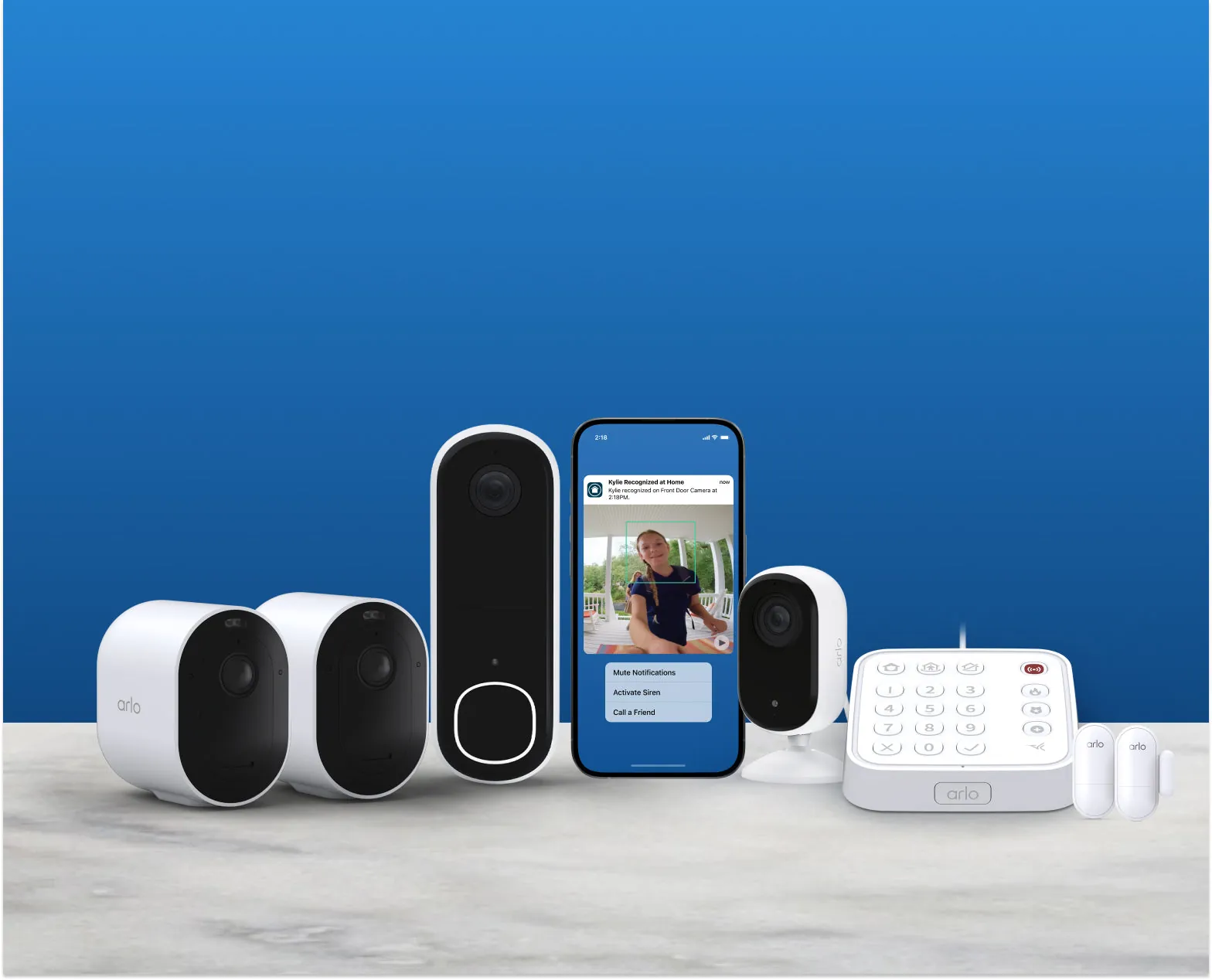
When the doorbell is too far from your router, it will constantly drop the connection even after a successful reboot. You can test this by bringing the unit closer to the router temporarily to see if it stabilizes. If performance improves, the issue is definitely distance or signal interference rather than a faulty device.
Check your app’s signal strength indicator before buying new hardware. Three bars usually mean sufficient bandwidth for HD video streaming. Two bars often cause intermittent freezing during motion events. One bar often indicates a connection too weak to support reliable video streaming. This metric matters more than simple connectivity indicators.
To resolve this, install a Wi-Fi range extender or mesh network node closer to the front entrance. Place extenders halfway between the router and doorbell, not at the door itself. Extenders placed in dead zones merely repeat weak signals without improvement. The midpoint location captures strong signal to rebroadcast effectively.
If you have an Arlo SmartHub, ensure it’s placed centrally in your home. Keep it away from microwaves or cordless phones using the 2.4GHz frequency. These devices create localized interference that mimics range problems. Moving the hub three feet away from such electronics often restores stability without additional equipment purchases.
Laggy or pixelated video confirms weak signal even if the device shows online. Below this threshold, compression artifacts appear before disconnections occur. Monitor bitrate during peak usage hours when household bandwidth competition is highest.
If you can’t improve the signal through repositioning, move your router or add a dedicated access point. Hardwired access points outperform wireless repeaters for outdoor cameras. They provide a more stable, dedicated connection than wireless repeaters. This distinction determines whether your fix lasts months or merely days.
Resolve hardware and power limitations
If you have tried resetting the network and the device still fails to power on, the hardware itself might be reaching the end of its functional capacity. This often happens with older batteries that no longer hold a charge or wiring that has corroded due to moisture exposure. Check the battery contacts for green or white crust before assuming the cell is dead. Cleaning oxidation with isopropyl alcohol sometimes restores a connection that looks permanently broken.
If you see a “low voltage” warning in the app, your transformer is likely failing to provide enough power during high-demand events like night vision recording. Most video doorbells require sixteen volts AC minimum to operate reliably. A technician confirms whether the transformer needs replacement rather than repair. Don’t assume a humming sound means adequate output, as failing units often vibrate while delivering insufficient current.
If the unit is warm to the touch or shows signs of swelling, stop using it immediately and contact the manufacturer. Swollen lithium cells can rupture without additional warning signs. For hardwired units, if you have verified the transformer voltage and the wiring is secure, the doorbell may have an internal fault. Test continuity across the chime wires to rule out a break inside the wall before condemning the camera itself.
If you aren’t comfortable working with electrical wiring or breakers, always contact a licensed electrician to inspect your home’s power supply. Attempting to force a connection on a faulty transformer can damage the internal circuits of the doorbell, making it impossible to repair. Replacing the transformer now is inexpensive relative to destroying the camera later. Always verify power is off at the breaker before touching any terminals.
Mistakes that make performance worse
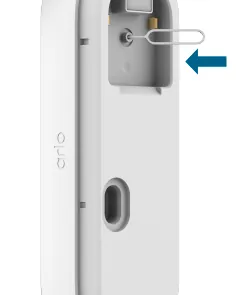
- Installing near metal objects: Metal surfaces reflect and block Wi-Fi signals. This leads to constant drops even if the router is nearby.
A metal filing cabinet or refrigerator directly behind the unit creates a dead zone. The signal bounces back instead of reaching your access point.
People often mount these devices on steel door frames without thinking about it. The frame acts as a shield that cuts range in half.
If you must install near metal, keep at least six inches of clear space between the device and the surface. Test the connection before drilling any holes.
- Ignoring firmware notifications: Delaying updates can cause compatibility issues with your network. The device appears broken when it’s simply outdated.
Routers receive security patches that change how they handle connections. An older device will fail to complete the handshake process after such changes.
The mistake people make here is assuming silence means everything works fine. The device stops reporting events while drawing power and looking active.
Apply them immediately if your router was recently updated or replaced.
- Using incompatible power adapters: Using a transformer that provides less than 16V AC will cause problems. The device enters a loop of shutting down and restarting.
People grab whatever adapter fits the barrel jack from their spare parts bin. Voltage matters more than physical fit in this case.
Look at the label on the original transformer before replacing it. Match both the voltage and the AC designation exactly.
A DC adapter of the same voltage won’t work, as the device requires an AC power source to function.
- Blocking the sensor: Placing decor or stickers over the motion sensor area causes missed events. It also triggers false alerts constantly.
The passive infrared lens needs an unobstructed view of the room. Even a thin vinyl sticker alters how heat signatures reach the detector.
Paint splatter during renovations is another common culprit. It dries into a film that scatters infrared light unpredictably across the sensor face.
If you need to hide the device for aesthetic reasons, use only manufacturer-approved covers. Third-party enclosures rarely account for the exact focal distance required.
Prevent future connection failures
The key to a stable doorbell is ensuring the environmental conditions meet the device requirements. The following table helps you match your current setup to the correct fix.
| If you’re doing this | Do this instead | Why |
|---|---|---|
| Using battery power | Hardwire the unit | Provides constant, reliable power. |
| Router behind a wall | Use an extender | Boosts signal strength at the door. |
| Ignoring low battery | Charge at 20% | Prevents sudden offline status. |
| Using old wiring | Replace with new wire | Prevents power loss from corrosion. |
If you have completed these steps and the doorbell remains offline, check the status of your local internet service provider. Sometimes the issue isn’t the doorbell at all, but a temporary outage in your home network that prevents all connected devices from reaching the cloud. If your other smart devices are also offline, focus on your router settings rather than the doorbell itself.