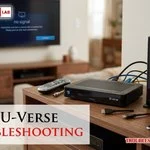
Most at&t u verse troubleshooting starts with a full power cycle of the receiver and residential gateway, which resolves temporary software freezes or signal handshake failures in under five minutes. The most common cause isn’t broken hardware but a stalled boot sequence where the receiver loses sync with the network after an update or brief outage. If your screen is black, frozen, or shows a persistent error code, unplugging both devices for thirty seconds forces a clean reload that clears corrupted cache data without needing a technician or replacement equipment.
Troubleshooting common U-verse service issues
Signal loss between the wall jack and your receiver causes most U-verse failures, and it usually stems from three specific points in the home network chain. Loose coaxial or Ethernet connections degrade over time due to vibration or temperature changes, creating intermittent drops that mimic hardware failure. You’ll notice this when channels pixelate randomly rather than failing completely, since the digital stream breaks up before cutting out entirely.
Software conflicts inside the receiver create the second major failure point, especially after overnight firmware updates push new code to your box. The device sometimes fails to initialize its decryption module properly, leaving you with a black screen or a message saying “receiver not authorized.” This isn’t a billing issue despite what the error suggests; it’s a local authentication timeout that a reboot fixes because the box re-establishes its secure handshake with AT&T’s headend servers on startup.
The third cause involves your residential gateway losing its DSL or fiber sync, which takes down every connected receiver simultaneously. Check the broadband light on your gateway; if it’s red or blinking amber instead of solid green, the problem sits outside your individual TV box. AT&T’s U-verse support documentation confirms that gateway sync issues require checking external line conditions first, since no amount of receiver troubleshooting will restore service when the main feed is down.
Safety: Inside a mains-powered machine, the parts behind the outer cover can hold a dangerous electrical charge even after it has been unplugged — that’s why they sit behind a cover. Opening the housing, or testing or replacing anything behind it, is a job for a qualified technician, never a home repair.
Restart receiver and gateway correctly
This fix targets receivers showing frozen screens, audio-video sync problems, or authorization errors after an update. Unplug the power cord from the back of your U-verse receiver, not just the wall outlet, and wait a full thirty seconds before reconnecting. This pause drains residual capacitor charge that keeps corrupted memory states alive; shorter waits don’t clear the fault. After plugging it back in, allow three to five minutes for the boot sequence to complete and the guide data to populate.
If the receiver still won’t function, add the residential gateway to the cycle. Disconnect its power adapter, wait thirty seconds, then restore power and watch the broadband light turn solid green before touching the receiver again. The gateway must establish network sync first, or the receiver will fail its authorization check repeatedly. This order matters because the receiver depends on the gateway’s connection to validate your subscription and pull channel encryption keys.
You’ll know this worked when live TV appears within five minutes and the electronic program guide loads current listings. If you’re doing this for multiple receivers, restart them one at a time after the gateway stabilizes to avoid overwhelming the local network during re-authentication. Don’t skip the thirty-second wait even if you’re impatient; rushing this step is the single most common reason people think their equipment is broken when it actually just needed a proper reset cycle.
Check physical connections and cables
Loose or damaged cabling causes intermittent service loss that reboots can’t fix, so inspect every connection point between your wall jack and receiver. Hand-tighten all coaxial fittings until they’re snug but not overtightened, since cross-threaded connectors cause more signal problems than loose ones. For Ethernet-connected setups, verify the cable clicks firmly into both the gateway and receiver ports, and swap in a known-good cable if you suspect internal wire damage.
Check the condition of any splitters in your line path, as these passive devices fail silently over time and degrade signal quality below usable thresholds. A bad splitter typically affects some channels more than others, creating a pattern where high-frequency HD channels break up while standard-definition feeds remain stable. Replace any splitter that feels warm to the touch or shows corrosion on its ports, since heat and oxidation indicate internal component failure.
Verify your wall jack hasn’t been painted over or physically damaged, as paint seepage into the connector creates resistance that blocks high-frequency data signals. Clean the jack’s center pin with compressed air if debris is visible, but don’t insert metal objects that could short the line.
If connections look good but problems persist across multiple receivers, the fault likely sits in the external drop line or pedestal, which requires a technician visit since homeowners shouldn’t open outdoor enclosures or climb poles.
Reset receiver to factory defaults
Factory resetting your receiver erases all custom settings and forces a complete software rebuild, making it appropriate only when reboots and cable checks haven’t resolved persistent errors. Navigate to Menu > Settings & Options > System Options > Reset Receiver, then enter your four-digit PIN (default is 0000 unless changed). The process takes ten to fifteen minutes and requires you to redo parental controls, favorites lists, and display preferences afterward.
This fix works best for receivers stuck in boot loops, displaying permanent “contact customer service” messages, or failing to recognize authorized channels despite active billing. It’s worth the setup time when you’ve already confirmed your gateway has solid sync and your cables are intact, since those simpler fixes should have worked otherwise. Skip this step if your issue is purely performance-related like slow guide loading, as factory resets don’t improve hardware speed or network throughput.
Don’t attempt this reset if your receiver is leased and shows physical damage, since opening the menu system on compromised hardware can trigger anti-tamper locks that permanently disable the unit. Also avoid resetting right before scheduled recordings, as the rebuild window may overlap with your programming.
If the reset completes but service doesn’t return within twenty minutes, the receiver’s internal tuner or decryption chip has likely failed, and you’ll need to request a replacement through AT&T rather than continuing DIY troubleshooting.
Common U-verse mistakes to avoid
- Swapping receivers between rooms without re-authorizing them causes activation errors because each box is tied to a specific port on your gateway; always call AT&T or use the online portal to reassign the device to its new location before connecting it.
- Using non-RG6 coaxial cable for U-verse installations degrades signal integrity below spec, so replace any RG59 or older wiring even if it previously worked for analog cable, since digital IPTV demands higher bandwidth shielding.
- Ignoring gateway firmware update notifications leaves your network vulnerable to known bugs that cause cascading receiver failures; schedule updates during off-hours rather than postponing indefinitely, as delayed patches compound stability issues over time.
- Placing receivers inside enclosed cabinets without ventilation triggers thermal shutdowns that mimic hardware failure; maintain at least two inches of clearance on all sides and never stack electronics directly atop the unit.
Prevent future U-verse problems
Consistent maintenance prevents most repeat failures by addressing degradation before it causes outages. Small habits compound into reliability, while neglect turns minor wear into emergency service calls.
| If you’re doing this | Do this instead | Why |
|---|---|---|
| Rebooting weekly “just in case” | Reboot only after outages or updates | Unnecessary cycles stress power supplies and corrupt flash memory over time |
| Using cheap third-party splitters | Install AT&T-approved or Antronix splitters | Generic units lack proper frequency isolation for IPTV signals |
| Running cables behind baseboards unprotected | Use conduit or raceway channels | Nail strikes and rodent damage cause intermittent faults that are hard to diagnose |
| Stacking devices in entertainment centers | Mount receivers vertically with spacers | Horizontal stacking traps heat and accelerates capacitor aging |
| Waiting for total failure to act | Note pixelation patterns and report early | Partial degradation predicts imminent hardware or line failure |
Your actual signal levels vary based on distance from the node and home wiring age, so check your receiver’s diagnostic page (Menu > Settings > System Info > Technical Details) for real-time SNR readings specific to your installation.
Frequently asked questions
How long does a U-verse reboot take?
A full reboot cycle takes three to five minutes from power restoration to functional live TV, assuming your gateway already has solid sync. If you’re also cycling the gateway, add another two to three minutes for broadband reconnection before the receiver can authenticate. Times extend to ten minutes if the receiver needs to download pending firmware during startup, which happens automatically after extended downtime.
Why does my U-verse keep losing signal?
Intermittent signal loss usually indicates a failing splitter, loose connector, or degraded in-wall wiring rather than a service outage. Check whether the problem affects all receivers or just one; single-box issues point to local cabling, while whole-house drops suggest gateway or external line problems. Thermal stress can also cause afternoon-only failures if equipment lacks ventilation, so monitor timing patterns alongside physical inspections.
Can I use my own modem with U-verse?
No, U-verse requires AT&T-provided residential gateways because the service uses proprietary VLAN tagging and authentication protocols incompatible with retail modems. Third-party routers can connect downstream of the AT&T gateway for Wi-Fi extension, but the primary termination device must be company-supplied. Attempting to bypass this requirement will prevent service activation entirely, regardless of your modem’s technical specifications.
Is it safe to unplug U-verse equipment?
Yes, unplugging U-verse receivers and gateways is electrically safe and won’t void your lease agreement or damage hardware. These devices are designed for consumer-level power cycling and include surge protection internally. Just avoid disconnecting during active firmware updates, indicated by flashing lights or on-screen progress bars, as interrupting writes can corrupt system software and require professional re-imaging.
What happens if I factory reset my DVR?
A factory reset deletes all recorded programs, series manager entries, parental control codes, and custom preferences stored locally on the DVR’s hard drive. Cloud-based recordings tied to your account survive the reset, but anything saved to the physical disk is unrecoverable. The receiver will also need to re-download guide data and re-authenticate with AT&T’s servers, taking up to twenty minutes before normal functionality returns.
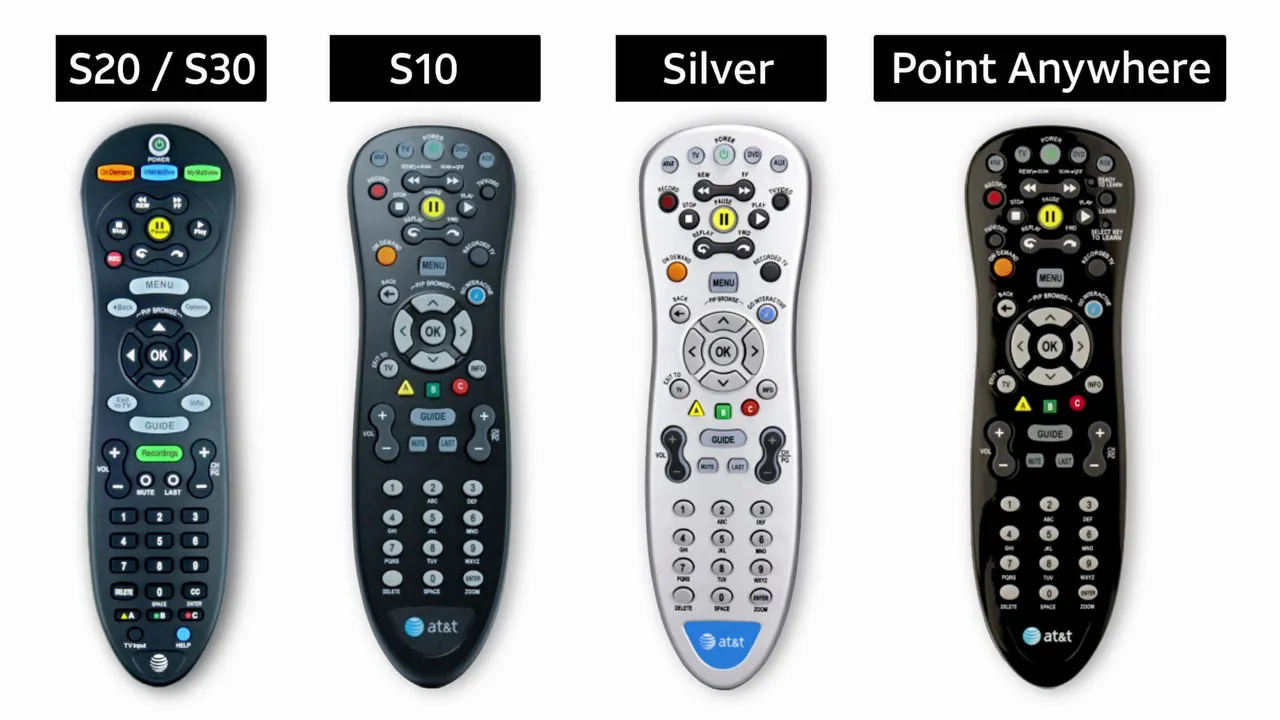
Why won’t my U-verse remote work?
Remote failures typically stem from dead batteries, lost IR pairing, or obstructed sensor paths rather than receiver problems. Replace batteries first, then re-pair by holding OK and Menu simultaneously for three seconds while pointing at the receiver. If the remote controls volume but not channel changes, it may be programmed to the wrong device code; consult the user manual for your specific remote model’s reset procedure.
Conclusion
Most U-verse issues resolve through methodical elimination of these common failure points without requiring professional intervention. When basic troubleshooting doesn’t restore service, document your symptoms and steps taken before calling support, as this information helps technicians diagnose whether the problem lies in your home equipment or the external network infrastructure.