When your AT&T wireless home phone base won’t connect or make calls, the fix is usually a full power cycle followed by reseating the SIM card. You’ll find that at&t wireless home phone base troubleshooting starts with these two steps before anything else. The single most common cause is a loose SIM card that’s shifted inside its tray over time. Unplug the power cord from the wall, wait 30 seconds, plug it back in, and check if the signal bars return.
Why your AT&T wireless home phone base loses signal
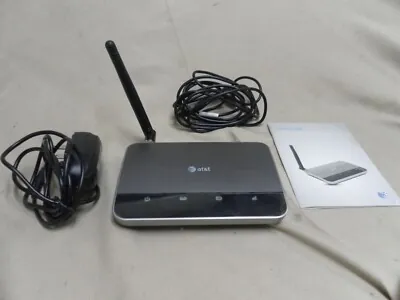
Three main things stop this device from working. It doesn’t use a landline wire; it connects to cell towers exactly like a mobile phone does. That means any problem affecting cell reception will affect your home phone too.
The first cause is a poorly seated SIM card. Vibration from closing doors or bumping the table shifts the tiny card just enough to break contact. When this happens, the base can’t read your account details, so no lights turn on for service.
The second cause is weak cellular coverage where you’ve placed the unit. Thick walls, metal roofs, and low spots in a house block the radio waves the base needs. If your cell phone gets one bar in that same room, the home phone base will struggle even more.
The third cause is an outdated internal setting after a network change. AT&T has retired older 3G networks, meaning devices must connect using newer signals. Sometimes the base holds onto old instructions instead of updating itself automatically.
If the status light stays red or blinks without turning solid green, you’re dealing with one of these three issues. Check your own signal strength by looking at the bars displayed on the front of the unit. The exact number of bars needed for clear calls depends on your local tower distance, which you can verify through the AT&T coverage map.
Restart the base and reseat the SIM card
This fix is for anyone whose base shows no signal bars or a red warning light. It takes about two minutes and requires no tools beyond your fingernail.
First, unplug the power adapter from the electrical outlet. Don’t just press the power button; pulling the plug forces the internal memory to clear completely. Leave it unplugged for exactly 60 seconds. This assumes the standard power adapter that came in the box; if you’re using a longer extension cord, unplug the adapter at the wall end to be sure.
Next, find the SIM card tray on the back or bottom of the base. Push the tray in gently until it clicks and pops out. Pull it free, take out the SIM card, and wipe the gold contacts with a dry cloth. Put the card back into the tray, making sure the notched corner matches the shape of the slot. Slide the tray back in until it clicks flush.
Plug the power adapter back into the wall. Wait up to three minutes for the base to search for a tower. You’ll know it worked when the signal indicator turns solid green and shows at least two bars.
If the light stays red after doing this twice, the SIM card might be damaged. Replacing a SIM card requires activating a new one on your specific account plan. A regular user shouldn’t try to program a SIM manually; contact AT&T support or visit a store to have them pair a new card safely.
Move the base to improve cellular reception
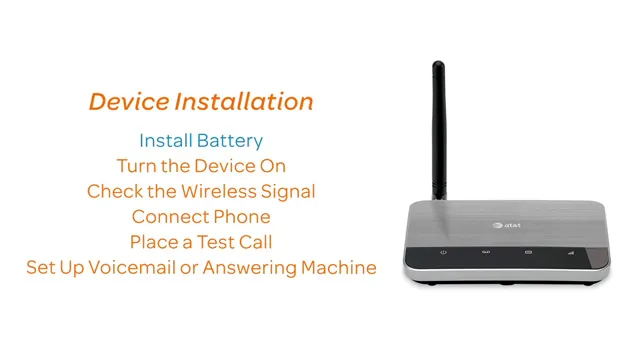
This approach solves problems caused by physical barriers blocking the signal. It’s different from restarting because you aren’t fixing software; you’re changing where the hardware lives. This fix is for homes where calls drop often or sound robotic.
Start by picking up the base and moving it to a higher spot. Elevating the base reduces obstructions between it and the cell tower, so placing the unit on a tall shelf works better than keeping it on a low desk. If your base was in a basement or an interior hallway, move it near a window facing the street.
Test the new spot before plugging everything in permanently. Bring your personal cell phone to that exact location and check your own bars. If your phone gets four bars there but only one in the old spot, the base will perform much better too. Plug the base in and watch the signal indicator for five minutes.
Keep the base away from large metal objects. Filing cabinets, refrigerators, and metal window frames reflect radio waves and create dead zones right next to them. Leave at least three feet of space between the base and any big appliance.
You’ll know this worked when outgoing calls sound clear and incoming calls ring without cutting off after a few seconds. If moving it to the highest window in your house still leaves you with one bar, the issue isn’t your placement. Your area likely has poor tower coverage, and no amount of moving will fix that.
Perform a factory reset on the base
This is the fix for harder cases where the base powers on, shows signal bars, but still drops calls or refuses to dial out. It’s worth the extra effort only when restarting and moving the unit haven’t changed anything. Don’t do this as a first step, because it erases your saved settings.
A factory reset wipes the base clean and forces it to download fresh instructions from the network. To do it, keep the base plugged in.
After the lights flash, the base will reboot. This process takes longer than a normal restart, sometimes up to five minutes. Don’t unplug it while it’s thinking. Once it comes back, you’ll need to set up your preferences again, like ringer volume.
This fix isn’t for everyone. If your base is physically broken—cracked casing, bent antenna, or water damage—a reset won’t help. Opening the plastic housing to look for broken parts voids your warranty and risks damaging internal components. If a reset fails, the hardware is likely faulty. At that point, stop trying to repair it yourself and ask AT&T about a replacement unit under your current plan.
AT&T home phone base mistakes to avoid
Doing the wrong thing during a signal problem often makes it worse. Here are the common missteps people take when their base stops working.
- Buying a signal booster without checking compatibility. Cheap boosters sold online often don’t support the specific frequency bands AT&T uses for home phone bases. Using an uncertified or improperly installed booster can cause network interference and shut down your connection entirely.
- Using a random power adapter from another device. The base needs a specific voltage, usually 5V or 12V depending on your model. An adapter with the wrong voltage won’t just fail to charge it; it can burn out the internal circuit board permanently.
- Wrapping the antenna in foil or wire. This old trick was meant for analog TV antennas, but modern cellular bases use precise internal antennas. Adding metal blocks the signal entirely and prevents the base from connecting to any tower.
- Pulling the SIM card out while the base is powered on. Yanking the card during operation can corrupt the data stored on it. Always unplug the power cord from the wall first, then remove the tray.
- Ignoring a blinking red light for weeks. A flashing red light means the base has lost network registration. Leaving it in this state doesn’t let it “fix itself.” It just sits disconnected until you manually restart it or reseat the SIM.
Keeping your AT&T home phone base working
Small habits prevent most connection failures. What you do daily matters more than what you do when it breaks.
| If you’re doing this | Do this instead | Why |
|---|---|---|
| Hiding the base inside a closed cabinet | Place it on an open shelf near a window | Wood and walls absorb the cellular signal before it reaches the antenna. |
| Plugging it into a crowded power strip | Give it a dedicated wall outlet | A dedicated wall outlet ensures the base receives consistent power without tripping breakers shared with high-draw appliances. |
| Dusting around the base but ignoring the vents | Wipe the top and side vents weekly with a dry cloth | Dust buildup traps heat, causing the internal processor to slow down or shut off. |
| Leaving the base on during severe storms | Unplug the power cord if lightning is close | Power surges travel through the outlet and fry the motherboard instantly. |
| Never checking the signal bars | Glance at the indicator once a week | Catching a drop from four bars to one early lets you fix placement before calls start failing. |
Frequently asked questions
Why is my AT&T wireless home phone base light red?
A solid or blinking red light means the base can’t connect to the cellular network. This happens when the SIM card is loose, the account is suspended, or there’s no tower coverage nearby. Unplug the base, reseat the SIM card, and plug it back in. If the light stays red after 10 minutes, your account may need attention. Call AT&T to confirm your billing status is active.
Can I use my own SIM card in the AT&T home phone base?
No, you can’t use a standard smartphone SIM card in this device. The base requires a specific SIM provisioned for AT&T’s Wireless Home Phone service. A regular phone SIM won’t activate the voice routing this hardware needs. If you lost your original SIM, you must order a replacement directly through AT&T. They will link the new card to your home phone account number.
How long does the AT&T home phone base take to reconnect?
It takes 2 to 5 minutes for the base to fully reconnect to the network after being unplugged, assuming normal tower traffic. During this time, the signal bars will flash or stay empty. Don’t unplug it again if it hasn’t connected after two minutes. If it takes longer than 10 minutes to show a solid green light, the SIM card or the local tower is having trouble.
Is it safe to leave the AT&T home phone base on all the time?
Yes, it’s designed to stay plugged in continuously. The device manages its own power draw and won’t overheat under normal conditions. Just make sure the ventilation slots on the sides aren’t blocked by books or papers. The only time you should unplug it’s during heavy thunderstorms or when you’re performing a manual reset to fix a connection error.
What happens if the power goes out with this base?
Your home phone will stop working immediately unless your specific base model has a backup battery installed and charged. Even with a battery, talk time is limited to a few hours. Unlike traditional copper landlines that carry their own power, this device relies entirely on your home’s electricity and the local cell tower. Keep a charged mobile phone available for emergencies during outages.
Why do my calls sound robotic on the wireless base?
Robotic or choppy audio means the base is struggling to maintain a steady data connection with the cell tower. This is almost always caused by weak signal strength in the room where the base sits. Moving the unit closer to a window or to a higher floor usually fixes the audio quality. If moving it doesn’t help, network congestion in your area might be the cause.
How many handsets can connect to the AT&T home phone base?
Your base supports up to 4 additional handsets, provided you purchase the compatible expansion models designed for your specific version. You can’t mix brands or use older AT&T cordless phones with this system. Each handset must be paired through the base’s menu settings to ensure full functionality.
Conclusion
If your base still won’t hold a signal after trying these fixes, it’s time to reach out for help. Call AT&T support or visit a local store so they can test the device and send a replacement if it’s broken. You shouldn’t have to go without a working phone for long.